Losing apps you need for work can be pretty stressful. Here are some straightforward steps to help you restore deleted apps on your Android device. First, head over to the Google Play Store:
-
Reinstall from Google Play Store: Open the Play Store app, and then tap on the menu icon at the top left (three horizontal lines). Select ‘My apps & games’ from the dropdown. You’ll find a tab labeled Library – this lists all the apps you’ve previously downloaded but aren’t currently installed on your device. Locate and select the apps you need and tap the Install button.
-
Check Your Downloads Folder: Sometimes, APK files for apps are stored in the Downloads folder of your device. If you have any older versions of the apps you need, you can reinstall them directly from there. To access your Downloads folder, open your Files app or a file manager, then navigate to Downloads.
-
Use a Backup and Restore Service: If you’re conscientious about backing up your phone, either through Android’s built-in backup service or a third-party app, you might have an opportunity to restore the deleted apps from your last backup. Check Settings > System > Backup, and see if you have a recent backup available.
-
Third-Party Data Recovery Tools: For those apps that may have left behind data, you might consider using a data recovery tool like Disk Drill
. Disk Drill can potentially help you recover data associated with deleted apps if the app itself saved meaningful files or data on your device, which got erased alongside the app.
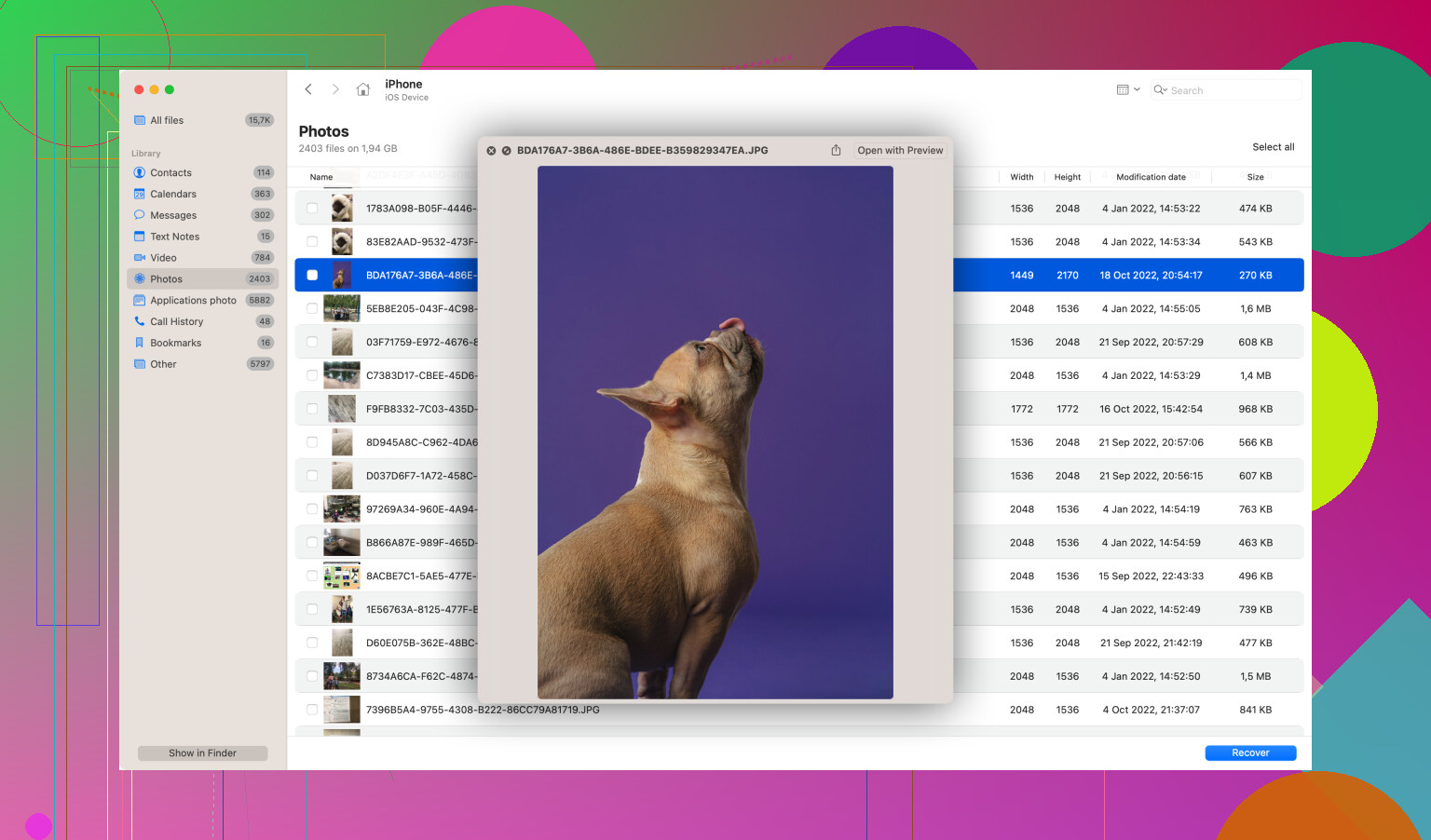
Disk Drill Data Recovery Software, which is available at Disk Drill Data Recovery Software, is an excellent program that can scan your storage for deleted files and might help you retrieve important data that was linked to those apps. Install Disk Drill on your computer, connect your Android device, and have it scan the storage for recoverable files. This might be useful if the apps contained critical data.
-
Account-Linked Data Retrieval: For apps that maintain user data on their servers (like your work apps, potentially), reinstalling them often allows you to regain access by simply logging into your account. If the apps relied on cloud storage or had backups tied to your user account, restore everything by logging back in with your credentials.
-
Direct APK Installations: In some cases where the app is no longer available on the Play Store for some reason but you have previously downloaded it, you might find the APK file on websites like APKMirror. Proceed with caution here: downloading APKs from third-party sites can be risky, so make sure to verify the authenticity and safety of the site and the APK file.
-
Using Android Tools and Recovery Options: A bit more advanced, but if you’re fairly tech-savvy, you could use Android Debug Bridge (ADB) to pull data off your device if the apps contained critical files.
Just a side note - for future events like this, it’s a great idea to turn on automatic backups for your apps and data. This will make your recovery process way smoother next time. You can do this through Settings > System > Backup, and make sure both Back up to Google Drive and Automatic Restore are enabled.
Hope this helps get you back on track with your work!