Oh no, that’s the worst! Losing important files right before you need them is super stressful. But don’t panic just yet; there are a few things you can try to get your files back.
-
Check Your Time Machine Backup: If you use Time Machine, this should be your first stop. Open Time Machine by clicking the clock icon in your menu bar or through the System Preferences. Navigate to the date before you emptied the trash, find your files, and hit “Restore”. If you have a recent backup, you’re golden.
-
Look in Temporary Folders: Sometimes macOS keeps temporary copies of files. Open Finder, press Command + Shift + G, type in
/tmpor/private/var/temp, and see if anything useful pops up. -
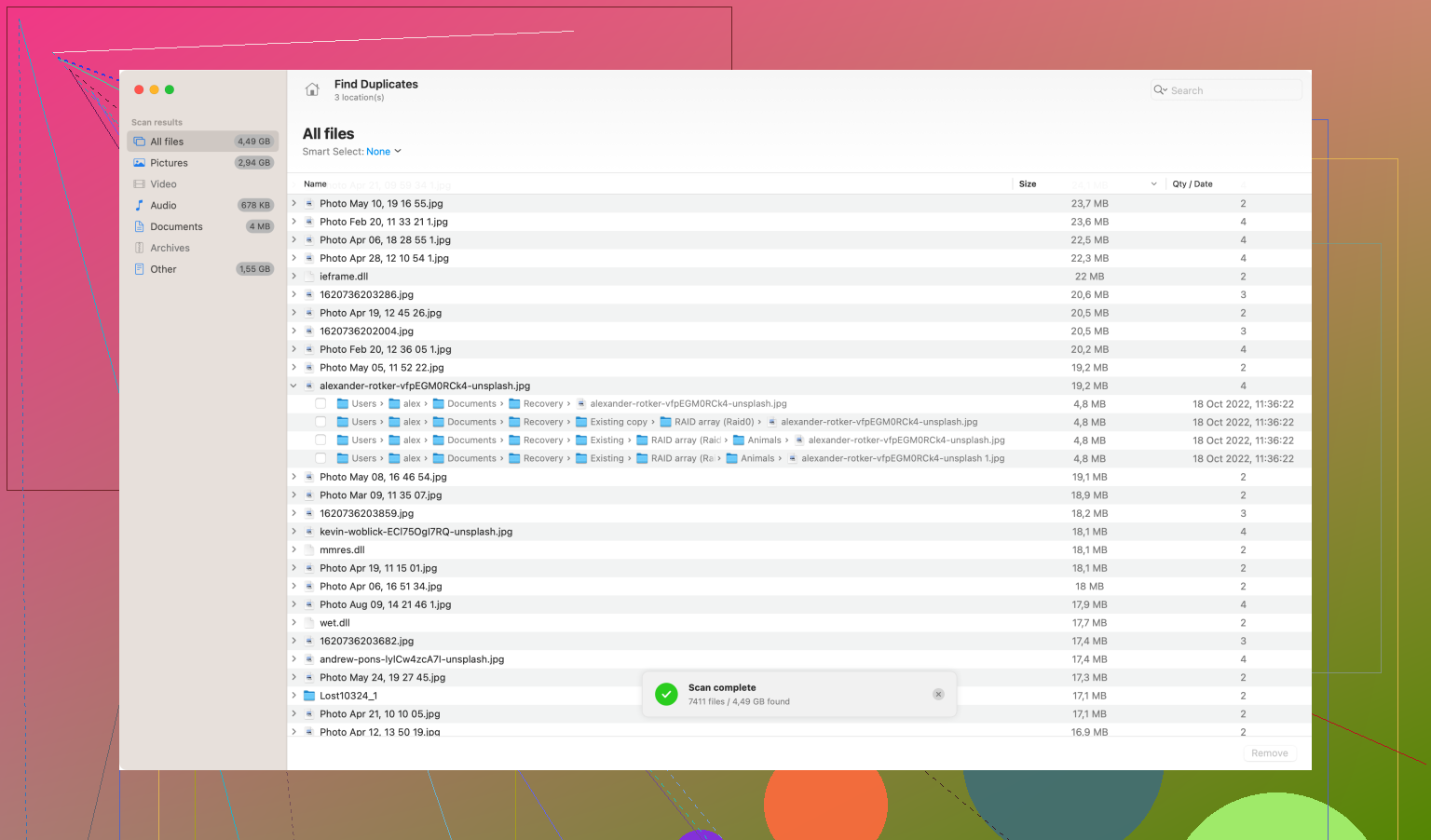
Use a Mac File Recovery Software: When you’ve got no backups, a data recovery app is your best bet. One popular choice is Disk Drill
. You can download it from Disk Drill. Here’s a quick rundown on how you can use it:- Download and install Disk Drill.
- Launch it and select the drive from which you want to recover files.
- Click “Recover” and wait for the scan to complete.
- Browse through the files it found and recover the ones you need.
Disk Drill’s free version allows you to see if the files you need can be recovered before committing to purchasing a license, so it’s worth a try even if you’re skeptical about spending money.
-
Professional Data Recovery Services: If the files are super crucial and the above methods don’t work, you might need to consult a professional. This option can be pricey but it’s sometimes the only way to retrieve lost data.
Remember, recovery success depends on how much the drive has been used since the files were deleted. If you’ve written a lot of data to your drive, the chances of getting your files back diminish. So, minimize using the disk until you’ve attempted recovery.
Good luck!