My USB flash drive suddenly stopped working, and I can’t access any of my files. I’ve tried reconnecting it, but nothing helps. Can anyone suggest a reliable USB flash drive repair tool or method? I really need to recover my data. Thanks!
Hey there, sorry to hear about your USB flash drive woes. It can be pretty frustrating when tech just decides to stop cooperating on you. I’ve been down that road myself, and I know getting those files back is a top priority.
First off, you might want to try Disk Drill
. It’s actually been a lifesaver for me and a bunch of others in similar situations. What I like about Disk Drill is that it’s pretty user-friendly, even if you’re not super tech-savvy. It helps you recover lost data from USB flash drives, whether it’s due to accidental deletion, formatting, or some kind of drive error. You can check it out here: Disk Drill Data Recovery Software.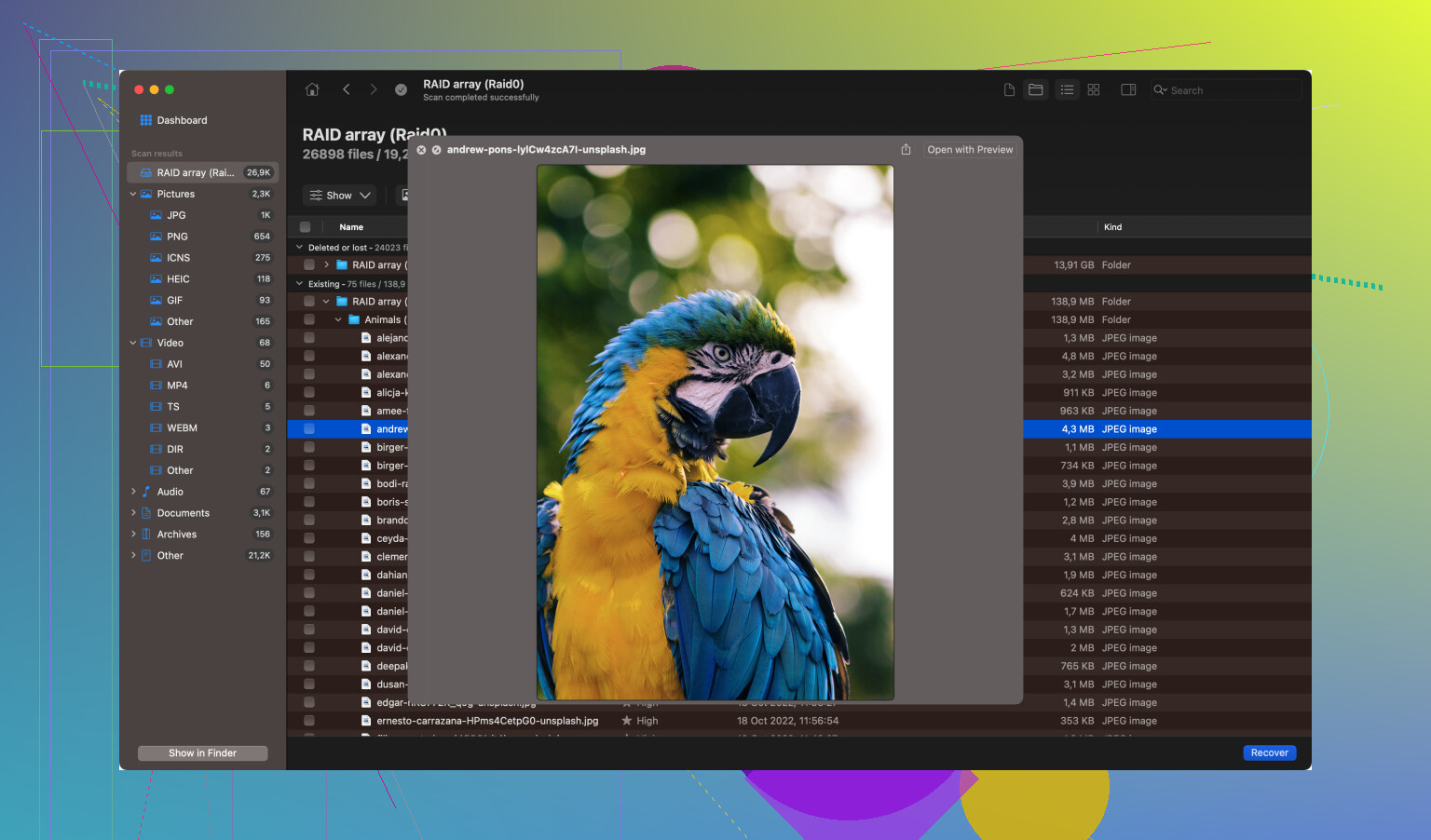
Another thing you might want to try, if you haven’t already, is checking if the drive is recognized in Disk Management (on Windows) or Disk Utility (on Mac). Sometimes, the drive won’t show up in My Computer or Finder, but it’ll still be there as an unallocated space or something. If that’s the case, you can sometimes reassign a drive letter or run chkdsk to fix errors.
Also, there are some built-in repair tools like chkdsk for Windows. You run that via Command Prompt with something like:
chkdsk X: /f /r
(replace “X” with your drive letter). This can sometimes fix errors but be careful because if the drive is physically damaged, it might not help much and can even make things worse in rare cases.
If the drive is showing signs of physical damage, like making weird noises or getting unusually hot, you might want to avoid plugging it in too much, as that can cause more damage. In that case, professional data recovery might be your only option.
For those not keen on using third-party software right away, there’s also the option to use the built-in Windows feature for troubleshooting hardware issues. Just type “troubleshoot” in the Windows search bar and go to the “Hardware and Devices” troubleshooter. It’s not as robust as something like Disk Drill, but sometimes it catches quirks and fixes them.
If you’re on a Mac and the disk utility is showing the drive, you could try the “First Aid” function, which can sometimes repair minor issues.
And lastly, a simple yet effective method—try a different USB port or another computer altogether. It sounds basic, but sometimes the problem isn’t with the drive but with the port or the specific computer you’re using.
Hope one of these methods helps you out. Losing data sucks, but with the right tools and patience, there’s a good chance you can get it all back. Good luck!
Hey, @byteguru covered a lot of good ground here. I’d toss my hat in the ring with another suggestion: Recuva by Piriform. It’s relatively straightforward and free to use (with a pro version if you feel the need to upgrade). Though not as powerful as Disk Drill, it does a decent job on more straightforward data recovery tasks. You can download it from the Piriform website. One thing to keep in mind is that Recuva might not handle more complex cases as well as Disk Drill, but it’s worth a shot for basic issues.
As for Disk Drill, yeah, it’s pretty awesome. The fact it has a preview option before the recovery is a lifesaver, especially when dealing with a lot of files. But, keep in mind that the free version has a cap on the amount of data you can recover, which sometimes can be a bit of a bummer if you have lots of stuff to save. Also, it can be a bit heavy on the system resources at times, so keep that in mind if you’re running it on an older computer.
Another method that I don’t see mentioned here is using a Linux live CD/USB. Oftentimes, a USB drive that’s giving you trouble on Windows or Mac can still be read by a Linux system. Download a Linux distro like Ubuntu, create a bootable USB, and boot into it. You don’t need to install Linux; just run it from the USB. From there, see if the flash drive mounts. If it does, you can copy your data to another safe location. This is particularly useful if the file system is corrupted in a way that Linux can handle better than Windows/Mac can. The command line tools in Linux can also be quite potent for dealing with stubborn drives, though they do require a bit of familiarity.
If you have access to another computer, give that a shot as well. Sometimes, a drive might fail on one machine but miraculously work on another. It’s one of those USB voodoo things that no one can quite explain.
In terms of professional help, which @byteguru rightly pointed out, it should be a last resort due to potential cost. Companies like DriveSavers and Ontrack specialize in this sort of thing, and they have clean rooms to deal with hardware failures. However, they don’t come cheap. Think of it as a final attempt if everything else fails but you absolutely need your data back.
Don’t forget to try the basics too:
-
Different USB Port: Sometimes, it’s just a faulty port. Try plugging it into different ports on the same or another computer.
-
External USB Hub: If you’re using a desktop, try an external USB hub. Sometimes the direct connection to the motherboard is the problem.
-
Check for Driver Issues: Head to Device Manager if you’re on Windows, and see if the USB drive shows up there with a yellow exclamation mark next to it. A right-click and updating the driver might do the trick.
Alright, so let’s recap and prioritize. Try different USB ports and computers first. Then move to Disk Management/Disk Utility to check if the drive is detected there. If it’s showing up but you still can’t access it, try Disk Drill for a more thorough recovery. If that fails, Recuva as a backup option won’t hurt. Should all else fail and your data is worth it, professional recovery is your final bet, albeit at a high cost. Good luck, hope you get your files back!
If your USB flash drive suddenly stopped working, and you’re searching for a reliable repair tool, there are a few approaches that could complement the fine suggestions already made by @techchizkid and @byteguru.
First, consider using TestDisk and PhotoRec. These open-source data recovery software are powerful but might require a bit more technical know-how. They can work wonders for recovering lost partitions and making non-booting disks bootable again. PhotoRec, specifically, is excellent for file recovery. Since these tools are free, there’s no harm in giving them a shot before shelling out cash for professional services.
Next, if you’re not familiar with Linux, there’s an approach that often gets overlooked: Booting into safe mode on Windows. If your USB drive has logical errors, sometimes safe mode can bypass the issues caused by drivers or software conflicts. This simpler environment can sometimes make the drive accessible again, allowing you to transfer your data.
Another tool to consider is HDD Low Level Format Tool. This one’s a bit more drastic since it zeros out your USB drive, effectively wiping all data – so consider it only as a last resort. It’s helpful if you plan to reuse the USB drive after you’ve (hopefully) recovered your data with other methods.
As for some hardware tricks not yet mentioned, try giving your drive a gentle tap or wiggle while it’s plugged in. Sometimes, poor contact with the port or a slight internal issue can be temporarily resolved this way. It sounds a bit hacky, but it has worked for many in a pinch.
Lastly, I would say avoid using Disk Drill right away if the issue seems possibly hardware-related. While Disk Drill (find out more from their official site) is excellent for logical errors and undeleting files, hardware faults can sometimes be exacerbated by continued use.
Oh, and little trick if you’re running Windows 10: try using File Explorer’s built-in recovery tools. Right-click your drive in File Explorer, go to ‘Properties,’ then under the ‘Tools’ tab, hit ‘Check’ under Error Checking. It doesn’t always work, but it’s surprising how often this simple step can fix minor file system errors.
Hope these suggestions give you some extra tools in your arsenal to bring that stubborn flash drive back to life. Each method offers different strengths, so mixing and matching based on what seems most likely to work for your specific issue can sometimes yield the best results. Good luck warding off those tech gremlins and getting your valuable data back!
gotta push back on Codecrafter here – “avoid using Disk Drill right away if the issue seems possibly hardware-related” is honestly backwards advice
First thing to check – open Disk Management and see if the drive shows up there with the correct capacity. That one detail tells you almost everything. If the size looks right, even as RAW, you’re almost certainly dealing with a logical problem and software can help. If it’s showing wrong capacity or not appearing at all, that points to something physical and no repair tool is going to fix that
If the drive does show up with the right size, even as RAW – that’s when you want Byte-to-byte Backup immediately, not later. It’s under Extra Tools in Disk Drill, clones the whole drive sector by sector including deleted files so you’re scanning the image instead of hammering the already-struggling hardware. Skipping that step and going straight to repair tools on an unstable drive is a great way to finish it off entirely
and the PhotoRec hype… look, it’s free and it does something, but “excellent for file recovery” is a stretch. pure signature carving, zero awareness of the file system – you get a dump of files named f0301856.jpg sitting in folders called recup_dir.1, recup_dir.2 and so on. no original names, no structure, just chaos. fine as a last resort, not a first recommendation
@Chloe nailed it on the backup point. Drives that are already flaky have a nasty habit of giving up completely mid-operation – mid-scan, mid-repair, mid-whatever. Byte-to-byte Backup first is non-negotiable if you have any reason to think the hardware isn’t fully healthy. After that you’re just working with a copy anyway so it doesn’t matter how bad the drive gets
the capacity check is worth spelling out a bit more too – it’s not just “does it show up” but does the size look right. a 64GB drive reporting as 0 bytes or 2MB is a controller or firmware problem, and that’s outside what recovery software handles. but showing the correct size even as RAW or with errors? that’s basically the green light that your data is probably still physically there
For diagnostics on flash drives specifically, CrystalDiskInfo works for most USB drives and will show S.M.A.R.T. data where the controller supports it. If the drive is too far gone for that, just going by what Disk Management shows is usually enough to decide whether to attempt recovery. Pair the diagnostic read with Disk Drill for the actual recovery and you’ve got the main bases covered. USB drives degrade faster than HDDs under repeated read stress, so the faster you get the data off the better
Just want to clear something up since TestDisk got recommended here as a recovery option – it’s a partition repair tool, not a file recovery tool. What it does is rebuild damaged partition tables and restore lost partitions, which is useful in the right situation, but if you run it expecting to get individual files back you’re going to be confused and potentially make the drive harder to recover from afterward
If the tool names are getting overwhelming, ran across this list a while back – breaks down the main options by what they’re actually built for, diagnostics, partition repair, data recovery, each separately. based on real testing. useful for figuring out what you actually need before downloading half the internet
If you’re in this situation – what does Disk Management show for the drive? That’ll help narrow down the right approach
This thread is giving me flashbacks lol
Had a flash drive last year that Windows just refused to deal with – kept unmounting itself every few seconds, threw a “you need to format this disk” error every time I plugged it in, and Device Manager showed it with a yellow exclamation mark. Assumed it was physically dead and nearly binned it.
Checked Disk Management on a whim, and it was actually there with the correct capacity, just showing as RAW. Took that as a sign to at least try. Ran Byte-to-byte Backup in Disk Drill first – whole process took maybe 15 minutes – then hit Search for lost data on the image rather than the drive itself. Got back the vast majority of my files – photos, documents, some work stuff I thought was gone for good
The Codecrafter thing about avoiding Disk Drill on “possibly hardware-related” issues really doesn’t hold up. The backup feature is literally there for that exact scenario. Scan the image, leave the drive alone
Worth adding since Recuva got recommended – ran it on a flash drive in a similar state once, drive was visible but showing as RAW, couldn’t access anything. Recuva came back with basically nothing. Like single-digit files found, all unrecognizable
The issue is it leans heavily on the file system being at least partially intact to find stuff. RAW drive = no file system = Recuva has nothing to work with. Not really its fault, it’s just not built for that scenario
Tried Disk Drill on the same drive right after – found way more, got everything back. If the drive is just RAW without physical damage, Disk Drill doesn’t need the file system to be healthy to locate files. If you’ve already run Recuva and got nothing, don’t write the files off just yet
Late to this but want to add a counterpoint since everyone here went straight to Disk Drill. I went the R-Studio route because a colleague recommended it for serious recovery work – it did get my files back, so technically it worked.
That said, I spent probably three hours reading documentation before I felt comfortable touching anything. R-Studio is genuinely powerful but it’s built for IT professionals and data recovery specialists – things like manual partition reconstruction, RAID recovery, and raw filesystem editing. For a flash drive showing as RAW, that’s like using a scalpel to butter toast. Everything worked out but I wouldn’t recommend it to anyone who isn’t comfortable with low-level disk concepts. If you’re a regular user, just go with Disk Drill and save yourself the afternoon.