I’m having trouble with my hard disk—it started making strange noises and it’s not recognized by my computer anymore. I think it might be corrupted. Can someone recommend reliable hard disk repair software that can fix this problem? I really need my data back.
When you’re experiencing severe hard disk issues, software can sometimes help - but let’s get real, sometimes the fix goes beyond what software can handle. Since your disk is making strange noises, there’s a decent chance the problem might be physical rather than just logical corruption.
First off, if the noises are more like clicking or grinding, you might be dealing with a hardware failure. This might not be repairable with software alone. In that case, professional data recovery services are more reliable, though they can be expensive.
For the software part, though, you can start with something like Disk Drill
. This isn’t just another run-of-the-mill recovery tool; it actually covers a lot of grounds in terms of what it can handle. It supports a bunch of file systems and provides both recovery and repair capabilities. You can check it out here: Disk Drill Data Recovery Software.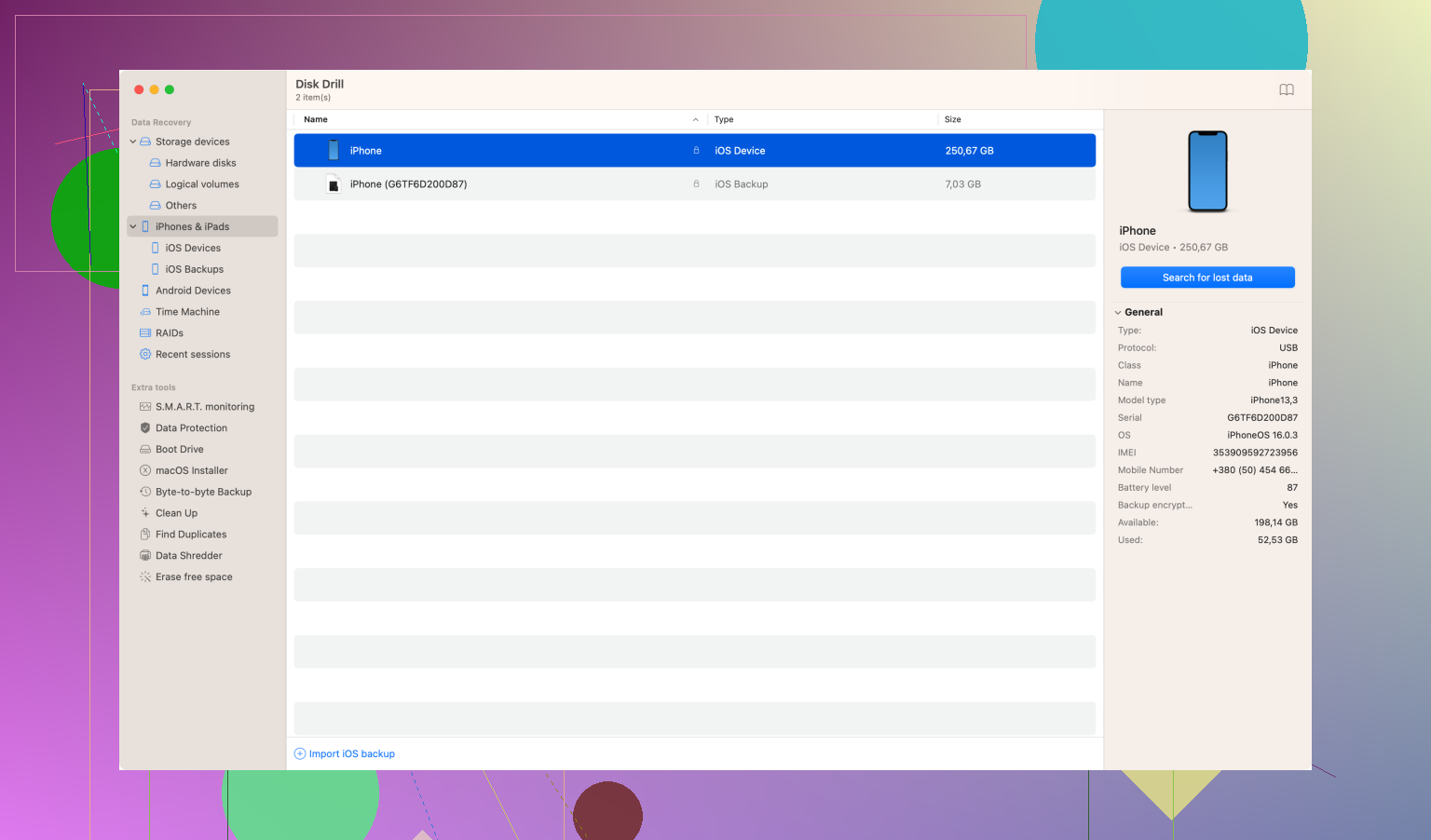
Disk Drill can scan your drive and attempt to recover data even if the drive isn’t showing up in your OS. It uses different recovery methods to pull out files depending on how badly the disk is damaged. One of its features I find useful is the ability to create a byte-to-byte backup of your failing drive. This way, you can attempt recovery from the backup rather than distressing your ailing hard disk further.
Another good tool is EaseUS Partition Master. It’s user-friendly and comes with a variety of features for disk repair, like fixing file system errors and rebuilding the MBR (Master Boot Record). It’s geared more towards correcting logical errors—stuff like bad sectors, boot issues, etc. One thing to be aware of is that its free version is limited, mainly helpful for less complex issues.
If you’re inclined towards open-source solutions, TestDisk is another powerful tool, though it requires a bit more tech know-how. TestDisk can fix partition tables, recover deleted partitions, and even rebuild the boot sector. Since it’s more command-line oriented, it might not be everyone’s cup of tea but if you’re comfortable navigating through commands, it’s solid.
And then there’s HDAT2, which is great for detecting and repairing bad sectors. It’s not as user-friendly as others but it goes deep on diagnostics and offers low-level tools to fix disk issues. Be careful, though, because some features can lead to data loss if not used properly.
Considering that the disk is not being recognized by the computer, you may have to initially try connecting it using another interface. USB to SATA adapters can sometimes work if the internal connections in your PC are somehow affecting the recognition.
TL;DR: Your hard disk making strange noises might be a sign of physical damage and may not be something software can fix entirely. For software solutions, Disk Drill is a go-to due to its versatility and user-friendliness. EaseUS Partition Master and TestDisk also have robust features for logical errors. Be cautious and prep for the possibility that professional intervention might be necessary.
Looking at your problem, it seems like you’re in deep waters if your hard disk is making strange noises and isn’t recognized by your computer. Weird noises usually like clicking, buzzing, or grinding, often spell physical damage, not just a typical file system corruption or some bad sectors.
You’ve got some suggestions already, but I’ll add a bit from my experience. For physical damage, your best bet is professional data recovery services. They cost a good chunk, but when the hardware is at fault, software alone won’t get you far. Think of services like DriveSavers or Kroll Ontrack for instance. They have cleanroom facilities to physically repair drives if needed and are experts in rescuing data.
However, if you still wanna give the software route a shot before committing to spending big bucks, there are some tools I’d like to point out.
Firstly, beyond Disk Drill and EaseUS, consider using Acronis True Image. It’s often overlooked when it comes to data recovery, but it’s a beast for creating disk images. Before you start recovery attempts, clone your ailing drive to a new one, if possible. You can mount the image and try to recover without stressing your already dying drive. Acronis is user-friendly, and the image can be recovered on different hardware if necessary. They have a lot of tutorials to guide you:
Then there’s R-Studio. This one’s less elegant and more gritty, leaning heavily towards professional users, but it’s immensely powerful. It can handle complex cases and has a versatile set of features like network recovery, supporting a wide range of file systems and RAID configurations. You might struggle a bit with the interface, but if you’re somewhat tech-savvy, it’s a solid tool.
For scanning and attempting minor fixes, don’t skip CrystalDiskInfo. This one’s more of a diagnostic tool rather than a repair utility, but it gives you S.M.A.R.T. data insights and can sometimes pinpoint issues that can then be addressed with other tools. Worth a brief detour in your troubleshooting journey.
Software like HDAT2, like mentioned, is robust but appeals to hardcore users due to its rather raw interface. However, what doesn’t get enough spotlight is Victoria HDD. It’s a low-level, advanced utility for diagnosing and fixing HDD issues. Primarily focused on bad sectors, Victoria can do wonders if the drive is recognized at a hardware level.
Let’s also look at another important step that’s often ignored – cables & connections. Retry with a different cable and even a different port. Or as suggested, use a USB-to-SATA adapter to rule out any internal connection issues. You’d be amazed how many “dead” drives come back to life with a mere cable change.
But let’s be honest here— Disk Drill (https://www.disk-drill.com/) reigns supreme in ease-of-use and versatility. It’s like the Swiss Army knife of data recovery tools. It’s applicable for both noobs and seasoned pros. Disk Drill can not only recover data, even from unrecognized drives but also offer byte-to-byte backups to prevent additional drive stress. A sensible precaution before you delve into heavy recovery efforts.
If you prefer open-source, ddrescue could be your tool. It’s command-line based but extraordinary in copying faulty disks by mapping and skipping bad sectors, then retrying to read them. It’s complex but with ample guides out there to hold your hand through the process.
Remember, in catastrophic disk failures, every additional run might nudge your disk further towards complete death. That said, if the issue is truly mechanical, professional intervention could be inevitable. Disk Drill’s website - Disk Drill can assist initially.
Stay cautious, and always keep a lookout for potential hardware replacements when persistent issues arise. Best of luck getting this resolved!
Having a hard disk that’s making strange noises and isn’t recognized by your computer is a huge red flag. Physical damage usually means using software might not be enough and often could make the situation worse if not handled carefully. However, if you’re determined to give software a shot before sending it out for expensive professional recovery, here’s a nuanced take that hasn’t been discussed yet.
You might want to start with Hiren’s BootCD. This is a robust pre-installed environment that brings a plethora of tools to the table. It includes a range of diagnostic and repair tools, along with disk cloning and imaging software. You could boot from this CD to diagnose if the issue is retrievably logical or indeed physical.
For a handy tool that hasn’t been mentioned, check out MiniTool Partition Wizard. This software features a comprehensive disk diagnosis and repair toolkit, including partition recovery, surface test, and file system checking. While it’s not specifically designed for hardcore data recovery, its accessible interface and broad range of functionalities can help pinpoint less severe issues. However, its effectiveness decreases as the severity of the disk problem increases, particularly if hardware is to blame.
Now, about those famous competitors that no one’s really mentioning extensively— GetDataBack is a pretty decent one for those who aren’t entirely sold on some of the more user-friendly options like Disk Drill. It caters significantly to FAT and NTFS partitions and has a reputation for scraping out every last bit of recoverable data from corrupted disks. Nevertheless, the UI screams ‘early 2000s tech’ and can be frustrating if you’re used to slick, modern interfaces.
Disk Drill definitely stands out for being intuitive, weaving through complex recovery scenarios without requiring deep technical know-how. However, the free version’s capabilities are somewhat limited, and you might find yourself needing the Pro version sooner than anticipated—certainly something to keep in mind if you’re watching your budget. Also, while it does a fabulous job generally, its performance can sometimes be a mixed bag on older, niche file systems.
Complementary to all the mentioned options, give a consideration to Recuva. Simple, effective for less complicated issues and most of all, free to start with. If your disk issue teeters more on the logical side, Recuva can provide a quick and efficient resolution. On the flip side, it lacks the depth and extensive recovery methods pro tools offer.
For hardware specific solutions: Hard Disk Sentinel is killer for predictive failure analysis; while not a repair tool per se, it provides accurate metrics on the disk’s health, performance, and potential longevity. It’s worth noting that while it can detect and alert on impending failure, actionable fixes are not its strong suit.
Lastly, dipping into a more tech-geek-rooted solution, you might want to give SpinRite a glance. This utility can analyze and potentially repair magnetic surface errors at a low level. More like the Swiss watchmaker of disk utilities, it’s meticulously fine-tuned for deep-dive diagnostics and repair. A critical caveat here is its somewhat archaic DOS-based interface. If you’re not comfortable experiencing a tech-time-capsule, this one might not be for you.
To sum it up, in case those ominous noises indeed verge on hardware failure, software interventions like Disk Drill, MiniTool, Recuva, and their cohorts will have limited success. Diagnosing with tools like Hard Disk Sentinel and then taking preventative steps (perhaps mirrored by a manual cloning utility) is essential before attempting any sort of repair. But remember, if mechanical failure is suspected, professional data recovery specialists will be your safest bet.
I realize that coming here more than a year after the original post means I probably won’t get an update from @shadowdancer but for anyone who finds this thread in the future !!please!! when you want help on platforms like this one, Reddit, or any other tech forum, give at least some basic details.
Right now I’m looking at the original message and I literally can’t interpret “not recognized by my computer anymore”. What does that even mean? Does it show up intermittently? Does Windows not display it in File Explorer, but Disk Management still sees something? Or is it completely offline - no model name, no capacity, nothing? Or maybe we’re talking about macOS instead?
And second thing ,what is the actual goal here? To make the disk usable again? Or to recover data and then throw the drive away? Those are two different tasks, and they require different tools. There are too many possible scenarios when a disk is corrupted and each one has a different fix. Some cases need imaging tools, some need filesystem repair, some need deep scan recovery, and some shouldn’t be touched with software at all. And I’m not going to dump a list of 10 random programs just because someone wrote one vague sentence. If you really want help next time, !!be respectful enough!! to give details upfront, so people don’t have to pull information out of you like with pliers. That’s how you actually get relevant recommendations rather than guessing games.
And for anyone landing here later - if your disk shows up in Disk Management (Windows) or Disk Utility (macOS) with a correct capacity, there’s a chance to fix it or at least recover the data. But if it doesn’t appear at all, makes strange clicking sounds, or has visible physical damage then only professional recovery labs might help, and even they won’t promise success.
I really hope you’re still around and can reply. I read what you said about sharing details, so I’ll try to be specific.
I have a seagate barracuda hdd, 4tb, 5400rpm, 256mb cache (st4000dm004, 3.5” sata III). I’ve been using it for less than half a year, and it recently stopped connecting properly to my pc. It doesn’t appear in file explorer at all, but disk management detects it and displays it as a raw drive. From what I’ve seen on different forums, raw might indicate corruption, and that already worries me. I really need to save the files from it, there are many work-related documents on that drive, and losing them will not end well for me (my boss will definitely not accept drive failure as an excuse). Ideally, I would like to keep the drive working too, but if that’s not realistic, I’ll just replace it. That’s cheaper than dealing with consequences at work.
I already tried recuva and it does detect the drive, but it didn’t show all the files I need, and some of those that appeared can’t be opened.
So I’m not sure what I should do now. Is there a way to recover more files? I’d be really grateful if you could suggest the next step, because I don’t want to make the situation even worse
Damn, I was just about to compliment you for actually paying attention to what I said earlier right up until the point where you mentioned that you already tried Recuva. If you’re not sure what to do, why do anything at all? Just leaving the disk untouched would’ve already been the smarter move. But alright you’ve done, no point giving you a lecture now.
If your priority is saving your data then stop everything and focus on that first. do not rely on Recuva, yyou need software that can create a full disk image. If you don’t want to spend time comparing tools and figuring out their differences my recommendation is Disk Drill (best value for its price (not free but it has a small trial //better than losing your job over missing files))
Create an image of the drive while it’s still detectable. Put the physical drive aside and stop interacting with it. Scan the created image instead and recover files from that. Once you manage to extract what you need you’ve already completed half of the job. After that, if you want to keep the drive alive, use something like HDD Regenerator or Victoria SSD/HDD to check the disk state and try repairing whatever’s wrong ( think both are Windows-based so that shouldn’t be a problem), If they fix it nice, if not format the drive fully and see if it mounts properly afterward. After all steps monitor its SMART data afterward so you know when it’s about to fail again.
OH MY GOD THANK YOU. I actually recovered the files using Disk Drill and then used victoria. It showed everything as healthy, so I went ahead and formatted the drive. And now it’s been a few days everything works fine again. The hdd shows up in disk management normally, no disconnects no strange behavior. Huge thanks. Seriously. I’m so relieved. Disk Drill is the best hard drive repair and data recovery software!!!
i think i showed up here just in time. i have a somewhat similar situation but not exactly the same as the previous guy. i’m using a 2TB LaCie Rugged (STFR2000800) and today it started acting weird. it mounts but very slowly (like 20-30 seconds before the drive appears) and when i try to open certain folders all freezes for a moment and then throws an error saying the file can’t be read. also during file copying it randomly pauses at 0% for a long time, and i hear a soft repeating tick sound every few seconds. not loud clicking but more like it keeps trying to read something and fails. i read that this kind of behavior might mean some blocks are failing but i’m not sure. should I try the same tools you mentioned earlier? i haven’t done anything yet. literally nothing (didn’t format didn’t replug 20 times didn’t run recovery tools just disconnected it and put it aside). my main goal is to save the drive itself not the files. if there’s something i can do right now before it gets worse please let me know 
I’m starting to feel like some kind of fairy godmother here. Eerybody suddenly arrives with a corrupted drive and waits for my miracle. Fine. You’re officially the last one I’m responding to directly. I’ve already given enough information above to cover about 90% of cases with failing or corrupted hard drives.
Now, regarding your situation. What you described sounds very similar to early-stage bad blocks or sectors that are becoming unstable. Run diagnostics and surface tests using Victoria or an equivalent tool. This will confirm whether the blocks are actually failing or just partially unreadable. If repairs pass unsuccessfully- format the drive afterward. It forces rewriting the surface, mapping out unstable sectors and resets the logical structure.
You said your goal is to save the drive but your case isn’t the worst. If the drive still mounts and can be imaged you can easily make it a 2in1 outcome (data recovered + drive restored to working condition) That’s a win.
!!upd!! Since this thread is becoming a rescue center let me add something important. Do !!not run chkdsk!! on a corrupted or unstable drive. If the file system is damaged, sometimes chkdsk repairs it but other times it making recovery worse or impossible. Use it !1only!! after your data is safely stored elsewhere and the drive has passed diagnostics.
i didn’t even expect a reply. thank you for making an exception and responding. i’ll go ahead and try everything you mentioned:disguised_face: .
.
-you really are a fairy godmother:woman_fairy:t2: . i decided to try saving both the data and the drive, and it actually worked. just in case someone ends up reading this later i used disk drill and victoria.-
I can see there were pretty active discussions here about individual cases of corrupted hard drives and what to do. I’d like to slightly expand the list of software tools that can help, and go step-by-step rather than focusing on a single scenario
- First stage is data recovery. Look for software that can create disk images first, not just scan files directly (Disk Drill was already mentioned above, and it handles disk imaging pretty well, so that’s a solid pick, you can also use R-Studio or UFS Explorer)
- Second stage is checking the health of the drive. If you want SMART data, overall diagnostics, temperature monitoring, and performance indicators, you can use CrystalDiskInfo, DriveDx or even Disk Drill again (if you already picked it). All three will give you actual drive-state reporting
- Third stage is when the issue is with the partition table, deleted partition, or damaged boot sector. In that case, TestDisk is definitely the one tool you want. It’s completely free, and when it comes to structures like MBR/GPT, it’s pretty hard to beat.
This list is enough for a lifetime (unless these tools disappear one day). I can’t point to one single best solution for repairing a corrupted drive, because each of them handles a different part of the process. That’s why it makes sense to use them sequentially rather than hoping one tool magically does everything. Pick what suits your OS, follow the flow step-by-step, and you’ll cover most problems before they become disasters.
Good luck to everyone, may your hard drives never go corrupted!
Oh, forgive me I almost forgot to mention one very important nuance. All the software tools I listed above are useful only when the drive is corrupted logically (file system problems, bad sectors, damaged partition structure, wrong file system type, etc.). If when you say corrupted you actually mean physical damage, then the situation is a completely different story. If your drive shows strong scratching noises, repetitive clicking, obvious heat issues, buzzing or grinding, visible mechanical impact, then absolutely NEVER attempt to recover or repair that drive using software. Do not scan it, do not format it, do not run surface tests, and do not attempt imaging if the drive is physically failing.
In that scenario you go straight to professional data recovery labs.
They will try to extract your data and return it either on a replacement drive or upload it to a cloud (service price hight). If you don’t want to pay for that you can always take a hammer, tap twice, declare you hdd deceased and recycle it.
been in this exact situation last month, drive just stopped showing up and i had no clue where to start. spent way too long throwing random software at it before actually understanding what kind of problem i was dealing with lol
stumbled on https://discussion.7datarecovery.com/ and reading through other peoples experiences there actually made me realise i didnt even know if my issue was logical or physical - like that distinction alone stopped me from doing something stupid
ended up imaging the drive with Disk Drill before doing anything else, got most of my stuff back. pretty sure if i had just started scanning without imaging first i would’ve lost everything
btw does anyone know if 2-3 reallocated sectors in CrystalDiskInfo is already considered danger zone or is that still manageable? asking bc my “recovered” drive is showing that now and im not sure if i should just retire it or if its still usable 