My iPhone storage is almost full, and I’m not sure which files, downloads, photos, or app data are safe to delete. I need help finding the best way to clean up iPhone files quickly without losing anything important.
I’d start by checking the actual storage breakdown before deleting random stuff. Go to Settings > General > iPhone Storage and see what’s eating the space. When this happened to me after a trip, I thought there’d be some Windows-style “junk files” to clear out, but it was mostly photos and videos.
The biggest wins were pretty basic:
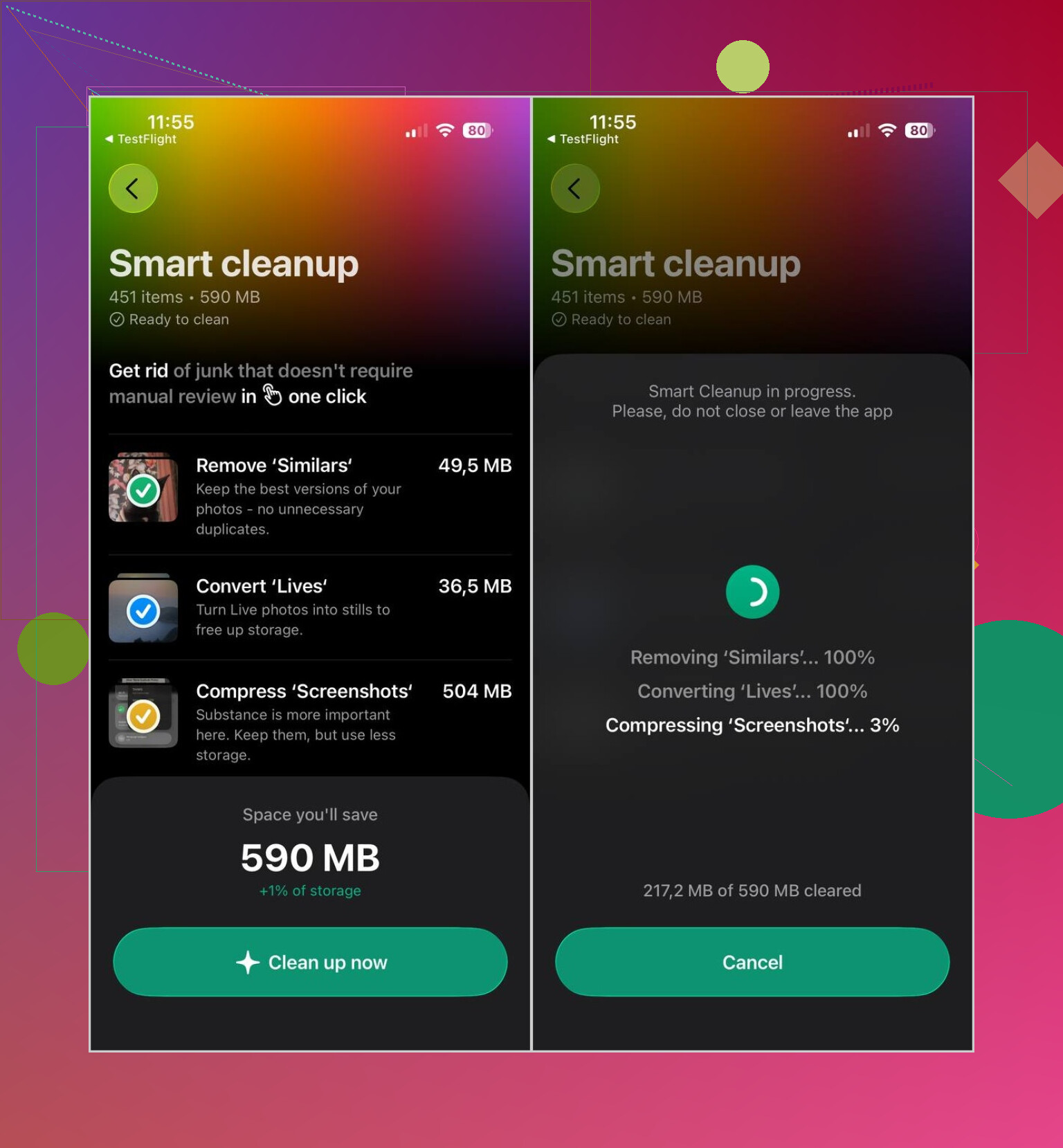
- Clean up the photo library first. The Photos app can catch exact duplicates, but it won’t do much for near-identical shots. I used Clever Cleaner for similar photos, Live Photos, screenshots, and big videos. It runs locally, has no ads, and the free version was enough for normal cleanup. After deleting stuff, make sure you empty Recently Deleted, otherwise the space won’t come back immediately.
- Delete apps you don’t use anymore. If you might need the data later, use Offload App instead.
- Clear browser data in Safari or Chrome. Also check apps like Telegram or Spotify, since they can hang onto cached files and downloads.
- Open the Files app and check Downloads. Old PDFs, ZIPs, and random saved files can pile up without you noticing.
- If Messages is taking a lot of space, go through old chats and remove large photo or video attachments.
Just don’t expect an App Store cleaner to wipe iOS system files or hidden caches from other apps. Apple doesn’t give apps that kind of access. So if something says it can “clean all junk files,” I’d take that with a grain of salt.
Most of the space you can realistically recover comes from photos, videos, downloads, app caches you’re allowed to clear, and apps you no longer use. The storage screen usually makes the answer pretty obvious once you look at it.
Don’t start deleting photos from the main library if iCloud Photos is turned on and you think you’re only clearing space on the phone. That deletion can sync to iCloud and your other devices too. Before doing the photo cleanup Mike mentioned, make sure anything important is backed up somewhere separate, then empty Recently Deleted only after you’re sure. For quick space without much risk, I’d hit downloaded media first: Netflix/YouTube/Spotify downloads, podcast episodes, big Message attachments, and the Files app Downloads folder. Those are usually safer than guessing what “app data” means. If you’re in a rush, offload large apps instead of deleting them, since that keeps their documents and settings.

Stop chasing “System Data” first. That number can look scary, but you usually can’t safely delete it by hand, and cleaner apps won’t magically reach inside iOS for it. I agree with @sognonotturno that downloaded media is the fastest low-risk cleanup, but after that I’d do a restart and give the phone a little time to recalculate storage before deleting more. If you need space immediately for an update or recording video, offload one huge app or remove offline maps/music/podcasts. That buys space fast without gambling on photos, iCloud sync, or random app folders you don’t understand.
Realistic expectation first: whatever you clear today will creep back within a few weeks if you don’t change what’s actually filling the phone. Cleaning is a habit, not a one-time fix. So decide now whether you want a quick rescue for an update, or an actual dent in your usage.
The bit nobody’s mentioned yet is the photo setting itself. If you go to Settings > Photos and turn on Optimize iPhone Storage (with iCloud Photos on), your device keeps smaller versions locally and pushes the full-res copies to iCloud. That alone can free a chunk without deleting a single memory. It’s the safer cousin of what @sognonotturno warned about, since you’re not risking a sync-delete across devices, you’re just letting the phone hold lighter copies. Downside: you need iCloud space, and you’re trusting the cloud, so it depends on your setup.
I’ll back @sonhadordobosque on ignoring System Data. People burn an afternoon trying to shrink that number and it barely moves. Restart, let it settle, move on.
On Clever Cleaner, it’s fair as a way to spot the near-duplicates and heavy Live Photos that Apple’s own duplicate finder skips. Just treat it as a sorting tool, not a magic vacuum. It shows you candidates, you still make the call, and you still empty Recently Deleted afterward or nothing changes.
If you’re genuinely out of space right now and the phone is nagging you mid-update, the fastest honest move is offloading your two biggest apps and yanking any offline video. That’s minutes of effort and zero risk to your photos. Do the real cleanup later when you’re not panicking.