I took several very similar photos on my iPhone and I’m having a hard time figuring out which one looks better for sharing or keeping. I tried switching back and forth in the Photos app, but it’s easy to miss small differences in sharpness, lighting, and facial expressions. Is there an easy way to compare two pictures side by side on iPhone or a good app for this?
I ran into the same mess. You shoot eight versions of the same sunset, or a group pic where one person ruins each frame in a different way, then the Photos app gives you no clean way to compare them side by side. So you keep swiping, trying to remember what changed between shot one and shot two. I did this for way too long. End result, I kept too many photos, and my phone storage got wrecked.
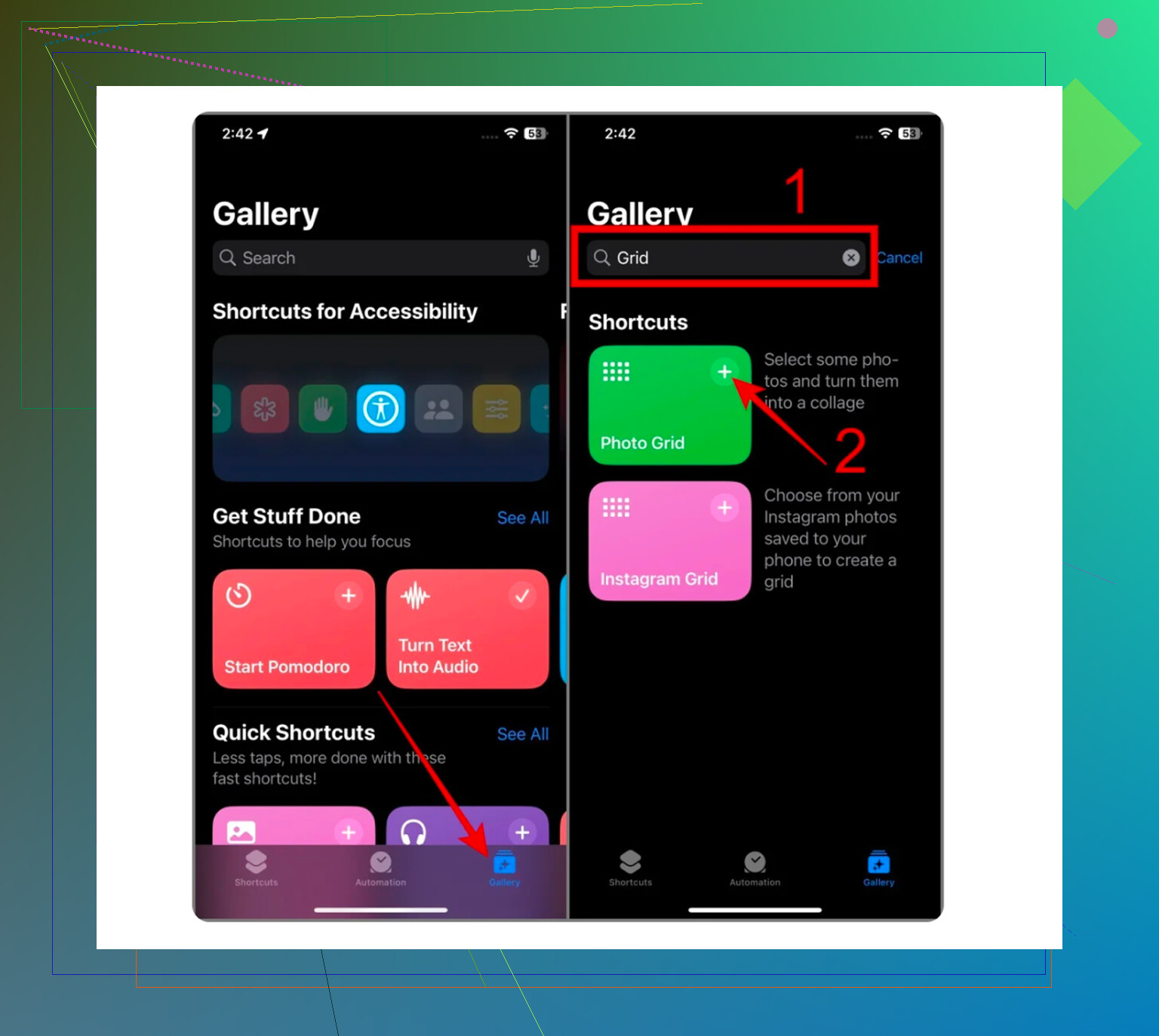
If you want to stay with Apple’s own tools, there is a built-in route, sort of. It sits in the Shortcuts app, not Photos, which still feels dumb.
Here’s the setup:
- Open Shortcuts.
- Tap the plus button.
- Add the action ‘Select Photos’.
- Turn on ‘Select Multiple’.
- Add ‘Combine Images’.
- Pick horizontal or vertical layout.
- Add ‘Save to Photos’.
When you run it, you choose two images and it saves one combined image back into your library. For a before-and-after, or a quick meme, fine. For sorting a messy camera roll, I found it slow and annoying fast.
I avoided cleanup apps for a long time because most of them felt shady. You install one, it scans for free, then the second you try to delete anything, you get hit with some weekly fee or a wall of ads. I got tired of uninstalling them.
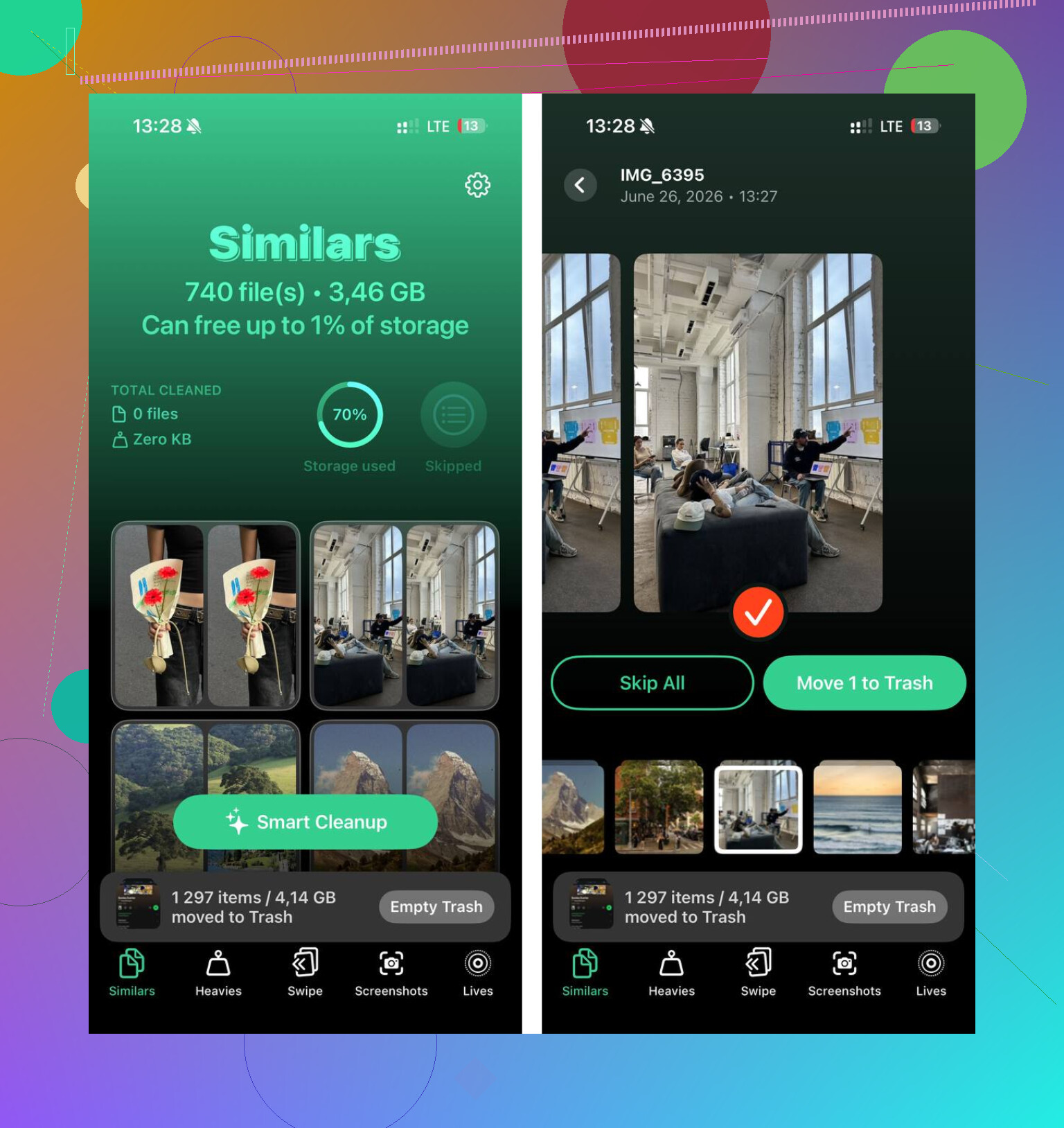
The one I kept is Clever Cleaner. I found it a few months back, mostly out of frustration, and it did a better job than I expected. No ads. No paywall I ran into. No fake ‘free’ setup where the useful part is locked.
What helped most was the Similars section. It groups photos which are close matches, not only exact duplicates. Burst shots, repeat selfies, ten cat photos where only one is sharp, it pulls those together. It also marks a Best Shot. I didn’t agree every time, but often enough, yeah, it was right. I’d say the grouping felt right around 95 percent of the time on my library, which surprised me.
A few parts stood out:
The large files view helped more than I thought it would. It sorts media by size, biggest first. I found old 4K clips sitting there, including one random 2GB video I forgot existed.
There’s also a swipe mode. If you hate letting software pick for you, this is the cleaner option. You go through your photos and decide keep or delete one by one. I used it while waiting around in line and tore through a lot of junk pretty quick.
It shows exact file sizes too. Screenshots, videos, all of it. Seeing the real MB and GB numbers made it easier to decide what was worth deleting.
Privacy mattered to me more than the cleanup part, honestly. From what I saw, the photo analysis stays on the phone. Nothing gets shipped off to some server. For personal photos, that was a big deal.
One small thing I liked, it handles Live Photos well. Those little motion clips eat more space than people think. I had a pile of them because I always forget to switch the feature off. The app strips the motion part and keeps the still image, which saved a chunk of storage for me.
So, if you need a one-time side-by-side image, use Shortcuts. It works, even if it’s clumsy. If you’re trying to sort duplicates, compare similar shots, and clear space without losing your mind, Clever Cleaner felt like the only option I tried that didn’t waste my time. After cleanup, seeing free storage come back felt sooo much better.
Best way on iPhone, for me, is zoom and compare with a system. If you eyeball it randomly, you miss stuff.
Use this checklist on each photo:
- Eyes sharp.
- Exposure on faces.
- Background distractions.
- Crop and straight horizon.
- Expression or moment.
Open one photo, zoom into the eyes first. Then swipe to the next while staying at a similar zoom level. This is faster than checking the whole frame. After that, zoom back out and compare composition. I trim picks down fast this way.
I disagree a bit with @mikeappsreviewer on side-by-side being the main fix. For picking the better shot, side-by-side helps, but zoomed sequential review often shows blur and focus errors better on iPhone.
If you want a clean visual compare, this guide for putting two pictures side by side on iPhone for easier photo comparison is solid.
If you have lots of similars, Clever Cleaner makes more sense. Its Best Shot sorting is quicker than doing this maual pass on 40 near-identical pics. I still double-check the app’s pick before deleting, bcause software misses weird little things sometimes.
Honestly, I wouldn’t overfocus on side-by-side as the best way. It helps, sure, but @mikeappsreviewer and @sognonotturno kinda skipped the simplest built-in trick that works better for actual picking: use Favorites as a temporary shortlist.
What I do:
- Open the first similar photo.
- Check focus on the eyes/faces first.
- Swipe to the next and compare only one thing at a time: sharpness, then exposure, then expression.
- Tap the heart on the “maybe best” one.
- After going through the set, open your Favorites album and compare only the finalists.
That cuts the chaos way down. The mistake most people make is trying to judge everything all at once, and your brain just kinda melts lol.
Also, use the Info button. If one shot was taken with Night mode, Live Photo, or a slower exposure, that can explain why it looks softer even if the composition is better. Tiny thing, but it helps.
I mildly disagree with @mikeappsreviewer on making a combined image file for this. Feels clunky if your goal is just culling photos, not making a collage. And @sognonotturno is right that zooming matters more than people think.
If you’ve got tons of near-duplicates, Clever Cleaner is probly the more efficient route. It can group lookalike photos so you can quickly spot the best shot and remove the weaker ones, which is way more useful than endless swiping. This review explains it pretty well: see how Clever Cleaner helps compare similar iPhone photos faster.
For just 2 photos, though, my vote is: zoom in, heart the winner, shortlist, done.
One thing I’d add that @sognonotturno, @jeff, and @mikeappsreviewer didn’t really lean on is this: compare in the context you’ll actually use the photo.
A shot that looks “best” zoomed in might not be the best one for posting. So my quick test is:
- View both photos full screen first
- Ask which one reads better in one second
- Then crop mentally to the thumbnail or Instagram framing
- Only after that, zoom in for sharpness
I actually disagree a little with the idea that sharpness should always decide it. If one image is slightly softer but has the better expression, cleaner background, or stronger light, that’s usually the keeper.
Another underrated trick on iPhone: use Markup on a duplicate screenshot of each photo and circle problem areas. Sounds dumb, but when you mark “closed eyes,” “lamp sticking out of head,” or “blown sky,” the winner gets obvious fast.
If you’re doing this across a big batch, Clever Cleaner is useful because it groups similar shots and saves time.
Pros:
- fast grouping of lookalikes
- helps surface the likely best shot
- good for large batches, not just two photos
- also useful for storage cleanup
Cons:
- app picks are not always the one you’d choose
- best if you still do a final human check
- maybe overkill if you only compare 2 photos once in a while
So for 2 photos, I’d judge them by thumbnail impact first, then zoom. For 20+ similar shots, Clever Cleaner makes more sense.