My old iPhone has become painfully slow, even after restarting, deleting apps, clearing storage, and updating iOS. Apps lag, the keyboard freezes, and basic tasks take forever. I’m looking for practical ways to improve old iPhone performance before I give up and replace it.
If your older iPhone is suddenly crawling, I wouldn’t jump straight to buying a new one. A slow SE or 11 Pro can still feel usable again if you clear out the right junk and turn off some of the visual stuff iOS keeps running in the background. I had the same issue with an old SE and an 11 Pro, where even opening the camera felt slow and the phone would heat up for no obvious reason.
There isn’t one magic setting that fixes it, though. It’s usually a mix of performance settings, battery condition, and storage being too full.
Start with the easy settings first. Go to Settings > Accessibility and turn on Reduce Motion. Then go into Display & Text Size and turn on Reduce Transparency. Those effects look nice, but on older hardware they’re just extra work for the phone. Once you remove the blur effects and floating animations, the whole UI can feel a lot less sluggish.
Next, check Background App Refresh under General. I’d either turn it off completely or leave it on only for things you actually care about, like Mail or Messages. Most apps do not need to refresh in the background all day. It eats battery and can make an already slow phone feel worse.
Also check Battery Health. If the maximum capacity is under 80%, iOS may be limiting performance to stop the phone from randomly shutting down. If you see a Performance Management message, that’s probably part of the slowdown. And if you leave Low Power Mode on all the time, turn it off when you want the phone to run faster. It saves battery by slowing things down on purpose.
The bigger issue, in my case, was storage. If your iPhone is sitting at 90% full or higher, it has almost no room to work. iOS needs free space for temporary files, indexing, and memory management. A decent target is keeping 10% to 20% of your storage free. On a 64GB iPhone, that means roughly 10-12GB open if you can manage it.
You can go to Settings > General > iPhone Storage and offload apps you never use. Clearing Safari’s cache helps a little too. But the real space hog is usually photos and videos. Manually sorting through years of blurry photos, duplicates, screenshots, and old videos is awful. I tried doing it by hand and gave up pretty fast.
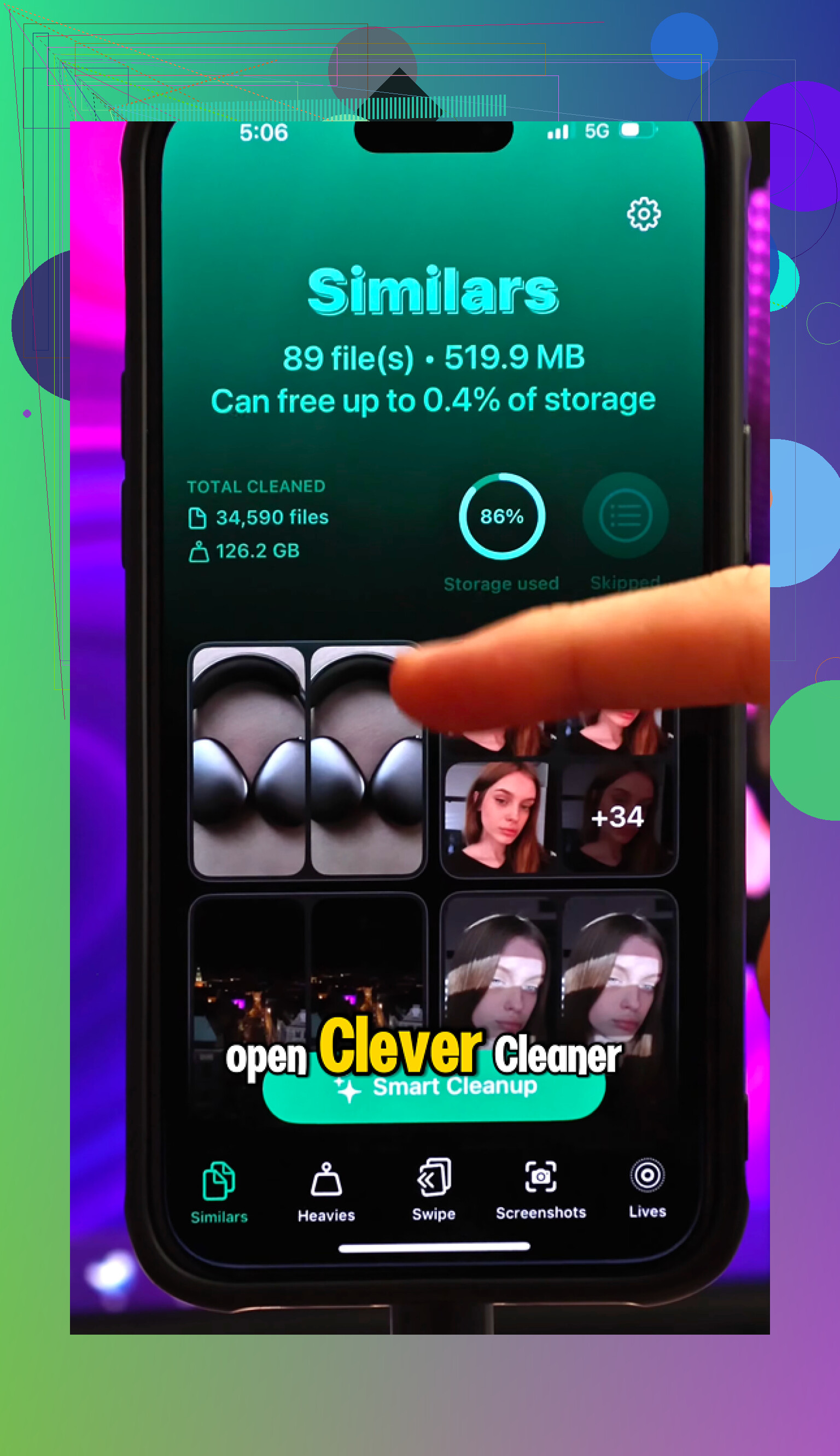
That’s where Clever Cleaner actually helped. I’m usually pretty skeptical of cleaner apps because a lot of them are packed with ads or push some subscription, but this one is completely free. No paywall, no premium nagging, and no ads.
The useful part is that it shows you what is actually taking up space. The Heavies tab sorts media by file size, which made it easy to find old 4K videos that were eating gigabytes. The Similars tab finds near-duplicate photos, like when you took a bunch of shots of the same thing, and helps you keep the best one. There’s also a Screenshots section that shows file sizes so you can quickly clear out old junk you forgot about.
I also liked that the cleanup happens on-device. It doesn’t upload your personal photos somewhere else to process them. Everything stays on the phone.
After clearing about 30GB of old media and restarting the phone, the difference was obvious. The camera opened normally again, the lag was mostly gone, and the overheating stopped being a constant thing.
So before doing a factory reset or replacing the phone, I’d try this order: reduce motion and transparency, trim background refresh, check battery health, turn off Low Power Mode if speed matters, then clear a serious amount of storage with Clever Cleaner. That’s probably the most practical way to get an older iPhone feeling decent again without spending money.
Updating iOS isn’t always an upgrade for an old iPhone, because the newer system can be heavier than what the hardware likes.
If the phone is still awful after freeing space, the next practical test is a full encrypted backup, factory reset, and set it up clean before restoring every app back. If it’s still slow after that, you’re probably looking at worn battery or aging hardware, not a setting you missed.
A factory reset can hide the real problem for a while because the phone spends the next few hours rebuilding photos, search, messages, and iCloud stuff in the background. So if you wipe it, set it up, and immediately start judging speed while it’s plugged in and getting warm, you may be testing the indexing process more than the phone itself.
I agree with the reset suggestion, but I’d treat it more like a diagnosis than a cure. The useful test is this:
Back it up first, preferably encrypted so Health data, Wi-Fi passwords, and saved logins come along. Then erase it and set it up as new for a short test before dumping everything back on it. Install only a few basic apps you actually use. If the keyboard still lags in Notes, Settings is slow to open, and swiping around the home screen feels bad even before your old app pile is restored, that points more toward battery, storage hardware, heat, or just age.
If it feels fine when clean, then the problem is probably something in the restored setup. Common culprits are huge Messages history, massive photo libraries syncing through iCloud, mail accounts with years of data, VPN/security apps, third-party keyboards, and widgets that keep refreshing. People blame “iOS” a lot, but sometimes it’s one background-heavy account or app dragging the whole thing down.
For the keyboard freezing specifically, I’d check a few boring things that often get skipped:
Turn off any third-party keyboards and test the Apple keyboard only.
Delete old keyboards you don’t use under Settings > General > Keyboard.
Turn off Predictive Text for a while and see if typing improves.
If Messages is gigantic, delete large attachments from Settings > General > iPhone Storage > Messages.
If the lag mostly happens in Safari, clear website data and close the mountain of old tabs.
That stuff sounds too small to matter, but keyboard lag is one of those symptoms that can come from storage pressure, a bloated app, or background syncing, not just “the phone is old.”
I’d be a little cautious about cleaner apps in general. Something like Clever Cleaner can be useful if your real problem is photo/video clutter, especially large videos and duplicate-looking shots. But it won’t fix a weak battery, slow flash storage, or a device that’s simply below the comfort line for the current iOS version. Use it as a space tool, not as a magic performance repair.
Heat is another overlooked one. If the phone is warm, performance can drop hard. Take it out of the case, unplug it, stop charging while using it, and test it somewhere cool. A tired battery plus heat can make an old iPhone feel much worse than it is. If Battery Health shows service recommended or the maximum capacity is low, replacing the battery may do more than any settings tweak, assuming the model is still worth spending money on.
My practical order would be:
- Make sure at least 10GB to 15GB is free, more if it’s a 64GB phone.
- Remove third-party keyboards, VPNs, widgets, and background-heavy apps for testing.
- Let iCloud/photo/message syncing finish before judging speed.
- Check Battery Health and heat.
- Do a clean setup test before restoring everything.
- If it is still slow when clean, stop wasting time on settings.
At that point, the honest answer may be that the phone is usable only as a basic backup device. Old iPhones can be made less annoying, but there’s a line where every “fix” just buys you another week of tolerating it.
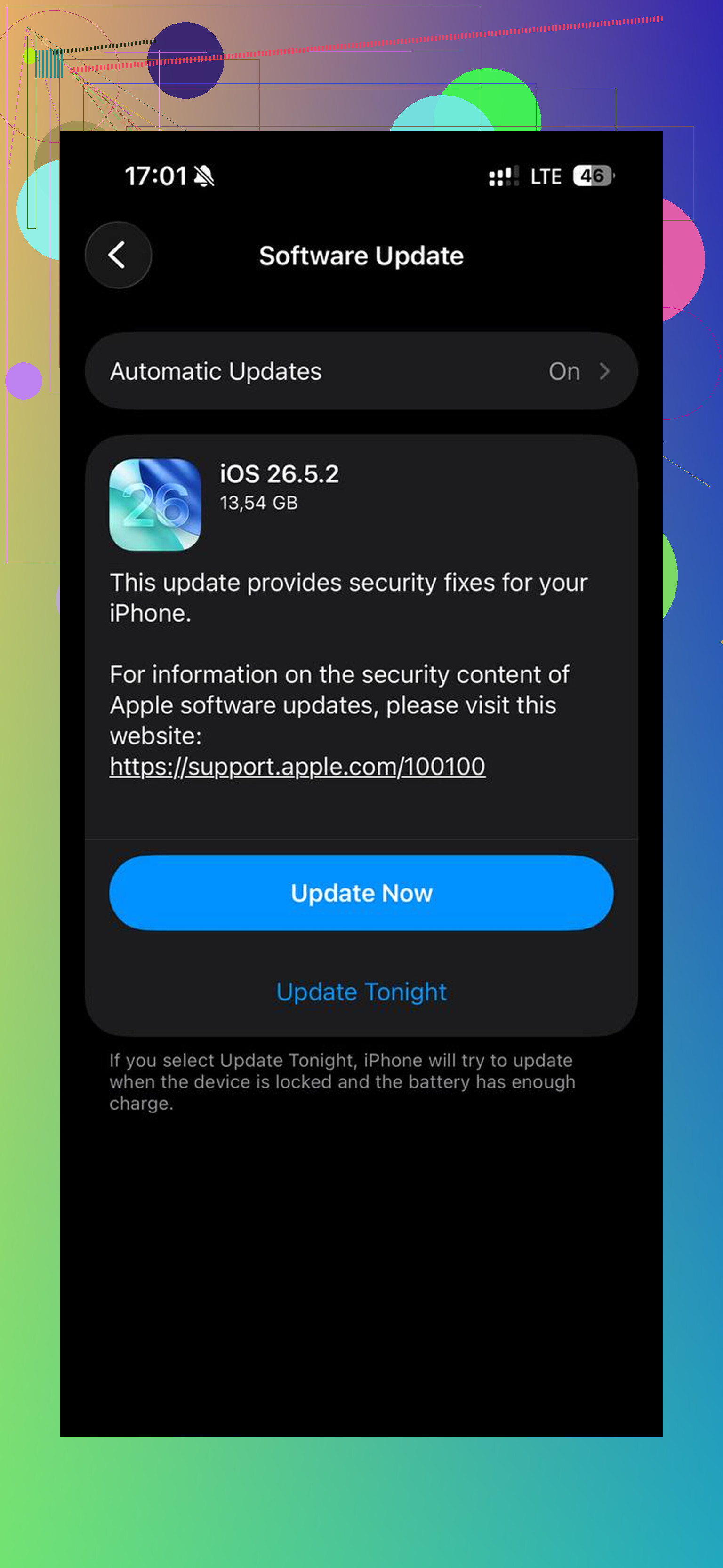
Don’t spend money on a battery or hours cleaning photos until you know the phone can still run the apps you need. If it’s an older model that barely supports the current iOS, or no longer gets the newest iOS at all, there’s a ceiling on how much better it can get. You can make it less painful, but you may not make it feel “fast” again.
I agree with the clean setup test people mentioned, but I’d put a hard time limit on troubleshooting. Free up space, check battery health, remove the heavy background stuff, then test Apple’s built-in apps only: Phone, Messages, Settings, Notes, Camera. If those are laggy on a clean setup with decent free storage, stop chasing app-by-app fixes. That points to the phone itself, not your settings.
Clever Cleaner or any photo cleanup tool can help if storage is the actual problem, especially if videos are eating the phone alive. But once you have a healthy amount of free space, deleting another thousand screenshots probably won’t fix keyboard freezes. At that point the faster “fix” may be using the phone more lightly: fewer widgets, fewer open Safari tabs, no always-on VPN, no third-party keyboard, and keep only the apps you use daily.
The annoying truth is that old iPhones often fail in a boring way: they don’t die, they just become unpleasant. If you need it for calls, texts, maps, music, and backup use, strip it down and keep it simple. If you expect modern app switching, camera speed, and smooth typing, replacement may be the practical answer rather than another weekend of settings experiments.
Careful with the photo cleanup advice if you have iCloud Photos turned on. Deleting videos and duplicates off the phone in that mode also removes them from every other device tied to your account, since the library is synced, not stored separately. Plenty of people wipe ‘junk’ to free space and later realize they nuked the only copy of something. If you go the cleanup route, either back the library up somewhere first or make sure you actually understand what ‘optimize storage’ is doing before you start swiping.
Now the thing nobody above really named: on a lot of old iPhones the wall you hit is RAM, not storage. Models like the SE and the 6s/7 era shipped with very little memory. When it runs out, iOS aggressively kills apps in the background and reloads them from scratch. That reload is exactly why the keyboard ‘freezes’ for a second when you tap a text field, or why Safari reloads a tab you looked at ninety seconds ago. Freeing storage doesn’t touch that. You can have 30GB open and still feel the stutter, because the bottleneck is how much the phone can hold in active memory at once.
So I’d say @mikeappsreviewer and @viaggiatoresolare are both right that storage pressure matters, and Clever Cleaner is a reasonable way to clear out big videos without paying for the privilege. Just don’t expect it to touch the keyboard lag if the real issue is memory. The clean-setup test @sonhadordobosque suggested is honestly the better diagnostic for that, because a fresh phone with no background apps competing for RAM will show you the true floor of what the hardware can do.
One cheap thing worth trying before any of the heavier steps: fully kill your Safari tab pile and turn off iCloud Photos temporarily to stop the constant background syncing. Both quietly hammer memory and network on older phones. If typing gets noticeably smoother within a day of doing that, you’ve found a big part of your answer, and it cost you nothing.
Blunt version though, once you’ve freed space, checked battery health, and it still stutters on a clean setup, that’s the phone telling you it’s done being a daily driver. No setting reverses a RAM ceiling. At that point it’s a decent backup, a music player, or a car GPS, and chasing more tweaks is just burning weekends.