I accidentally formatted my USB flash drive and lost important files I never backed up, including work documents and personal photos. The drive is still being detected, but I stopped using it right away. I need help figuring out the best way to recover data from a formatted flash drive without making things worse.
Yep, there’s still a shot, but only if you stop touching the USB right now. I mean it. The moment you keep copying stuff onto it, old data starts getting replaced. Once blocks are overwritten, you’re done. Recovery apps won’t fix overwritten storage.
The first thing I’d think about is what kind of format happened. If the format finished fast, like a few seconds, I’d bet it was a Quick Format. That’s the better case. A quick format usually resets the file system tables and clears the index Windows uses to track files. A lot of the file data still sits there until new writes land on top of it. A full format is rougher. In most cases, it writes across the storage, so the odds drop hard.
If you don’t have a backup, I would skip the usual command prompt stuff people throw around. Same for random “repair” tools. I’ve seen people run CHKDSK on drives like this and make the mess worse. It’s meant to repair file system problems, not pull back files from a formatted stick.
What I’d do, step by step:
- Unplug the USB and stop using it.
- Install recovery software on your computer’s internal drive, not on the flash drive.
- Plug the USB back in.
- Run a full scan on the USB.
- Preview whatever the scan finds.
- Recover the files to a different drive, never back onto the same USB.
I’ve had decent luck with Disk Drill. It’s one of the easier ones if you haven’t done file recovery before. I picked the USB, ran Universal Scan, waited it out, then sorted through the results. It groups files by type, which helped when filenames were gone. The preview tool saved me time too. If a photo opened in preview, or a document looked normal there, I usually took it as a good sign.
One part I liked more than I expected was the disk image option. If the flash drive is acting weird, dropping connection, freezing Explorer, or throwing Windows errors, make an image first if you can. Then scan the image instead of hitting the USB over and over. Safer path, less wear on a bad drive.
A few things change the odds:
- Did you write anything new after the format? If no, your chances are better.
- Did you format it to the same file system, or switch it? Both still leave some hope, though a file system change sometimes strips more useful metadata.
- What was on it? Photos, docs, and videos tend to scan better with common recovery apps than oddball file types.
If the scan finds files but the names look mangled, I wouldn’t freak out yet. I’ve seen loads of recovered files come back with generic names or no folder structure. Sorting by date, size, or type usually helps you piece it back together. Bit annoying, yeah, but normal.
Also, don’t kill the scan early. This gets people all the time. A few files show up in minute five, so they stop and start recovering. Bad move. Let the full scan finish. I’ve had folders appear way later in the process, especially on bigger USB sticks.
If the drive isn’t detected at all, keeps disconnecting, or Windows shows the wrong capacity, then the issue might be more than a format. At that point I’d stop repeated scan attempts. Flash storage with hardware trouble tends to get worse when you keep reading it. If it stays connected long enough, try imaging it first. If the files matter a lot, family photos, tax docs, work stuff, I’d look at a pro recovery shop instead.
So, yes, recovery after formatting is often possible without a backup. The big things are simple. Was it a quick format? And did anything get written to the drive after? If it was quick and the USB has been left alone since, your odds are still pretty decent. Sometimes you get most of it back. Sometimes all of it, if you’re lucky. typo aside, I’d move fast and be careful.
Yes, if the USB still mounts and you stopped using it, your odds are decent.
I agree with @mikeappsreviewer on the big point. Do not write anything to the drive. I differ a bit on full format though. On newer Windows systems, a full format often wipes enough data to make home recovery far less likely, but on some older setups people still recover fragments. So it is not always zero, it is more about age of the system and what format option ran.
A few checks matter before you scan:
- Look in Disk Management. Confirm the drive shows the right size.
- If it asks to format again, cancel it.
- If the drive drops offline, make a byte-for-byte image first.
For software, Disk Drill is a solid pick for formatted flash drive recovery because it handles both file system scans and signature scans in one place. If filenames are gone, sort by file type and modified date. Photos often recover well. Office docs too, though sometimes with damaged names or missing folders.
One thing people skip, test recovered files in batches. Open 10 to 20 photos, a few docs, a PDF. If previews work, keep going. If everything comes back corrupted, stop wasting time and move to a pro lab.
Also, TRIM is rare on USB flash drives, but some newer removable SSD-like devices support it. If your device used TRIM, recovery odds drop fast. That is why getting to it quikcly matters.
If you want a simple walkthrough, this flash drive recovery guide is easy to follow:
watch this USB flash drive data recovery guide
Short version. Detected drive, no new writes, quick format, common file types. Those are the best signs you have right now.
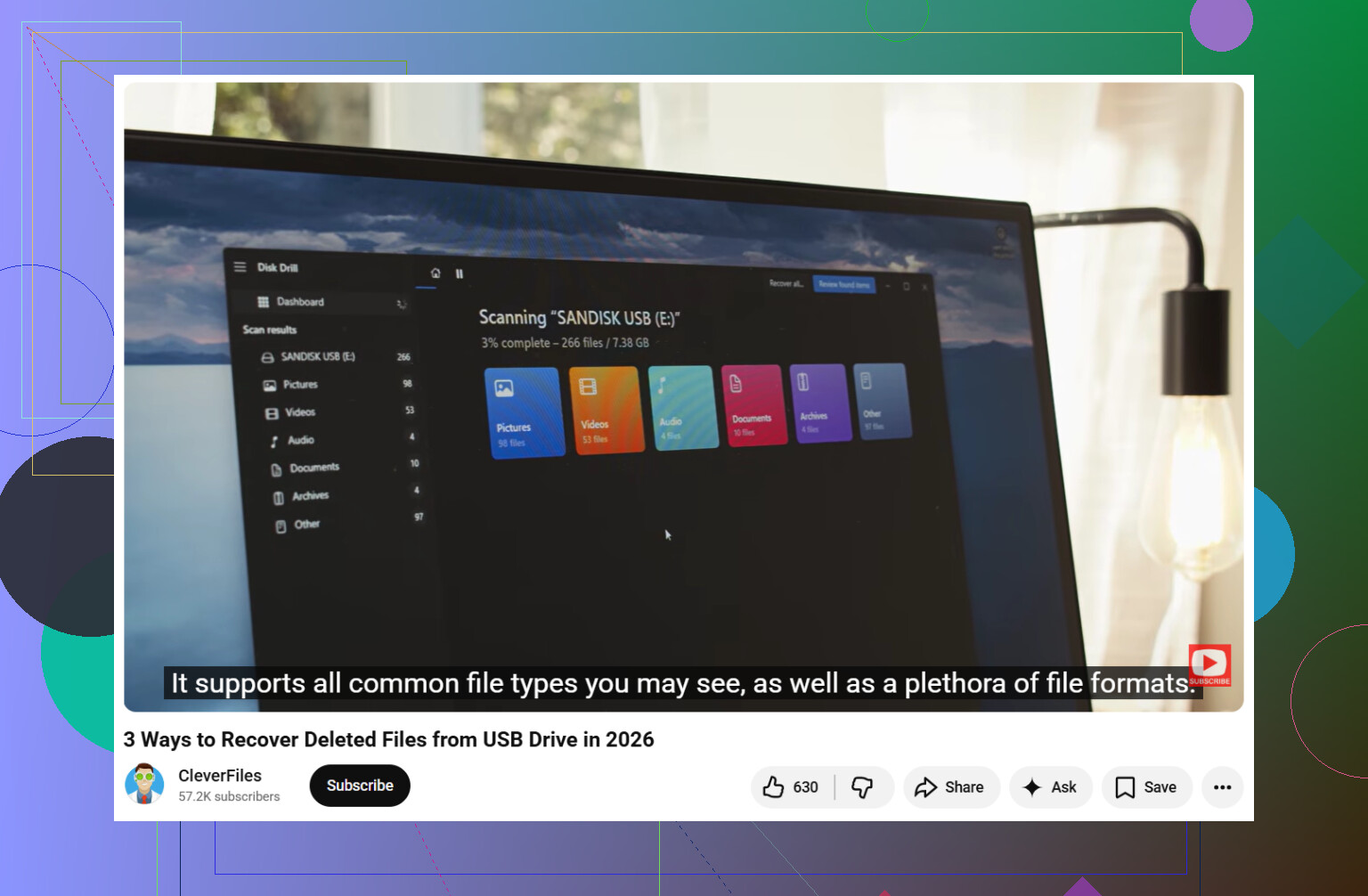
Yes, probably. Not guaranteed, but def not hopeless if the flash drive is still detected and you stopped using it.
I mostly agree with @mikeappsreviewer and @sognonotturno, but I’d add one thing people gloss over: sometimes the drive itself is fine, and the real problem is the new file system metadata after format. In that case, recovery is less about “repairing” and more about finding raw file traces plus old directory records. So don’t waste time trying to make the USB “usable” again first.
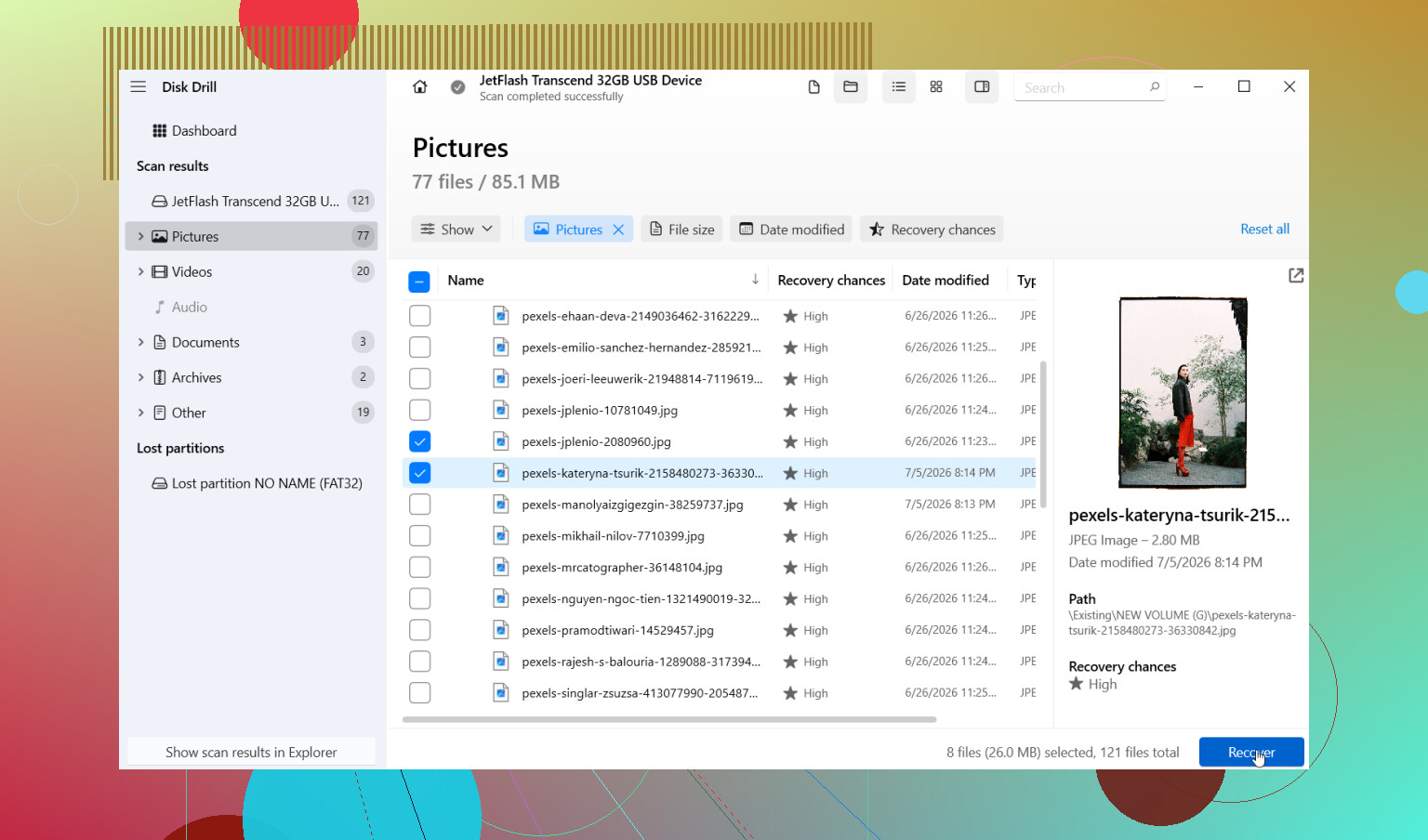
What I’d do differently is check a few recovered files before spending hours exporting everything. If Disk Drill shows previews that actually open, that’s a way better sign than just seeing a huge list of filenames. I’d recover the most important stuff first: docs, photos, anything irreplaceable. Priortize, basically.
Also, if this was a tiny USB and Windows formatted it super fast, chances are it was quick format and your odds are decent. If it was full format, odds drop a lot, but not always to zero like people sometimes say online.
Disk Drill is a solid option here because it handles formatted USB recovery pretty well and lets you preview results before restoring. Just recover to your computer or another external drive, not back onto the same stick. Kinda obvious, but people still do it.
If you want a cleaner walkthrough, this guide is useful:
how to recover files from a formatted USB drive step by step
Big warning: if the recovered Office docs open blank, or photos are half gray, that usually means partial overwrite or fragmented recovery. At that point, a pro lab might be the only real play. Still, since the drive is detected, I’d absolutely try software recovery first.
Yes, usually recoverable if it was a quick format and nothing got written after. I’d slightly push back on one point above: people focus a lot on quick vs full format, but on cheap flash drives the controller quality matters almost as much. Some sticks return messy results even when the data is technically still there.
Since @sognonotturno, @hoshikuzu, and @mikeappsreviewer already covered the basic do-not-write rules, I’d add this: pay attention to file sizes in scan results. If your photos show up as 0 KB or your DOCX files are wildly tiny, that’s a bad sign even if filenames appear normal. Previews matter more than names.
Disk Drill is a reasonable first shot here.
Pros:
- easy to scan formatted USB drives
- previews help separate real recoverable files from junk
- can find files by both filesystem info and raw signatures
Cons:
- large scans can be slow
- recovered filenames/folders may still be messy
- if the USB has hardware instability, software alone may not save you
One more thing I disagree with slightly from common advice: don’t always recover everything in one giant batch first. Pull the irreplaceable stuff first, check integrity, then continue.
If the drive starts disconnecting, stop scanning and consider imaging or a lab. If it stays stable, software recovery is absolutely worth trying.