I’m trying to set up screen mirroring on my Roku, but I can’t figure it out. I’ve tried following some online guides, but nothing seems to work. Does anyone know the exact steps or troubleshooting tips to get this working?
First, ensure your Roku device and smartphone or computer are on the same Wi-Fi network. Open the settings menu on your Roku. Go to ‘System’ > ‘Screen mirroring’ > ‘Screen mirroring mode’. Select ‘Always allow’ or ‘Prompt’, depending on your preference.
On an iPhone, swipe down from the upper right corner to access the Control Center and tap ‘Screen Mirroring.’ Select your Roku device from the list.
For Android users, go to ‘Settings’ > ‘Connected devices’ > ‘Connection preferences’ > ‘Cast.’ Select your Roku device from the list.
Microsoft users, press the Windows key + K and select your Roku device from the list. If it’s not working, ensure both devices are updated and restart them. Sometimes, third-party apps can help with the mirroring process. Try giving the Mirror to TV app a shot; it’s available on the App Store. Here’s the link to check it out: Mirror to TV app on Appstore.
Check your Wi-Fi signal strength, as a poor connection can hinder mirroring. If these steps don't work, ensure that screen mirroring is enabled on both devices and that no firewall blocks the connection.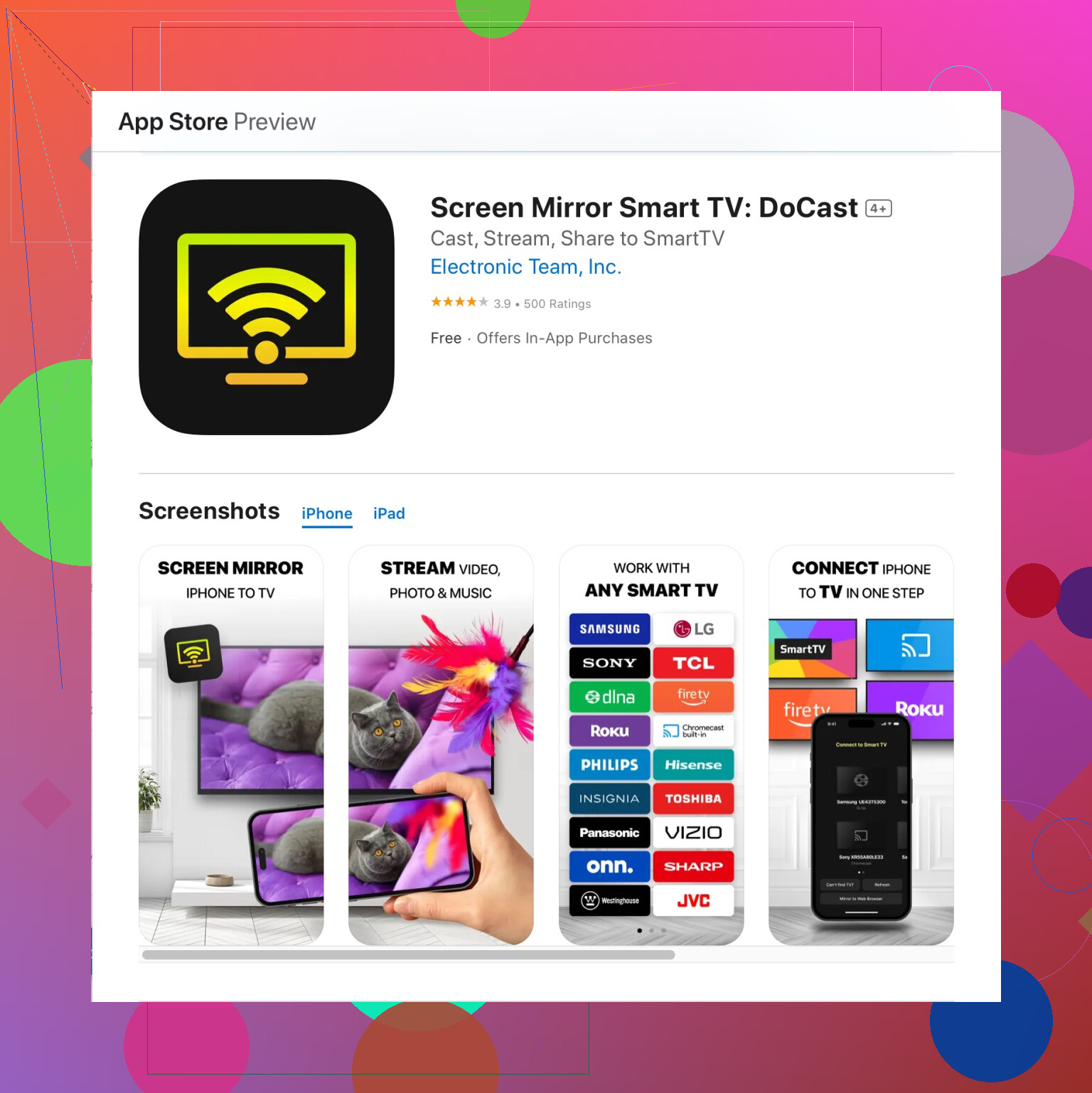
Hope this helps!
Hey there,
Looks like you’ve already got some solid advice from @espritlibre, but sometimes these methods don’t address all the quirks we might encounter. Let me add a few more troubleshooting steps to help you out.
Firstly, make sure both your Roku and the device you’re trying to mirror are updated to the latest software versions. Firmware updates often contain bug fixes that might resolve your issue. To update your Roku, go to ‘Settings’ > ‘System’ > ‘System update.’
Next, I’d recommend checking the settings on your router. Sometimes specific router settings like AP Isolation or enabling only 5 GHz or 2.4 GHz bands can cause connectivity issues. Try toggling these settings and see if that helps. A small tip: placing your devices closer to the router might improve connection stability.
Also, if you’re using an iPhone, make sure that Bluetooth is turned off. Apple’s AirPlay sometimes conflicts with Bluetooth, causing screen mirroring issues. For Android, clearing the cache and data of the ‘Google Home’ app (or the app you’re using to connect) can solve unforeseen hiccups.
For those who find that their usual apps aren’t cutting it, third-party apps can sometimes bridge the gap effectively. I’d suggest trying out a more robust app such as this Official Docast App. It’s tailored for a variety of devices and might offer a more reliable connection.
Lastly, if all else fails, sometimes a full reset of your Roku device can help. I know it sounds tedious, but it can clear out any persistent bugs that might be causing the issue. Just remember to back up any settings or channels you have so you can restore them easily.
Hope these tips help out! Let me know if you have any other questions, and let’s get that screen mirroring working!
Skip Roku mirroring and use a wired HDMI connection. Connect your laptop directly to the TV with an HDMI cable, then select the matching HDMI input using your TV remote.
For a phone, use a USB-C-to-HDMI adapter. Older iPhones need a Lightning Digital AV adapter. Plug the adapter into your phone, connect HDMI, and switch the TV input.
This method avoids Wi-Fi, router settings, apps, and Roku compatibility issues. It also gives you a steadier conection with less delay. Check youre phone supports video output first.
Check which Roku model you actually have before anything else. Screen mirroring on Roku is Miracast, and that only works with Android and Windows. iPhones do not use it at all. So the advice from @espritlibre about swiping into Control Center is really AirPlay, not screen mirroring, and AirPlay only works on the newer Roku models. If yours is an older stick, that iPhone option will just never show up no matter how many times you toggle settings. Worth confirming that first so you’re not chasing a feature your box doesn’t have.
For Android and Windows the earlier steps are basically right, and I wouldn’t overthink it past that. The router advice from @vrijheidsvogel about AP Isolation is the one I’d actually pay attention to, because that setting silently blocks devices from seeing each other and no amount of restarting fixes it. If your phone can cast to a Chromecast but not the Roku, isolation is my first suspect.
The wired HDMI idea is solid and I’d rank it above most of the wireless troubleshooting if you just want it to work today. One thing to watch though, some phones over USB-C to HDMI will charge and do nothing else because they don’t support video out. Samsung and recent Pixels are fine, plenty of cheaper Androids are not. So don’t buy the adapter until you’ve confirmed your specific phone does DisplayPort Alt Mode.
On the app route, the DoCast option that keeps coming up is a reasonable fallback specifically for the iPhone-to-old-Roku gap, since it works around the missing AirPlay support. I’d treat it as a patch for that one scenario rather than a general fix. If your Roku already supports AirPlay natively, there’s no reason to add a third-party app into the mix.
Short version, figure out your device pairing first. iPhone plus old Roku needs AirPlay or an app, Android and Windows use built-in mirroring, and if you’re impatient just grab the right cable.