I’m trying to clear the Facebook cache on my iPhone to free up space and fix some loading issues, but I’m worried it might sign me out or remove saved settings. Has anyone cleared Facebook cache on iPhone and can confirm what happens afterward?
If Facebook is taking up 10GB or 15GB on your iPhone, the fastest fix is usually to delete the app and reinstall it. Annoying, but that’s kind of where iOS leaves you. Unlike Android, there isn’t a simple “clear cache” button for Facebook in iPhone settings.
You can try the lighter option first, though. Go to Settings > General > iPhone Storage, find Facebook, and tap it. From there, choose Offload App. This removes the app itself but keeps its saved data. After you reinstall it, some temporary junk may get cleared out, and you usually won’t have to log back in because your login info stays on the phone.
That said, offloading often doesn’t do much when Facebook has gotten huge. The real storage hog is usually under “Documents & Data,” which is where cached videos, images, scripts, and other stuff pile up as you scroll.
For the full cleanup, use Delete App from that same iPhone Storage screen. This removes Facebook and its local data from your phone.
Yes, that means you’ll be logged out and need to sign in again after downloading Facebook from the App Store. But it won’t delete your Facebook account, posts, photos, friends, messages, or anything like that. Those are stored on Facebook’s servers. You’re only clearing the local copy sitting on your iPhone.
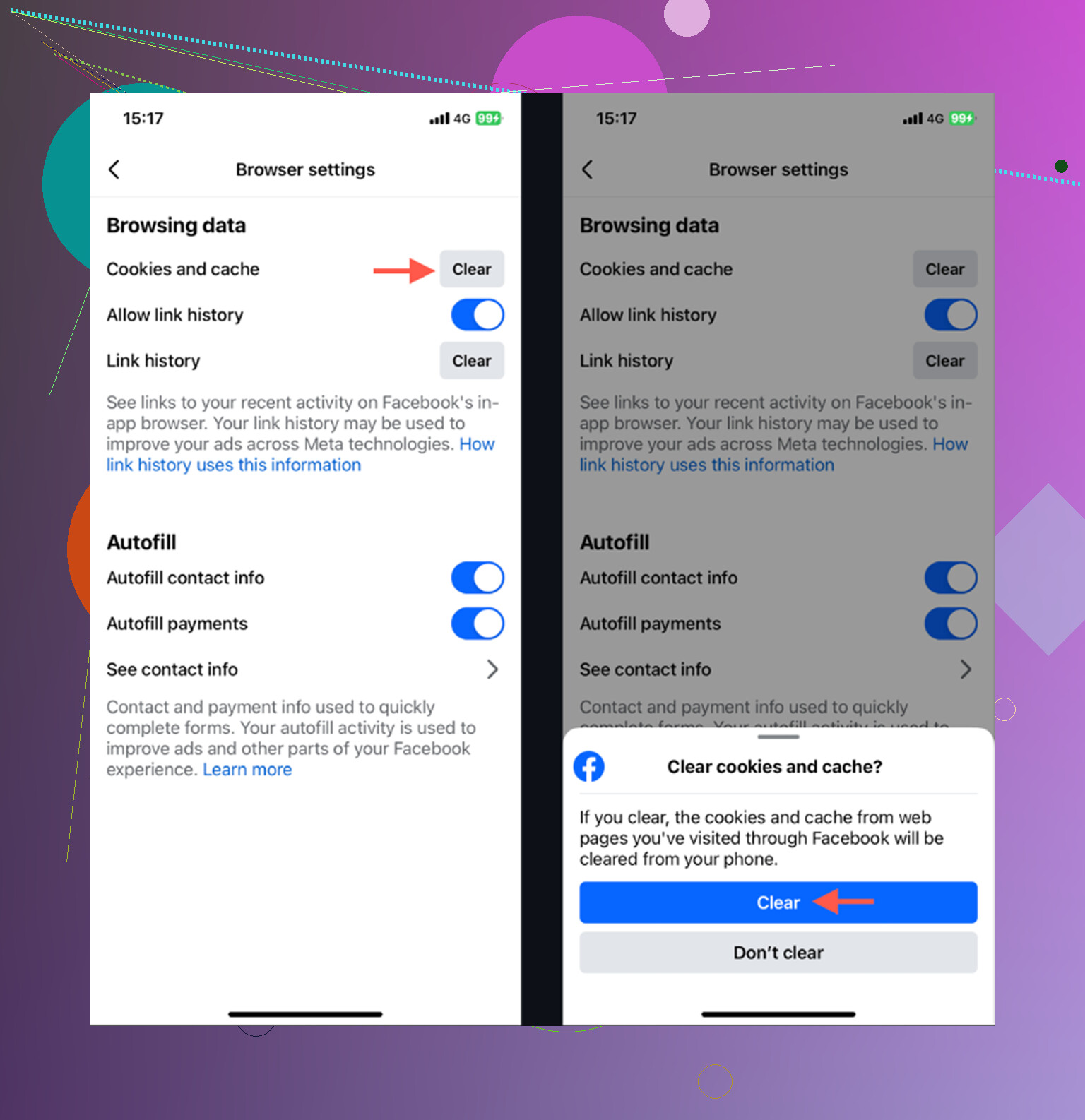
There’s also a small cleanup option inside Facebook itself. Open Facebook and go to Menu (the three lines) > Settings & Privacy > Settings > Browser, then clear the in-app browser’s cookies and cache. It can help a little, especially if you open a lot of links inside Facebook, but don’t expect it to fix a 15GB app by itself.
The frustrating part is that this is temporary. Facebook will start rebuilding its cache again as soon as you use it. Watch Reels for a while, scroll through videos and photos, and the storage number will creep back up.
I went through a phase of constantly checking app sizes and reinstalling stuff because I thought Facebook was the main reason my 128GB iPhone was always running low. Eventually I looked more closely and realized my Photo Library was the bigger problem. Tons of duplicate-looking pictures, old screenshots, and a few huge 4K videos were taking way more space than I expected.
That’s when I ended up trying Clever Cleaner. I’m usually skeptical of cleaner apps because a lot of them are full of ads or push subscriptions, but this one is free and doesn’t have paywalls or ads.
It won’t clear Facebook’s cache for you, since iOS doesn’t really allow apps to manage another app’s data like that. What it does well is help clean up your photo library. The Heavies tab shows your biggest photos and videos by file size, so it’s easy to spot the giant video eating up space. The Similars tab finds batches of photos that are basically the same shot and lets you clear the extras without digging through everything manually.
It also shows the exact file size for screenshots, which is useful because those random “I’ll need this later” screenshots add up fast. Another nice part is that the processing happens on-device, so your photos aren’t being uploaded somewhere else for sorting.
So if Facebook is sitting at 15GB, delete and reinstall it first. That’ll give you quick breathing room. But if your iPhone keeps running out of storage, check your photo library too. Cleaning out the huge videos and duplicate photos made a much bigger difference for me than constantly clearing app cache.
Know your password first. Clearing Facebook’s in-app browser cache should not log you out of Facebook itself, but deleting the app to clear the big storage chunk probably will, and that’s where people get stuck if they rely on Face ID or an old saved login. Most settings tied to your account come back after signing in, but local stuff like app permissions, notification prompts, and maybe some cached drafts can behave differently. So yes, it’s safe for your account, but don’t hit Delete App until you’ve checked your login, 2FA method, and access to the email or phone number on the account.
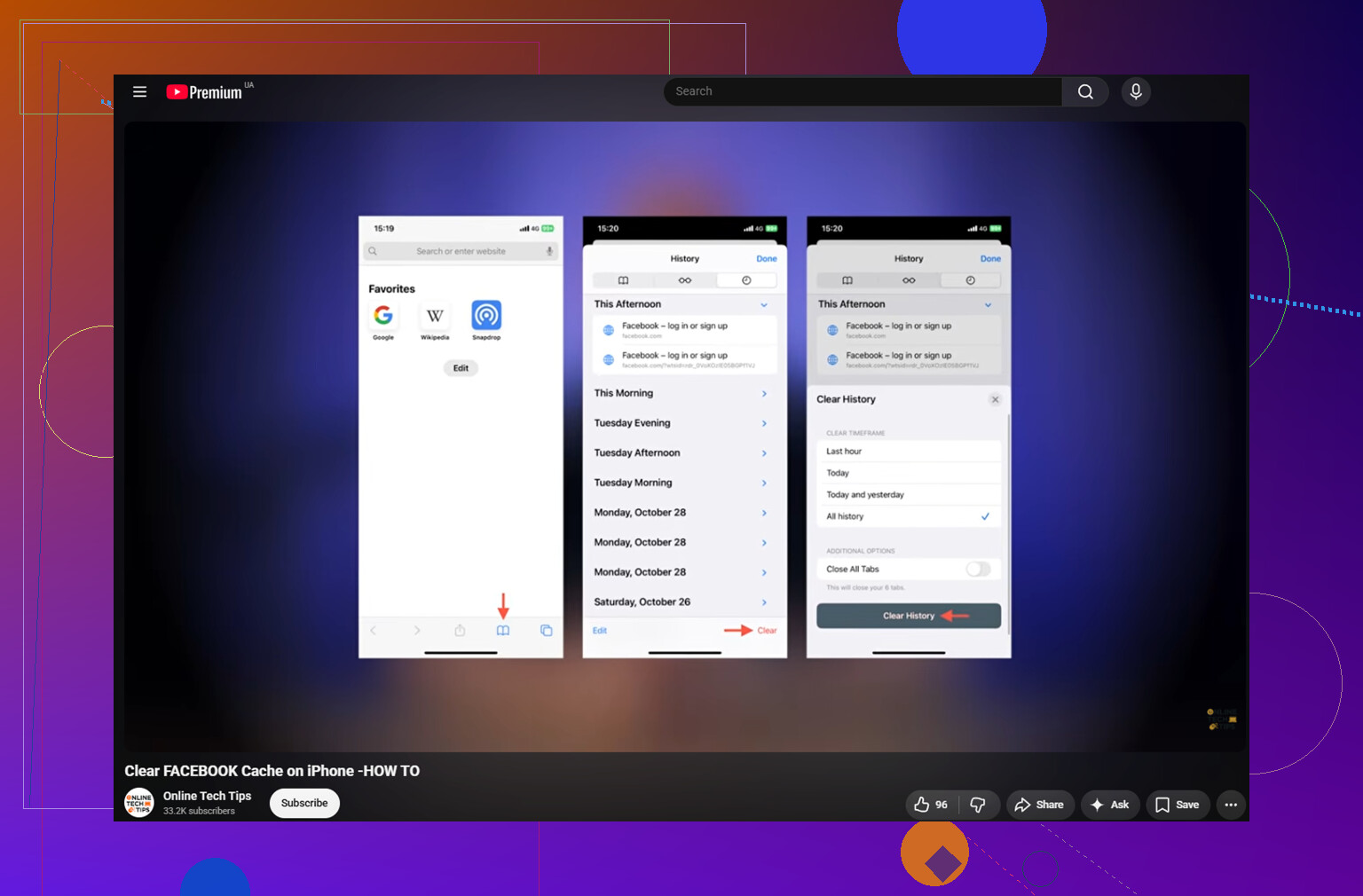
If you only mean clearing the browser cache inside the Facebook app, no, that normally should not sign you out of Facebook.
That setting is basically for stuff Facebook’s built-in browser stores when you tap links in posts, ads, Marketplace listings, etc. It can remove cookies and cached web pages for those sites. So you might get signed out of some websites you opened inside Facebook, but your actual Facebook app session should stay put.
Where people get surprised is mixing up three different things:
-
Clear browser/cache inside Facebook
This is the low-risk option. It may fix weird link loading issues or stale pages. It usually does not free much space. -
Offload Facebook in iPhone Storage
This removes the app but keeps its documents and data. It may keep you logged in when you reinstall, but it is not a guaranteed cleanup. If the bloated part is saved data, offloading can leave most of the junk behind. -
Delete Facebook completely
This is the real reset. It removes the app and its local data from the phone. After reinstalling, expect to sign in again.
I’d be more cautious than “it probably won’t log you out” if you’re deleting the app. Treat a full delete like you will be logged out, even if iOS sometimes remembers pieces of your login through Keychain or saved passwords. Before doing it, make sure you can actually get back in without relying on the app already being open.
Check these first:
- You know the Facebook password, or can reset it
- Your recovery email or phone number still works
- Your two-factor code method is available
- You are not depending on an old phone number
- You have access to any authenticator app if you use one
A smaller annoyance people forget: deleting the app can reset local app permissions and convenience settings. You may have to allow notifications again, allow photo access again, pick camera/mic permissions again, and maybe reconfigure some device-specific preferences. It should not remove posts, photos, friends, groups, messages, or account settings stored by Facebook, but the phone-side stuff can feel “new” again.
If your main issue is loading problems, try the in-app browser cache first because it is quick and low risk. If your main issue is storage, don’t expect miracles from that. Facebook can get huge again because the app keeps caching images, videos, Reels, Marketplace thumbnails, and feed content as you use it.
For storage, I’d do this order:
Clear Facebook’s browser data first.
Restart the iPhone.
Check Facebook’s size under iPhone Storage.
If it is still huge, delete and reinstall the app.
Then check your login before assuming the job is done.
I wouldn’t bother with random “cache cleaner” tricks for Facebook specifically. iOS does not really let another app clean Facebook’s private app data. Photo cleanup apps can help with general storage, but they are solving a different problem. For Facebook itself, the clean reinstall is still the blunt tool that actually works.
Nobody flagged that Messenger is its own separate app with its own cache. If you deleted Facebook to reclaim space and you also use Messenger, half your bloat can still be sitting there untouched. Worth checking both in iPhone Storage before you assume the reinstall fixed everything.
On the offload advice from @mikeappsreviewer, I’d be blunter about it: for this exact problem it’s close to pointless. Offload keeps Documents & Data, and that’s the part that’s fat. So you free up the app binary, maybe a couple hundred MB, and the multi-GB cache stays put. If someone’s Facebook is at 15GB, offload is not the tool. Delete and reinstall is the only thing that actually clears it, and yeah, you’ll log back in.
One workaround nobody brought up: if the app keeps ballooning and you’re tired of the reinstall cycle, just use facebook.com in Safari for a while. The mobile site does most of what the app does, and it doesn’t quietly stockpile Reels and video cache on your phone the same way. Not as smooth, but it sidesteps the whole storage creep. I mostly kill the app for camera stuff and stories, everything else works fine in the browser.
The Clever Cleaner mention makes sense in context, since half of these ‘why is my phone full’ threads turn out to be the photo library, not the app people are blaming. Just keep it in the right lane. It won’t touch Facebook’s cache, it’s for spotting the giant videos and near-duplicate shots that quietly eat more than any single app does.
And the reminder to know your password and 2FA before hitting delete is the real one. That’s where people actually get stuck, not the account itself. Your posts and messages are safe on Facebook’s side, but if your login lives only in Face ID and an old saved password, sort that out first.