I’m trying to clear the Messenger cache on my iPhone because the app is taking up a lot of storage and running slowly. Before I do it, I want to know if clearing the cache will log me out, delete chats, or remove any saved data in Facebook Messenger.
Yeah, Messenger on iPhone can get messy pretty fast. If it’s crashing, taking up a ridiculous amount of storage, or your phone keeps yelling about space, the annoying part is that iOS doesn’t give you the same simple “clear cache” button Android does.
On iPhone, you basically have two realistic options, and both are handled through storage settings.
Go to Settings > General > iPhone Storage > Messenger.
If you want the safer, lighter cleanup, use Offload App. This removes the Messenger app itself but keeps its documents and data, so your login info and settings should stay in place. After that, tap Reinstall App. It can clear out some temporary junk and refresh the app without fully wiping everything.
If Messenger is using multiple gigabytes or still crashing after that, use Delete App instead. You can also long-press the Messenger icon from the home screen and remove it that way. This is the deeper cleanup because it removes the app, its local files, and the cached data. You’ll need to reinstall Messenger from the App Store and sign in again.
The big thing people worry about: deleting the app does not delete your Messenger conversations. Your chats are stored on Meta’s servers, so once you log back in, they should sync back to the app. You do get logged out, though, so make sure you know your login details first.
What you’re really clearing out is all the hidden stuff Messenger builds up over time: image thumbnails, stickers, GIFs, bits of videos you watched, and temporary files the app keeps around so things load faster. That junk can pile up, and sometimes it gets corrupted enough to make the app act weird.
That said, clearing Messenger is usually only a temporary fix. Messenger will start rebuilding its cache as soon as you use it again. You might free up a couple gigs today, then watch that space disappear again over the next week or two.
If your real problem is iPhone storage, the bigger culprit is usually the photo library. Screenshots, duplicate-looking photos, burst shots, and old 4K videos eat way more space than most app caches.
For that, I’d look at Clever Cleaner. To be clear, it does not clear Messenger’s cache. The iPhone storage steps above are what you use for Messenger. But it can help clean up the stuff that usually takes up the most space, especially photos and videos.
The parts that are actually useful:
- Heavies: Shows your biggest videos and media files first. A few forgotten large videos can free more space than messing with Messenger cache over and over.
- Similars: Groups photos that look nearly the same, so you can keep the best one and remove the extras.
- Screenshots: Finds old screenshots you probably do not need anymore.
- On-device processing: The cleanup and AI sorting happen on your iPhone instead of uploading your photos somewhere else for analysis.
So if Messenger itself is broken, try Offload App first, then Delete App if needed. If the whole phone is low on space, clearing Messenger alone probably won’t be enough. Cleaning out photos and videos will usually make a much bigger difference.
If you’re using Offload App, I wouldn’t expect it to log you out, but if you delete Messenger completely, assume you’ll need to sign back in. I agree with the earlier point that your normal chats should come back after login, since they’re tied to your account, but I’d be more cautious about stuff sitting only on the phone: unsent messages, recent downloads, drafts, or media you never saved elsewhere. Before deleting the app, make sure you can actually get back into the Facebook/Meta account and that any two-factor code method still works. The cache problem is annoying, but being locked out is worse than losing a few gigabytes for another day.
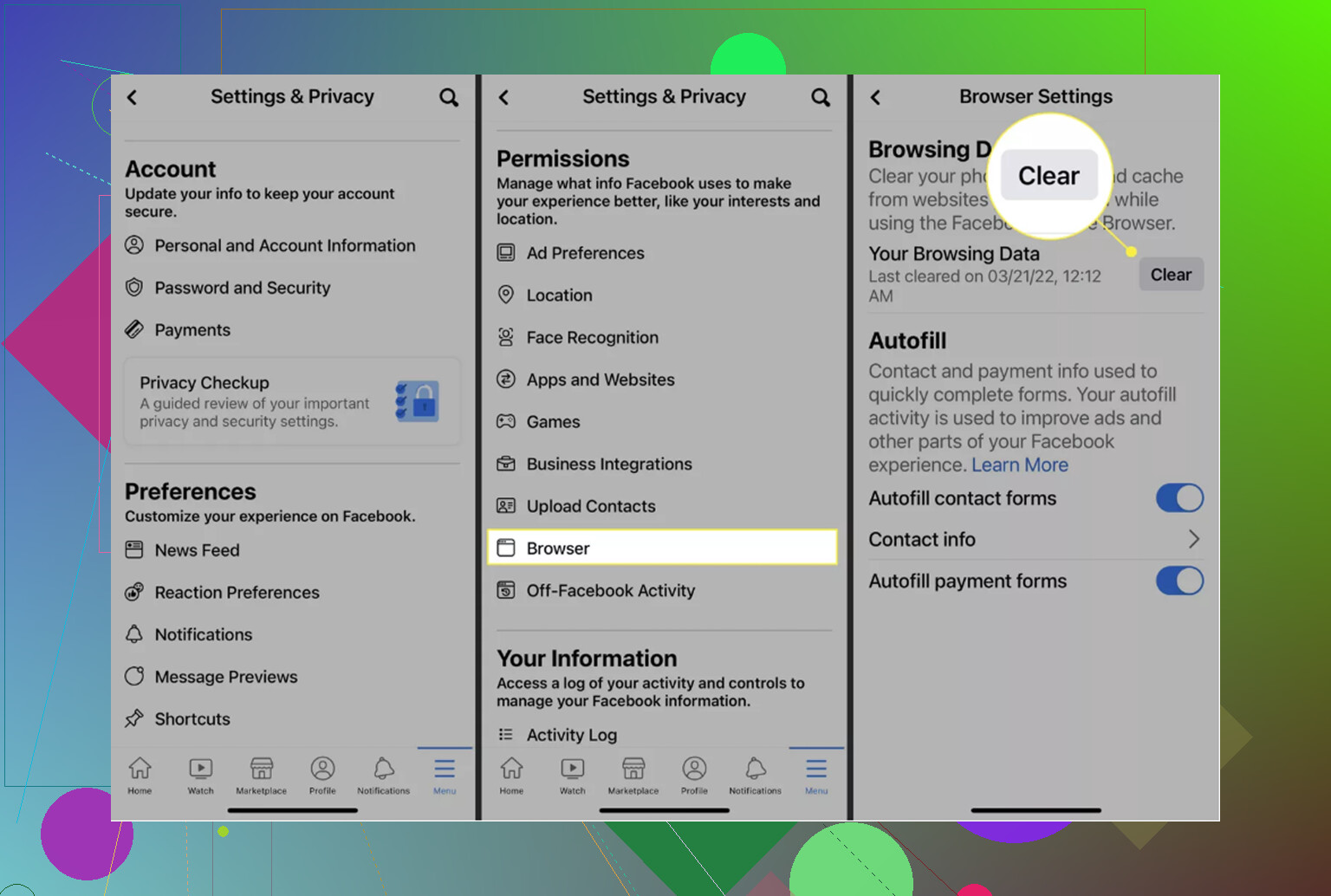
Offload is not really a Messenger cache clear, so don’t be surprised if it barely frees space. It removes the app package but keeps the local data, which is often the bulky part. If you want the real reset, delete the app and reinstall it, but expect to sign in again. Your normal synced chats should return, but check your login, 2FA, and any encrypted chat backup/PIN before doing it. I’d treat anything unfinished or only stored locally as disposable. That’s the small annoying risk people skip over.
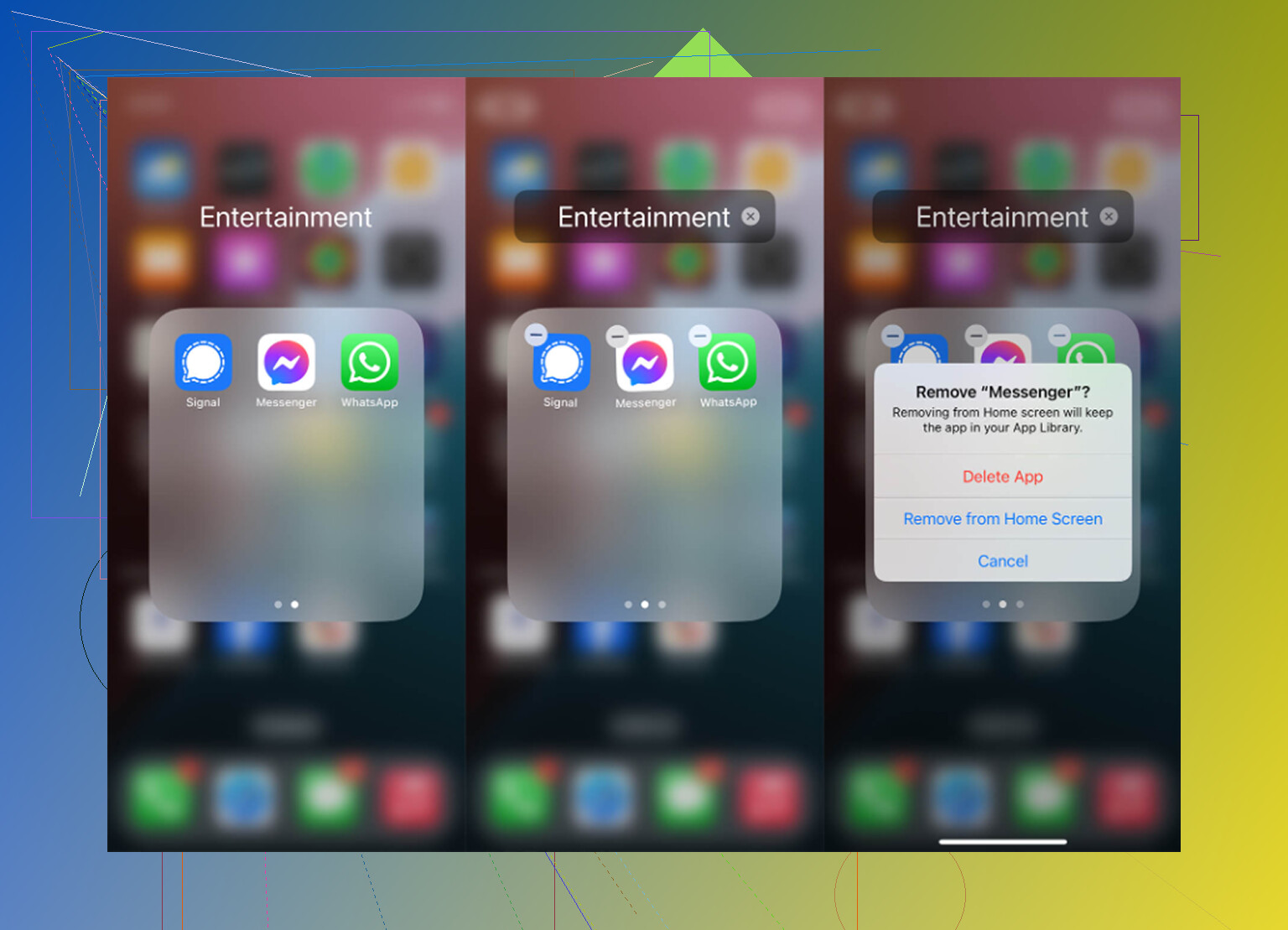
Don’t delete the app while you have messages stuck on “sending” or a chat open with unsaved photos/files you still need. Clearing by offloading usually won’t log you out, but a full delete/reinstall probably will, and Messenger will bring back account chats only after you can sign in again.
Back up your Messenger PIN before you touch anything. This is the thing that actually bites people now, and the thread has only half-mentioned it. Messenger switched a lot of chats to end-to-end encryption by default, and those encrypted conversations do not live on Meta’s servers the same way old chats did. If you delete and reinstall without your recovery PIN or a working secure storage setup, those specific threads can come back empty. Your regular synced chats returning after login is true, but that reassurance does not fully cover the encrypted ones.
@nachtschatten already flagged the PIN, and that’s the part I’d underline hardest. The rest of the ‘your chats are safe’ talk is fine for standard messages, just not a blanket guarantee anymore.
On the offload versus delete question, I lean toward skipping offload entirely if storage is your real complaint. As people said, it keeps the local data, which is usually the bloated part, so you go through the motions and free almost nothing. If you’re going to bother, do the full delete. Just do it on purpose, with your login and PIN sorted first, not on a whim because the app felt sluggish.
One quiet annoyance nobody mentioned: after a fresh reinstall, redownloading your chat history and media can chew through mobile data if you’re not on wifi. Not a disaster, but if you’re on a metered plan, reinstall at home.
The photo cleanup tangent with Clever Cleaner is reasonable if your storage panic is really about the camera roll and not Messenger at all. It does nothing for the app cache, so treat it as a separate job. Figure out first whether Messenger is genuinely the space hog or just the thing you noticed. Check the actual numbers in iPhone Storage before deciding what to clean.