My iPhone storage is almost full, and Twitter/X seems to be using a lot of space. I’m trying to figure out if clearing the Twitter cache on iPhone actually frees up storage or if I need to delete and reinstall the app. Has anyone noticed a real difference?
If Twitter or X is eating storage on your iPhone, the cache setting is inside the app itself. You will not find it in the regular iPhone Settings app, which is the part that trips people up.
Where to clear the Twitter cache on iPhone
- Open Twitter/X
- Tap your profile icon in the upper left
- Go to Settings and Support, then Settings and Privacy
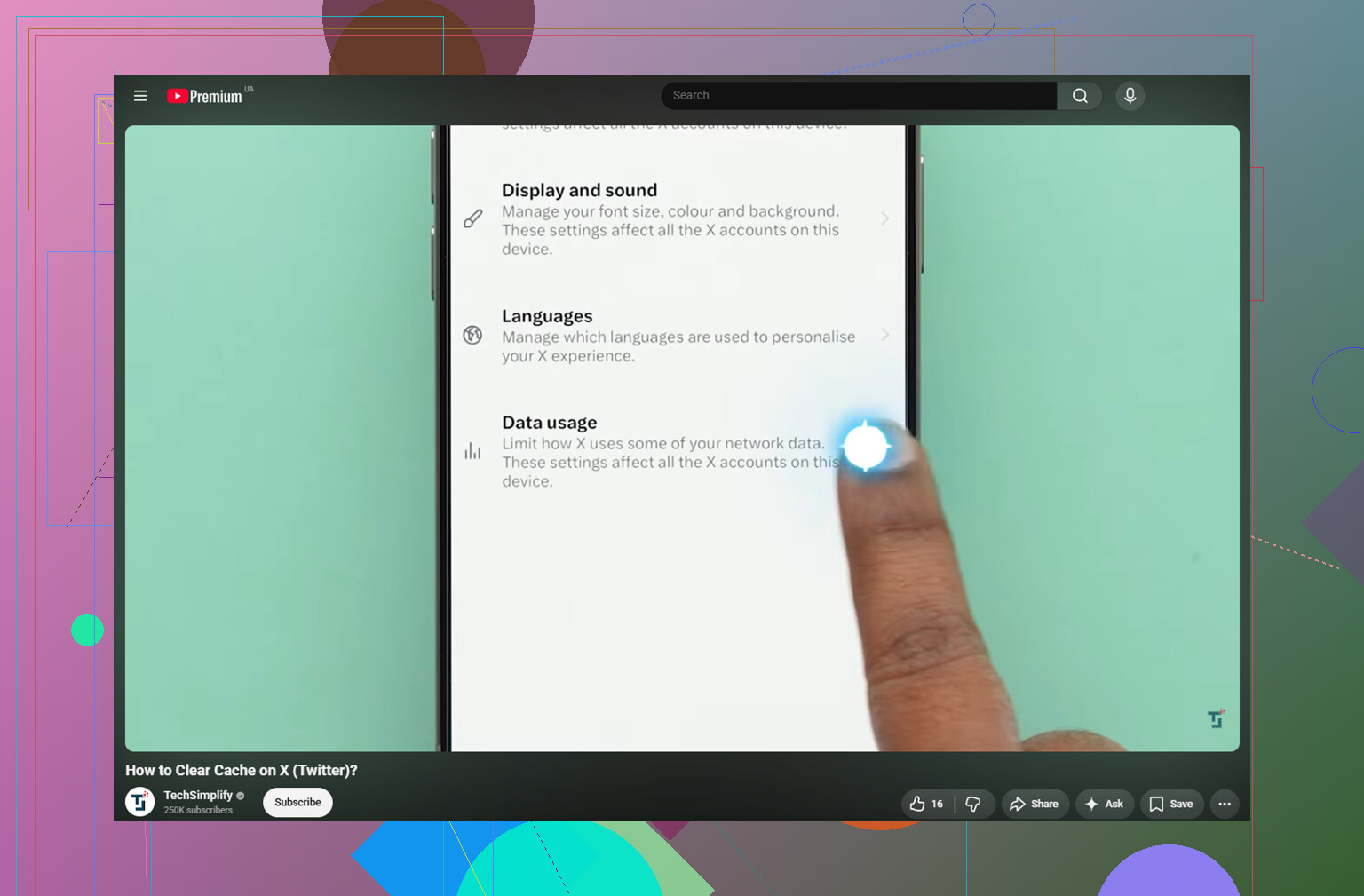
- Open Accessibility, Display and Languages
- Tap Data Usage
- Scroll down to Storage
You should see two cache options there.
Media storage is the safe one to clear first. That removes cached photos, GIFs, thumbnails, and bits of video the app loads while you scroll. It should not sign you out.
Web storage is different. That is tied to the in-app browser, so it can include cookies and saved website data from pages you opened through Twitter/X. If you clear all web storage, you may get logged out, so make sure you know your password first. If you only want the safer cleanup, clear the web page storage instead of wiping everything.
Clearing the Twitter cache does not remove your saved posts, account data, or search history. Search history is handled separately under Settings and Privacy, then Privacy and Safety, then Clear Search History.
Will this fix low storage?
Sometimes, but usually only for a little while. If you use Twitter a lot, clearing media cache can free up around 1 to 3GB. The catch is that the app starts rebuilding that cache again as soon as you keep using it.
That was the annoying part when I ran into this. I cleared Twitter cache, got some space back, and then the storage warning came back about a week later. The cache was not really the main problem. It was just the thing I noticed first.
The bigger issue was the Photos app. Years of screenshots, repeated burst photos, random videos, and old screen recordings were taking up way more space than Twitter ever was. One large 4K screen recording can be bigger than a whole pile of app cache.
When your iPhone is almost full, iOS also has less room for temporary files, so the whole phone can feel slow even after you clear one app’s cache. You need real free space, not just a small temporary cleanup.
What helped more than clearing cache
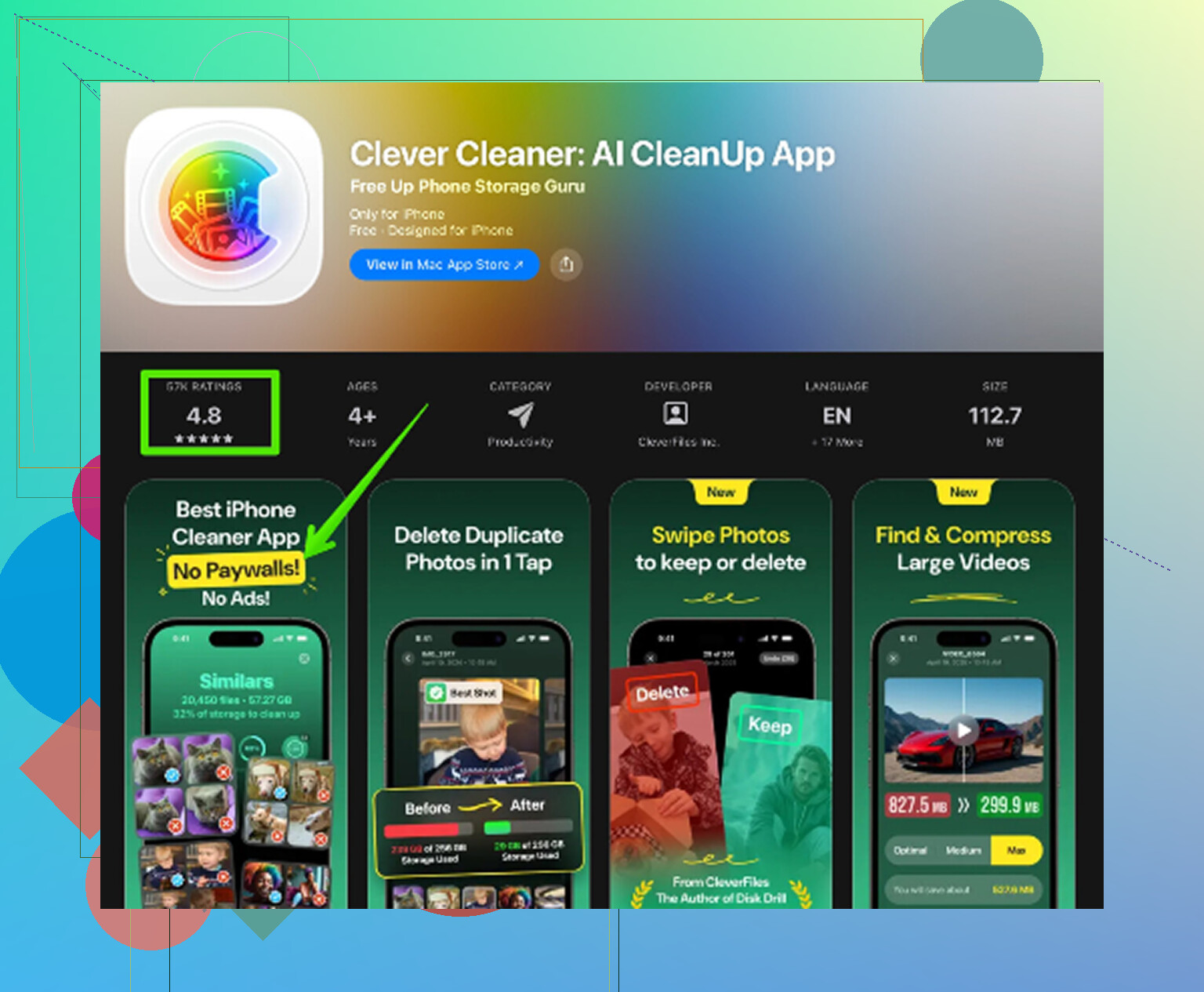
After clearing Twitter cache, the thing that actually made the storage cleanup manageable was going through the photo library with Clever Cleaner. It is free, with no ads and no subscription.
It does not clear Twitter cache or app data. You still have to do that manually using the steps above. What it does is show the files in Photos that are actually taking up space.
The Heavies tab sorts your photo library by file size, from largest to smallest, with the size shown on each item. That makes it easy to spot huge videos and screen recordings instead of scrolling through thousands of photos.
The Similars tab groups near-duplicate photos and picks a Best Shot, so you can clear a bunch of repeated attempts without checking every single image one at a time.
It also shows file sizes on screenshots before you delete anything, which is useful because guessing is usually wrong. Everything is processed on the device too, so the photos are not uploaded somewhere else.
The best order is: clear Twitter media storage first to get quick breathing room, then clean up the photo library with Clever Cleaner to deal with the files that are actually filling the phone. After deleting photos or videos, remember to go to Photos, then Recently Deleted, then Delete All. Otherwise the storage number may not change yet.
Don’t judge the result by the number you see in iPhone Storage five seconds later. iOS is weird about updating that screen, and X can start rebuilding its cache almost immediately if you open it again and scroll for a while.
Yes, clearing the Twitter/X cache can free storage. It mainly removes temporary media and browser data the app saved locally. It does not shrink your account, remove posts, delete bookmarks, or change anything stored on Twitter’s servers. The space comes back only if the app had actually built up a big local cache.
The catch is that there are three different “cleanup” actions people mix up:
Clear cache inside X: safest first move. Usually frees some storage, but may be temporary.
Offload App in iPhone Settings: this removes the app itself but keeps its documents and data. If X’s Documents & Data is the huge part, offloading may barely help.
Delete App: this is the bigger reset. It removes the app and its local data from the phone, then you reinstall and sign back in.
So if you go to Settings > General > iPhone Storage > X and the app itself is something like a few hundred MB but Documents & Data is several GB, clearing cache might help, but deleting and reinstalling is the cleaner reset. Offloading is the one I would not bother with for this specific problem unless you are only trying to temporarily make room for an iOS update.
Before deleting X, check the annoying stuff: login, 2FA, backup codes, and whether you have any unsent drafts. People treat reinstalling like a harmless refresh, then get stuck because their old phone number was tied to 2FA or they forgot which email they used.
After clearing cache, close X, give iPhone Storage a minute, and check again later. If the number barely moves, restart the phone once before assuming it did nothing. Not because restarting magically clears Twitter, but because the storage page can lag or show stale categories.
If you want screenshots of the current menu path, this guide to clearing the Twitter cache is useful. Just keep in mind menu names in X move around more than they should, so the exact wording may not match every app version.
My practical take: clear media storage first, skip “Offload App” for this, and only delete/reinstall if X still shows a massive Documents & Data number afterward. If your whole phone is almost full, though, X is probably only part of the problem. Videos, Messages attachments, and Recently Deleted photos usually matter more than people expect.
Reinstalling is not the magic storage fix people make it out to be. It usually works because it wipes X’s local files, but if you go right back to autoplaying videos and scrolling media-heavy feeds, the app can grow again pretty fast.
The missing setting here is prevention. After you clear media storage, go into X’s data usage settings and turn down anything that makes the cache rebuild quickly, especially video autoplay and high-quality media loading. That won’t make the app tiny forever, but it can slow the storage creep. Clearing cache without changing those habits is basically sweeping while the fan is still on.
I agree with the warning about Offload App. For this specific issue, it is often disappointing because the bloated part is usually the stored data, not the app file itself. My order would be: clear X media storage, reduce autoplay/media loading, restart the phone if iPhone Storage looks wrong, then delete and reinstall only if X is still sitting on multiple GB. And before reinstalling, make sure you can actually log back in. That is the part people treat as a formality until it is not.
Realistically, don’t expect the cache clear to hold. iOS treats app cache as purgeable, meaning when the system actually gets desperate for space it can drop that stuff on its own. So the manual clear inside X is more about getting an instant number change than fixing anything long term. That matches what @waldgeist said about the app rebuilding, but I’d go a step further: half the time the phone would have reclaimed that space anyway once it hit the wall.
The Documents & Data figure everyone keeps pointing at is also flakier than it looks. It lumps together the real cache, offline media, cookies, and sometimes stuff iOS has already marked for deletion but hasn’t cleared. I’ve seen that number sit high even right after a cache wipe, which is why @sognonotturno’s advice to wait and recheck is the right call. Judging it in the first minute will just send you into a delete-reinstall spiral you didn’t need.
On the reinstall question from the original post: it’s the only true local reset, but it’s overkill unless X is genuinely sitting on multiple GB after you’ve cleared media storage and turned off autoplay. The 2FA warning above is not paranoia. If your number changed or you never wrote down backup codes, a clean reinstall can lock you out of your own account, and that’s a much worse afternoon than a full storage bar.
The Clever Cleaner mention makes sense for the part everyone eventually admits, which is that Twitter usually isn’t the real hog. It’s fine as a way to see which videos and screenshots are actually eating the drive without scrolling forever. I wouldn’t lean on it as a fix though, since it only touches Photos. Big offenders it won’t see are Messages attachments and podcast or music downloads, and those pile up quietly. Check Settings, General, iPhone Storage and read the list from the top before you assume any single app is the problem.
My blunt take: clear X media storage once, kill video autoplay so it stops refilling, then ignore the app and go clean out large videos and old Messages threads. That fixes the actual full-phone problem far more than fussing over one app’s cache.