I’m trying to mount a drive on my Mac, but it keeps failing with the message com.apple.diskmanagement.disenter error 49223. The disk shows up, but I can’t access the files, and I’m worried about losing data. I need help figuring out what causes this Mac disk mount error and the safest way to fix it.
I ran into this same mess with a gray drive in Disk Utility and the lovely 'Error 0' note. Mac sees the device, sure, but it refuses to mount the file system. The usual label for it is 'com.apple.DiskManagement.disenter'. In plain English, the hardware shows up, the volume does not.
What I kept seeing came down to three things. Bad unplugging, file system mismatch stuff on Monterey or Ventura, or fsck spinning its wheels in the background and never finishing.
If your files matter, I would stop poking at it blindly. Start with the low-risk stuff first.
1. Kill the stuck fsck process
This fixed it for me more than once.
If the drive got yanked without ejecting, macOS often starts fsck, the file system check process. While it runs, the disk stays locked. On some exFAT drives, and on bigger disks, it seems to hang forever. I saw this on a 5TB external and thought the thing was dead. It wasn't. It was stuck.
Open Terminal from Applications > Utilities and run:
sudo pkill -f fsck
Type your Mac password and press Enter. You will not see the password while typing. After I did this, the disk mounted right away once, and another time it took around 15 seconds. If it comes back as read-only, copy your files off first. Don't keep testing fate.
2. Run First Aid on the right items, in the right order
A lot of people only run First Aid on the volume name. I did too at first. It missed stuff.
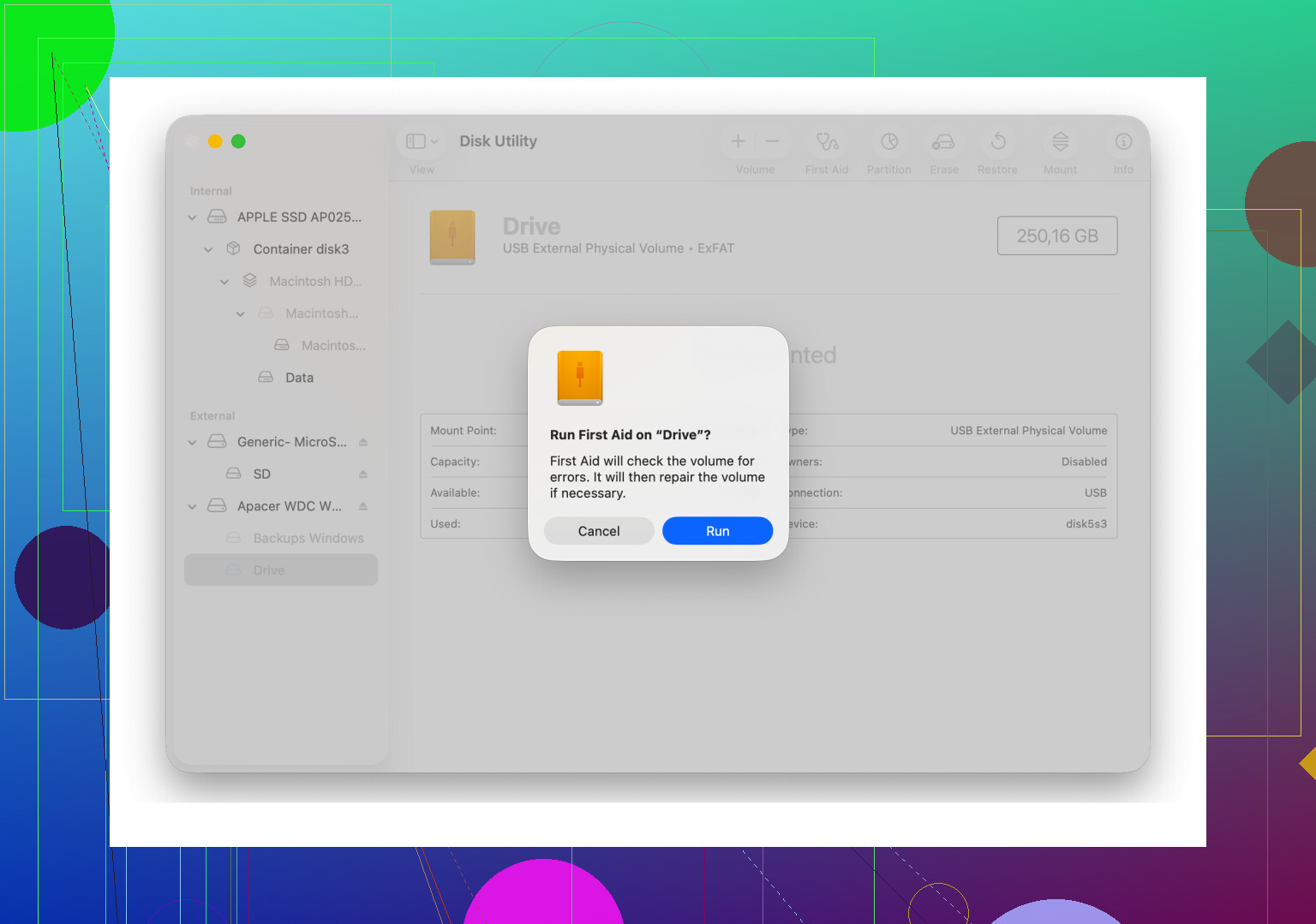
In Disk Utility, click View, then Show All Devices. You want the full tree, not the simplified view. Then run First Aid in this order:
Physical disk
Container, if one exists
Volume
I had one case where the first pass failed, second pass complained less, and the third pass finally cleared the mount issue. Feels dumb, but I watched it repair header and tree errors after multiple runs.
3. Log out, then back in
This sounds fake until it works.
On Monterey and Ventura, I saw cases where DiskManagement got weird at the account level. Logging out of my user session and signing back in made the drive mount. A second user account on the same Mac also helped once. If the disk opens fine there, your main account has some broken preference or permission state. Annoying, but useful to know.
4. Check for Time Machine interference
If the drive used to be a Time Machine target, macOS sometimes keeps a grip on it because of snapshots or backup settings.
I turned off 'Back Up Automatically' in System Settings, then reconnected the drive. That was enough once. Not elegant. Still worked.
5. Stop forcing mounts if errors keep stacking up
This is where I messed up the first time. I kept retrying commands, remount attempts, First Aid, unplug, replug. Bad idea.
If Terminal tricks fail and Disk Utility keeps throwing errors, leave the file system alone for a bit. Repeated mount attempts on a damaged disk can make things worse. I learned this the hard way with an older WD drive. The more I 'tested,' the less readable it got.
At that stage, I switched to recovery software. The one I used was Disk Drill. What mattered for me was simple. It scanned the raw disk without needing macOS to mount the volume first.
On my WD_Black, it pulled up the folder structure in preview well enough for me to grab work files and photos onto a good drive. I cared less about perfect recovery and more about getting the important stuff off before trying repairs again.
6. Reformat only after your data is safe
Once your files are copied out, wipe the disk clean if you want to keep using it.
In Disk Utility, select the physical device, not only the volume, then hit Erase.
Use these formats based on where the drive will live:
Mac only, APFS or Mac OS Extended (Journaled)
Mac and Windows, exFAT
I would format exFAT on the Mac if the drive is mainly used there. I had fewer weird compatibility problems doing it that way.
What I would do in order
1. Try sudo pkill -f fsck
2. Run First Aid with Show All Devices enabled
3. Log out and back in, or test another user account
4. Disable automatic Time Machine backup if relevant
5. Recover files before more repair attempts
6. Erase and reformat after recovery
One more thing. Big drives take forever. On 4TB and up, First Aid and scanning jobs can sit there long enough to make you think nothing is happening. I almost canceled one too early. Let it run.
Error 49223 usually means macOS sees the hardware, but it rejects the file system or partition map. I agree with part of what @mikeappsreviewer said, but I would not start by killing random fsck processes unless you already confirmed one is stuck on your disk. If fsck is mid-repair and you kill it at the wrong time, you risk a worse mess.
What I would check first:
- Identify the disk in Terminal.
Run:
diskutil list
Find the external disk identifier, like disk4 or disk4s1.
- Read the mount failure reason.
Run:
diskutil mountDisk /dev/disk4
or for one volume:
diskutil mount /dev/disk4s1
If it fails again, pull logs:
log show --last 10m | grep -i disenter
This often shows if the issue is exFAT corruption, GPT damage, or permission denial.
- Verify the partition map.
Run:
diskutil verifyDisk /dev/disk4
If the partition map is damaged, First Aid on the volume won’t fix much. You need the parent disk checked first.
-
Try another cable, port, or powered hub.
This sounds boring, but bad USB cables cause mount errors more often than people admit. I had one Samsung T7 act dead on one USB-C cable and mount fine on another. Same Mac. Same drive. Dumb, but real. -
Test on a second machine.
If it mounts on another Mac or a Windows PC, copy data off fast. If it fails everywhere, stop poking it.
If your files matter, switch from repair to recovery sooner. Disk Drill is a solid option for Mac when the drive shows in Disk Utility but refuses to mount. It scans the raw device and often finds files even when Finder sees nothing. That is the safer move before erase attempts.
After recovery, erase the physical disk, rebuild the partition map, then format it fresh. For a readable explainer on when formatting solved this type of issue, see formatting fixed the disenter error on Mac.
If you post the output of diskutil list and verifyDisk, people here can tell you if this is file system damage or hardware goin bad.
Error 49223 is one of those annoyingly vague macOS errors where the drive is seen but the volume won’t attach cleanly. @mikeappsreviewer and @vrijheidsvogel already covered the usual repair angle, so I’d look at this a little differently: figure out whether the problem is the file system, the enclosure, or the drive’s health before you keep trying mounts.
A few things I’d do that haven’t really been stressed enough:
1. Check SMART / hardware health
In Terminal:
diskutil info /dev/diskX
Look for SMART status if it’s available. If the enclosure hides SMART, try a diffrent enclosure or adapter. A failing USB-SATA bridge can throw mount errors that look like file system corruption.
2. See if the disk is being mounted read-only by the kernel
Run:
mount
and
diskutil info /dev/diskXs1
Sometimes the disk is technically mounted in a limited state and Finder just acts useless.
3. If it is an external HDD, listen to it
Clicking, spin-up/spin-down loops, or long pauses are bad signs. If that’s happening, stop running First Aid over and over. That just adds stress.
4. Clone first if the data matters
This is where I sorta disagree with the “keep trying repairs” mindset. If the drive seems unstable, make a sector-level copy first if possible, then work from the copy. If you can’t mount it but the device still appears, Disk Drill is a practical option because it can scan the raw disk and recover files without needing Finder to cooperate.
5. Check Apple silicon / power weirdness
On some bus-powered drives, low power from a port causes random disenter errors. Try direct connection, no cheap hub, or use a powered hub. Sounds dumb, fixes stuff way too often.
Also, this was a decent read from someone dealing with a similar Mac disk mount mess: how one Mac user fixed the DiskManagement disenter mount error
If the drive is visible but won’t mount anywhere, I’d stop chasing repairs and move straight to recovery, then reformat after. If you post diskutil list and diskutil info, people can probly tell pretty fast whether this is corruption or the drive starting to die.
One angle missing from @vrijheidsvogel, @sonhadordobosque, and @mikeappsreviewer: check whether the volume is simply flagged inactive / hidden / not browseable, especially if it was last touched by Windows, Linux, or partition tools.
In Terminal:
diskutil apfs list
diskutil list
sudo gpt -r show /dev/diskX
sudo fdisk /dev/diskX
Why? Error 49223 can happen even when the file system is mostly fine, but the partition metadata is weird enough that macOS refuses to attach it normally.
Also worth checking if macOS is refusing it because of ownership / stale mountpoint junk:
ls -la /Volumes
If you see a leftover folder with the same volume name, rename or remove that empty mountpoint and try again.
One thing I slightly disagree on: I would not keep cycling First Aid too many times on a questionable HDD. Verification is cheap. Repetitive repair is not.
If the disk is visible but precious, I’d lean toward Disk Drill before more repair attempts.
Pros of Disk Drill
- scans unmounted volumes
- good preview support
- easy for non-terminal users
Cons
- not magic on failing hardware
- deep scans can take ages
- recovery quality depends on file system damage
If Disk Drill finds your files, copy them out first, then rebuild the disk completely. If it finds nothing and the drive makes noise or disconnects, you’re drifting from software problem into hardware problem.