I deleted all photos from my iPhone to free up space, but my storage barely changed afterward. I already checked Recently Deleted, and it still doesn’t seem to make much difference. I need help figuring out what’s still taking up space and how to actually clear my iPhone storage.
I hit this mess myself. Around 20,000 photos, storage warnings every few mins, Photos hanging the second I tried to clean anything up. What tripped me up was simple. iPhone still has no plain “delete all” option in the main library, so if you don’t know the order, you tap around forever and nothing changes.
Why your storage stays full after you delete stuff
This part fooled me the first time. When you delete a photo, iOS does not remove it right away. It gets pushed into Recently Deleted and sits there for up to 40 days. So the storage number does not drop until you clear that folder too.
Do this if you want the space back:
- Open Photos
- Go to Albums
- Scroll down to Recently Deleted under Utilities
- Tap Select
- Tap Delete All
If you skip Recently Deleted, your phone is still holding the files.
Why Photos falls apart with huge libraries
For a few hundred pics, drag to select works fine. Once you get into the thousands, it gets ugly. I saw lag, random freezes, sometimes the app closed on its own. Even newer iPhones choke when they’re trying to process a giant batch while storage is already pinned.
What helped me was removing one big app first. A game, TikTok, Instagram, whatever is bloated on your phone. That gave iOS enough room to finish the photo deletion instead of stalling out.
If the screen method is driving you nuts, use a computer.
On Mac, plug in the iPhone and use Image Capture. You can select everything and wipe it in one shot.
On Windows, open the DCIM folder in File Explorer. It works in a similar way, though I’ve had it act weird before when drivers were old or half-broken.
A better way if your library is huge
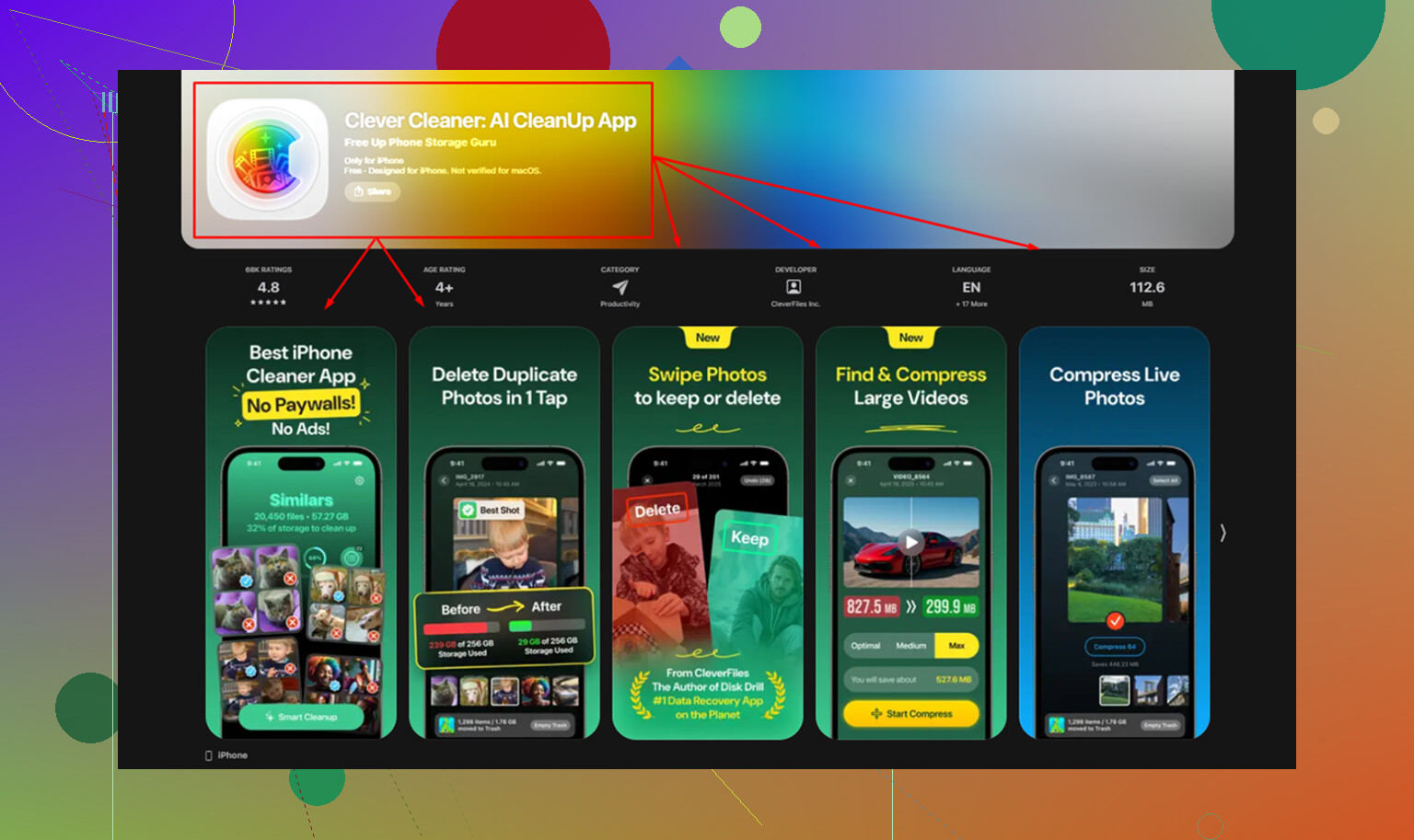
Once the library gets past a few thousand items, I stopped bothering with the stock Photos app. It was too slow. Most cleanup apps in the App Store hit you with a paywall right away or keep nagging you for a subscription. Clever Cleaner stood out because it was free, no ads, no paywall screens popping up every two taps.
How I’d use it:
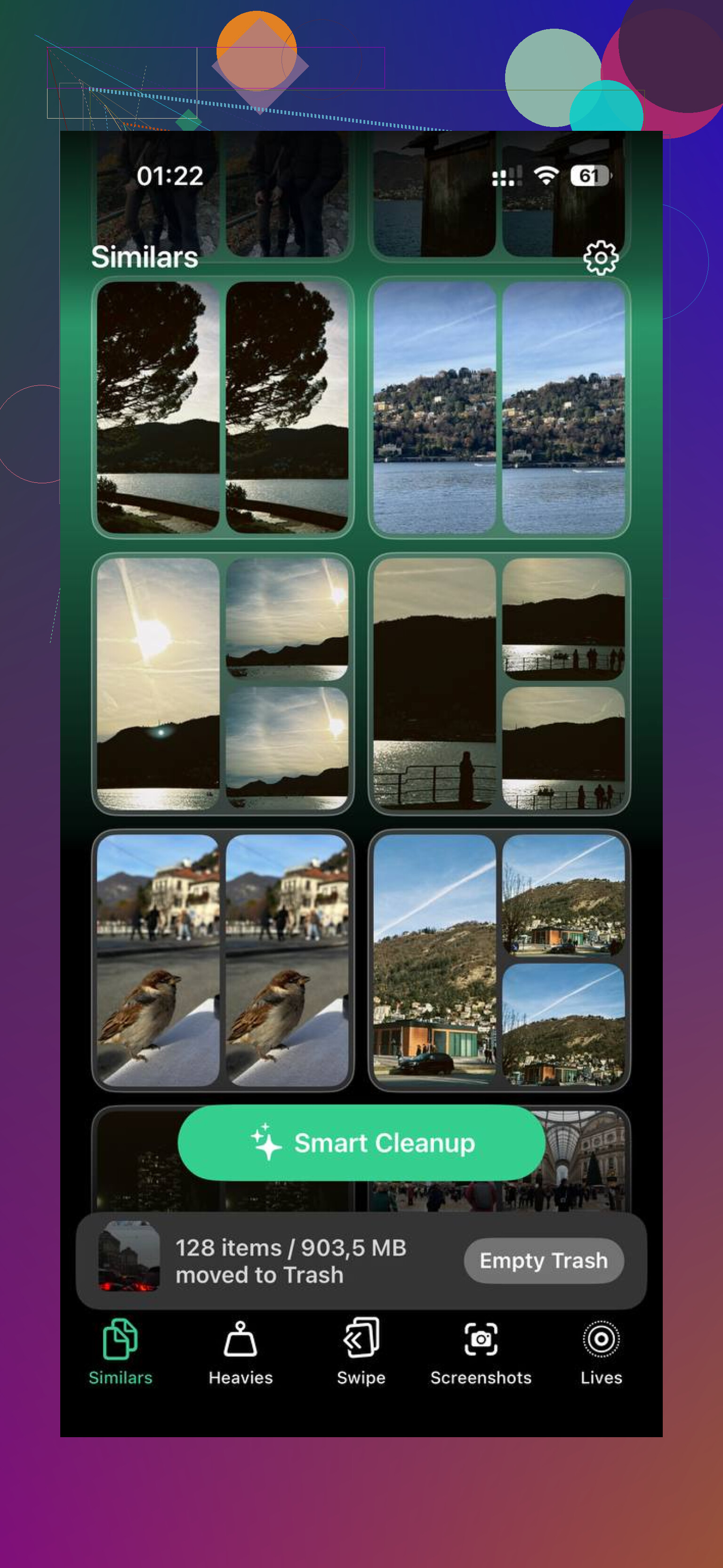
- Open the Heavies tab first. It sorts your library by file size, biggest to smallest. You see fast which videos or photos are eating your storage.
- Start at the top. I found a small batch of giant files was worth more space than deleting thousands of tiny ones.
- Check the Similars tab next. It groups near-duplicate shots together, which is handy for those 8 blurry tries of the same dog pic or receipt photo.
- Open Screenshots after that. Each thumbnail shows the file size, so you know what you’re removing before you tap delete.
- It runs on-device, which mattered to me. I had screenshots with bank stuff, messages, random login junk. I didn’t want any of it sent off-phone.
The part I liked most was using Heavies and Similars together. That got me results faster than blind bulk deletion. You remove the files doing the damage first.
One thing to check before you wipe anything
If iCloud Photos is on, deleting from the iPhone also deletes from iCloud and your other Apple devices tied to the same account. This catches people all the time.
If your goal is to clear phone storage without losing the originals, go to Settings, Photos, then turn on Optimize iPhone Storage. Your phone keeps smaller versions locally and leaves the full-size files in iCloud.
If you already copied everything to a PC, Dropbox, or Google Photos, then deleting the local stuff is less risky. I’d still double-check the backup first. I learned the hard way once, and yeah, not fun.
After you finish, clear Recently Deleted. That’s the step where the storage bar finally starts moving.
If Recently Deleted is empty and storage barely moved, your problem might not be Photos anymore.
A few places to check:
- Settings, General, iPhone Storage. Wait 30 to 60 seconds. iOS recalculates slowly. I’ve seen the first number be wrong.
- Look at Photos size vs System Data vs Messages vs apps. A lot of people delete 30GB of pics, then find 40GB sitting in Messages attachments or Instagram cache.
- Restart the iPhone. Sounds dumb, works more than it should.
- If iCloud Photos is on with Optimize iPhone Storage off, your phone may have kept full-res copies longer than expected. Toggle Optimize on and leave it on Wi-Fi and power for a bit.
- Check Files app, Downloads folder, and Safari downloads. Those get forgotten all the time.
- Messages, review large attachments. Videos in text threads eat space fast.
I’ll disagree a bit with @mikeappsreviewer on one point. Deleting one big app first helps sometimes, but if iPhone Storage shows System Data ballooning, app removal won’t fix the main issue. System Data cache gets weird and sticky.
What helped me was this order:
- Restart
- Recheck iPhone Storage
- Clear Messages attachments
- Offload and reinstall social apps
- Leave phone charging on Wi-Fi overnight
If your library is messy, Clever Cleaner is worth a look for sorting huge videos, duplicates, and screenshots faster. Also, if you want a plain-English take on Reddit feedback, this thread sums up why people like it for free iPhone photo cleanup, no ads, no paywall, simple interface, see what Reddit users say about Clever Cleaner for iPhone storage cleanup.
Main thing is, check the storage breakdown first. Your missing space is often somewhere else. iOS is annoyng like that.
If Recently Deleted is already empty, I’d stop blaming Photos for a sec. @mikeappsreviewer is right about iOS needing free working room sometimes, but I kind of side with @suenodelbosque that the “missing space” is often hiding somewhere way less obvious.
A few things people miss:
- Settings > General > iPhone Storage can lag behind reality. Leave that screen open a minute.
- Photos deleted from the library can still exist in Messages threads as attachments.
- iCloud Photos can make storage reporting look wonky for a while.
- “System Data” and app caches can balloon after mass deletion, which is super annoying and very Apple.
Big one: if your photo library was synced from a Mac/Finder/iTunes at some point, some images may not behave like normal camera-roll items. Also check Files app, Downloads, voice memos, CapCut, WhatsApp, Instagram cache, Spotify downloads, Netflix offline stuff. Those are sneaky.
If you want to find the actual storage hogs instead of guessing, use Clever Cleaner. The useful part isn’t just deleting duplicates, it helps surface giant videos and other heavy media faster than digging through Apple’s clunky menus.
Also worth watching this how to free up iPhone storage after deleting photos guide.
Honestly, after a huge cleanup, a restart plus leaving it charging on Wi-Fi for a bit fixes a lot of weird reporting bugs. Kinda dumb, but yep.
I’d check one thing nobody has really pushed hard enough yet: backups and synced media.
If your photos were ever synced from a Mac or older iTunes/Finder setup, deleting inside Photos may not touch those the way you expect. Same with media restored from a backup. The storage graph can still look “full” because iOS is hanging onto local snapshots, indexes, or temp data until it finishes housekeeping.
A couple different angles from @suenodelbosque, @codecrafter, and @mikeappsreviewer:
- Open Settings, Apple ID, iCloud, Manage Account Storage, Backups, pick this iPhone. See whether an old backup is huge because of app/photo data you thought was gone.
- Check downloaded media in Apple Music, Podcasts, TV, and third-party editors like CapCut or VN. Edited exports often live outside Photos.
- Voice Memos is another sneaky one. Long recordings can eat gigs.
- Mail app can hoard big attachments and offline message data. Sometimes removing and re-adding the mail account frees a lot more than deleting photos ever would.
- If storage stats look frozen for days, not minutes, I actually disagree a bit with the “just wait overnight” advice. At that point, an encrypted backup to computer, then restore, is often the cleanest fix for bloated System Data.
Clever Cleaner is useful if you want to find giant videos, duplicates, and screenshots fast. Pros: free feeling, easy sorting, less digging. Cons: still another app, and it won’t magically shrink true System Data corruption.
So yeah, if Photos is empty, stop staring at Photos. The missing space is usually hiding in downloads, media caches, backups, or a buggy storage index.