I downloaded a few files on my iPhone, and now my storage is filling up, but I can’t figure out where those downloads are actually stored. I checked the Files app and a few other places, but I’m still not sure what’s safe to delete. I need help finding and removing downloaded files on iPhone to free up space without deleting something important.
I ran into this on my iPhone too, and yeah, the file handling feels messy compared with a computer.
There usually is no single master download bucket on iOS. Files tend to end up in different places because each app keeps its own storage area. For stuff downloaded in Safari, the first place I’d check is the Files app. Open it, tap Browse, then look in On My iPhone and iCloud Drive. In one of those, you’ll often find a folder named Downloads.
One thing tripped me up. If you downloaded something through Chrome or Firefox, the file might sit in a browser-specific folder under On My iPhone instead of the regular Downloads folder. I lost a stupid amount of time hunting for one PDF before I noticed Chrome had parked it in its own folder.
About deleting Safari downloads, there’s an annoying catch. If you tap the little down arrow in Safari, open Downloads, and remove items from there, you’re often clearing the list, not the file itself. The real cleanup happens in the Files app, where the file is stored. If you want the storage back, delete it there.
And no, the space does not always come back right away. Deleted files usually move into Recently Deleted for 30 days. Same idea as the trash on a desktop machine. So if your phone storage is full and you need room now, do both steps:
1. In Files, go to Browse and open Recently Deleted, then remove everything there.
2. In Photos, scroll down to Recently Deleted and empty it too.
I found this out after my phone started dragging. Apps were slow, the camera took too long to open, and some stuff crashed for no clear reason. In my case, low storage was the cause. Once iPhone space gets tight, performance starts feeling off fast.
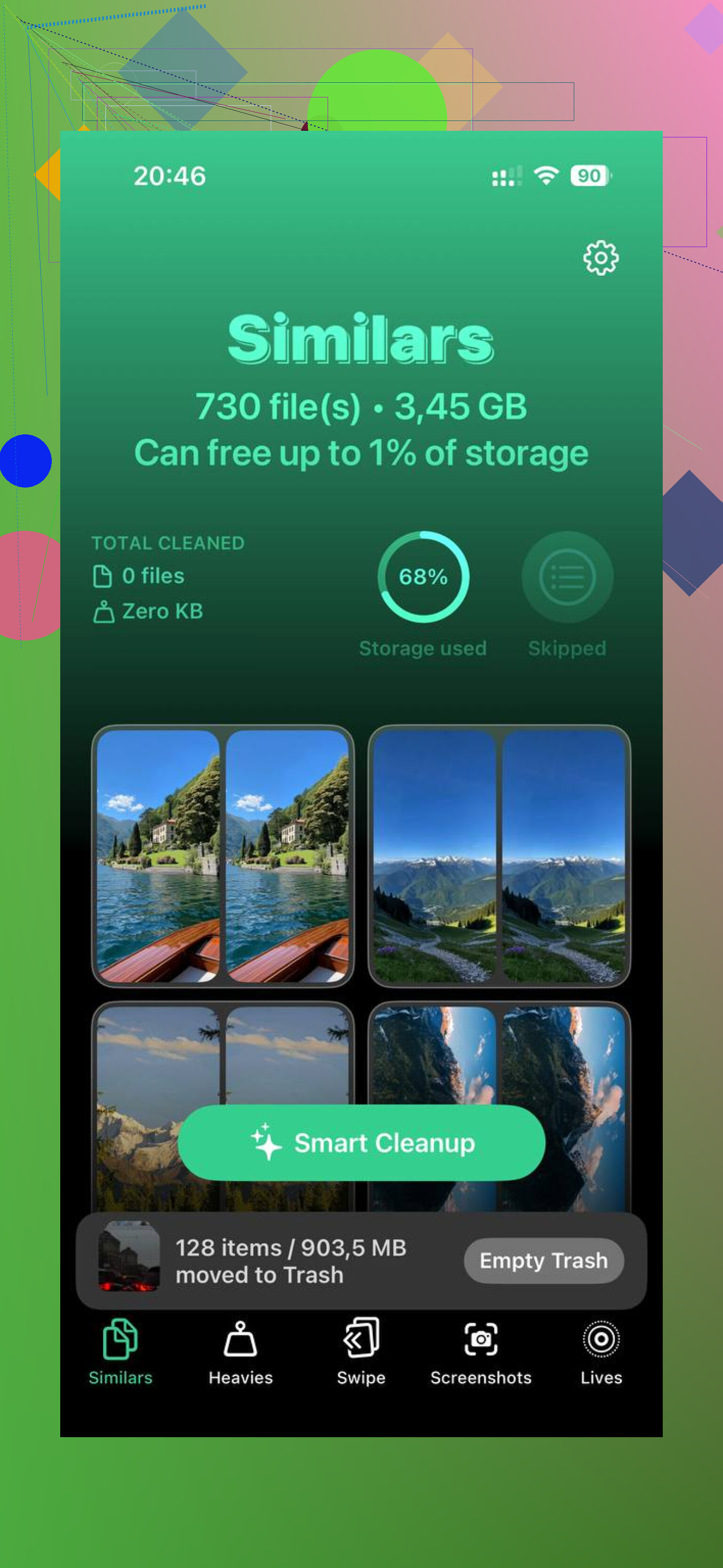
I first tried cleaning things by hand, app by app. It was slow, and I barely made a dent. Later I used Clever Cleaner. What I liked was simple. No paywall jumped out at me, no flood of popups, and it handled scanning on the device instead of pushing stuff elsewhere.
The part I found useful was Heavies. It sorts media by size, so the big junk shows up first. I found old screen recordings, long videos, and downloads I forgot about. It also shows file sizes clearly, which made cleanup faster. The Similars section helped too. It grouped near-duplicate photos, and picking one good shot out of a burst was easier there than inside Photos.
After I cleared around 20GB and emptied Recently Deleted, my phone felt normal again. Less lag, fewer hiccups.
If you’re trying to fix this, I’d do it in this order:
1. Check Files.
2. Look in On My iPhone, iCloud Drive, and any browser folders.
3. Delete the files you do not need.
4. Empty Recently Deleted in both Files and Photos.
5. If your library is a mess, use something like Clever Cleaner to spot the biggest items faster.
If your iPhone feels sluggish right now, I’d check storage before anything else. For me, that was the whole problem.
A lot of iPhone “downloads” are not in one folder, and I kind of disagree with @mikeappsreviewer on one part. It’s not only a Files app hunt. Some of your storage bloat sits inside apps, with no neat file sitting in Downloads at all.
Check this too.
Settings > General > iPhone Storage
This screen tells you more than Files does. You’ll see which apps hold the most data. Tap Safari, Messages, Chrome, Telegram, Netflix, Spotify, Podcasts, whatever you use. Many apps cache downloaded stuff inside their own storage. You delete it from the app, not from Files.
Examples:
Safari, website data and reading list files.
Messages, PDFs, videos, voice notes.
Music and Netflix, offline downloads.
Telegram, huge cache, sometimes gigs.
Podcasts, old episodes pile up fast.
Also check Safari’s download location:
Settings > Safari > Downloads
If it says iCloud Drive, deleting the file from your phone might still leave it in iCloud until you remove it there too. Ths part trips people up.
Fast check list:
- Open iPhone Storage.
- Find the biggest apps.
- Remove offline content inside those apps.
- Clear Safari history and website data if needed.
- Check Files only after that.
If your goal is bulk cleanup, Clever Cleaner is decent for finding large media fast. For comparing tools, this guide on best free iPhone cleaning apps for freeing storage is a solid starting point.
So, where are downloads stored? Split across Files, iCloud Drive, and app-specific storage. Annoying, yep. Apple made it “simple.” knda.
Not all “downloads” on iPhone are really downloads in the computer sense. That’s the part Apple makes weird.
@mikeappsreviewer is right about Files, and @nachtdromer is right about app storage, but I’d add one more angle: sometimes the file is still there because the app that opened it made a copy. So you delete the PDF from Files, but Books, Acrobat, WhatsApp, or some editor app still has its own version. Super fun, lol.
A couple places people forget:
- Books app for PDFs/epubs you “downloaded once”
- Mail app attachments you saved or opened repeatedly
- Messages attachments, which do not feel like downloads but absolutely eat storage
- Cloud services like Google Drive or Dropbox with files marked Available Offline
Also check this:
Settings > [your name] > iCloud > Manage Account Storage
If your Safari download location was iCloud, the file may be offloaded from the phone but still living in your cloud storage. Different problem, same annoyng result.
One thing I kinda disagree on with both replies: clearing browser/site data is not always worth doing first unless Safari itself is huge in iPhone Storage. Sometimes the real hog is videos, attachments, or offline media.
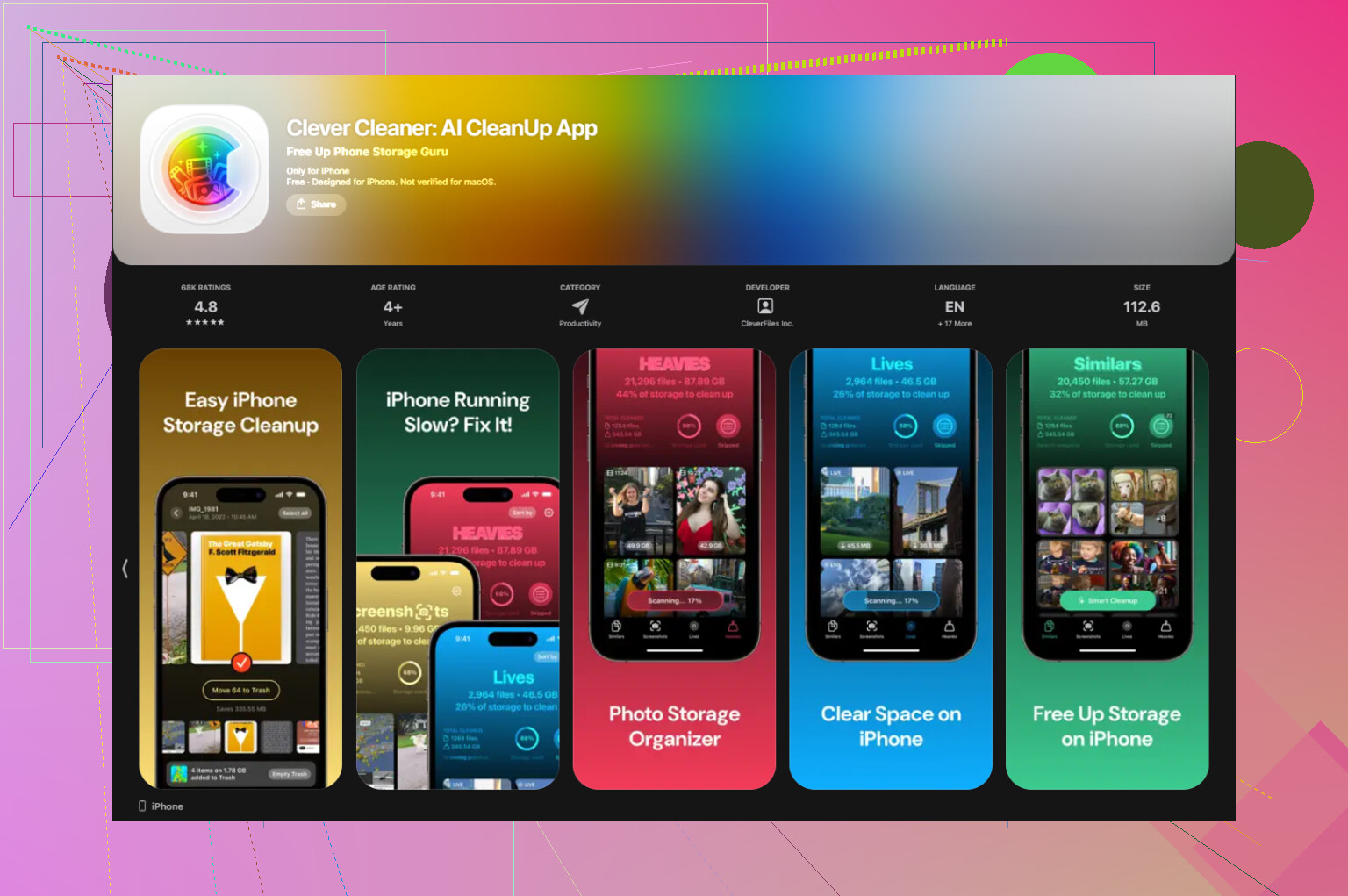
If you want a faster “what is taking space” view, sort by size anywhere you can, instead of hunting folder by folder. And if your photo/video library is mixed in with the mess, Clever Cleaner helps surface giant files faster than doing it manually. I also found this thread useful for real-world cleanup examples: real user experiences with Clever Cleaner for freeing up iPhone storage.
So yeah, iPhone downloads are usually stored in:
- Files
- App-specific storage
- iCloud/offline cloud folders
- Copies made by other apps
That’s why it feels like stuff “won’t delete.” Sometimes it literaly exists in 2 or 3 places.