I’m trying to clean up the Hidden album in the iPhone Photos app, but I’m worried about how it affects iCloud Photos. If I delete hidden photos from my iPhone, will they also be deleted from iCloud and my other Apple devices, or is there a way to remove them only from the phone?
You don’t have to unhide iPhone photos before deleting them. If anything, deleting them while they’re still in the Hidden album is the cleaner way to do it, since they never pop back into your normal library view.
Open Photos, go to the bottom tab for 'Albums' or 'Collections' if you’re on the newer iOS 18 layout, then scroll down to 'Utilities.' You should see 'Hidden' there. Since iOS 16, that album is locked by default, so you’ll need Face ID, Touch ID, or your passcode to open it.
Once you’re inside Hidden, tap 'Select' in the top right. If you want to clear the whole thing, tap 'Select All,' then hit the trash icon. That removes those items from the Hidden album right away.
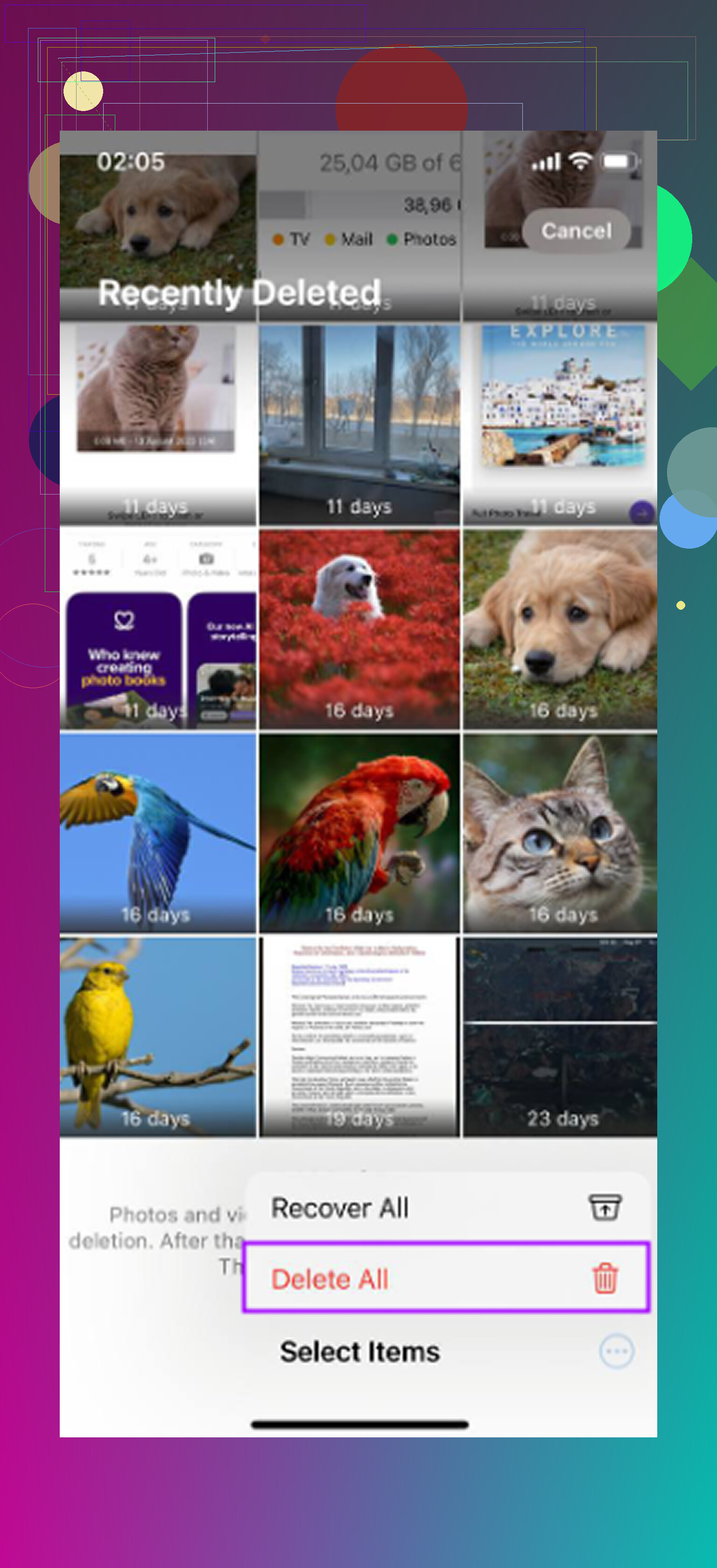
The annoying part is that they are not fully gone yet. Like regular deleted photos, they move into 'Recently Deleted' and stay there for 30 days unless you manually wipe them. So if you want them gone immediately, go back to the Albums/Collections screen, open 'Recently Deleted' under Utilities, unlock it, tap 'Select,' then choose 'Delete All.'
And yes, if iCloud Photos is turned on, deleting hidden photos also deletes them from iCloud and your other synced Apple devices. The Hidden album is still part of your photo library. It’s basically just a locked/filtered section, not a separate storage area. So a deletion from your iPhone will also sync to your iPad, Mac, and anywhere else using that same iCloud Photos library.
If you just don’t want the Hidden album showing in Photos at all, you can hide the album itself. Go to iPhone Settings -> Photos, then turn off 'Show Hidden Album.' That does not delete the hidden photos. It only removes the Hidden folder from the Photos app until you turn the setting back on.
One thing I’d add: once you start clearing Hidden, it usually becomes obvious that the bigger storage problem is the regular photo library. It’s rarely just the hidden stuff. Most people have piles of duplicate shots, old screenshots, huge videos, screen recordings, and random junk sitting around for years.
If you want to clean up the rest of the library after handling Hidden manually, Clever Cleaner is worth a look. I’ve tried a bunch of photo cleanup apps, and this one is one of the better free options because it doesn’t throw ads or paywalls in your face right when you’re trying to delete things.
The useful parts are pretty practical. It shows file sizes for screenshots, which helps when you’re trying to figure out what is actually taking up space. The 'Heavies' section sorts media by size, so big 4K videos and oversized files are easy to spot. The 'Similars' section looks for near-duplicate photos, like all those slightly different shots of the same thing, and lets you keep the best one while removing the rest.
Privacy-wise, it processes everything on the device instead of uploading your photos somewhere else. Just don’t expect it to clean the Hidden album for you. Because of Apple’s privacy restrictions, Clever Cleaner cannot access or clean your Hidden album directly. You still need to delete Hidden items yourself using the steps above. For the rest of the library, though, it can save a lot of time.
If iCloud Photos is on, Hidden is just a synced view of your library; if it’s off and you only mean an iCloud backup, deleting from the phone is different.
So yes, with iCloud Photos enabled, deleting hidden photos on the iPhone deletes them from iCloud Photos and other devices too, after the Recently Deleted period unless you empty that manually. The thing people mix up is iCloud Photos and iCloud Backup, since a backup is not a separate photo archive you can safely clean against.
If you’re deleting them mainly to make room on the iPhone, check whether Optimize iPhone Storage is turned on first. With that setting, the phone may only be holding smaller local versions anyway, so deleting a hidden photo can remove it from iCloud and all synced devices while not freeing as much local space as you expected.
The safer way is to treat Hidden as “still part of Photos,” not as a separate stash. If iCloud Photos is enabled, delete means delete from the synced library. If there’s anything you might want later, export it somewhere outside Photos first, like Files, an external drive, or a non-synced cloud folder. Do that before touching Recently Deleted, because emptying Recently Deleted is the point where you’re making it much harder to undo.
Small exception people forget: Shared Albums are a different feature from iCloud Photos. Removing something from a Shared Album doesn’t always mean the same thing as deleting it from your personal library. But for the normal Hidden album inside your own Photos library, the earlier answers are right: it syncs like any other photo. Hidden only changes visibility, not where the photo lives.
Think about it as two different goals, because the steps and the risk change completely. If you’re wiping hidden photos because they’re sensitive and you want them gone, that’s one situation. If you’re doing it to reclaim iCloud space, that’s another, and the two don’t behave the same way.
@espritlibre already nailed the Optimize Storage catch, but there’s a related trap nobody spelled out: Recently Deleted still counts against your iCloud storage for the full 30 days. So if the whole point is freeing up iCloud, deleting from Hidden does basically nothing until you empty Recently Deleted. Until then it’s just sitting there, synced, taking the same space, waiting to expire. And when you do empty it, it empties everywhere at once. There’s no per device grace period.
On the sensitive stuff angle, this matters more than people think. Recently Deleted is itself Face ID locked now, which is good, but it’s also visible on every synced device. So a photo you ‘deleted’ on your phone is still previewable on your Mac or iPad for a month unless you clear it. If discretion is the reason you’re doing this, empty Recently Deleted right after, don’t wait.
The cleanup tool @mikeappsreviewer brought up is fine for the ordinary library mess, and it’s honest that it can’t touch Hidden, which I appreciate. Just don’t let a cleaner distract you from the actual answer here: Hidden is not a separate vault, it’s the same library with a lock on the view. Delete means delete, everywhere, once Recently Deleted clears.