My iPhone storage keeps filling up, and I noticed a lot of space may be tied to temporary files, cache, or system data. I’m trying to figure out whether iPhone temporary files clear themselves automatically or if I need to manually remove them. I need help because my phone is running low on storage and slowing down.
I went into this thinking there would be one cache folder somewhere on the iPhone. There isn’t. Apple spreads temporary junk all over the place, so cleanup feels more like a few small fixes instead of one big button.
Does it help with speed?
From what I saw, yes. iOS needs open storage for background tasks, app swaps, indexing, downloads, and other short-term stuff. When free space gets cramped, the phone starts feeling off. Apps hesitate when opening. Feeds hitch while scrolling. Sometimes the keyboard lags for a second. Clearing leftover temp data helps because it frees working room, not because it does some magic tune-up.
Where the temp files end up
They’re scattered. No central bin. The usual spots are:
- Safari or Chrome cache, which keeps site images, scripts, cookies, and other web leftovers
- Apps like Instagram, TikTok, Reddit, YouTube, which keep chunks of media and feed data so stuff loads faster next time
- System Data in iPhone Storage, where caches, Siri assets, logs, and random background leftovers pile up
- App-specific storage, where each app keeps its own mess with no universal clean-all option
iOS does clear some of this on its own. I wouldn’t count on it. If an app hangs, crashes, or stores bad cache after an update, junk sits there way longer than you’d expect.
What I’d do first if you want space back without wiping apps
-
Restart the phone. Sounds dumb, still helps. A reboot clears some temporary system junk and resets memory use. It doesn’t erase your apps or settings. If the buttons aren’t cooperating, go through Settings > General > Shut Down. I started doing this every week or so and the small slowdowns showed up less often.
-
Clear browser cache. For Safari, open Settings > Apps > Safari, then tap Clear History and Website Data. Be ready to sign back into sites after. Chrome does it inside the app under Privacy and Security. If your browsing feels sticky or pages reload weirdly, this one matters more than people think.
-
Turn on Offload Unused Apps. Path is Settings > General > iPhone Storage. This removes the app package but keeps your documents and settings. Your Home Screen icon stays there with a cloud symbol. Tap once, the app returns. If your goal is space recovery without losing your stuff, this is one of the cleaner built-in options.
Where most of the storage usually went on my phone
Not browser cache. Not System Data either, at least not in the biggest way. It was photos and videos. Duplicate shots. Bursts. Ten tries at the same receipt photo. Giant clips I forgot existed. Once storage gets low because of media, the temp-file problem feels worse since iOS has less room left to breathe.
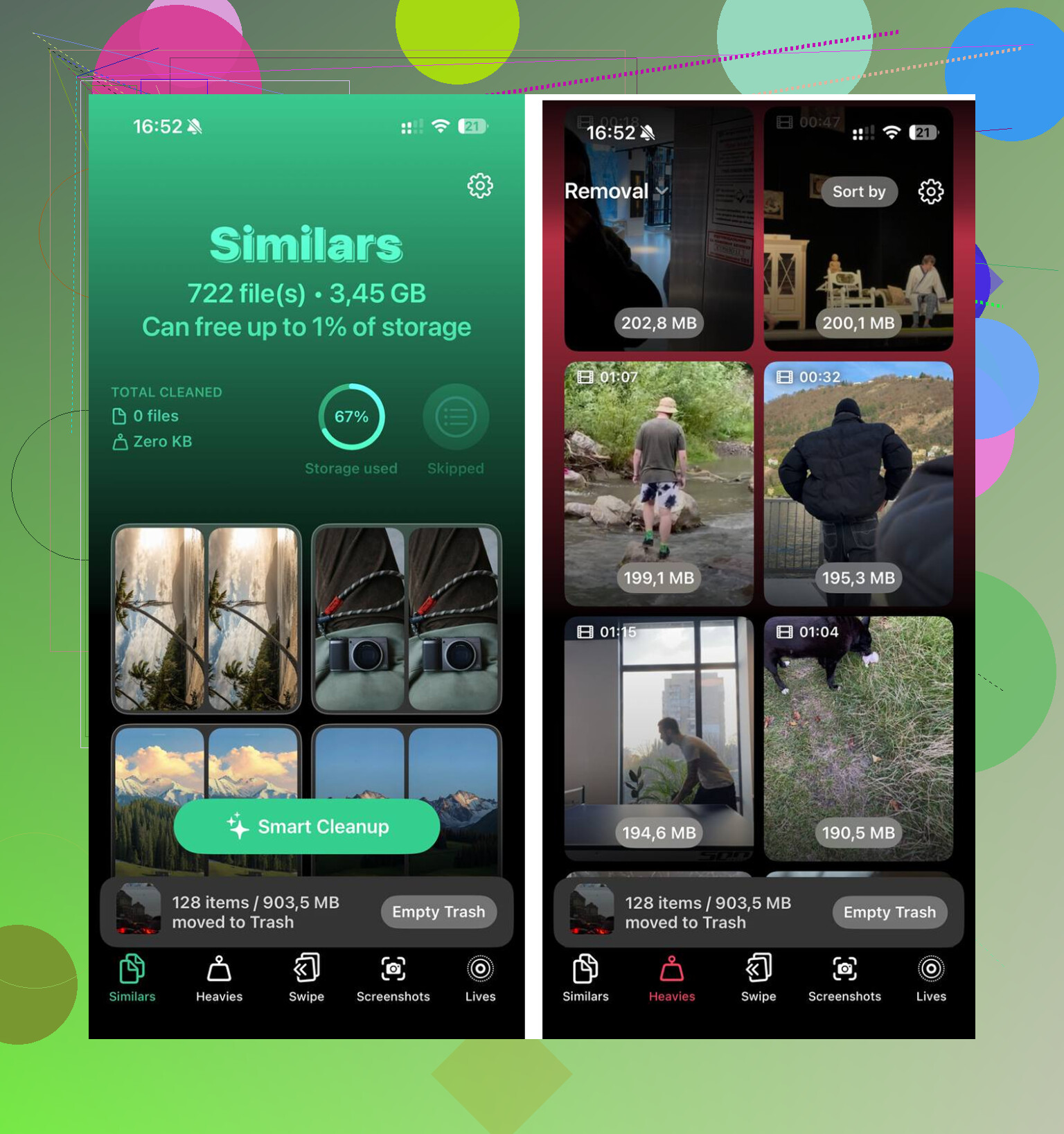
Sorting a big library by hand is rough. I used Clever Cleaner for this part because doing it myself was taking forever. The Heavies section puts the largest files first, which made the worst offenders obvious fast. The Similars section grouped near-duplicate photos and picked a Best Shot inside each set, so burst photos and repeated attempts were easier to remove. I liked one small thing, every item showed file size before deletion. From what I saw, processing stayed on the phone.
After I cleared about 12GB between media cleanup and the usual cache steps, the lag went away. Apps opened faster. Scrolling stopped catching on random frames. More important, the storage problem stopped coming back so fast.
One last check after cleanup
Open Settings > General > iPhone Storage and wait a minute. The graph takes time to recalculate. If System Data still looks bloated after a restart, I’d look at the apps using the most storage, usually social apps, then delete and reinstall the worst ones. That forces a fresh local cache instead of dragging old broken cache forward from past installs. It’s annoyng, but it worked better for me than waiting for iOS to sort itself out.
Some temp files do clear themselves on iPhone. A lot do not. That’s the annoying part.
iOS will purge some cache when your phone is low on space. It also clears some temporary update files, streaming buffers, and app junk over time. But if your storage stays full for weeks, that means the cleanup is not keeping up. So no, I would not sit around waiting for iOS to fix it.
I agree with part of what @mikeappsreviewer said, but I think people blame “System Data” too fast. On many phones, the bigger problem is bloated app storage. Social apps, maps, music, podcast apps, and messaging apps stack up offline data fast. TikTok and Instagram are common space hogs. WhatsApp and Messages are sneaky too, esp if you keep lots of videos.
What I’d check:
-
Settings, General, iPhone Storage.
Wait for the list to finish loading.
Look for apps over 1 GB first. -
Open the worst apps and check for built-in download settings.
Spotify, Netflix, YouTube, and podcast apps often keep offline files you forgot about. -
Messages.
Go to Settings, General, iPhone Storage, Messages.
Review large attachments.
This alone frees multiple GB on some phones. -
Mail.
If you use the native Mail app with large attachments, remove and re-add the account.
That clears local mail cache on some setups. -
iOS update files.
If a downloaded update is sitting there, delete it from iPhone Storage. -
Photos sync.
If iCloud Photos is on, turn on Optimize iPhone Storage.
This matters more than cache cleanup for a lot of people.
If you want a guide, this iPhone storage cleanup video for clearing cache and system data covers the general process in a way that’s easy to follow.
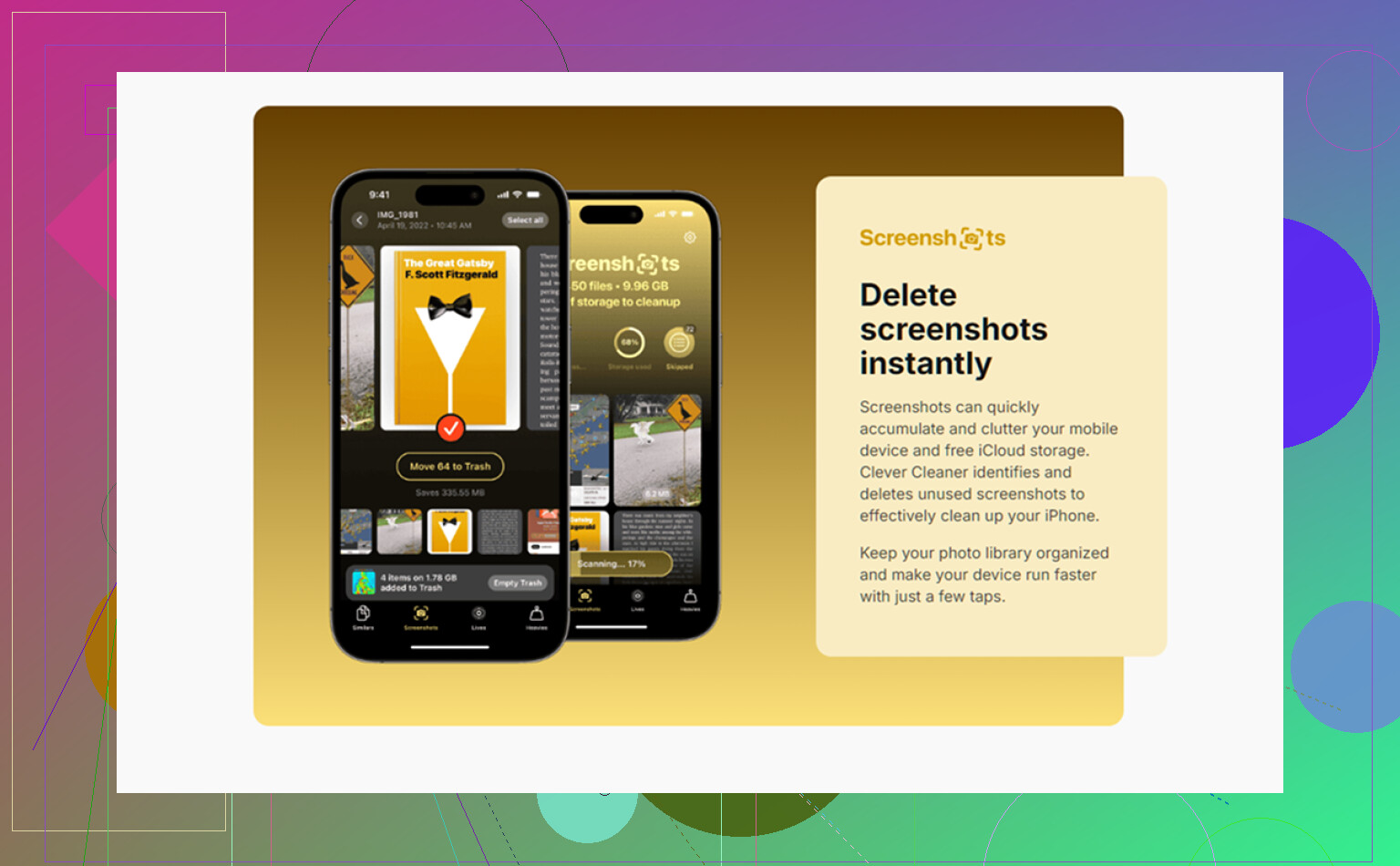
And yeah, Clever Cleaner is worth a look if your storage issue is mostly photos, duplicate shots, screenshots, and large videos. Temp files are often a smaller slice than people think. Media clutter is usualy the main culprit.
Short version. iPhone temp files clear partly on their own. Not enough to trust it. If storage keeps filling up, you need to step in.
Yes, some of them do. No, not enough to rely on.
iPhone temp files are kind of like crumbs under the couch. iOS will sweep up some stuff eventually, especially when space gets tight, but a lot of cache hangs around way longer than it should. So if your storage keeps filling up, that’s your answer right there: the self-cleaning is only partial.
I slightly disagree with @mikeappsreviewer on one point though. Restarting helps a little, sure, but people sometimes expect it to nuke storage junk and it usualy doesn’t make a huge dent. And @yozora is right that “System Data” gets blamed for everything when often it’s app downloads, attachments, and media bloat pretending to be a temp-file problem.
What I’ve seen work that wasn’t already covered:
- Check Files app downloads folder. Safari and apps dump stuff there and people forget it exists.
- In streaming apps, look for “smart downloads” or auto-download toggles. Those quietly refill storage.
- If you use Messages in iCloud, deleting attachments on one device can help across the whole setup.
- Voice memos and screen recordings are sneaky storage eaters too.
Also, if your issue is really photo clutter, Clever Cleaner makes more sense than chasing cache ghosts all day. This Clever Cleaner for iPhone review and cleanup guide gives a decent overview of what it does for duplicates, similar photos, and large videos.
Short version: temp files on iPhone clear themselves a bit, but not completly. If storage stays full, you need to do manual cleanup.