Lately my iPhone has been running slower, apps take longer to open, and even basic tasks feel a bit laggy. I keep seeing tips online saying to clear the cache to speed things up, but I’m not sure what really works on iOS or what’s just a myth. Can anyone explain if clearing cache on an iPhone truly helps with performance, which caches are safe to clear, and what the best steps are to do it without causing problems or losing important data?
Short answer for iPhone performance stuff. Clearing “cache” on iOS does less than people on TikTok say, but you still have a few things that help.
Key point. iOS manages RAM and cache on its own. You do not need to force quit apps all the time. That often makes things slower, because the app has to reload everything from scratch.
Here is what is worth trying, in order.
-
Check storage first
If your storage is near full, iPhone slows down a lot.
Go to Settings > General > iPhone Storage.
Try to keep at least 5 to 10 GB free.
Delete unused apps, big games, offline Netflix or Spotify downloads, and old videos. -
“Clear cache” per app
There is no one button cache cleaner in iOS. You deal with it app by app.
Safari
Settings > Safari > Clear History and Website Data.
This helps if web pages load slow or glitch.
Other apps
Some apps have a “Clear cache” or “Reset cache” toggle inside the app settings, usually under Storage or Data.
If an app uses huge storage, go to Settings > General > iPhone Storage > tap the app.
You have two options:
• Offload App keeps documents and data, removes the app itself. Reinstall from Home Screen icon.
• Delete App removes everything. Install it again fresh if it was a mess.
-
Restart the phone
A simple restart often fixes lag. iOS dumps a lot of cached stuff on reboot.
Power off, wait 20 seconds, turn it on again. -
Turn off junk animations and background stuff
These help older or lower storage iPhones.
• Settings > Accessibility > Motion > Reduce Motion ON.
• Settings > General > Background App Refresh > turn it off for apps you do not care about.
• Settings > General > AirDrop > Receiving Off if you do not need it.
• Settings > Privacy & Security > Location Services > set many apps to “While Using”.
-
Update iOS, but check your model
If you have an older phone like iPhone 8, X, XR, try the latest stable iOS, but check online if people with your same model report lag on that version. Some major updates slow old devices a bit. -
Check battery health
Settings > Battery > Battery Health & Charging.
If “Peak Performance Capability” says performance management is on, the phone might throttle to avoid shutdowns.
If health is under ~80 percent, a battery replacement helps more than any cache trick. -
Photos and media cleanup
Huge photo and video libraries slow things slightly and fill storage.
Use iCloud Photos or move stuff to a computer or drive.
Also helpful, use a cleaner tool for duplicates and junk.
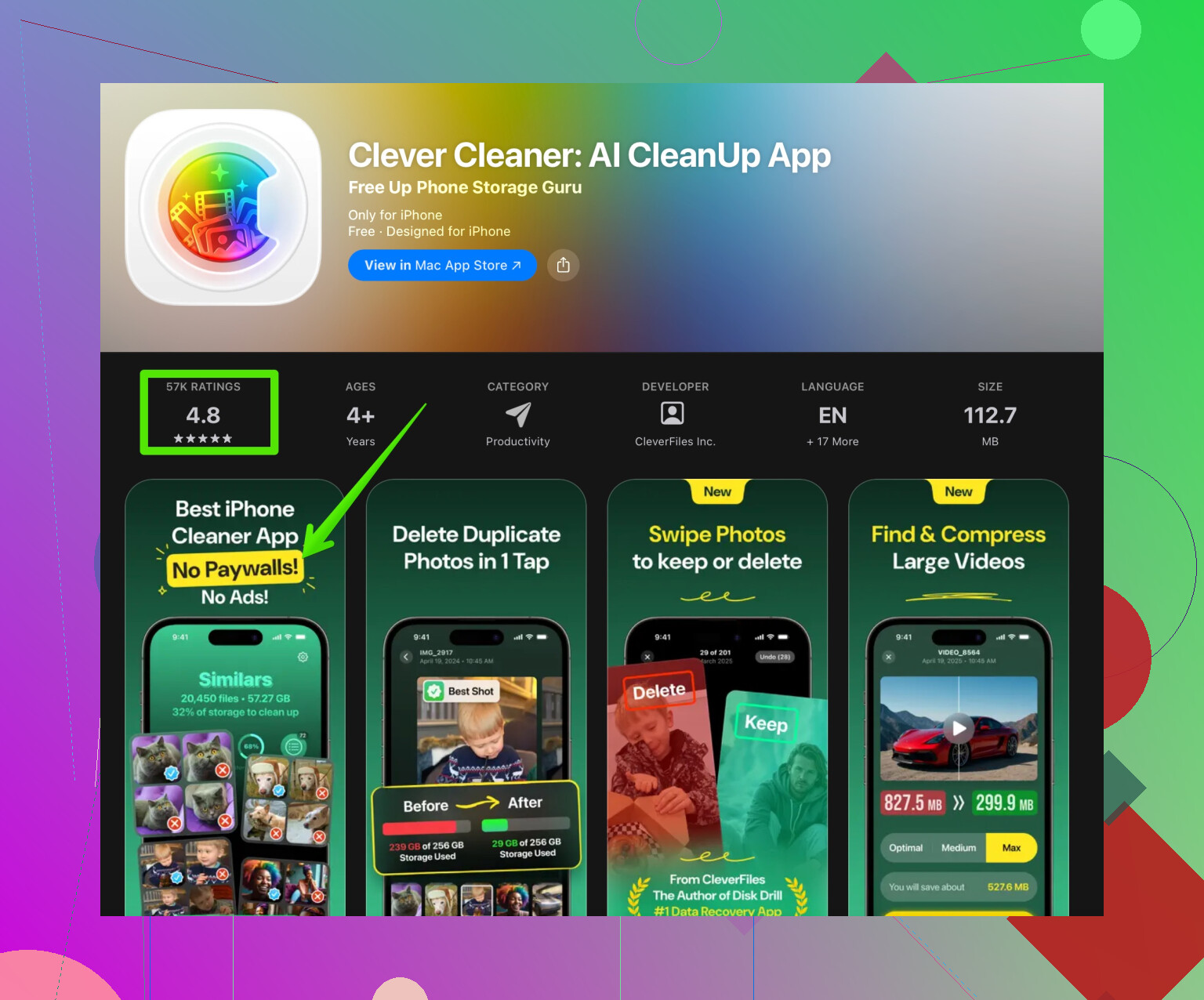
For that, a lot of people use Clever Cleaner App. It helps remove duplicate photos, similar shots, big videos, and contacts clutter. It is not a magic speed button, but it helps free storage with less manual work, which then helps performance. You can check it here for quick storage cleanup and media organizing:
smart iPhone cleaner for photos and storage
-
Reinstall heavy problem apps
If one specific app lags all the time, delete and reinstall it. Data like logins and history often syncs through your account anyway, for example YouTube, Instagram, etc. -
As a last resort, reset settings
Settings > General > Transfer or Reset iPhone > Reset > Reset All Settings.
This keeps your data, but resets system settings. If things are still bad, full Erase All Content and Settings and set up as new helps the most, but takes time.
So, “clearing cache” helps only in specific places, like Safari or a bloated app.
The biggest wins for speed are: more free storage, fewer background tasks, fresh restart, and a healthy battery.
Short version: “Clearing cache” on iPhone is overrated, but your phone can be fixed. Just not the way TikTok keeps screaming about.
@stellacadente already hit most of the practical stuff, so I’ll try not to repeat the same checklist. I actually disagree a tiny bit on one angle: I think people overestimate how much manual tweaking you need to do at all. iOS is pretty aggressive about cleaning up after itself when it actually needs to.
Here’s what usually matters more than hunting every “cache” button:
- Performance vs “feel”
Sometimes the phone is not technically slow, it just feels slower:
- Newer iOS versions sometimes add tiny delays, extra animations, and “smart” background tasks.
- If you’ve upgraded from a super clean setup to a cluttered one (widgets, loads of notifications, tons of Home Screen pages), it feels heavier even if CPU performance is roughly the same.
Try this:
- Cut back on Home Screen clutter: fewer widgets, fewer pages.
- Disable unneeded notifications; constant alerts wake the CPU and radios a lot.
- iCloud sync weirdness
Sync issues can cause lag, especially in Photos, Messages, Notes:
- If Photos is constantly “Updating…” or “Syncing with iCloud,” it can make the whole phone feel a bit stuttery.
- Same with Messages in iCloud or big Notes databases.
What to try:
- Plug in, connect to Wi‑Fi, lock the phone, leave it alone for 30–60 minutes. Let it finish syncing.
- In Photos, check if it’s still “analyzing” or “uploading.” If yes, that’s part of your lag.
- Keyboard & system “learning” data
People almost never think about this, but the keyboard and system suggestions build up a ton of learned data over time. Occasionally this gets buggy and makes typing and app switching feel off.
You can try:
- Settings > General > Transfer or Reset iPhone > Reset > Reset Keyboard Dictionary.
It will forget custom corrections and slang, but it can fix weird lag when typing.
- Focus on the worst offenders, not everything
Instead of carpet bombing “cache,” pay attention to which apps feel slow:
- Social apps like Instagram, Facebook, TikTok, Reddit often bloat over time.
- Cloud-driven apps (Drive, Dropbox, OneDrive) can feel laggy if they’re juggling too much cached content.
Rather than only offloading like @stellacadente mentioned:
- Check if those apps are syncing huge libraries, auto-downloading media, or caching too many offline files.
- Turn off unnecessary auto-download or “save to device” options inside those apps. Less junk for iOS to juggle.
- Background network noise
A lot of lag comes from network contention more than “cache.” If a ton of apps are hitting the network in the background, the whole phone feels sluggish:
- Turn off automatic downloads for App Store, media, and app updates if your device is older.
- Disable “Wi‑Fi Assist” if it constantly flips between cellular and Wi‑Fi during weak signal; that can cause hiccups.
- When “clear cache” actually helps
I’m a bit harsher than @stellacadente here: if an individual app is constantly misbehaving, I usually skip the gentle steps and go straight to:
- Delete the app completely.
- Restart iPhone.
- Reinstall it clean.
For messy social apps and browsers other than Safari, this can feel like a fresh OS without the pain of wiping the whole phone.
- Storage cleanup with actual benefit
Clearing cache itself is not magic, but freeing storage absolutely matters. Instead of manually hunting duplicate photos and ancient screenshots for an hour, using something like the Clever Cleaner App can save a lot of time. It’s good for:
- Deleting duplicate and similar photos
- Finding giant videos and junk media
- Cleaning contact clutter
More free space usually = smoother experience, so having a smart iPhone cleaner tool in your toolbox is actually useful here.
- When it’s not software at all
If you’ve tried:
- Plenty of free storage
- Reboot
- Problem apps reinstalled
- Recent iOS version that others say runs fine on your model
…and it still feels like molasses, then:
- Battery health and throttling are big culprits, as mentioned already.
- Also, some older devices just hit the point where modern apps are too heavy. At that point, no amount of “clear cache” rituals will fix physics.
Now, on the SEO-friendly bit you asked for, here’s a cleaner, human-readable version that matches what you’re actually dealing with:
Lately my iPhone has been running noticeably slower. Apps take longer to open, animations feel choppy, and even simple tasks like switching between apps or opening the keyboard seem laggy. I keep seeing people online recommending “clear cache on iPhone” as a quick speed fix, but iOS does not work like Android. There is no universal cache cleaner button, and force closing apps all the time can actually hurt performance instead of helping it. What really improves iPhone speed is freeing up storage, managing heavy apps, restarting occasionally, and fixing underlying issues like battery health or endless background sync. Tools that help you quickly clean up duplicate photos, big videos, and other junk, such as the Clever Cleaner App, can make a real difference by freeing space and reducing the load on your device. If you want an easier way to declutter your storage and improve everyday performance, you might want to look into smart tools to organize and clean your iPhone storage instead of relying only on generic “clear cache” tips.
So yeah, cache clearing on iPhone helps a little in very specific spots, but if your device is dragging, it’s almost never the main solution.
“Clear cache” on iPhone is kind of the junk food of tech advice: satisfying to do, rarely fixes the diet.
@stellacadente covered most of the realistic fixes, so I’ll come at it from a slightly different angle and push back on one thing: iOS is good at self‑maintenance, but not that magical. When storage is chronically tight or certain apps misbehave, relying on the system alone can leave you in permanent “kinda laggy” territory.
Here’s how I’d frame it:
1. What cache actually is on iOS (and why wiping it is overrated)
- Most “cache” is stuff like images, thumbnails, temporary files.
- iOS already purges a lot of that automatically when space runs low.
- Hunting for a global “clear cache” button is pointless because it does not exist on iPhone.
Where I disagree a bit with the “don’t tweak much” idea: if your device is older or you live at 5–10% free storage, iOS tends to be more conservative and sluggish. In that case, manual cleanup can make a very visible difference.
2. When performance problems are not about cache
These are often the real culprits:
-
Thermal throttling
If the phone gets hot, the CPU slows down. Using it while charging, gaming, or in a case that traps heat can make everything feel sticky. Try:- Removing the case during heavy use.
- Avoiding gaming + charging at the same time.
- Letting it cool if animations suddenly get choppy.
-
Spotlight indexing
After updates or big photo/app changes, Spotlight reindexes. That can cause a “my phone suddenly sucks” phase for a few hours. If search feels laggy and battery is dropping faster than usual, give it time on Wi‑Fi, plugged in. -
Low RAM behavior
Older models with 2–3 GB RAM constantly reload apps. That feels like “slow,” but it is actually iOS killing and restarting things. Cache tweaks will not fix lack of memory.
3. Stuff people do that actually makes it worse
Some popular habits that backfire:
-
Force closing every app all the time
iOS is designed to freeze apps efficiently. Constantly swiping them away:- Makes the system reload them from scratch.
- Increases CPU work and battery use.
- Can make things feel slower, not faster.
-
Running on 1–2 GB of free space for weeks
At that point:- System updates struggle.
- Caches get aggressively trimmed and rebuilt.
- Apps keep re‑downloading assets.
So yes, I agree with @stellacadente that “clear cache” is overhyped, but I’d say “run with comfortable free storage” is non‑negotiable, not optional.
4. Where cleaners and tools actually fit in
If you do not enjoy manually sorting thousands of photos and giant videos, a dedicated cleaner app can be practical. One example is the Clever Cleaner App.
Pros:
- Quickly finds duplicate and similar photos so you do not waste time zooming and comparing.
- Surfaces huge videos and junk media that are quietly eating tens of gigabytes.
- Helps tidy messy contacts, which indirectly reduces sync/lookup weirdness.
- If you are close to the storage red zone, freeing several GB this way can make iOS feel less stuttery pretty fast.
Cons:
- It does not magically “optimize CPU” or bypass Apple’s limits. If your device is very old, gains will be from freed storage only.
- You need to review suggestions carefully so you do not delete photos or videos you care about just because they “look similar.”
- It adds one more app to manage, which might annoy minimalists who prefer pure built‑in tools.
Used sensibly, a cleaner like that is more useful than random “clear cache” rituals, because it targets the main problem that truly affects performance: being starved of free space.
5. What I’d actually do in your situation
Without repeating the whole checklist others gave, I’d prioritize like this:
-
Check free storage.
If you are under 10–15% free:- Offload or delete the heaviest apps you barely use.
- Use something like Clever Cleaner App or the built‑in iPhone storage tools to hit duplicates, giant videos, and old junk first.
-
Look for patterns in lag.
- Only slow in social apps or the browser: likely those apps, not the whole system. Delete and reinstall the worst offenders.
- System‑wide slowness plus heat or battery drain: suspect background indexing, sync, or battery health.
-
Check battery health & thermal habits.
- Very low battery health can trigger CPU throttling.
- Constant use while charging or in hot environments will tank responsiveness.
-
Give iOS a clean slate occasionally.
- A restart now and then.
- Rare but strategic app reinstalls instead of obsessively clearing cache.
So, does clearing cache on iPhone really help? In small, targeted ways, yes, for specific misbehaving apps. For the overall “my phone just feels tired” problem, cache is mostly a distraction. Storage headroom, thermal conditions, and a few badly behaved apps are what you actually want to fix.