My external hard drive formatted as exFAT suddenly stopped showing my files after being used between Windows and macOS. The drive still appears in Disk Management, but I’m worried about making things worse. I’m looking for safe exFAT recovery advice, recommended tools, or steps to recover data from an external hard drive without overwriting anything.
Stop using the exFAT drive right away. That’s the main thing. Don’t copy new files to it, don’t let Windows format it, and don’t run CHKDSK or other “repair” tools yet. Deleted or formatted exFAT data often isn’t wiped immediately. The space usually just gets marked as free, which means the files may still be there until something new gets written over them.
exFAT shows up on a lot of USB sticks, SD cards, external SSDs, and portable hard drives, so this is a pretty common recovery situation. If this was an external hard drive or SSD and the files were deleted in Windows, check the Recycle Bin first. It’s quick and costs nothing. Just know that files deleted from SD cards and USB flash drives often skip the Recycle Bin entirely, so an empty bin doesn’t necessarily mean the data is gone.
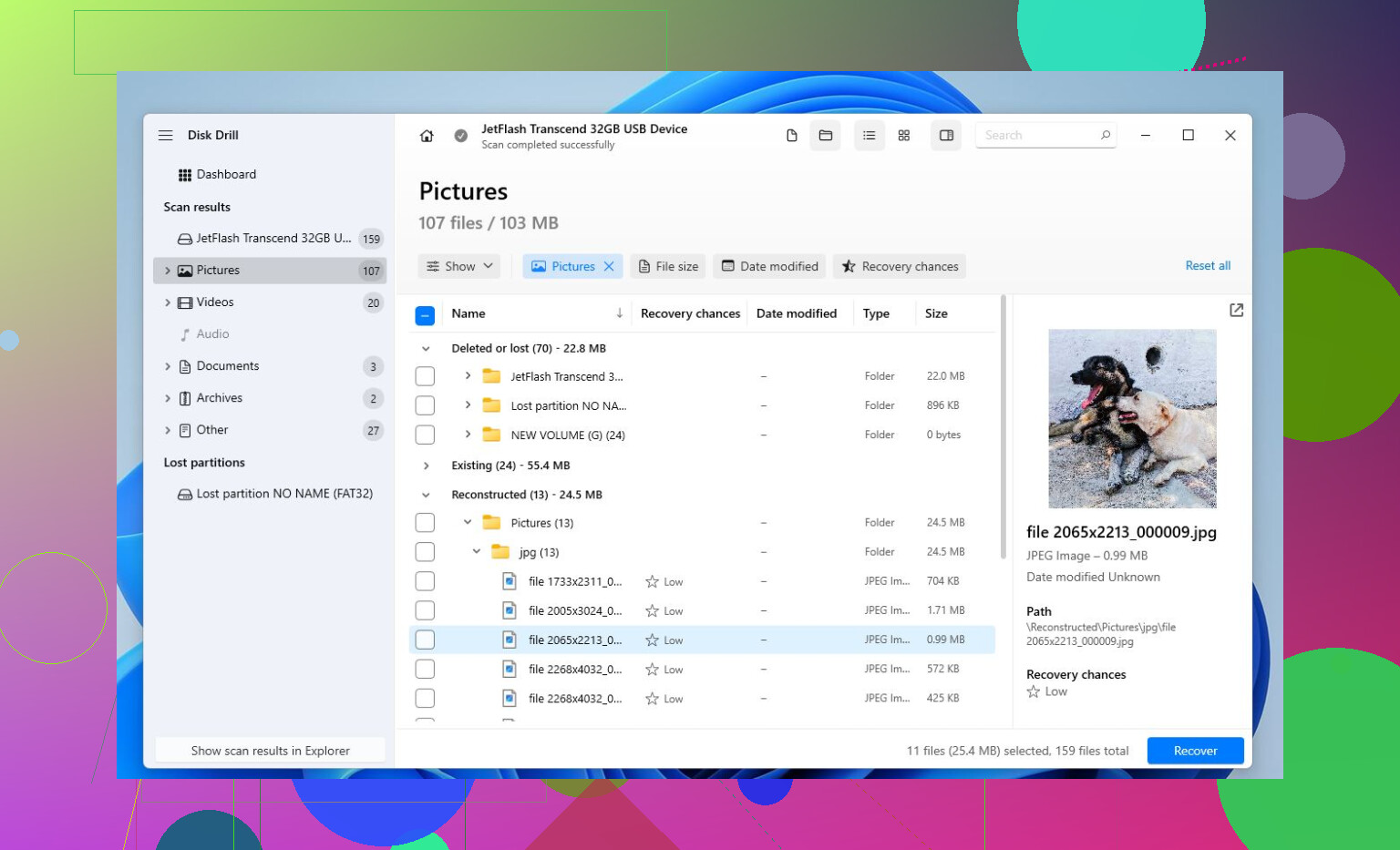
After that, recovery software is usually the next move. This list is a useful starting point: recovery software. If you want something easier to work with, Disk Drill is a solid option for deleted files, formatted drives, and damaged exFAT volumes.
The basic process is:
- Install Disk Drill somewhere other than the drive you’re trying to recover from.
- Plug in the exFAT drive and wait for it to show up in the app.
- Run a scan. Universal Scan is usually the right choice.
- Let it finish, or start checking found files while the scan is still going.
- Preview the files before recovering them.
- Recover the files to another drive. Don’t save them back to the same exFAT device.
If you’d rather try a free tool, TestDisk is worth a look. It’s not as friendly, and the interface can be intimidating, but it’s very good when the real issue is a lost, damaged, or missing partition. For that kind of problem, it can sometimes restore access to an exFAT partition without reformatting anything.
One catch is SSD TRIM. If the exFAT drive is an SSD, recovery depends a lot on whether TRIM has already done its job. TRIM tells the SSD which deleted blocks are no longer needed, and once the drive clears those blocks internally, normal recovery software usually can’t get the files back. Internal SSDs commonly have TRIM enabled, so deleted-file recovery can be a long shot. External SSDs over USB are more mixed because TRIM may not pass through reliably, so recovery is sometimes still possible. Regular hard drives, USB flash drives, and most SD cards don’t behave the same way, so the odds are often better there.
If the drive is clicking, disconnecting randomly, not showing up on any computer, or has physical damage, stop trying DIY fixes. That sounds more like hardware failure, and repeated attempts can make recovery harder. In that case, a professional data recovery lab is usually the safer route.
If it’s only a logical problem, exFAT recovery can go pretty well. The key is to stop writing to the drive and get the files copied to a different device before anything overwrites them.
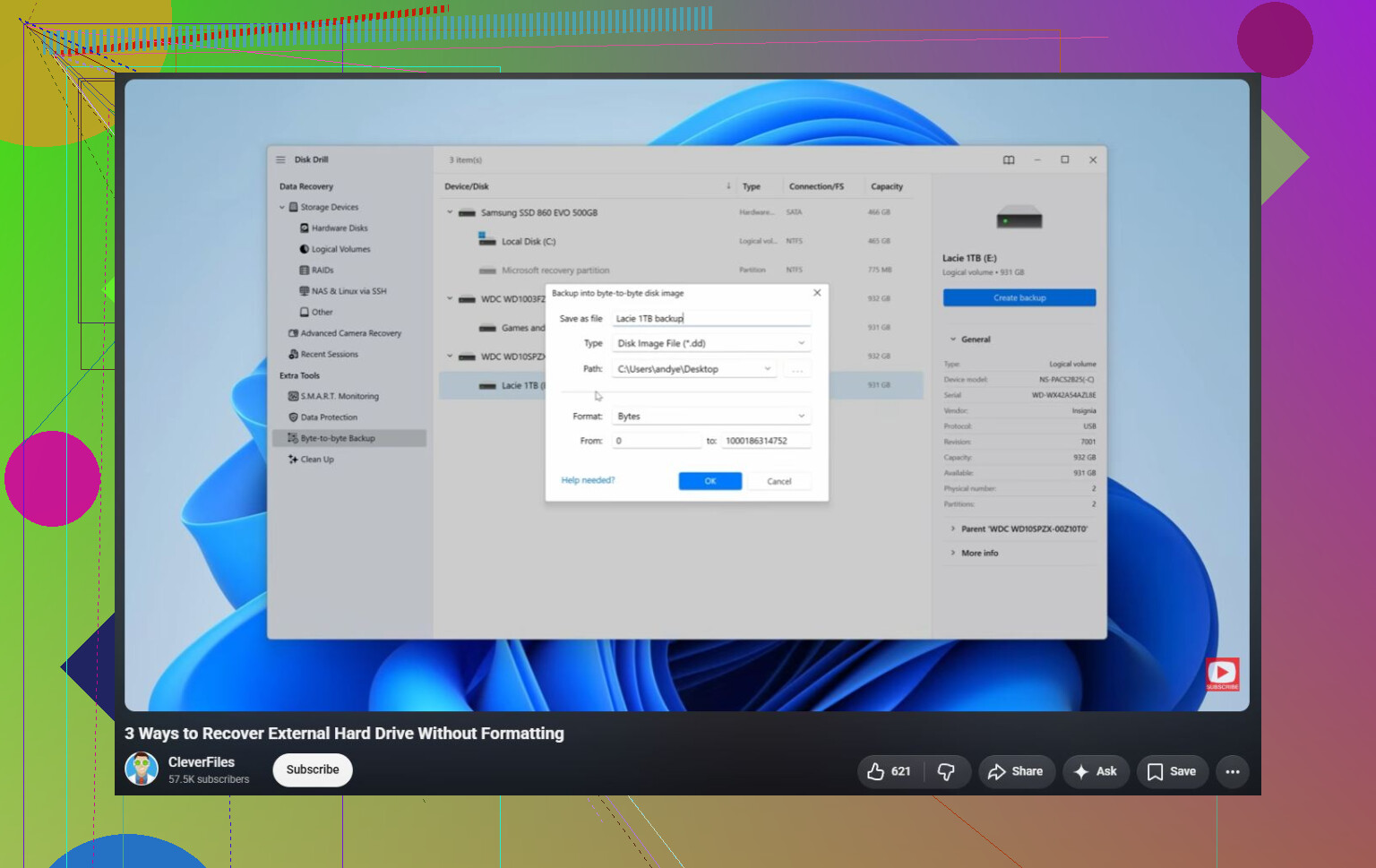
If the scan only finds “RAW” files with generic names, that doesn’t mean it failed, it may mean the exFAT directory info is damaged and only the file contents are recoverable. That’s the annoying part people don’t always expect: photos and videos may preview fine, but folders, filenames, and dates can be a mess. I agree with imaging the drive first if the data matters, then scan the image with whatever tool you pick. Disk Drill is fine for a more visual pass, mainly because previewing before recovery saves time, but don’t judge success only by whether the old folder tree appears exactly as it was. And definitely don’t let either Windows or macOS “fix” the disk before you’ve copied recoverable files somewhere else.