How Can I Cast From iPad to Samsung TV?

How can I cast from my iPad to a Samsung TV without the connection dropping? Both devices are on the same home network, and the TV appears as an available screen when I open the casting controls on the iPad. When I select it, the TV briefly shows that it is connecting, but the iPad returns to its own display and nothing plays on the TV.

I have restarted both devices, rejoined the network on the iPad, and checked the TV’s connection settings, but the behavior is unchanged. Is there a setting or permission I should check, or a specific order for starting the connection?


A colleague tried to put a video from an iPad on the Samsung TV but learned that “putting on the TV” can have more than one meaning. So, I figured out what they all mean, and prioritized them from easiest to most far reaching, in case the TV is uncooperative.

First, I Figured out Which Things Need to Be Shared

The first branch was between casting, which means to send a particular video, or media file from an application to the TV, while reserving the iPad for other purposes.

I used the former method for services such as Netflix, YouTube or any other media content providers. So, in general, when an application does not have a Cast icon, or does not have that particular feature, we need a different approach. First, make sure that both the iPad and the Samsung TV are on the same Wi-Fi network. Open the application that has the video you want to cast, play the desired media, and look for the Cast icon. It appears as a small box with wavy lines at one end, somewhere around the top of the application window. Tap the icon, and choose your TV from the list of available devices that appear.

This method does not require any additional software, and it hides the notifications, apps, and anything else that would appear if we used the second method.

The second option is the built-in screen mirroring function of Samsung televisions. This works well if we want to share photos, videos, applications or web pages that do not offer a cast feature. Samsung televisions manufactured in or after 2018 already have AirPlay support, so we can use them right away.

We can enable AirPlay on the TV by going into the General > External Device Manager menu in the TV settings. Alternatively, it might be found in the Source selection menu. We need to make sure that AirPlay is turned on, and that the TV and the iPad are connected to the same network.

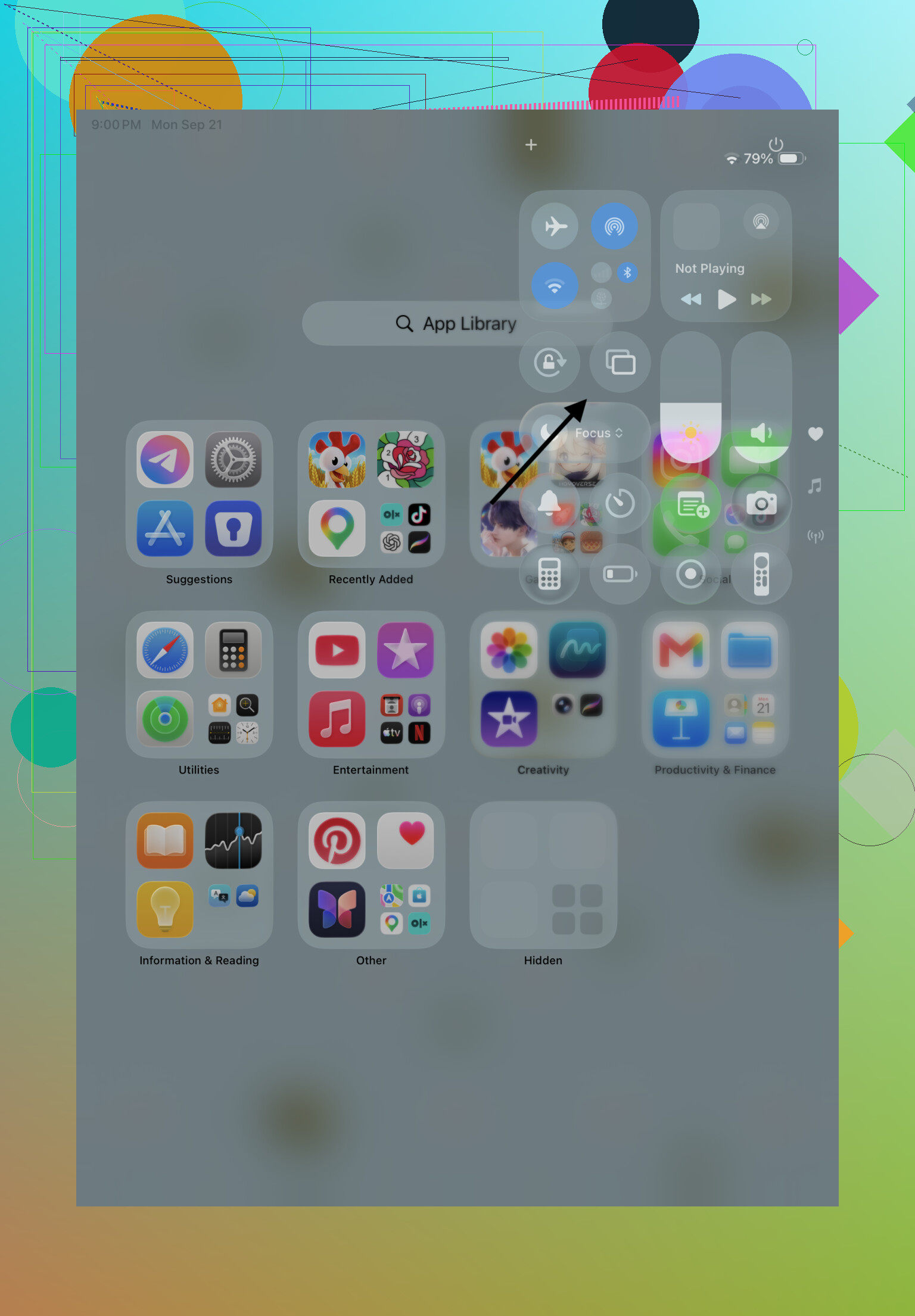
After that, we went to the Control Center of the iPad by tapping the globe icon, and selected the Screen Mirroring option. We chose our TV from the list of available devices, and entered the pin code that appeared on the television screen to complete the pairing.

The Samsung SmartThings ™ application can also be used to connect devices, but since AirPlay is already available on the iPad, it seemed like the easier option. It did not require us to go into the TV menu and navigate to AirPlay, and set it up. It is all done automatically on the iPad side, and there is less going on in general.

The Third Option Is Not Necessarily the Last

These solutions are great while they work, but the second the AirPlay function decides to disappear from the iPad, or stop working altogether, we need something else. There is a third option that covers the first two, and allows us to cast single videos or applications, and mirror the screen at will. That application is a third party tool called Connected.

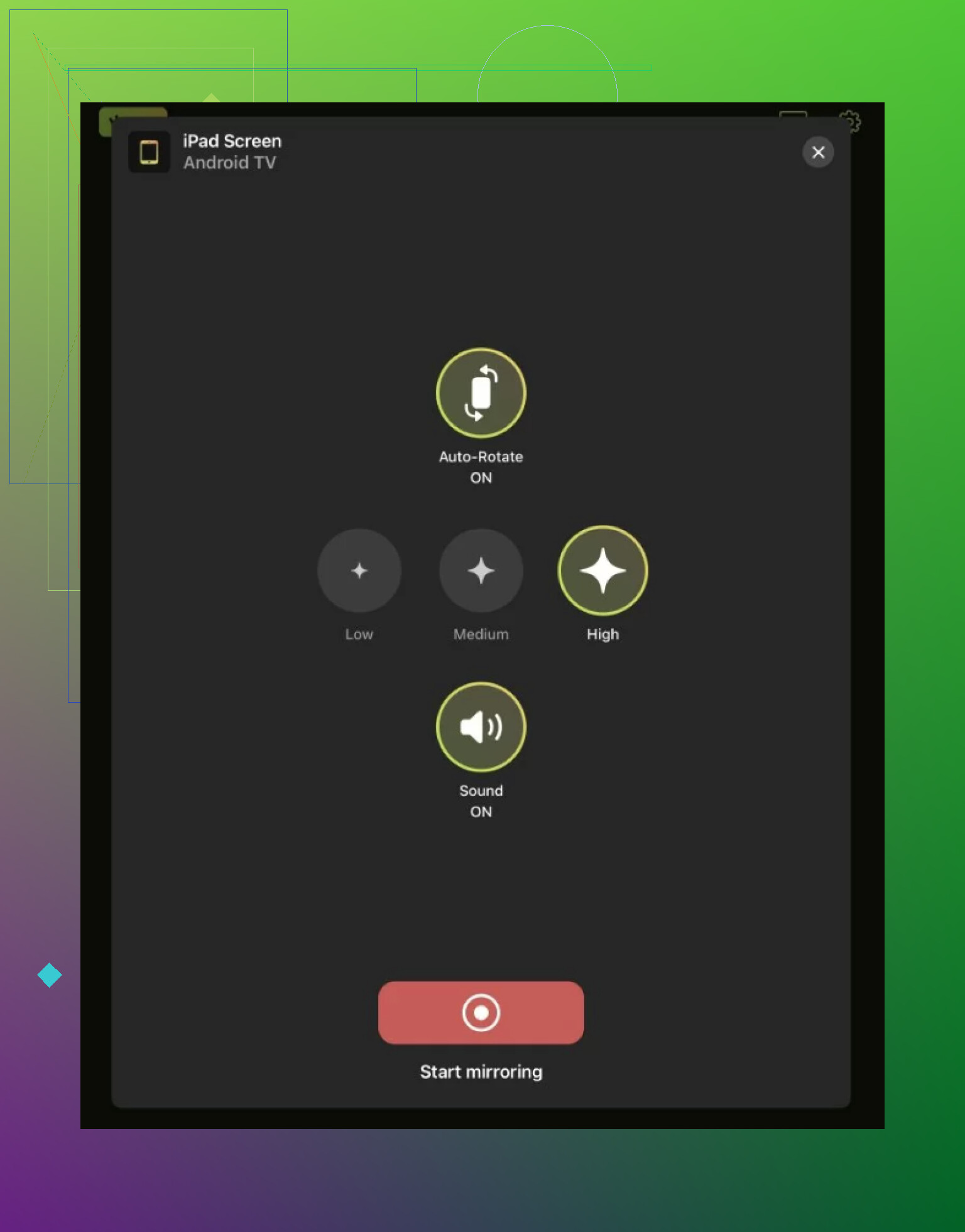
The option I landed on supports Samsung TVs as well as other Smart TV brands. It can mirror the iPad screen with sound, or send photos, videos, and music separately. The interface is straightforward and does not bury the main controls under ad clutter, which made the DoCast mirroring app the most sensible fallback.

Setup follows the same basic network rule: the iPad and TV must be on the same Wi-Fi. After installing the app, I selected Choose Smart TV and picked the Samsung television from the available devices. The photos, videos, and music tabs send only that type of content, while the Screen option starts full mirroring through Start Broadcast. The first step is simply to Download DoCast.

A Few Checks Before Blaming the iPad

If AirPlay appears but freezes or refuses to engage, the first thing to try is updating the software in the Samsung TV. It usually resolves most compatibility issues that appear because of programs.

If the television does not appear anywhere, not even in menus of AirPlay or cast-compatible applications, the wireless connection might not be the issue. It is possible that the TP-Link router has an AP isolation setting that stops connected devices from communicating with each other. This feature is often turned on by mistake, and it prevents devices from seeing any cast or AirPlay option because the iPad has no way of recognizing the TV.

The next step is to determine which mode is needed at the moment. When a user wants to play a video, song, image, or some other media on the television, it is better to use the Cast feature of the application. When the user wants to make the entire iPad interface appear on the TV screen, the ideal mode is mirroring. It allows the iPad to show whatever is open on its interface.

My Verdict

I would first attempt to use the Cast button in my favorite media applications because it is usually easier to use and more reliable. The second option I would attempt is AirPlay, specifically after checking the router and TV for updates. In case it appears again or stops working, the best choice is DoCast because it offers both functions without complicating the process.

If the connection is dropping, switching mirroring apps probably will not fix the cause. @byteguru is right to check the router, but mesh Wi-Fi and guest networks can cause the same problem even when both devices show the same network name. Temporarily disable any VPN on the iPad, connect both devices to the main Wi-Fi rather than a guest network, and restart the router and TV. If possible, keep the iPad near the same mesh access point as the TV. For longer videos, an HDMI adapter is still the least frustrating option because it removes Wi-Fi from the equation.

Connect the Samsung TV to the router with Ethernet for a quick test, leaving the iPad on Wi-Fi. AirPlay works as long as they are on the same local network, and this removes the often weaker wireless connection from the TV equation. If the dropping stops, changing of mirroring apps will not solve the real cause. You can then keep Ethernet or improve the signal on the TV’s Wi-Fi.

Test with a photo or small local video from your iPad but before adjusting the router settings. If this is not the case, but switching off Netflix or another video streamer causes the issue, your network is likely innocent. Some services are not compatible with full Screen Mirroring due to their playback policy. Instead, use the AirPlay or Cast button within the video app.

If the Photos app is also disconnecting, it may be helpful to clear the existing pairing rather than try to pair your iPad again and again. Navigate to the AirPlay settings on your Samsung TV, clear paired devices or reset them and re-pair your iPad and enter the new code. Stale pairing records can sometimes keep a TV available in the device list while no longer being able to establish a session.

A full power cycle of the TV is also a good idea. Turning the TV off with the remote leaves it in standby mode. It is necessary to power off the television by unplugging it and then powering it on again. This will clear some settings that just closing the Control Center and attempting to cast again will not clear.

I understand why you would attempt an Ethernet test, but I would first test your local photo gallery because it will tell you if the issue is specific to a video app or if everything that uses AirPlay is at fault. If local content still fails after re-pairing and full system restart, the Ethernet test and mesh-network diagnostic would make more sense to me.

If the loss of connection happens shortly after the display sleeps or locks, it’s likely a network issue. Full desktop mirroring generally requires the iPad to continue being awake, Low Power Mode may also cause Auto-Lock to occur earlier than normal. Disable Auto-Lock temporarily (set to ‘Never’) and Low Power Mode, and keep the iPad connected to power. A sleep timer on the iPad can be quite convincing that the Wi-Fi is failing.

If the app has its own AirPlay button, you should use that rather than Screen Mirroring. The app itself may be able to send the video to the TV, allowing the iPad display to sleep.

An interruption while actively interacting with the iPad points to network or connection issues as cited by others. One that occurs consistently at the same idle time is much more likely to be a power-saving or lock setting on the iPad itself.

Make sure that you are not on different bands. Many routers will give the iPad a 5 GHz network while the TV is on 2.4 GHz under the same SSID, and Airplay discovery is unreliable in such a scenario. They appear in the list and connect, but then drop the connection midway through playback. If your router allows you to separate the SSIDs, try forcing them to the same band for a test.

@rocketminer9965 nailed the one most people skip. The lock and Low Power Mode combo fakes a Wi-Fi failure so convincingly that folks reset routers for no reason. If your drop lines up with the screen dimming, that is your whole answer right there.

Where I differ from the router-first crowd is in the order of business. Before disabling AP isolation or crawling into mesh settings, consider looking at the TV itself. Samsung’s eco or power-saving mode can power down the network adapter after the panel dims, and a few models even have a ‘network standby’ toggle that behaves the inverse of its label. Turning off the energy-saving features on the TV’s end may resolve any disconnects, and that is a two minute check versus reconfiguring your whole network.

On the app aspect of things, casting from inside Netflix or YouTube is indeed a good way to avoid any of this, as the TV fetches the stream and the iPad is no longer a live source. For local files, however, without such a cast button, a mirroring app like DoCast can pick up the slack, but I would not reach for it before ruling out power settings and the band split. Swapping out software to fix a sleep timer is just adding a variable, fix the cause and then pick whatever method is convenient.

If the drop is random, check whether your router’s 5 GHz radio is using an automatic DFS channel (this forced change will cut off AirPlay in the middle of a session); set a specific non-DFS channel and try again (reinstalling apps won’t help).