I’m trying to embed a Google Map on a specific page in my WordPress site so visitors can easily find my business location, but I’m confused about the right method. I’ve seen options like using an iframe from Google Maps, a plugin, or custom HTML blocks, and I’m worried about responsive design and site speed. Can someone walk me through the simplest, SEO‑friendly way to add a Google Map to WordPress and make sure it displays correctly on mobile and desktop?
Simplest way is to use the iframe from Google Maps. No plugin needed in most cases.
Here is the clean process:
- Go to Google Maps.
- Search your business.
- Click your place, then click Share.
- Pick the “Embed a map” tab.
- Choose size from the dropdown.
- Copy the iframe code.
Now in WordPress:
- Edit the page where you want the map.
- If you use the Block Editor (Gutenberg):
- Add a “Custom HTML” block.
- Paste the iframe code.
- Update the page.
- If you use the Classic Editor:
- Switch to the “Text” tab, not Visual.
- Paste the iframe where you want it.
- Update.
If your theme strips iframe code, check:
- A security plugin that blocks iframes.
- A page builder that needs a specific “HTML” or “Embed” widget.
You only need the API route if you want custom styling, advanced controls, or a lot of maps on many pages. Then you go through:
- Google Cloud console
- Enable Maps JavaScript API
- Get an API key
- Use a plugin that asks for that key
For most business sites a simple iframe is fine and loads fast enough.
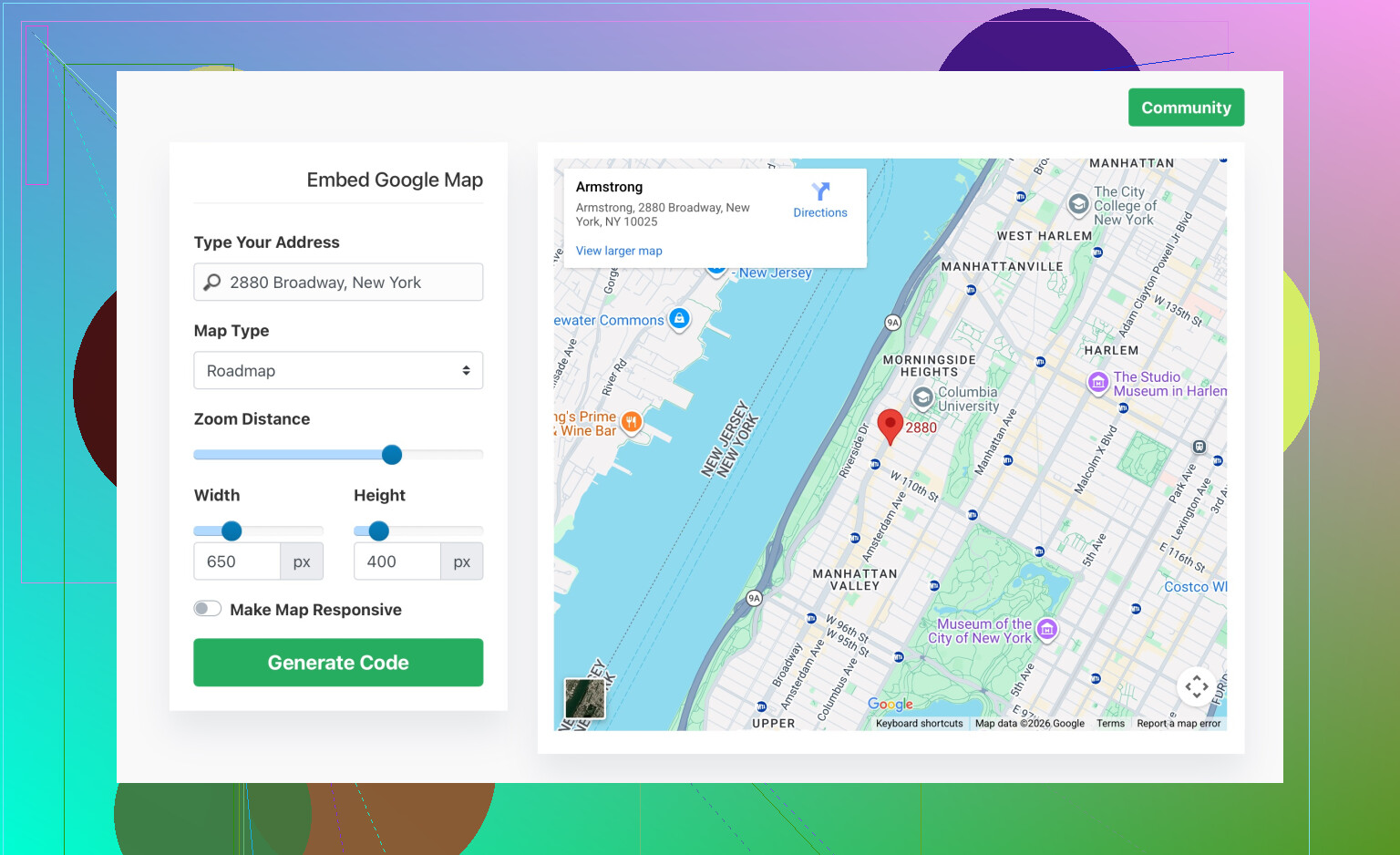
If you want a helper to build the embed without dealing with raw code, try a generator service. For example:
easy Google Map embed generator for your site
That tool builds the iframe code for you so you paste one clean snippet into your WordPress page.
1 Like
If you just want a simple “here’s where my business is” map, @techchizkid is right that the iframe way is the quickest. Where I’d slightly disagree is that it’s always enough. It’s fine for one basic map, but it starts to feel clunky if:
- You need multiple locations on different pages
- You want the same map reused in several spots
- You’re using a heavy page builder (Elementor, Divi, etc.) and want everything editable inside that ecosystem
- You want better control on mobile (height, scrolling, lazy load)
Here are a few approaches that go beyond the raw iframe, without rehashing the same step‑by‑step they already covered:
1. Use your page builder’s native map widget
If you’re on a modern theme or builder, check first:
- Elementor: Has a Google Maps widget. You paste either your address or a Maps embed URL and control zoom, height, etc. in the UI.
- Divi / WPBakery / Beaver Builder: Same idea, they usually have a “Map” or “Google Map” module.
Pros:
- You avoid messing with raw code.
- Styling and spacing are consistent with the rest of your layout.
- Often easier to tweak responsive behavior.
Cons:
- Some of these require an API key to use their map module properly.
- A bit of setup in Google Cloud if you have not done that before.
If you’re already living in a page builder, this is smoother than juggling iframes.
2. Use a lightweight map plugin for reusability
For a business site with several “Find us” sections, a small plugin can save you a lot of copy/paste:
- Create one map in the plugin settings (address, zoom, map size).
- Insert it via shortcode like
[my_business_map]on any page.
Benefits:
- Update once, every page using that shortcode updates.
- Some plugins let you disable extra scripts on pages that do not use maps, which can help performance.
- A few include lazy loading so the map does not slow your initial page paint.
Drawback:
- Adds another plugin to maintain.
- Some “map” plugins are bloated. Stick to one with good reviews and minimal features you actually need.
3. Tame the iframe with better control
If you do go iframe (nothing wrong with that), you can still improve how it behaves:
- Wrap it in a container with a fixed aspect ratio using CSS so it stays responsive. Example:
<div class='map-wrap'>
  <!-- your iframe code from Google Maps goes here -->
</div>
.map-wrap {
  position: relative;
  padding-bottom: 56.25%;
  height: 0;
  overflow: hidden;
}

.map-wrap iframe {
  position: absolute;
  top: 0;
  left: 0;
  width: 100%;
  height: 100%;
}
- Consider manually bumping the
referrerpolicyandloading='lazy'attributes in the iframe tag. Some embeds already include lazy loading, some do not, depending on how you got the code.
This still keeps you in the “no plugin” camp but fixes common layout annoyances.
4. When you actually need the API route
Where I’d really push the Google Maps JavaScript API (with a plugin or custom code) is if you need things like:
- Several markers with different info windows
- Custom map styling that matches your brand
- Filters (“show me only locations that are open today”)
- Clustering or advanced interactions
Then yeah, the iframe starts to feel like duct tape. That is where API + plugin is worth the initial pain.
5. If code freaks you out completely
You mentioned being confused by the methods. If copying iframes into HTML blocks makes your eyes cross, you can cheat a bit with a helper tool that outputs the code in a super clean way. Something like:
simple Google Map embed builder for WordPress sites
You set your address, size, zoom and it spits out a ready made snippet. Then you only have to paste that snippet into a Custom HTML block or your builder’s HTML widget.
So, tl;dr:
- 1 location, simple site: iframe is fine, just make it responsive and lazy loaded.
- Multiple locations or future changes: a small shortcode based plugin is nicer.
- Heavy design control or advanced map behavior: go the API + plugin route.
Pick the least annoying option that still covers what you might want to do six months from now, so you do not have to redo the whole thing later.
You already have the “how” from @byteguru and @techchizkid, so I’ll focus on which approach to pick and a couple of pitfalls they did not really dig into.
1. Think about maintenance first, not just the first embed
Iframe is quick, sure, but ask yourself:
- Will your address, phone or branding change soon?
- Do you plan to add more branches later?
- Are non‑technical people going to edit this page?
If the answer to any of those is “yes,” then hard‑pasting iframes in multiple places gets annoying. In that case I prefer a reusable solution:
- One centralized map (via shortcode or a builder widget).
- Drop that shortcode wherever you want a location.
- Update once, everywhere changes.
That is where a small map helper or generator like the unnamed “easy Google Map embed generator for your site” becomes useful. You generate one consistent snippet and use it across pages instead of grabbing slightly different iframe codes from Google each time.
Pros of using that type of generator:
- Cleaner iframe code than what many page builders leave you with.
- You can pre‑set width, height, zoom so all maps match your design.
- Non‑dev users only copy and paste one simple snippet.
Cons:
- Still static. If you want dynamic features later, you will likely redo it with an API or plugin.
- Another external tool in your workflow instead of configuring it all inside WordPress.
- Limited to what Google’s standard embed allows. No fancy clustering or deep customization.
2. Security & performance gotchas they only hinted at
A couple of things that commonly bite WordPress users:
-
Security plugins stripping iframes:
If you paste the map and it vanishes on save, check things like Content Security Policy rules or “disallow iframes” in your hardening plugin. Whitelisting the domain that serves the map is often better than disabling the protection altogether. -
Scroll hijacking on mobile:
Embedded maps can trap scroll, which frustrates visitors. To avoid that, some setups show a static image first. When the user taps it, then the iframe loads. This is especially important on small screens and helps performance. -
Lazy loading & Core Web Vitals:
@byteguru mentioned lazy loading in passing, but I would treat it as mandatory. If your theme or plugin does not handle this, look for an optimization plugin that can lazy load iframes. That keeps your LCP and CLS from tanking just because of one map.
3. When to skip a “real” map entirely
Hot take: if you just want to show “We are here” and most of your users hit you from mobile, a clickable static image that opens Google Maps or the Maps app can be better than an embedded map.
Workflow:
- Take a screenshot of your map.
- Insert the image in WordPress.
- Link it to the actual map URL.
Pros:
- Very fast, no Google scripts.
- No issues with security plugins or theme stripping.
- Cleaner UX on slow connections.
Cons:
- No interaction on the page itself.
- One extra tap for the user.
- You must update the image if your location changes.
For a simple business site, that tradeoff is often worth it.
4. Picking between iframe, builder widget, and API
Given what @techchizkid and @byteguru already laid out, here is a quick decision guide:
-
Single office, rarely changing, simple layout:
Use a straight iframe or a generator snippet. Keep it lazy loaded and maybe wrap it in a responsive container. -
More than one location or map reused in several spots:
Go for a shortcode‑based map plugin or your theme/builder’s map module. You update once, everything stays in sync. -
Complex needs like many markers, filters, stylized maps:
This is where the Google Maps JavaScript API and a serious plugin make sense, even if the setup feels heavier initially.
In short, their methods work, but do not only think “what is fastest to drop in today.” Think “what will be least painful when I have to touch this again in a year.”