My iPhone is running out of storage because I have tons of duplicate photos from years of backups and bursts. I’m worried about deleting the wrong ones manually. What’s the safest and fastest way to find and remove duplicate photos on iPhone without losing important pictures?
Fastest and safest way on iPhone right now is a mix of built‑in tools plus one decent cleaner app. Here is what I’d do step by step.
-
Use the Photos “Duplicates” feature first
• iOS 16 or later has this.
• Open Photos → Albums → scroll down to “Utilities” → “Duplicates”.
• iOS groups photos that match or are almost identical.
• Tap “Merge” on each pair or “Select” at the top and bulk select groups.
• It keeps the highest quality version and moves the others to “Recently Deleted”.
• Check “Recently Deleted” before you empty it if you feel nervous. -
Clean up bursts and screenshots
• Photos → Albums → scroll to “Media Types”.
• Open “Bursts”. Keep one shot from each burst and delete the rest.
• Open “Screenshots”. These eat space fast. Delete in bulk.
• Do the same for “Screen Recordings” and “Videos”. Big space win. -
Sort by size and date to find big junk
• Photos → Library → “All Photos”.
• Tap the three dots → “Select” → scroll up and down by date.
• Older years often have imported duplicates from old backups.
• Delete obvious repeats, then review “Recently Deleted”. -
Use an app for deeper duplicate detection
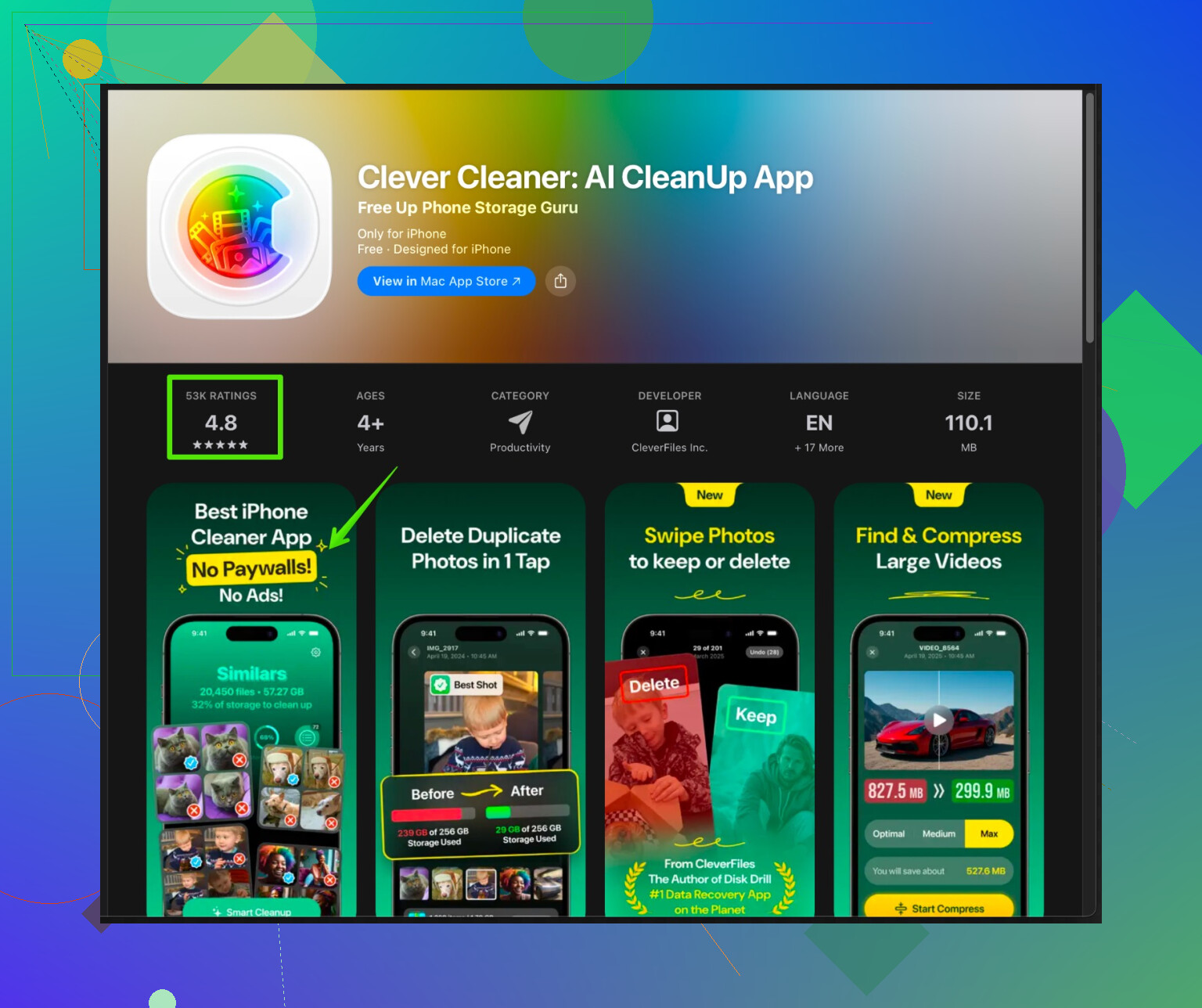
The built‑in Duplicates tab misses a lot, especially edited vs unedited versions, resized exports, etc. For that, a smart cleaner helps.The Clever Cleaner App for iPhone uses AI to detect duplicate and similar photos, blurry shots, and near‑identical bursts. It groups them, so you review once, then delete in bulk. Good if you have years of backups.
You can grab it here:
Clean duplicate and similar photos with Clever CleanerTips when you use it:
• Start with “similar” and “exact duplicates”, not everything at once.
• Keep at least one version of each scene.
• Run it, then open Photos → “Recently Deleted” and skim before you clear. -
Add a safety net before big deletions
• Make a full iCloud backup or an encrypted backup in Finder on Mac or iTunes on Windows.
• If you use Google Photos or OneDrive, wait until they finish syncing before deleting on iPhone.
• Do your first big cleanup in smaller batches, like 1 year at a time, so you do not panic later. -
Keep it from getting bad again
• Turn off saving WhatsApp/Telegram pics to Camera Roll if you do not need them.
• After big trips or events, run through bursts the same week and delete extras.
• Open the Duplicates album once a month and clear new ones.
I had the same mess after restoring old backups over and over. Built‑in Duplicates removed a chunk, but Clever Cleaner found hundreds more near‑identical shots and old exports. Took about 30 minutes to free several GB without losing anything important.
I’ll be the slightly paranoid voice here, because “oops I deleted my kid’s baby photos” is a real thing and iOS makes it way too easy to mass‑delete.
@viajeroceleste already covered the obvious Photos tools and a solid flow. I’d tweak the strategy a bit and add some extra safety nets, especially since you said you’re scared of deleting the wrong stuff.
1. Start by protecting yourself, not by deleting
If you can, do this before you touch a single photo:
- Make a local backup to a computer
- On Mac: plug in iPhone → Finder → select device → “Back up all of the data on your iPhone to this Mac” → Encrypt backup → Back Up Now.
- On Windows: iTunes → same idea.
- If you already use iCloud Photos, open iCloud.com → Photos and check that your library actually shows up there and is up to date. Do not trust that it’s synced just because the toggle is on.
Yes, it’s boring, but this is what makes cleaning “fast” in practice. When you trust a backup, you click Delete a lot more confidently.
2. Tweak iCloud settings so you actually free space
This is where I slightly disagree with the “just clean and move on” approach:
If iCloud Photos is enabled and “Optimize iPhone Storage” is on, deleting duplicates does free some space locally, but the real win is across all devices. Make sure this is set:
- Settings → your name → iCloud → Photos
- Turn on iCloud Photos
- Turn on Optimize iPhone Storage
If you are not using iCloud Photos at all, then the phone is the only full copy. In that case, be extra careful and keep that computer backup current.
3. Use Photos search in a smarter way
Everyone says “use Duplicates,” but iOS search is underrated for catching weird duplicate piles:
- In Photos, go to Search and try:
- Names of places you traveled multiple times
- Common objects like “dog,” “car,” “beach”
- Your own name if you’re tagged in your photos
- When a search result shows 20 nearly identical shots from the same minute, select a chunk and trim the set down to 1 or 2.
- Sort by Years → Months → Days and clean inside a specific event. You will remember “ok, this was that birthday” and know which 10 shots are junk.
It’s slower than blind auto-delete, but way safer for irreplaceable stuff.
4. Third‑party cleaner, but with strict rules
I agree that one decent app can save a ton of time, but this is also where people get burned if they tap “delete all” like zombies.
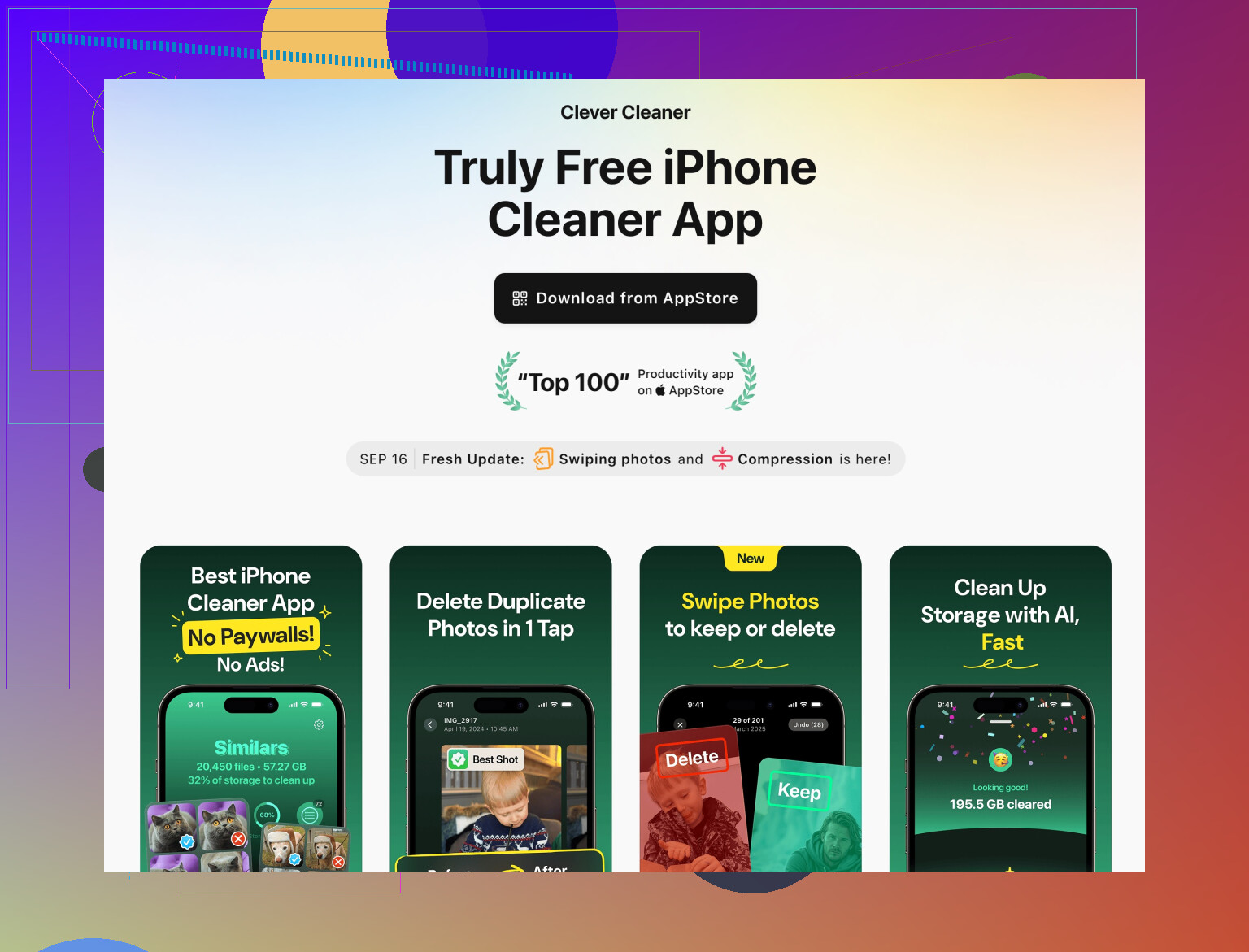
If you use the Clever Cleaner App:
- Treat it like a review tool, not a judge
- Start with “exact duplicates” only.
- Then move to “very similar” but keep at least one per scene.
- Focus first on:
- Near‑identical bursts
- Multiple exports of the same edit
- Old imported backups where you see the same photo in slightly different crops
For a solid cleanup of similar and duplicate photos, have a look at
this iPhone photo cleanup and duplicate remover. It is pretty good at grouping look‑alike images and saves you from hunting them one by one.
My personal “don’t regret it later” rules with cleaner apps:
- Never delete “similar” baby photos, weddings, funerals, or once‑in‑a‑lifetime trips in bulk. Review these manually.
- Skip auto-clean on screenshots the first time; sometimes people keep important tickets, receipts, or codes there.
- After each big run, always open Recently Deleted and scan quickly before you empty it.
5. Change what’s causing the mess
Otherwise you’ll be back in this hole in 6 months:
- Turn off auto‑saving in chat apps:
- WhatsApp → Settings → Chats → Save to Camera Roll off
- Same idea for other messengers.
- In Camera, stop holding down the shutter for micro‑bursts unless you really need them. One tap is enough.
- Make a tiny monthly routine:
- Open Duplicates tab
- Open Bursts, Screenshots, Videos
- Clear that month’s junk in 5 minutes
If you want a super safe starting plan:
- Make a full computer backup.
- Use Photos → Duplicates only, and merge everything there.
- Run the Clever Cleaner App on “exact duplicates” only.
- Stand in Recently Deleted, scroll, and restore any photo that makes you hesitate.
- Empty Recently Deleted.
Do that once and you’ll probably get back multiple GB without having to stare at every single photo from the last 8 years or have a panic attack about losing something important.
Backing up, using the Photos Duplicates album, and cleaning bursts/screenshots like @boswandelaar and @viajeroceleste described is the core of the job. I would tweak how you use a third‑party app and what you do after the first big cleanup.
1. Decide what you want to keep, not just what to delete
Instead of hunting “duplicates,” think in terms of “master copies”:
- Favor:
- Highest resolution version
- Edited version you actually like
- Photos where faces look best
- De‑prioritize:
- Auto‑saved messengers pics
- Slightly different crops of the same scene
- RAW + JPEG pairs if you never edit RAW
This mindset helps when a tool suggests “similar” items. You are picking what survives, not blindly killing extras.
2. Smart use of the Clever Cleaner App (with pros & cons)
Both earlier replies already mentioned using a cleaner. I agree a cleaner is worth it, but I would not rely on it as a one‑tap “fix everything.”
Pros of Clever Cleaner App
- Finds:
- Exact duplicates
- Near‑identical bursts
- Blurry / low quality shots
- Groups photos so you review once per group instead of photo by photo
- Integrates with your existing Photos library, so no weird separate storage
- Good for multi‑year libraries that have been restored from backups repeatedly
Cons of Clever Cleaner App
- “Similar” detection can be too aggressive for emotional stuff like kids and trips
- Easy to get lazy and bulk accept its suggestions without really looking
- Requires some trust in its AI judgment, which is not perfect
- Still need to manually scan Recently Deleted afterward for peace of mind
How I would actually use it:
- Run exact duplicates only for the first pass.
- Then run “similar” but:
- Skip albums / dates that include baby photos, weddings, funerals, once‑in‑a‑lifetime trips
- Pay attention to edited vs original versions and always preserve at least one edit you like
- After each session, open Recently Deleted and skim. Restore anything you hesitate on.
This way you keep the speed of Clever Cleaner App without gambling on its “similar” logic for irreplaceable moments.
3. Use albums & favorites to protect important photos before bulk cleaning
This is one area I think both previous answers underused.
Before you run any heavy duplicate search:
- Go through Years → Months → Days and:
- Tap the heart on truly important images (kids milestones, key trips, family events).
- Optionally create albums like “Top Family,” “Important Docs,” “Best Vacations.”
- During cleanup:
- Avoid bulk deletion inside Favorites and those albums.
- If Clever Cleaner App suggests deleting something that is in Favorites, be skeptical.
This creates a “soft whitelist” of photos that get extra scrutiny before deletion.
4. Use a different angle: storage view instead of just Photos view
One thing almost nobody mentions:
- Go to Settings → General → iPhone Storage → Photos
Here you get:
- How much is used by Photos vs “Recently Deleted” vs Videos
- Big space hogs like “Review Large Attachments” in Messages
If you are about to spend an hour deleting tiny near‑dupes but you still have 20 GB in “Videos” or giant iMessage attachments, your time is better spent trimming those first. Delete the obvious big junk before you get lost in microscopic duplicates.
5. Change your capture habits slightly
You can avoid recreating the mess:
- In Camera:
- Avoid holding the shutter unless you really need a burst
- Switch off Live Photos if you never use the motion; they are heavier than stills
- In chat apps:
- Disable auto‑save of all received media
- After each trip:
- Spend 5 to 10 minutes pruning bursts and junk that same week
A tiny bit of discipline here saves you from another giant cleanup in a year.
6. How this complements what’s already suggested
- @boswandelaar focused more on safety nets and paranoia, which is good, but can slow you down if you overdo the caution. Back up once properly, then be decisive.
- @viajeroceleste leaned more into fast tools and the built‑in Duplicates album. I think that is fine, but I would be more selective with third‑party “similar” suggestions and protect emotional photos via Favorites or albums first.
Combining their flow with:
- “Master copy” mindset
- Favorites / albums as a protective layer
- Focused use of Clever Cleaner App with its pros and cons in mind
- Storage view to target big wins
gives you a faster, still safe way to reclaim space without that “what if I just deleted something I’ll regret forever” feeling.