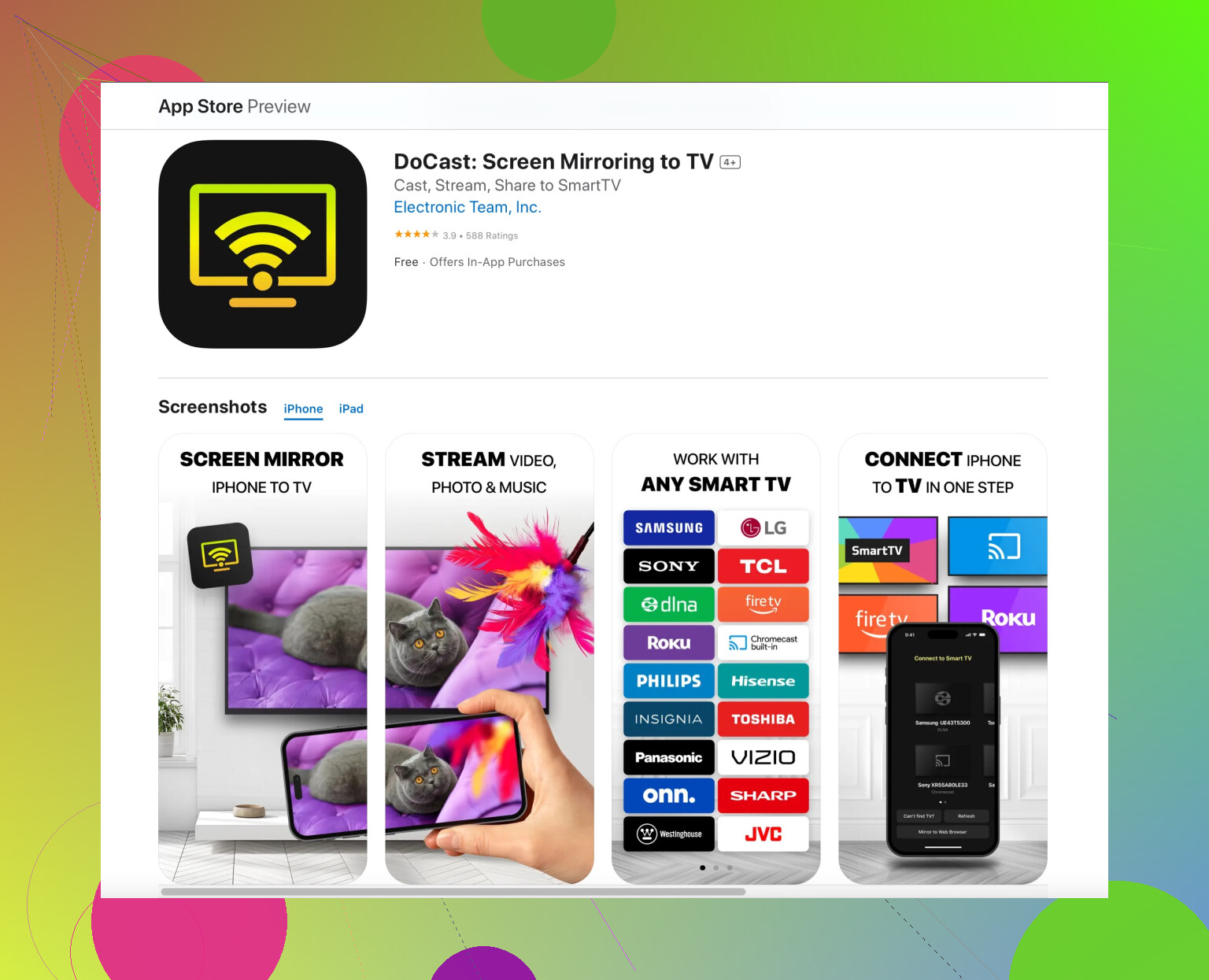
Android TVs typically don’t support AirPlay natively. That’s why your TV isn’t showing up. What you need is a third-party app to bridge the gap between your iPhone and Android TV. One highly recommended option is the Docast screen mirroring app. It’s designed to facilitate screen mirroring between different devices, including iPhones and Android TVs.
To get started, follow these steps:
-
Install Docast: Download and install the Docast screen mirroring app on your Android TV. You can find it in the Google Play Store.
-
Connect to the same Wi-Fi: Ensure both your iPhone and Android TV are connected to the same Wi-Fi network. This step is crucial for the devices to communicate.
-
Open the App: Launch the Docast app on your Android TV.
-
Enable AirPlay: On your iPhone, open Control Center and select “Screen Mirroring.” Docast should appear as an option.
-
Select your TV: Choose your Android TV from the list, and your iPhone screen should start mirroring to your Android TV instantly.
If that doesn’t work, double-check that both devices are on the same network, and try restarting both the TV and iPhone.
For more information and to download the app, visit the official Docast app website.