My iPhone has been running really slow and some apps keep freezing or crashing. Friends told me clearing the cache might help, but I’m confused about the safest way to do it on iOS without accidentally deleting photos, messages, or important app data. Can someone explain the step-by-step methods to clear cache on an iPhone, including for Safari and specific apps, and what I should watch out for?
Short version. You will not lose photos or messages if you stick to these steps and read what each option says before you tap Delete.
Here is what works on iOS without nuking your data:
-
Restart first
A simple restart clears temp junk in RAM and cached system stuff.
Press volume up, then volume down, then hold power, slide to power off, wait 30 seconds, then turn it on.
Test speed after that, sometimes it fixes freezes by itself. -
Check storage and “Offload App”
Go to Settings → General → iPhone Storage.
Wait for it to load, it can take a minute.
You will see a list of apps sorted by size.
Tap an app that feels slow, like Instagram, TikTok, Facebook, etc.
You see two buttons:
• Offload App
Removes the app itself, keeps your documents and data.
This clears app cache without touching your login or local files for that app.
After offloading, tap the icon on the home screen to reinstall.
• Delete App
Removes the app and its data.
This is the one you avoid if you do not want to risk losing app data.
Offload is safe for most social apps, shopping apps, etc, since your stuff stays in the account online.
For games, be sure they sync with Game Center or an account, or you risk losing saves.
- Clear Safari cache safely
This does not delete photos or messages.
Go to Settings → Safari.
Tap Clear History and Website Data.
This removes website cache, cookies and history.
It logs you out from some sites, but your photos and messages stay intact.
If you only want cache for a specific site, scroll to Advanced → Website Data → Edit, then remove big entries.
- Clear cache inside individual apps
Some apps have their own clear-cache button.
Examples:
• WhatsApp: Settings → Storage and Data → Manage Storage. Delete large items, old videos, GIFs.
• Telegram: Settings → Data and Storage → Storage Usage. Use Clear Cache.
• Reddit / Twitter / TikTok: check their settings for Storage or Cache options.
This helps a lot if one app keeps crashing.
- Clean up Photos safely
Photos do not have a “cache” button, but giant video files slow things down.
Steps that keep you safe:
• Settings → Your name → iCloud → Photos → turn on iCloud Photos if you have enough iCloud storage.
• In Photos, sort by large videos and delete ones you do not need.
• Empty Recently Deleted album to free real space.
If you do not want to pay for iCloud, move big videos to a computer or external drive first.
-
Offload big unused apps automatically
In Settings → App Store, turn on Offload Unused Apps.
iOS removes unused apps when storage is low, but it keeps your documents and data.
You tap the grayed icon to bring them back. -
Use a cleaning app, with caution
If you want something to help sort duplicates and junk, a cleaner app helps, mainly for photos, contacts, and similar clutter.
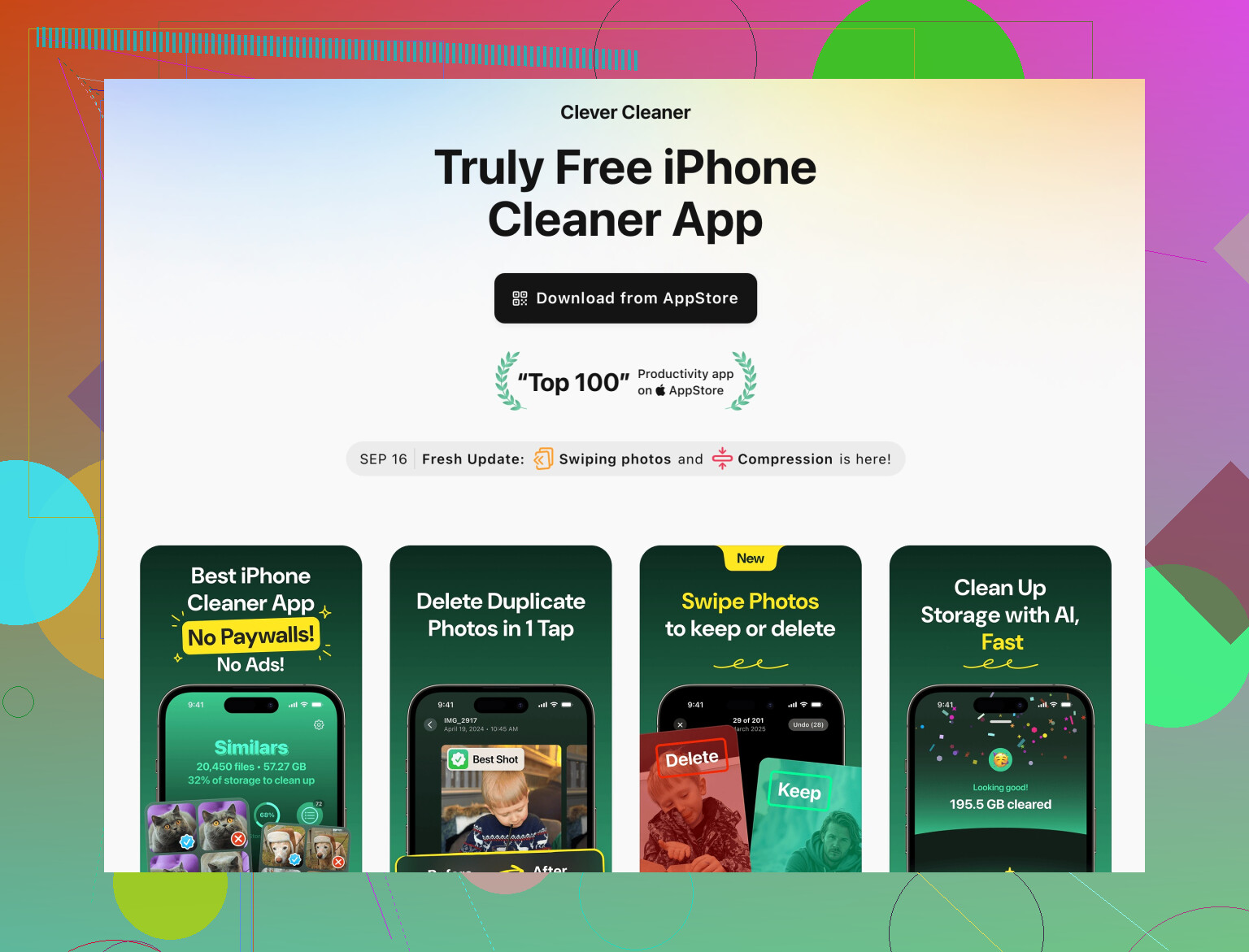
One option that focuses on iPhone is the Clever Cleaner App. It helps find duplicate photos, similar pictures, unnecessary screenshots, and merge duplicate contacts. That frees up storage without touching important data you want to keep.
If you want to try it, here is a link that goes straight to the App Store page for a detailed description and download:
Clean up junk files and photos on your iPhone
Always check what any cleaner app wants to delete before you confirm. Do not tap “select all” if you are not sure.
-
Update iOS and apps
Outdated software often causes crashes.
Go to Settings → General → Software Update and install the latest stable version.
Then open the App Store, tap your profile, and Update All. -
When nothing helps
If your storage is almost full, performance drops a lot. Try to leave at least 5 to 10 GB free if possible.
If the phone is old, performance issues come from hardware limits, not only cache.
Safe checklist so you do not lose important stuff:
• Photos backed up to iCloud, Google Photos, or a computer.
• Messages synced with iCloud if you use that.
• Offload apps instead of Delete when unsure.
• Double check any delete screen before confirming.
You’re on the right track thinking about cache, but on iOS you kinda have to think bigger picture: performance on iPhone is more about free storage + healthy system than just “clear cache” like on Android.
@sognonotturno already covered the classic stuff (restart, offload, Safari cache, etc.), so I’ll skip repeating those taps and menus and focus on other angles that keep photos/messages safe.
1. Check how your storage is actually being used
iOS slows down badly when storage is almost full, even if you clear cache. You want at least 5–10 GB free.
- Go to Settings → General → iPhone Storage
- Ignore the “recommendations” for a second and look at:
- System Data
- Other large categories like Messages, Media-heavy apps
If System Data is absurdly big (like 20+ GB), that’s usually old logs, caches and temp data.
Safe ways to shrink it without touching photos:
- Let the phone sit plugged in and on Wi‑Fi for a while. iOS often cleans and reindexes in the background.
- Update to the latest iOS version. Updates often purge old system junk.
- If it still looks insane, a fully encrypted backup + restore can shrink it:
- Backup to a computer with Finder / iTunes, choose encrypted backup.
- Then Restore iPhone from that backup.
Your photos, messages, app data all come back, but a lot of “Other/System” trash gets wiped in the process.
It’s annoying, but it works when nothing else does.
This is safer than blindly deleting apps you’re not sure about.
2. Messages: trim storage without losing convos
Messages can silently eat tens of GB, especially with videos and memes.
Safe-ish approach:
- Settings → Messages → keep Messages set to Forever if you care about history.
- Inside Messages app:
- Open a heavy thread
- Tap contact name at top → Info
- Scroll to Photos and Documents
- Manually remove only big attachments you do not need.
You keep the conversation text, delete only media you truly do not care about. Zero effect on Photos library or other apps.
I actually disagree a bit with the usual “just enable 1-year message deletion” advice you’ll see around. That’s a great way to discover you just auto-deleted the one thread you’d kill to have back. Manual pruning of attachments is slower but safer.
3. Focus on the apps that actually misbehave
Instead of “clear cache on everything,” find the real troublemakers:
- In iPhone Storage, check which apps are huge and also the ones that crash or freeze a lot.
- For each one, inside the app:
- Look for Storage, Downloads, Offline content, Watch later sections.
- Remove:
- Offline playlists, downloaded videos
- Old downloaded maps, podcasts, etc.
This usually frees more space than generic cache clearing, and you keep your login + core data.
If a specific app is still crashing:
- Sign out then sign back in inside the app.
- If that fails, delete and reinstall that one app, but only if you know your account is cloud based (Netflix, Spotify, socials = safe, local-only games = risky).
4. Manage background stuff that makes the phone feel slow
Not really “cache,” but it affects the lag:
- Settings → Background App Refresh → turn it off for junky apps you don’t care about.
- Settings → General → Transfer or Reset → Reset → Reset All Settings
- This does not remove photos, messages, or apps.
- It resets Wi‑Fi, layouts, privacy permissions.
- Good middle ground before you go nuclear with a full erase.
This can fix weird lag and glitches that clearing cache will never touch.
5. Backup before you start cutting deep
If your data is really important:
- iCloud backup or computer backup first.
- Check Photos is fully synced or copied somewhere (iCloud, Google Photos, or a computer).
- Then start deleting/offloading with less anxiety.
I personally never trust “it’s probably safe” when we’re talking about the only copy of kids’ photos or work stuff.
6. About cleaner apps and one that’s actually useful
You do not need a cleaner app for cache, but they can be handy for organizing bloat you’d never manually sort, especially in Photos.
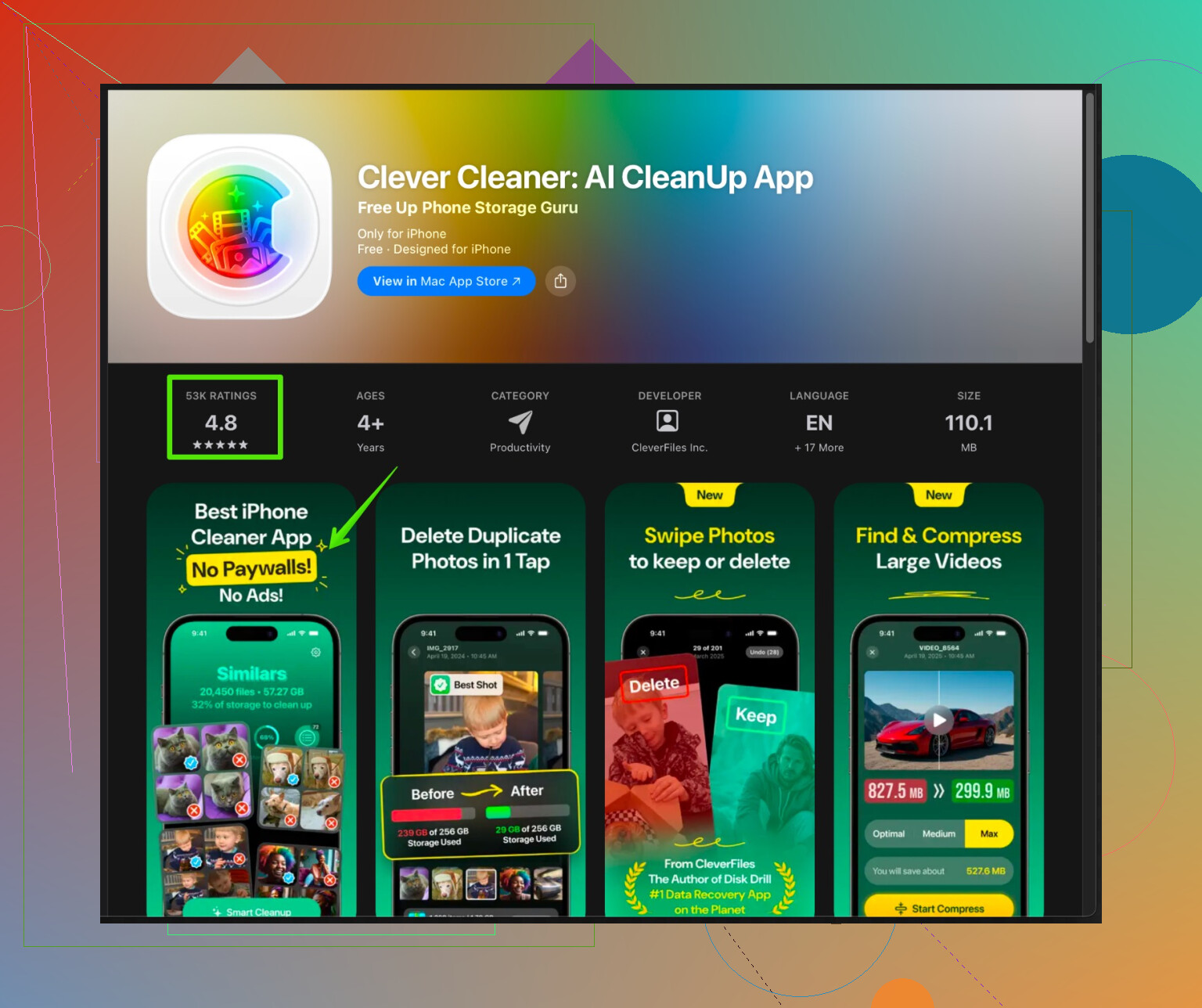
One iPhone-oriented option that fits what you want is the Clever Cleaner App. It’s not some magic RAM booster, but it helps with:
- Finding duplicate or near-duplicate photos (10 burst shots of the same thing)
- Spotting pointless screenshots taking space
- Detecting similar pictures so you keep the best ones
- Merging duplicate contacts so your address book is not a mess
This kind of cleanup frees storage and indirectly speeds things up, without wiping your core data.
If you want a more detailed breakdown of what it does and how it works, check this:
smart tools to clean up your iPhone and reclaim storage
Mild disagreement with some “cleaner hate” you might run into: they are useless if you just blindly hit “delete all,” but if you use them as a visual aid and review what they flag, they can save a ton of time.
7. When it’s not cache at all
If you’ve freed space, updated iOS, restarted, and specific apps are still freezing:
- Run the phone in Low Power Mode for a while and see if it behaves better.
- If it randomly reboots, gets super hot, or stutters everywhere, it might be:
- Old battery causing throttling
- Hardware aging on older iPhones
In that case, replacing the battery often does more for “performance” than any cache tricks.
TL;DR version:
- Aim for at least 5–10 GB free space.
- Don’t auto-delete old messages just to “save space” unless you’re 100% ok losing them.
- Manually clean large attachments and offline downloads in apps.
- Use a helper like Clever Cleaner App to sort photo clutter, but always review suggested deletions.
- Backup first, then experiment. Photos and messages survive as long as you do not factory reset or blindly hit “Delete App / Delete Data” on things you actually use.