My iPhone storage is almost full, and I noticed one app is using a lot of space for documents and data. I want to clear that extra app data without deleting the app itself because I still use it every day. I already checked iPhone storage settings but I’m not sure what can be removed safely. Looking for help freeing up space without losing the app.
I ran into the same mess on my iPhone. Storage said apps were small, but ‘Documents and Data’ was huge, like 20 GB huge. It looked broken.
What Apple calls ‘Documents and Data’ is all the extra stuff apps keep around. Not the app itself. The leftovers. Login tokens, site data, cookies, download scraps, cached images, cached video, old temp files. Social apps are bad for this. If you spend 30 minutes in Instagram or Facebook, your phone stores a pile of media so scrolling feels faster later. Weeks pass, and the pile gets dumb big.
The annoying part is Apple does not give you one clean cache button for most apps. So you end up checking things one by one.
If you want the short version, this is what I did.
- For Safari, open Settings, then Safari, then tap ‘Clear History and Website Data’.
- For some apps, check inside the app itself. Facebook, for example, has browser settings where you can clear cookies and cache.
- For stubborn apps, delete the app fully and install it again.
- Do not rely on Offload App if your goal is storage cleanup. Offloading removes the app binary, but keeps the app data.
- In Photos, empty ‘Recently Deleted’. If you skip this, the space is still in use.
- Check Files too. Its ‘Recently Deleted’ folder catches a lot of people.
That delete-and-reinstall step fixed the worst offenders for me. Streaming apps, social apps, podcast apps, sometimes even messaging apps. A 300 MB app turns into 4 GB after enough use. I saw it over and over.
Photos is where people get tripped up most. You delete a bunch of pictures, then storage barely changes. Usually the reason is simple. The photos are still sitting in ‘Recently Deleted’ for around 30 days. Shared albums and old synced stuff also seem to leave behind local data. I had this with thumbnails sticking around longer than I expected.
When my phone got close to full, performance dropped in a way I could feel. Camera opened slow. Apps paused when switching. Random storage warnings kept popping up. It was not subtle. iPhones need free space to do normal background work, and when that space gets squeezed, the whole thing starts acting tired.
In my case, the photo library was the main problem. I tried cleaning it by hand and quit after a few minutes. Too many duplicates, too many screenshots, too many giant videos I forgot about.
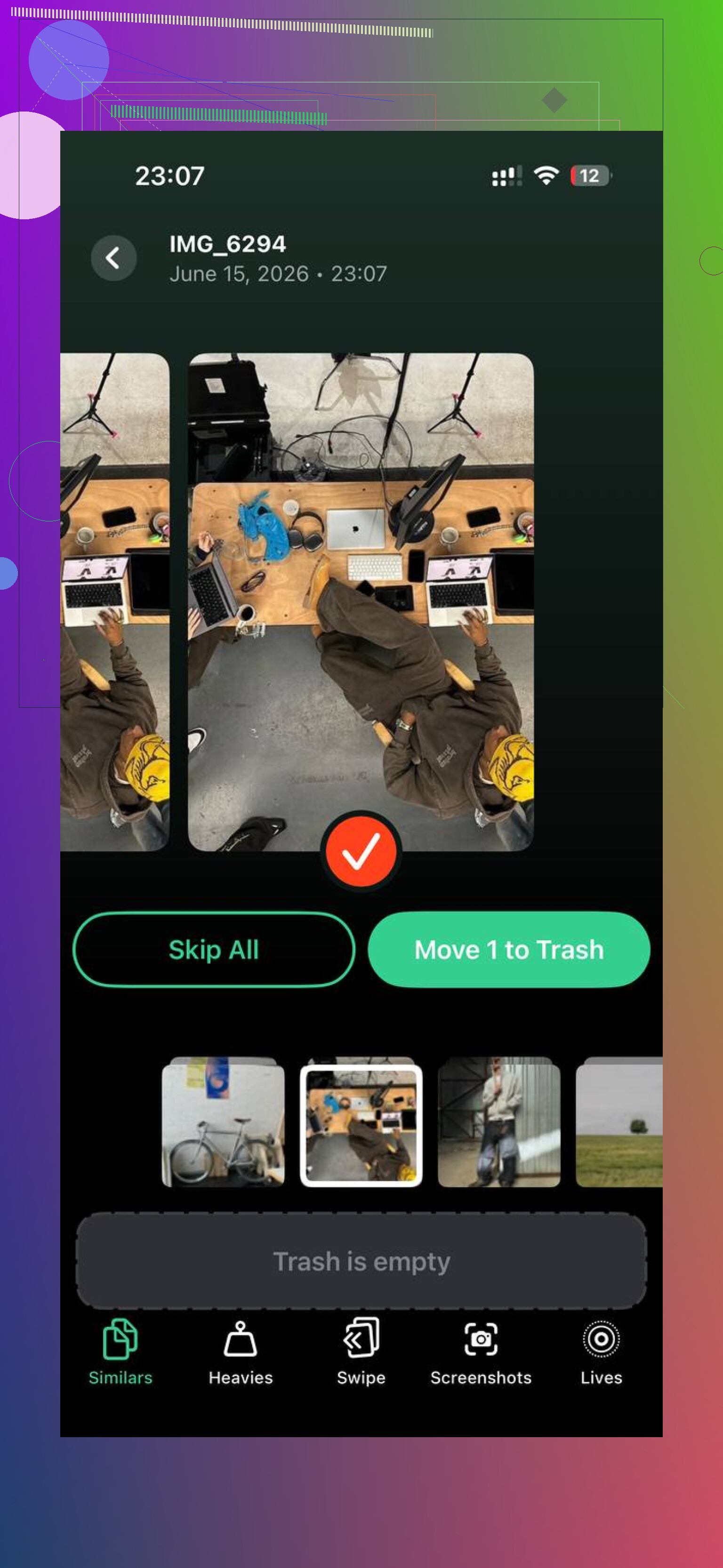
I ended up using Clever Cleaner. What stood out to me was the file-size sorting. The ‘Heavies’ section made it easy to spot the stuff wasting the most space fast. One old 4K clip was over 1 GB. I also used the ‘Similars’ section to remove near-duplicate shots, which helped more than I expected because I had bursts of the same photo all over the place.
The useful part was seeing the storage numbers before deleting anything. No guessing. I could tell what each screenshot or video was costing me. I also liked that it processed the library on-device, since I do not want my photos sent off somewhere.
After I cleared roughly 10 GB of large videos and repeat shots, the Photos storage dropped fast and the phone felt quicker again. Not magic, still the same phone, but the lag eased up enough for me to notice it right away.
So yes, clearing this stuff is safe. You might need to sign in again. Some pages or media will load slower the first time after cleanup. Fine trade, in my opinion.
If your iPhone storage looks wrong, start here:
- Clear Safari history and website data
- Check app-specific cache settings
- Delete and reinstall bloated apps
- Empty Recently Deleted in Photos
- Empty Recently Deleted in Files
- Review your photo library for huge videos, duplicates, and screenshots
That was the only approach that worked for me without wasting a whole evening poking around settings.
If you want to keep the app, your options are limited by iOS. Apple does not give a universal “clear documents and data” button for most apps. So, small correction to @mikeappsreviewer, delete and reinstall works, but it defeats your goal if you want to keep the app in place with no reset.
What does work without deleting the app:
Check Settings, General, iPhone Storage, tap the app. If it shows “Review Downloaded Videos” or similar, remove those first. Streaming, podcast, and map apps often hide offline files there.
Open the app and look for:
Cache
Downloads
Offline content
Saved media
Search history
This matters most for TikTok, Spotify, Netflix, YouTube, Podcasts, Chrome, Reddit, Discord. I’ve seen one app drop from 8 GB to under 2 GB after removing downloads only.
For Messages, go to Settings, General, iPhone Storage, Messages. Delete large attachments. This frees space fast.
For WhatsApp or Telegram, clear media from inside the app. Don’t remove chats unless you mean to.
If your biggest “documents and data” chunk is photos, I’d skip manual hunting unless your library is tiny. Clever Cleaner is useful for large videos, duplicates, and screenshots. This review explains it better: see how Clever Cleaner helps free up iPhone storage.
Last thing. Restart the phone after cleanup. iOS storage numbers sometiems lag.
You can’t really force-clear “Documents & Data” for most iPhone apps from iOS alone. That’s the annoying truth Apple kinda hides.
Where I slightly disagree with @mikeappsreviewer is this: delete/reinstall is the nuclear option, but not the only one. And where @sonhadordobosque is right, app-specific cleanup is usually the real answer.
A few things people miss:
- Check Settings > [app name]. Some apps store toggles for downloaded media, reset cache, or local file access there.
- In iPhone Storage, some apps show hidden management options only after you tap them.
- If it’s a messaging app, clear large attachments, voice notes, stickers, and auto-downloaded media inside the app. Those pile up fast.
- For music/video apps, remove offline downloads first. That’s often the whole problem, tbh.
- Notes, PDF apps, scanners, and e-sign apps can hoard local files too. People forget about those.
Also, if the bloated storage is from photos or videos you saved through the app, then the app may not even be the true culprit. That space may be in Photos. In that case, a cleaner app helps more than poking random settings. Clever Cleaner is solid for finding large videos, duplicate shots, and screenshots without manually digging forever.
If you want a decent walkthrough, this video on freeing up iPhone storage and clearing app data covers the basics pretty well.
So yeah, short version: if the app has no built-in cache/download cleanup option, iOS usually won’t let you delete just the data. Super dumb, but that’s how Apple does it.

I’d push back a bit on @mikeappsreviewer here. Reinstalling is effective, sure, but it is still basically a reset. If you want to keep the app exactly where it is, with logins, settings, drafts, and local state intact, that advice is often more disruptive than people expect.
One angle nobody really covered is this: sometimes “Documents & Data” is inflated by failed syncs or corrupted local indexes, not just cache. That shows up a lot in mail apps, cloud drives, note apps, and anything that keeps offline databases. In those cases, look for options like:
- Rebuild database
- Resync account
- Remove downloaded copies only
- Disable and re-enable sync for one folder/account
That can shrink storage without wiping the whole app.
Another overlooked fix is changing retention settings before cleaning. For example:
- Keep Messages forever vs 1 year or 30 days
- Podcast episode retention
- Downloaded music quality
- Camera app save-to-device behavior in chat/social apps
That prevents the storage from ballooning again next week.
I also would not obsess over the storage number immediately after cleanup. iOS sometimes keeps “System Data” and app usage estimates stale for a while. Plugging the phone into power and leaving it on Wi-Fi overnight can make the reported number normalize faster than repeated restarts.
If the real hog is media, not app cache, then Clever Cleaner makes more sense than app-level digging. Pros: fast at spotting large videos, duplicate photos, screenshots. Cons: it will not magically clear protected app caches Apple does not expose, so it is great for photo-library clutter, not a universal app-data eraser.
So my take is:
- Keep the app
- Fix downloads/sync/retention inside it
- Let iOS recalculate
- Use Clever Cleaner if Photos is the hidden culprit
That’s a little closer to what @sonhadordobosque and @sterrenkijker were getting at, just with less focus on the nuclear option.