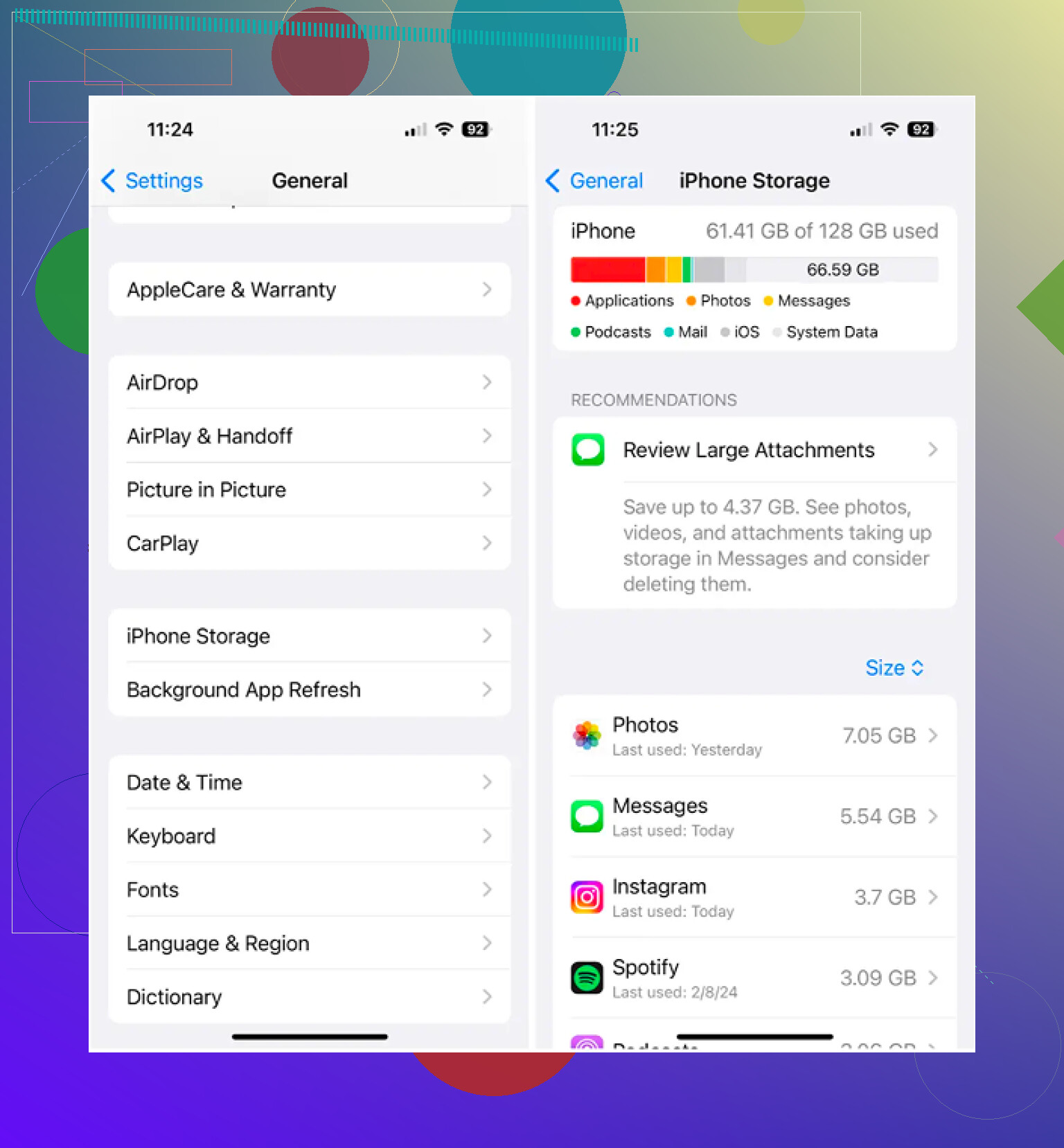
I’m trying to free up storage on my iPhone, but I can’t figure out how to delete files in the Files app. Some files don’t seem to remove completely, and I’m not sure if they’re still stored on my device or in iCloud. I need help understanding the right steps so I can clear space without deleting the wrong things.
On iPhone, file cleanup feels off until you learn where Apple hid stuff. I fumbled with it the first time too. After a bit, it turns into a short routine.
Deleting files in the Files app
The Files app is where I kept running into saved PDFs, ZIP archives, Safari downloads, and attachments pulled from Mail.
If you want to remove one file or one folder:
- Open the Files app and go to the item.
- Press and hold the file or folder icon.
- When the menu pops up, scroll down. On iOS 18, Delete often sits all the way at the bottom in red with a trash icon.
- Tap Delete.
If you're clearing a bunch at once:
- Tap the three-dot button in the top right.
- Choose Select.
- Tap each item you want gone.
- Hit the trash icon at the bottom.
Deleting a folder without messing up the wrong thing
Folders work the same way. I held down on the folder, scrolled to Delete, then removed it. If you only want the folder emptied and not removed, open it first, use Select All, then delete the contents from inside. Easy to miss if you're moving too fast.
When a file refuses to delete
I saw this more than once. The file looked like it was still there, but iCloud had already moved it or synced it away. Files had not refreshed, so the icon was sort of fake, still sitting there like nothign happened.
- Close the Files app fully, then open it again.
- If the item still shows, restart the iPhone.
- After reboot, iOS usually refreshes its local file list and the ghost item disappears.
Freeing space without removing the file from iCloud
This part matters. If a file has a cloud icon beside it, it lives in iCloud. If you tap Delete, it disappears across every device using your Apple ID.
What helped me was using Remove Download instead. That strips the local copy off the phone but leaves the file in iCloud Drive. Later, if you need it again, tap it and the phone pulls it back down.
Why storage still looks full after you delete stuff
I thought my phone was bugged the first time. It wasn't. iOS keeps deleted files in Recently Deleted for 30 days, and they still take up storage until you empty it.
To clear them right away:
- Open Files.
- Go to the Browse tab.
- Find Recently Deleted under Locations.
- Tap the three dots, then Select, then Delete All.
Photos works the same way. Deleted photos and videos go into its own Recently Deleted area, so you need to clear both places if you're trying to get space back now instead of next month.
Why deleting Files app documents often barely helps
From what I saw on my own phone, docs and downloads were not the big storage hogs. Videos were. One old 4K clip ate more space than piles of PDFs. Burst photos were another mess, with ten near-matching shots clogging things up.
The built-in Duplicates album in Photos only catches exact copies. Clever Cleaner checks further than that, and I noticed it groups similar shots instead of only perfect duplicates.
The part I found useful was the Heavies view. It lists your largest files first, with file sizes shown clearly, so the worst offenders show up fast. The Similars section groups near-matching photos and picks a Best Shot, which helps when your camera roll is full of burst junk. There is also a swipe screen where you go month by month, left for delete, right for keep. From what I saw, processing stays on the device.
One last thing, becuase this tripped me up. If you clean files manually in Files and then clear your photo library with Clever Cleaner, your storage number still might not move until you empty Recently Deleted in both apps. One bin in Files. Another in Photos. Miss either one and the freed space won't show yet.
A small thing @mikeappsreviewer did not stress enough, location matters more than the delete button.
If the file is in On My iPhone, deleting it removes the local file. If it is in iCloud Drive, deleting it removes it from iCloud too, on all synced devices. If your goal is storage cleanup, check the path at the top first. That tells you what you are deleting.
For files stuck in place, I would not assume it is a ghost item right away. Sometimes the app holding the file still has it open. Save and close the source app, then try again. This happens a lot with PDFs, Pages docs, and downloaded attachments.
Best way to verify storage:
- Go to Settings, General, iPhone Storage.
- Wait 20 to 30 seconds for the graph to refresh.
- Check Files or iCloud Drive usage after deletion.
If you want Apple’s step guide, this page is cleaner and easier to skim:
how to manage and delete files on iPhone
If most of your storage loss is photos and videos, Files cleanup wont move the needle much. Clever Cleaner is more useful there, esp for large videos and similar shots. That part matters more on most phones, tbh.

Big thing I’d add to what @mikeappsreviewer and @techchizkid said: don’t judge by what you still see in Files, judge by the file’s status and location.
A lot of people delete something from Files and assume storage should instantly drop. Not always. Sometimes it was only a shortcut-like view into iCloud Drive, not a chunky local file sitting on your phone. Other times the file is still cached for a bit, which is why iPhone storage numbers can lag and look kinda wrong for a while.
What I usually check:
- In Files, tap and hold the item and look for Info
- Check Where or the folder path
- If it says iCloud Drive, deleting it removes it everywhere
- If it says On My iPhone, that’s local storage
- If you only want space back, use Remove Download when available instead of full delete
Also, if a file came from another app, sometimes the real storage hog is still inside that app’s own data, not Files itself. That’s why deleting a copied PDF from Files may do almost nothing. Annoying, but very Apple.
One small disagreement with the “just restart and it’ll vanish” advice: sometimes the item is not a ghost file at all, it’s just waiting on sync. Try toggling wifi or checking iCloud Drive sync first before going nuclear.
And honestly, if your goal is to free up meaningful space, Files cleanup usually helps less than people hope. Photos and videos are almost always the culprits. That’s where Clever Cleaner makes more sense, especially for similar shots and large videos. Different job than Files, but way more impact for most ppl.
If you want a visual walkthrough, this is pretty clear:
see how to delete files on iPhone and free up storage fast
So yeah, delete in Files for docs/downloads, but check whether you’re deleting local copies or nuking iCloud too. That part gets ppl every time.