I take a lot of screenshots on both my iPhone and iPad, and now my Photos app is cluttered and using up storage. I’m trying to find the fastest way to delete screenshots on both devices at once, especially if they sync through iCloud Photos. Is there a simple method to remove them together without deleting other photos?
I ran into this mess too. My photo library got clogged with screenshots of tracking numbers, login codes, random memes, and blurry pics of grocery prices. When I went looking for one photo from a trip, I had to dig through piles of junk first. Annoying way to waste ten minutes.
There is a clean way to remove screenshots without nuking your normal photos. A few parts are still a little dumb, so here’s the version I wish someone had handed me sooner.
Delete only screenshots, not your whole library
Do not start from All Photos. That view mixes everything together, so it’s easy to remove stuff you meant to keep.
Open Photos. Go to Albums, or Collections on newer versions. Scroll down to Media Types. Open Screenshots.
That album is the safer place to work. If you delete items there, you’re removing screenshots only.
For a small cleanup, tap Select and swipe across thumbnails. iPhone will highlight a bunch fast. For a giant pile, tap Select and use Select All if your version shows it. Way quicker.
What changed on iOS 18 and newer
Apple moved things around a bit. On iOS 18 and later, you can filter your library so it shows screenshots only.
In Photos, tap the button with the two arrows near the bottom. Pick Filter, then choose Screenshots. Once the filter is active, your view is narrowed down to screenshots. From there, tap Select, then drag across the grid from bottom right upward if you want to grab a big chunk fast. Hit the trash icon when done.
I’d still double check the filter before deleting. I missed it once and had to restore a batch from Recently Deleted. Not fun.
If the Photos app freezes, do smaller batches
I learned this by brute force. Trying to delete thousands in one shot made Photos hang on me. A couple times it dumped me back to the Home Screen.
What worked better was deleting in chunks of around 500 to 1,000 items. It sounds slower. It wasn’t. The app stayed responsive and finished the library update without choking.
If your phone is older, I’d stay closer to 500. If it’s newer and has more free space, 1,000 felt okay in my use.
If you keep doing this, automate it
I set up a Shortcut after the third cleanup session because I got tired of repeating the same taps.
Open the Shortcuts app. Make a new shortcut. Add Find Photos. Set the filter to Is a Screenshot. Then add Delete Photos.
One setting matters or it fails right away.
Go to iPhone Settings → Apps → Shortcuts → Advanced. Turn on Allow Deleting Large Amounts of Data.
Without that switch, the shortcut tends to error on the first run. After I enabled it, I could tell Siri to run my screenshot cleanup shortcut and it worked fine.
When the built-in tools aren’t enough
Sometimes you’re not trying to clean up for neatness. You’re trying to free space fast. In that case, it helps to see which screenshots are eating the most storage.
I tested a few cleaner apps and most of them felt spammy, half-broken, or loaded with subscription nags. One I kept around was Clever Cleaner.
Why I didn’t delete it:
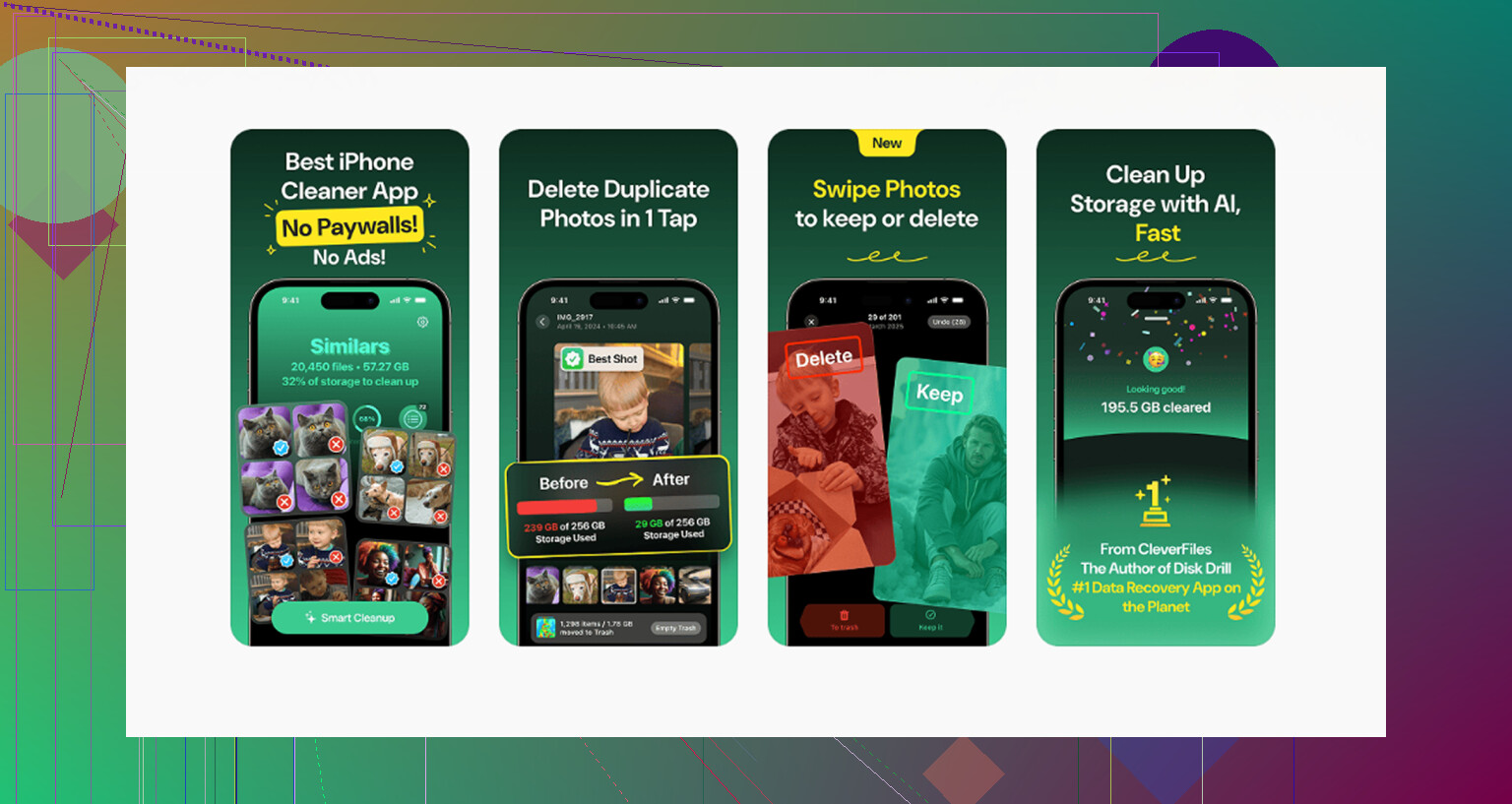
- It’s free. I didn’t run into ads, locked scans, or the usual paywall ambush.
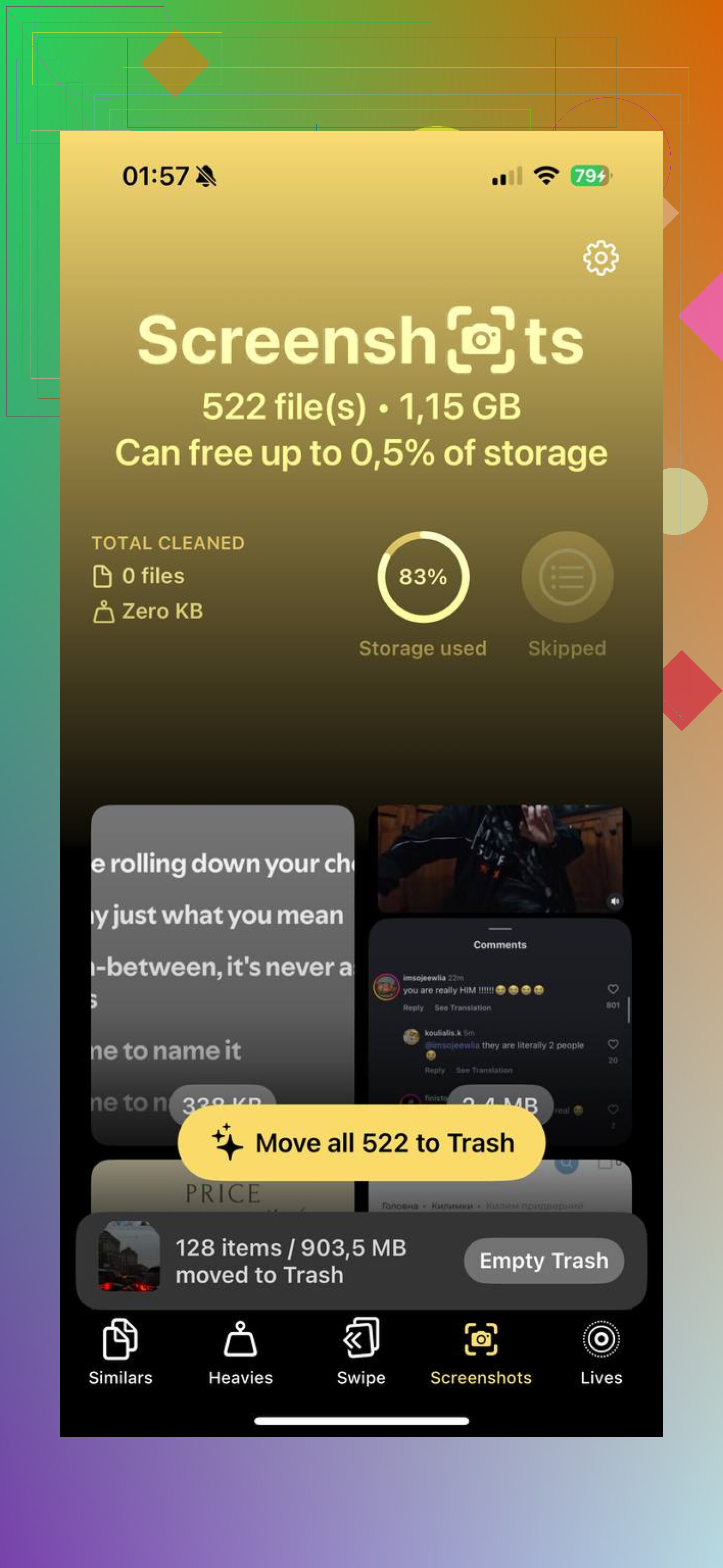
- The Heavies tab sorts by file size, so you can remove the biggest screenshots first instead of guessing.
- The Similars tool helped with duplicate screenshots. I had sets of three because I kept retaking the same screen when a banner blocked part of it.
- Processing stays on-device, which mattered to me more than I expected once I started sorting private screenshots.
If your main problem is storage pressure, file size sorting helps more than people think. I freed a few gigabytes quicker by targeting the largest junk first.
The iCloud part people forget
If iCloud Photos is on, deleting a screenshot from your iPhone removes it from your other Apple devices too, and from iCloud. Usually it syncs fast.
So if you still wanted those screenshots on an iPad or Mac, don’t assume they’ll stay there. They won’t.
And if the trash icon is grayed out, the file might be one of those old synced photos copied from a computer by cable years ago. I had some leftovers like this. Those are often read-only from the phone side. To remove them, you need to reconnect to the original computer and unsync them there.
Yeah, it’s clunky. Still the fix.
The part that frees storage for real
Deleting screenshots does not give you space back right away. They go into Recently Deleted for 30 days.
If your phone is full and you need room now, open Photos, find Recently Deleted under Utilities, tap Select, then Delete All.
This is the step most people skip, then they wonder why storage barely moved.
The upside is obvious too. If you wipe something by mistake, you’ve got that 30-day buffer to recover it. After that, or after a messy sync issue, recovery software is usually the only route left.
Once I cleared mine out, the library felt usable again. Search got easier. Backups sped up a bit. And I stopped scrolling past old two-factor codes from 2021, lol.
If your iPhone and iPad both use iCloud Photos, you do not need to delete screenshots on each device. Delete them on one device, wait for sync, and they disappear from both. Same Apple ID, same photo library.
One thing I’d add to @mikeappsreviewer’s post. I would skip building a delete shortcut first. Shortcuts are fine, but for large photo removal they feel a bit overkill and easier to misfire if you forgot a filter. I’d use sync to do the heavy lifting.
Fastest setup I’ve used:
- Pick one device, usually the iPhone.
- Open Photos and search for “screenshot” or use the Screenshot media type.
- Sort by oldest first if you want to wipe stale junk fast, like 2FA codes and recipts.
- Select a few hundred at a time.
- Delete them.
- Keep both devices on Wi-Fi and power for a bit so iCloud finishes syncing.
Then check iPad Photos. The screenshots should vanish there too.
If your devices do not sync, check:
Settings, your name, iCloud, Photos, then make sure Sync this iPhone and Sync this iPad are on.
If storage is the goal, the big thing is this:
empty Recently Deleted on one device. That removal syncs too. That’s when space starts coming back.
If you want a quicker way to sort large screenshots by size before deleting, Clever Cleaner is worth a look. Better for bulk cleanup than poking around in Photos forever.
Also, if you were looking up cleanup tools in general, this roundup is decent:
best cleaner apps for iPhone to free up storage fast
Short version, with iCloud Photos on, delete once, sync does the rest. If sync is off, there is no true “at the same time” option built into Apple Photos.
If iCloud Photos is ON on both devices, there really is no separate “delete on iPhone and iPad at the same time” trick. You delete the screenshots once from the shared library, and iCloud propagates the deletion to the other device. That part @mikeappsreviewer and @suenodelbosque got right.
Where I slightly disagree is the “do it in batches on the phone” approach being the fastest every time. IMO, if you have a lot, the least annoying method is to delete from whichever device has the bigger screen and less lag. For me that’s usually the iPad, not the iPhone. Selecting hundreds of tiny thumbnails on a phone gets old realy fast.
A few things people miss:
- Shared iCloud library means one delete affects both devices
- Recently Deleted also needs to be cleared if you want storage back now
- If one device is not updating, turn off Low Power Mode and leave Photos open for a bit
- Storage won’t always drop instantly, because iOS takes a minute to recalculate
If you want to speed up the whole cleanup, Clever Cleaner is actually useful for spotting bulky screenshots and junk faster than Photos does. Not magic, just less tapping.
Also, for anyone comparing cleanup/privacy angles, this discussion is worth a look:
which iPhone cleaner app is safer for privacy and storage cleanup
Short version: with iCloud sync on, delete once. With sync off, there is no true one-shot Apple method.
If your goal is literally “one action deletes on both,” I’d tweak what @suenodelbosque, @viajeroceleste, and @mikeappsreviewer said: the real control point is not the device, it’s the photo library. If both devices use the same iCloud Photos library, you are not managing two sets of screenshots anyway.
Where I slightly disagree with the batch-selection advice is this: for huge cleanup jobs, using Photos itself is fine, but it’s clumsy for deciding what is worth deleting. Screenshots can include tickets, receipts, QR codes, order confirmations, and stuff you actually still need. Bulk delete is fast, but sometimes too blunt.
A better middle-ground is to first isolate screenshots that are old or unusually large, then delete from one device and let sync handle the other. That is where Clever Cleaner can help.
Pros of Clever Cleaner:
- easier visual bulk review than Photos
- can surface heavier files faster
- useful if storage is the main problem
Cons:
- still another app to grant photo access
- not necessary if your screenshot pile is small
- Photos app alone is safer if you are worried about deleting the wrong thing
One more thing people skip: if you use Shared Library with family or a partner, double-check the screenshots are in your personal library before mass deletion. That setup can make cleanup more confusing than normal iCloud sync.
So the short answer is:
- iCloud Photos on: delete once on either device
- no iCloud Photos: no native simultaneous delete
- need smarter triage first: Clever Cleaner is worth a look, but not mandatory