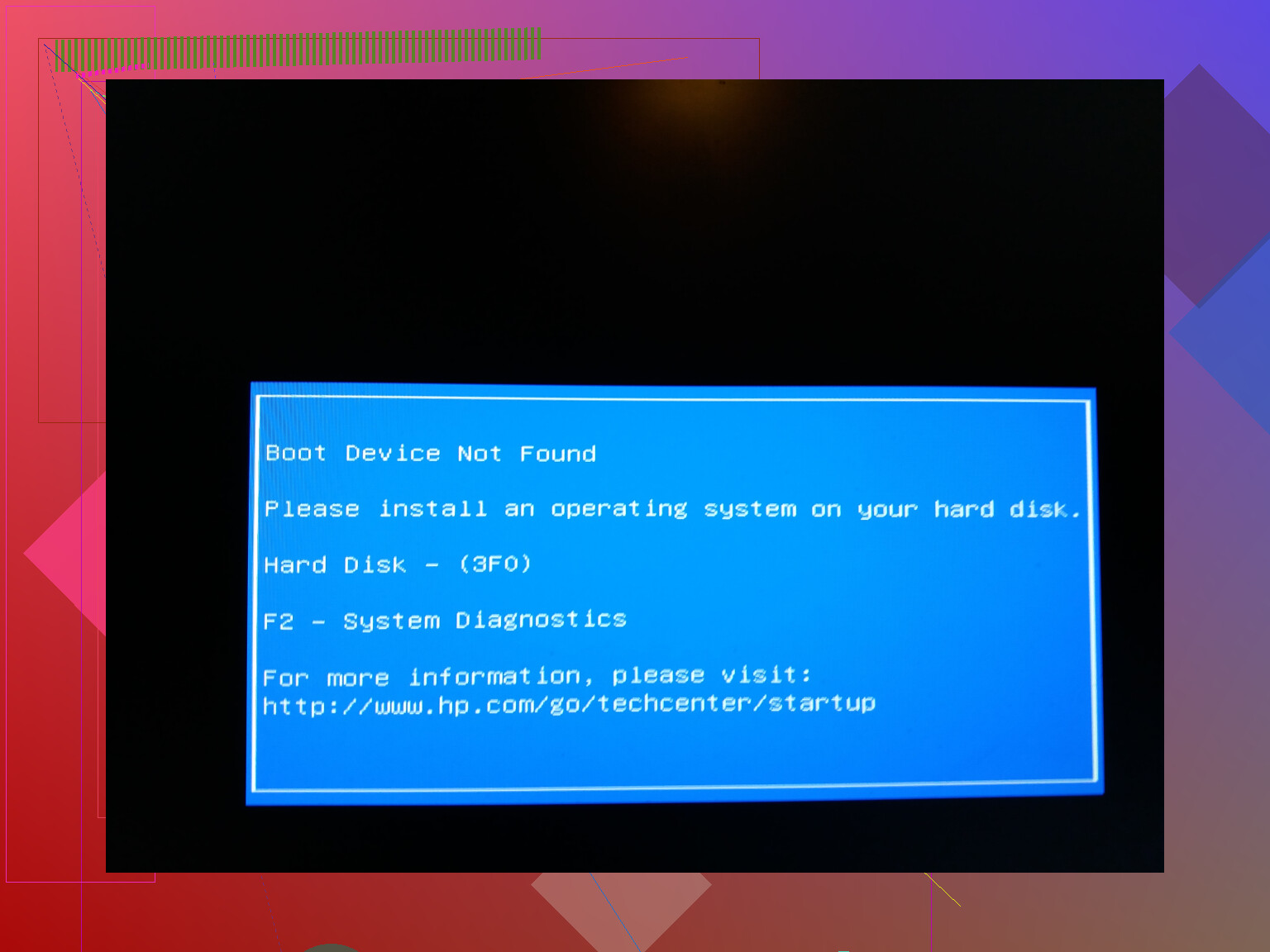
My HP laptop suddenly shows a “Boot Device Not Found” error every time I turn it on, and it won’t load Windows at all. I haven’t changed any hardware or settings recently, so I’m not sure if this is a hard drive failure, BIOS issue, or something else. I really need to recover my files and get the laptop working again. What steps should I try to diagnose and fix this error?
This hit me on an HP too. Same “Boot device not found, Hard Disk (3F0)” message, screen went black, fans spin, nothing else. I thought the SSD was toast and I was about to start pricing new laptops.
Here is what I did, step by step, before spending money.
- Switch BIOS from UEFI to Legacy
I’ll start with the thing that surprised me most.
On boot, I spammed F10 to get into the BIOS setup.
In the boot options, I switched from UEFI to Legacy mode, saved changes, then restarted.
It felt dumb, like flipping a random switch, but the system booted straight into Windows after that. No reinstall, no data loss. My guess is the boot order or boot metadata got messed up and Legacy fell back to something the firmware still understood.
If you try this, write down your current BIOS settings first so you can put them back if it behaves worse.
- Hard reset trick with Power + F6
On one of my other HPs, the BIOS trick alone did nothing, so I tried a hardware reset that people keep bringing up in different threads.
Steps I used:
• Shut the laptop down completely.
• Unplug the charger.
• Remove the battery if it is removable.
• Hold down the power button and F6 together for about 30 seconds.
• Let go, plug the charger back in, then power it on like normal.
There is a longer thread about “Boot Device Not Found, Hard Disk (3F0)” fixes here:
https://discussion.7datarecovery.com/forum/topic/boot-device-not-found-hard-disk-3f0-on-hp-laptop-any-fixes/
Multiple people in there report this combo working on certain HP models, especially the thin ones with weird firmware quirks. On my friend’s HP, this reset brought the drive back in the BIOS list after it had vanished.
- Run the long drive test, not only the quick one
If the system starts acting flaky, or the fixes above only work once and fail again, treat the drive as suspect.
From the HP startup menu:
• Hit Esc at boot, then F2 for diagnostics.
• Run the extended or “long” hard drive test, not only the quick/short test.
The quick test looks nice because it finishes fast, but I have seen it pass on drives that were already reallocating sectors and throwing SMART warnings. The extended test takes more time and tends to flag bad sectors or read issues that the short one skips.
If the extended test shows errors:
• Stop doing random reboots.
• Back up whatever data you still care about as soon as you get any boot at all.
• Start planning for a replacement drive or SSD.
If both tests pass and the system behaves normally after the BIOS or reset trick, you probably hit a firmware or boot configuration bug rather than a failing disk.
- What I would do in your place
If you are staring at that 3F0 message right now, this is the order I would follow:
- Try F10, switch UEFI to Legacy, save, reboot.
- If no change, shut down, unplug, do the power button + F6 for 30 seconds, then boot again.
- If it boots, immediately back up important stuff, then run HP extended diagnostics on the drive.
- If it still does not boot or the drive is missing in BIOS, assume a hardware fault and run the extended test from the diagnostics screen anyway.
These HP boot errors feel like the whole system died, but in my case, and in a bunch of others in that discussion thread, it was fixable without replacing hardware. The trick is to test properly and not rely only on the quick checks.
Short version. Your HP is failing to see a bootable drive or a valid boot loader. That can be firmware confusion, file system damage, or a dying drive.
@mikeappsreviewer covered the UEFI/Legacy flip and the power reset. Those are worth trying, but I would not stop there, and I would not leave it in Legacy long term if it shipped with UEFI and Secure Boot.
Here is what I would do, step by step, without repeating their stuff.
- Check if the drive even shows in BIOS
If the SSD/HDD is missing in BIOS, Windows fixes will not help.
• Turn the laptop off.
• Tap Esc on power up, then F10 for BIOS.
• Look under Storage, System Info, or Boot Devices.
Cases:
• Drive is not listed at all.
That points to a hardware problem, loose connector, or dead drive.
• Drive is listed, but no OS boot option.
That points to a damaged boot loader or partition.
If the drive is missing, reseat it:
• Power off.
• Disconnect charger.
• If the model has a service panel, open it, gently pull the drive out, push it back in.
• For thin models with internal SSD, this needs removing the bottom cover. If you are not comfortable, stop and go to a shop.
- Run HP diagnostics from outside Windows
I do not fully trust only HP’s quick test, and I also do not rely on only their long test if symptoms are bad.
• Tap Esc at startup, pick F2 System Diagnostics.
• Run both quick and extensive tests for Storage.
If either test shows SMART errors or bad sectors:
• Treat the drive as failing.
• Do not keep rebooting it.
• Plan to replace it and focus on data recovery.
- Test the drive from another system
This step gives a clearer answer than firmware tricks.
• Remove the drive from the HP.
• Connect it to another PC with a USB to SATA adapter or enclosure.
• Check Disk Management in Windows on that other PC.
Results:
• If the other PC cannot see the disk at all, the drive is likely dead.
• If it shows up but asks to initialize or shows RAW partitions, the boot data is damaged but the drive still responds.
At this point, if the disk is visible, I would try data recovery before any repair attempts that write to the disk.
- Back up and recover data first
Before you try to “fix” the boot, copy data.
On another PC:
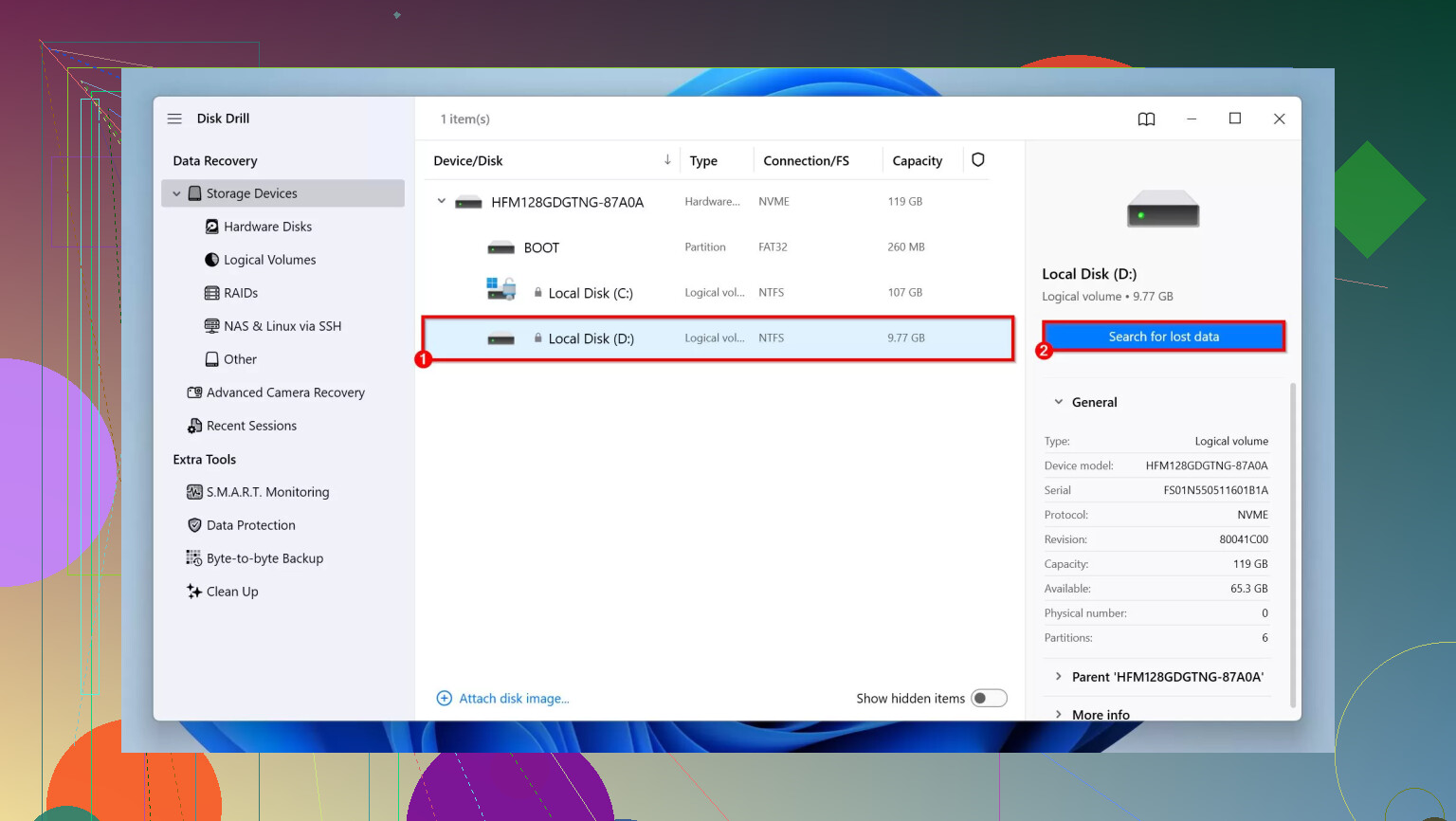
• Use a recovery tool like Disk Drill to scan the failing or corrupted drive.
Disk Drill handles lost partitions and RAW volumes and lets you preview files before recovery.
• Save recovered data to a different drive, not the same one.
Disk Drill is useful here because it supports both HDDs and SSDs, and works even when Windows does not mount the volume.
- Repair Windows boot loader from WinRE
If BIOS sees the drive and diagnostics pass, the issue is often the EFI partition or BCD.
You need a Windows 10 or 11 USB:
• On another PC, create a Windows installation USB with Microsoft’s Media Creation Tool.
• Plug it into the HP, boot from USB (Esc on startup, then F9 for Boot Device Options).
• On the first screen, click “Repair your computer” at the bottom.
• Go to Troubleshoot, Advanced options, Command Prompt.
In Command Prompt, use:
- Check file system:
chkdsk C: /f /r
If that hangs or shows a lot of unreadable clusters, stop. That means heavy damage. Go back to recovery and replacement plans.
- Rebuild BCD on UEFI systems:
Assuming typical layout, EFI is on a small FAT32 partition.
Run:
diskpart
list vol
Identify the EFI partition (FAT32, around 100 to 300 MB). Note its letter or assign one:
select vol X
assign letter=Z
exit
Then:
bcdboot C:\Windows /s Z: /f UEFI
If it reports success, reboot with the USB removed and see if HP boots.
- If the laptop shipped with Legacy and you want Legacy back, you can run:
bootrec /fixmbr
bootrec /fixboot
bootrec /rebuildbcd
Though I prefer UEFI on modern HP systems for better compatibility.
- Restore proper UEFI setup
This is where I slightly disagree with leaving it in Legacy like @mikeappsreviewer’s fix. Using Legacy can hide UEFI or Secure Boot problems instead of solving them.
If the system boots in Legacy, I would:
• Back up all data.
• Switch BIOS back to UEFI.
• If UEFI does not boot, reinstall Windows in UEFI mode on a clean drive or after backup.
- If Windows reinstall is needed
If the drive passes diagnostics but Windows will not repair:
• Back up or recover what you need with Disk Drill or by copying files via a Windows PE or Linux live USB.
• Boot from a Windows USB.
• Delete existing partitions on the internal drive during setup.
• Let Windows create new partitions and install.
If reinstall fails with errors like 0x80070057 or “Windows cannot be installed on this disk,” that again points to drive problems.
-
Extra resource
For a visual walkthrough on dealing with “no boot device” situations and similar boot issues, this guide helps:
step by step guide to fix No Boot Device errors on Windows PCs -
When to stop trying
Stop DIY and think about professional help or a new drive if:
• BIOS does not see the drive after reseating.
• HP diagnostics show SMART failure.
• The drive clicks or spins up then clicks repeatedly.
• chkdsk or installs keep freezing.
At that point, put your effort into data recovery with something like Disk Drill from another machine, then replace the drive and reinstall Windows.
For SEO-friendly clarity, the topic here is simple:
How to Fix No Boot Devices Found Error on HP Laptops
• Check BIOS for drive detection.
• Run HP hardware diagnostics.
• Test the drive externally.
• Recover data with a recovery tool such as Disk Drill if the partition is damaged.
• Repair or rebuild the Windows boot loader from a Windows USB.
• Reinstall Windows on a known good drive if all else fails.
Couple of extra angles you can try that build on what @mikeappsreviewer and @sonhadordobosque already covered, without just rehashing their steps.
- Don’t rely on switching to Legacy as the “final fix”
UEFI → Legacy is a nice band‑aid if you just need the machine to boot once so you can grab your stuff, but I wouldn’t leave it like that. HP shipped it in UEFI for a reason: better compatibility, Secure Boot, etc.
If Legacy magically boots, treat that as:
- “OK, my drive is at least alive, now I should back up and then fix UEFI properly.”
- Check if the HP firmware is glitching, not just the drive
HP firmware is… let’s say “quirky.” Sometimes it loses the Windows Boot Manager entry even when the disk is fine.
If your drive shows up in BIOS but “Windows Boot Manager” is missing from the boot order:
- In BIOS, look for something like “Restore Defaults” or “Load Setup Defaults,” save, reboot, then go back in and see if Windows Boot Manager reappears.
- Also temporarily turn off Secure Boot and re-enable it after things are stable again. I’ve seen that alone bring the boot entry back.
- Use Windows’ own repair tools properly (not just one click)
If HP diagnostics say the drive is OK and BIOS can see it, assume the boot files are trashed.
Boot from a Windows 10/11 USB, hit “Repair your computer,” then in Advanced Options try this order before nuking the system:
- Startup Repair (run it 2–3 times, not just once; it often fixes something different each pass)
- Only if that fails consistently, go into Command Prompt and do the BCD rebuild stuff that @sonhadordobosque mentioned.
If Startup Repair keeps returning “couldn’t repair” and logs point to disk errors, stop trying to “fix” and move straight to data recovery.
- Prioritize your data, not getting Windows to boot
Honestly, if you have any suspicion of a failing drive, the worst thing you can do is keep rebooting and running random tools. That just beats the drive up more.
If you get any successful boot (UEFI, Legacy, whatever):
- Plug in an external drive
- Copy your user profile folders (Desktop, Documents, Pictures, etc.) first
- Then worry about making the thing pretty again
If it will not boot at all but the drive is detected in another PC, this is where Disk Drill shines. It is solid for:
- Recovering files from RAW or unbootable partitions
- Pulling data off a failing HDD/SSD to a safe destination
Use it from a different machine with the HP drive connected via USB, so you are not stressing the already‑broken system.
- Don’t forget the cable / connector angle
Everyone jumps to “drive is dead,” but I’ve seen:
- Slightly loose SATA ribbon in HP laptops
- Bent pins or half‑seated M.2 SSDs after a bump or drop
If BIOS randomly loses the drive, then sees it, then loses it again, I’d suspect a physical connection issue before a pure software one. A shop can reseat and test that in 5 minutes.
- If you end up reinstalling, do it clean and UEFI
If all tests pass, data is backed up, but Windows still refuses to boot properly:
- Switch BIOS back to UEFI
- Boot from a Windows USB
- Delete all partitions on that internal disk during setup
- Let Windows create fresh partitions and install
If setup throws weird errors or hangs while writing, then it really is time to replace the drive.
- For more real‑world cases, this thread is worth a look
There’s a good discussion of similar HP “Boot Device Not Found (3F0)” headaches here:
real-world fixes for HP “Boot Device Not Found (3F0)” problems
It has multiple people walking through what actually worked on their specific models, which might match your exact symptoms a bit closer.
If I were in your shoes right now:
- Use BIOS tricks only to get a temporary boot.
- Immediately copy important files or use Disk Drill from another machine.
- Run extended diagnostics once, not 20 times.
- Decide quickly: either clean reinstall on a known-good drive, or replace the drive if there is any hint of hardware failure.
Spending days flipping settings while a dying disk grinds itself to dust is where people usually regret waiting.