My USB device suddenly stopped working on my Windows 11 PC and now I keep getting a “USB device not recognized” error. I’ve tried unplugging it, restarting my computer, and using a different port, but nothing has fixed it. I need help figuring out if this is a driver problem, a Windows 11 issue, or if the USB device itself is failing.
I ran into the same Windows 11 mess with the “USB device not recognized” popup, and it started with no warning.
One day my flash drive worked. Next try, error box. Same drive, same PC, same habit. I swapped ports, rebooted, and even tried a different cable even though the drive usually never needed one. No luck. It kept failing in the same dumb way.
I went looking through forum posts and found this thread: https://discussion.7datarecovery.com/forum/topic/usb-device-not-recognized-on-my-windows-11/. It pointed me toward Device Manager checks I hadn’t tried before, which helped narrow things down a bit.
My problem still isn’t fully gone. Sometimes the drive appears for a second, then drops off again like Windows changes its mind halfway through. So I’m stuck in that annoying middle ground where it kind of works, then doesn’t.
If you’ve fixed this for real, I’d like to hear what ended up being the cause. At this point I’m starting to suspect the USB drive itself is failing.
If port swaps and reboots did nothing, I’d stop chasing Windows first and check whether the device is failing. I know @mikeappsreviewer pointed toward Device Manager, but I don’t think Device Manager is always the main fix. A lot of these cases end up being power, driver cache, or a dying USB controller on the device itself.
Try this:
-
Turn off USB selective suspend.
Control Panel, Power Options, Change plan settings, Advanced power settings, USB settings, disable it.
Windows 11 loves cutting power to USB stuff and then pretending the device is broken. -
Remove hidden USB entries.
Open Device Manager, View, Show hidden devices.
Delete old greyed-out USB Mass Storage Device entries and Unknown USB Device entries.
Then shut down the PC fully, not restart, power it back on. -
Check Disk Management.
If the drive shows there with no letter, assign one.
If it shows as unallocated, don’t format it if you need the files. -
Test on another PC.
If it fails on two systems, the device is the problem more often than not. Simple as that. -
If your USB device shows no files, but Windows still detects it, focus on file recovery before any repair steps.
Disk Drill is solid for this. It’s one of the better options if the drive mounts off and on or appears empty.
Also, if the issue is “USB device detected but no files showing,” this video is worth a look:
how to fix a USB drive that shows up empty
One more thing people skip, check your BIOS USB settings and chipset drivers from your motherboard or laptop maker, not from random driver tools. Those tools are usless half the time.
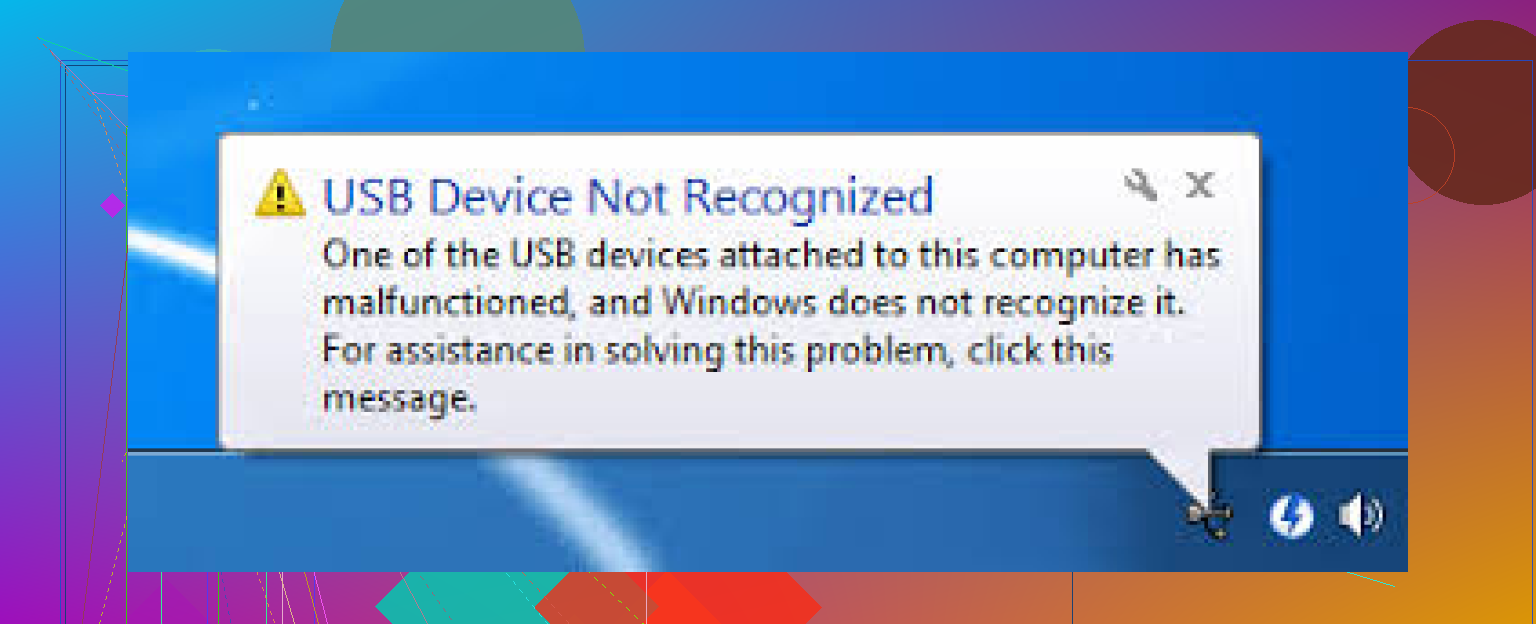
If port swaps, reboots, and the usual unplug/replug dance did nothing, I’d look at one thing people skip: Event Viewer. @mikeappsreviewer mentioned Device Manager stuff and @codecrafter brought up power settings, which is fine, but sometimes Windows 11 literally logs why it rejected the device.
Open Event Viewer and check:
- Windows Logs > System
- Look for entries around the time you plugged it in
- Common clues: Kernel-PnP, USBHUB3, DriverFrameworks-UserMode
If you see repeated “device descriptor request failed” errors, that often points more to bad firmware on the device, bad cable signaling, or hardware failure than some magical Windows bug.
A few other things I’d try that weren’t already covered:
-
Run the hardware troubleshooter
In Terminal as admin:
msdt.exe -id DeviceDiagnostic
Old-school, but it still catches dumb config issues sometimes. -
Disable Fast Startup
Control Panel > Power Options > Choose what the power buttons do > uncheck Fast Startup.
Windows 11 caches weird hardware states and sometimes keeps USB problems stuck in limbo. -
Boot into Safe Mode and test the device
If it works there, some background software, filter driver, or security tool is probably interfering. -
Check for corruption in Windows system files
Run:
sfc /scannow
then
DISM /Online /Cleanup-Image /RestoreHealth -
For phones specifically
If the “USB device not recognized” error happens with Android or iPhone, unlock the phone first and change USB mode from charging-only to file transfer. Sounds obvious, but yeah, Windows can be dumb like that.
If the device appears intermittently or shows up with missing files, stop messing with it too much. That’s where Disk Drill makes sense, especially before more troubleshooting turns a flaky device into a dead one. Also, if you want a plain-English explainer on what a USB flash drive storage device actually is, that’s a decent reference.
Honestly, if Event Viewer shows repeated descriptor failures on multiple systems, the device is probly toast. Windows just gets blamed first becuase it throws the popup.
Try a full power drain reset. This clears a stuck USB controller without changing drivers.
Shut down your PC. Unplug the charger and every USB device. If your laptop has a removable battery, remove it. Hold the power button for 30 seconds. Wait one minute, reconnect power, then start Windows. Plug in only the problem device.
This often fixes USB errors caused by residual power or a frozen controller state. If it still fails, inspect and gently clean the USB connector. Dust or bent contacts cause the same error suprisingly often.
The descriptor failure clue @reveurdenuit mentioned is the one I’d trust most here. On a drive that plugs in directly, that error usually points at the port contacts or the drive’s own connector, not Windows, so try a cheap powered hub before assuming it’s dead. If it mounts through the hub, you’ve got a power or contact problem, and that’s when grabbing files with something like Disk Drill first makes sense.