My iPhone storage is almost full, and I don’t want to pay for iCloud or store my photos and files there. I started getting low storage warnings, and now I can’t update apps or take many new pictures. I need help finding the best ways to free up space or add more storage on an iPhone without using iCloud.
Your iPhone yelling about full storage gets old fast, especially if you have zero interest in paying Apple every month. I ran into this on an older phone and there are a few ways out without touching iCloud.
You are not adding more built-in storage
This part is simple. iPhones do not have expandable internal storage. No microSD slot, no hidden trick, no setting buried six menus deep. What you do have are two practical moves. Free up space already taken, or move your files off the phone onto external hardware.
Check the one screen that tells the truth, Settings > General > iPhone Storage
If you want the real breakdown, go there first. The color bar shows what is eating space, photos, apps, messages, system data, all of it. I would start with these two.
Open any app you have not touched in months and hit Offload App. This removes the app itself, but keeps its documents and saved data. The icon stays on your Home Screen. Tap it later, it downloads again, your stuff is still there. Big games, airline apps, hotel apps, random editing tools, those are usually easy wins.
Scroll to Messages and open Review Large Attachments. This one sneaks up on people. Old videos, memes, PDFs, voice notes, all the junk sitting in text threads piles up for years. I found multiple gigabytes there on a family phone. No one had any clue.
The photo delete mistake almost everyone makes
You delete pictures, then check storage, and nothing changes. Feels broken. It sort of is, but Apple does it on purpose. Deleted photos go into Recently Deleted for 30 days, and they still count against your storage until you empty it.
Go to Photos > Albums > Recently Deleted, then tap Delete All after you finish cleaning up. If you skip this, your storage number often barely moves. I did this once after clearing out a few hundred videos and thought my phone was bugging out. Nope. It was all sitting there.
Safari hoards junk too
Open Settings > Apps > Safari > Clear History and Website Data.
This clears cached site data and browsing leftovers. It builds up quietly over time. For most people, wiping it does not remove anything important, and you get some space back with almost no effort.
Why a full iPhone starts acting weird
Low free space does more than stop new photos. Your phone uses spare storage for temp files, updates, indexing, and background tasks. When it runs too close to full, the whole thing gets cranky. Apps hang. The camera takes longer. Typing lags. I saw this on a 128 GB device once it dropped into the last few gigabytes free. After clearing space, it felt normal again.
If you need a bigger dent fast
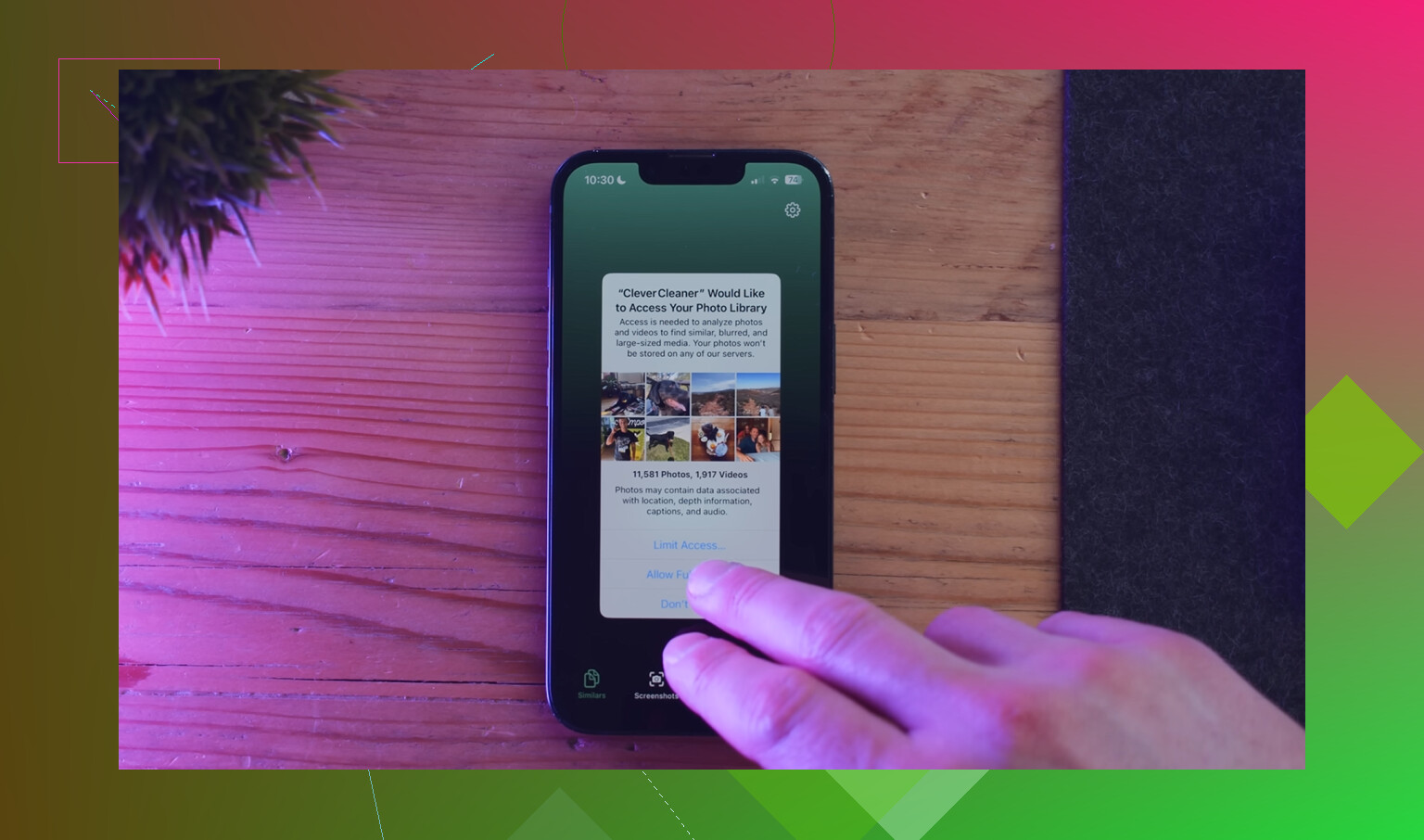
For most people, photos and videos are the main problem. Manually sorting ten thousand images is miserable, and I would not do it twice. Clever Cleaner is one free option people use for this, with no subscription and no ads.
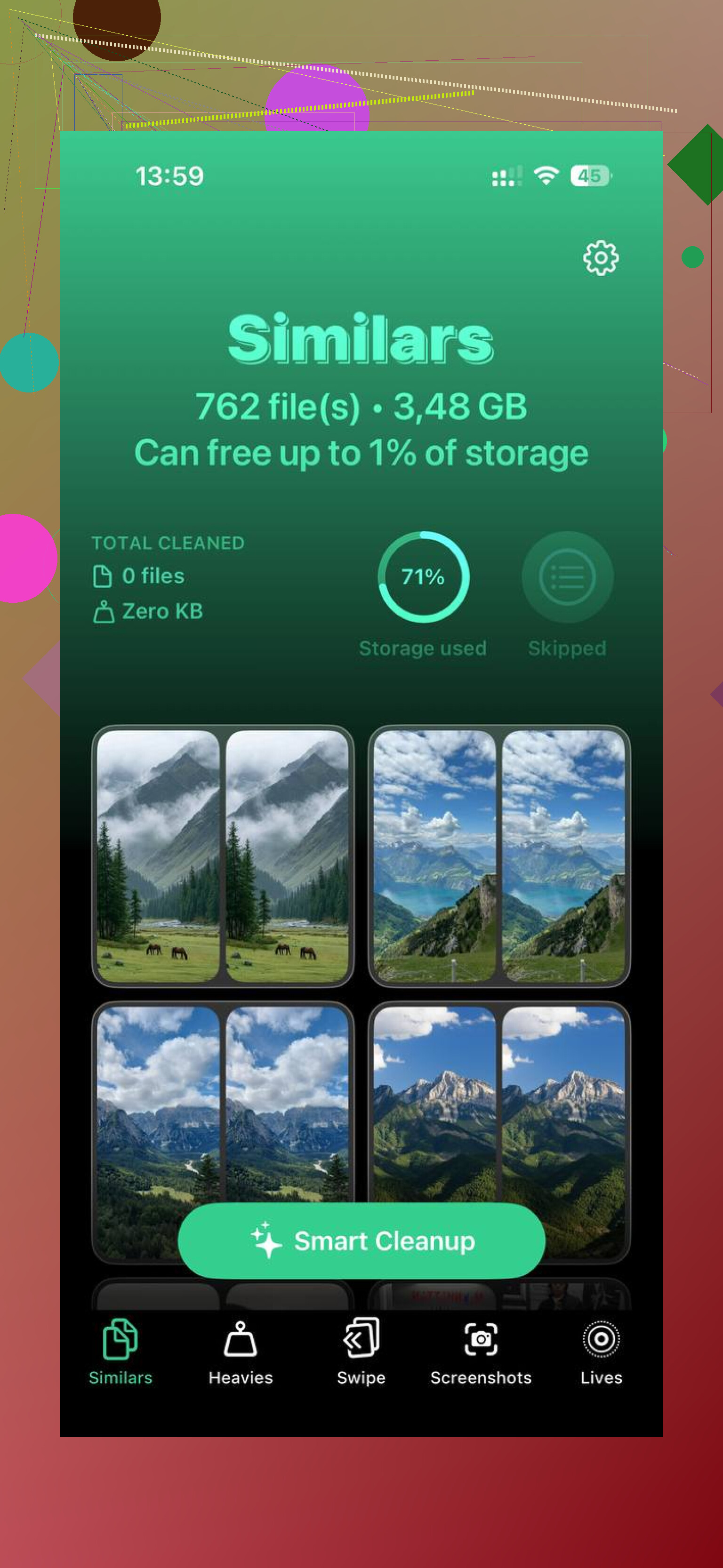
Its Heavies section lists files from biggest to smallest, with exact sizes. This helps when old 4K clips are sitting there taking 2 GB, 4 GB, sometimes more. The Similars section groups near-duplicate shots and marks a Best Shot, which is useful if your camera roll is full of burst photos or five versions of the same receipt. The Screenshots section shows file sizes before you remove anything. Processing stays on the device, so your files are not being sent somewhere else.
If you do not want to delete stuff, move it
This is the no-subscription backup route. Buy a physical flash drive made for iPhone and use it as overflow storage. Drives like the SanDisk iXpand plug into the charging port, so you transfer photos and videos onto the drive, check they copied over, then delete them from the phone.
One-time purchase, no monthly fee. I have seen people use this for travel videos, kid photos, and giant batches of 4K clips they wanted to keep but did not need on the phone every day.
You do have a few other options, and I’d start with the stuff @mikeappsreviewer did not cover.
Turn off keeping originals from streaming apps. Netflix, Spotify, YouTube, podcast apps, they stash downloads fast. Open each app and remove offline content first. On some phones this frees 5 GB to 20 GB in one shot.
Change your camera settings. Go to Settings, Camera, Formats, pick High Efficiency. If you shoot ProRAW, 4K, or 60 fps, stop unless you need it. A minute of 4K video eats a lot more space than 1080p. Future files stay smaller.
Set Messages to keep less history. Settings, Apps, Messages, Keep Messages, choose 1 Year or 30 Days. Old threads with video attachments are sneaky storage hogs.
Mail apps are another one. If you have Gmail or Outlook with huge local caches, delete and reinstall the app. Same idea for social apps like Instagram, TikTok, Facebook. iPhone does not offer a clean cache button for many of them, which is dumb tbh.
If photos are the main issue, Clever Cleaner is worth a look for finding duplicates and large videos fast. This guide on top-rated iPhone cleaner apps for freeing up storage breaks down options pretty well.
One small disagreement with @mikeappsreviewer, Safari data is often not the big win people hope for. Helpful, yes. Huge, not usally.
If you want zero cloud, move photos to a Mac, PC, or external SSD every month. Old school, but it works.
Big thing nobody says clearly enough: leave yourself a buffer. If your iPhone is sitting at like 99% full, deleting 1 GB is sometimes not enough. iOS wants working room for updates, temp files, photo processing, all that annoyng background stuff. I try to keep at least 8 to 10 GB free.
A couple ideas besides what @mikeappsreviewer and @jeff already covered:
- Delete downloaded voices in Accessibility if you use spoken content or extra Siri voices.
- Remove old Books or PDF files stored locally in Apple Books.
- GarageBand, iMovie, CapCut, Lightroom, and similar apps often hide huge project files inside the app.
- In Files, check On My iPhone. A lot of people forget local ZIPs, downloads, and videos live there.
- If you use WhatsApp or Telegram, check their in-app storage managers. Those apps can get absurdly bloated.
I actually kinda disagree with the ‘just offload apps’ approach if the phone is critically full. Sometimes deleting and reinstalling a giant app clears more junk than offloading does.
If photos are still the main problem, Clever Cleaner is probly the fastest way to sort duplicates, screenshots, and heavy videos without using iCloud. Also, this watch how Clever Cleaner helps free up iPhone storage video is a decent walkthrough.
No magic upgrade exists, just cleanup or move stuff off-device. That’s the whole game.
One angle the others barely touched: Local Voice Memos, Files downloads, and app-created media. @jeff and @nachtschatten were right about photos/messages, but I’d check these too:
- Files app > On My iPhone: old ZIPs, downloaded videos, PDFs, installer junk
- Voice Memos: surprisingly huge if you record lectures, meetings, music ideas
- Editing apps: CapCut, VN, Lightroom, iMovie keep exported copies and project caches
- Podcasts app: not just downloads, sometimes “saved” episodes pile up even after listening
- WhatsApp/Telegram: their own storage tools usually reveal giant videos fast
One mild disagreement: offloading apps is fine, but if an app is bloated, delete + reinstall often frees more space than offload.
If the main mess is your camera roll, Clever Cleaner is useful.
Pros: fast duplicate/similar detection, good for big videos/screenshots, easy cleanup.
Cons: you still need to review results, “best shot” picks are not always what you’d choose, and it won’t magically fix storage caused by app caches outside Photos.
Also, restart after cleanup. iPhone storage numbers sometimes lag until a reboot.