Trying to mount my external hard drive on my Mac, but it’s not showing up. Worked fine before. Need to access important files. Could use some help troubleshooting the issue. Any advice?
Oh, that’s super frustrating when you can’t access important files. Here’s a checklist of what you can try to get that external hard drive recognized by your Mac again:
-
Check Physical Connections: Double, triple-check the USB or Thunderbolt cable. Try a different cable or port on your Mac. Sometimes it’s just a loose connection.
-
Power Source: If it’s an external drive that requires its own power source (like some desktop models), make sure its power source is connected properly.
-
Disk Utility: Launch Disk Utility (you can find it in the Applications > Utilities folder). See if your drive shows up there. If it does, try mounting it manually by selecting the drive and clicking “Mount.”
-
Filesystem Check: It’s possible the file system got corrupted. Within Disk Utility, run First Aid on the drive to see if it catches any issues. Sometimes, this will repair whatever’s preventing the drive from showing up.
-
Reset NVRAM and SMC: Resetting your Mac’s NVRAM (Non-Volatile Random-Access Memory) and SMC (System Management Controller) can sometimes resolve hardware recognition issues. Instructions vary by model, so look up how to do it for your specific Mac.
-
Terminal Commands: You can use the Terminal to see if your macOS even detects the drive at all:
- Open Terminal.
- Type
diskutil listand hit enter. - This will display a list of all connected drives. If you see your external drive in that list, you can try to manually mount it using
diskutil mountDisk /dev/diskX, replacingdiskXwith the appropriate disk identifier.
-
File Recovery Software: If the drive is showing up but you can’t access files, using data recovery software might be your best bet. Disk Drill
(https://www.cleverfiles.com/) is one I’ve had success with before. It’s pretty user-friendly and can often recover data from drives that seem to be otherwise unreadable. -
Software Update: Make sure your MacOS is up to date. Sometimes an update can fix compatibility issues with external hardware.
-
External Circumstances: Consider if anything has changed since it last worked. Did you install any new software or updates that might conflict? Move to a different location on your disk for a try in troubleshooting.
-
Different Device: Test your external hard drive on a different computer. If it doesn’t work there, it might be the drive itself that’s problematic.
-
Backup Plan: Lastly, if you manage to get your files off the drive, consider backing them up in multiple locations to avoid future headaches! Cloud storage, another external drive, etc.
Hope this helps you get back into your drive and access those files!
Man, dealing with disappearing drives can be a real pain in the neck. Looks like you’ve already gotten a pretty thorough checklist from @codecrafter, but let me throw a few additional tips your way. Some of these might overlap a bit, but sometimes a different twist makes all the difference.
System Preferences and Security Settings
Sometimes, macOS’s built-in security settings need to be relaxed a bit.
-
Security & Privacy Settings: Go to System Preferences > Security & Privacy > Privacy tab. Make sure “Full Disk Access” is granted to relevant apps like Finder and Disk Utility. Also, check the “Files and Folders” section here.
-
Energy Saver Settings: Oddly enough, the “Put hard disks to sleep when possible” option can interfere. Try toggling that setting in System Preferences > Energy Saver off and see if it makes a difference.
Third-Party Software Conflicts
New apps or updates occasionally wreak havoc.
-
Uninstall recent software: Think about any software you’ve installed recently that might mess with external storage devices. Some security software and VPNs, for example, can block external devices.
-
Safe Mode Boot: Boot your Mac into Safe Mode by holding down the Shift key during startup. Safe Mode disables non-essential services and might help identify if third-party software is the issue.
Advanced Terminal Commands
If you’re feeling adventurous and don’t mind getting your hands dirty with the command line:
-
Force-Mount: If your drive appears in
diskutil listbut won’t mount:sudo mount -t hfs /dev/diskX /Volumes/MyDriveReplace
diskXwith your drive identifier and/Volumes/MyDrivewith the directory you’re mounting to—create a new empty directory if needed. -
System Logs: Open Console from Applications > Utilities and check system logs for any clues about errors related to your external drive.
PRAM Reset
While @codecrafter mentioned resetting the NVRAM, I’d actually emphasize resetting the PRAM as well. The steps are the same for most models: Hold down Option + Command + P + R while turning on your Mac. Keep holding until you hear the startup sound twice. Often, this simple trick fixes a surprising number of hardware recognition problems.
Old-School Tricks
Here are some quirky tricks that have worked for people in the past:
- Turn Off Mac and Disconnect Everything: Shut down your Mac completely, disconnect everything including the power cable. Wait for about five minutes. Reconnect and restart.
- Ice Pack Method: Sounds goofy, but some users swear by placing the external drive on a cold ice pack for a few minutes before reattaching it. It temporarily improves drive read/write capabilities if overheating is an issue.
Dust and Dirt
Sometimes, it’s more physical than we realize:
- Inspect Ports for Dust: Blow some canned air into the USB or Thunderbolt ports to clear out any dust. Dust can be sneaky and disrupt proper connections.
Professional Data Recovery
Finally, if it comes to this, you already heard about Disk Drill. If you do decide to use it, I’d recommend reading up a bit more about its capabilities here: Disk Drill because it gives a great overview on how powerful it can be in recovering files even from almost “dead” drives. It’s incredibly user-friendly and has saved many drives from oblivion.
Remember, always create multiple backups of essential files. A combination of physical drives and cloud storage ensures you won’t lose important data again.
Hope one of these adds a wrinkle to your troubleshooting that helps you unlock that drive. Don’t give up just yet – persistence usually pays off!
Hey, I’ve been there… When an external drive decides to play hide-and-seek, it’s the worst. So, some solid advice already on the table here from @byteguru and @codecrafter. I’ll try to sprinkle some extra spice.
Check the Basics:
Forget fancy tools for a second. Basic stuff first. Unplug your external hard drive, then reboot your Mac. After the restart, reconnect the hard drive and see if it pops up. Sounds stupid, but it’s crazy how often this simple step works.
Drive Format Issues:
If your drive used to work and suddenly doesn’t, it might be a format compatibility issue. Was the drive formatted on a different OS, like Windows? Sometimes NTFS formatted drives act up on Mac OS without the right software. For better compatibility, consider reformatting the drive using exFAT, which is universally supported. Careful: Formatting erases everything, so do this only if you can access the drive elsewhere and back stuff up first.
Do a Safe Boot:
Boot your Mac in Safe Mode. Hold down the Shift key when rebooting until you see the login window. Safe Mode limits software running, including problematic drivers or startup items. If it works, you know something beyond macOS is causing the hiccup.
System Information Tool:
Open “System Information” from Applications > Utilities. Under the “USB” or “Thunderbolt” section, see if your drive appears. This can confirm if the Mac’s hardware recognizes the drive, but the software doesn’t.
Energy Saver Glory:
Toggling off “Put hard disks to sleep when possible” in Energy Saver settings has fixed more issues than I can count. Disabling this ensures macOS doesn’t put your drive to sleep, causing it to go undetected.
No Love for SMC & NVRAM Resets?:
Meh, I’m not always convinced these solve the issue, but worth a shot. Capacitors discharge during SMC resets, potentially fixing power issues. NVRAM, resetting it clears out system preferences potentially causing the drive detection problem.
Dust Bunnies and Connections:
Oddly often overlooked – give your USB or Thunderbolt ports a blow-dry with canned air. Dust can mocktail your connections without your knowledge.
Third-Party Drivers:
Do you notice it’s only that one drive causing chaos? Maybe try downloading third-party drivers. There are NTFS drivers for Mac (Paragon NTFS, Tuxera) that ensure drives formatted for Windows communicate better with macOS. Just making sure the right software is there might save you a lot of headache.
Terminal Wizardry:
Since @codecrafter mentioned Terminal commands, delve deeper with advanced commands. You might need diskutil repairDisk /dev/diskX for any lurking errors.
File Systems that Enumerate Right:
A gripe I have – macOS doesn’t play nice with all file systems. If it’s a real old drive, consider testing it via an older macOS version, if possible. Some older HFS/hfs+ volumes don’t mount well in newer macOS versions due to latent filesystem quirks.
Test Ubuntu LIVE:
As a bit of an outlier, squeeze some Ubuntu magic. Boot from a live USB and see if your drive shows up there. Ubuntu tends to be less finicky with file systems and sometimes you might access data macOS can’t see.
Recovery Software Field:
Disk Drill is elegant but pricey for how often I find myself needing it. It’s slick and usually works. I appreciate its user-friendly interface; however, competitors like EaseUS Data Recovery Wizard and Stellar Data Recovery have competitive recovery rates and sometimes offer lower price points. Disk Drill is robust, though, in recovering otherwise lost data.
Sometimes: Professional Help
If all fails, data recovery specialists can save the day. This is the expensive route but crucial if you need those files, no matter what.
Persistence pays off in these charades against our tech. Sometimes the right mix of these methods will get that drive back to making magic happen.
This thread is kind of all over the place. If someone new comes here with this problem, they’ll probably just leave and look for a more structured guide on another forum, like this one https://discussion.7datarecovery.com/
So if that’s you, here’s a simple plan:
-
first thing you need to do is check if your external drive shows up in Disk Utility. If it does, don’t overthink it and use a recovery tool like Disk Drill to pull your data to another device. After that, you can format the drive and copy your files back.
-
if the drive does NOT appear in Disk Utility, then your goal is to make it show up there first, so try different ports/another cable/ another Mac (or even Windows PC). If it eventually shows up, go back to step one and recover your data. If it doesn’t show up anywhere, at that point you’re likely dealing with a hardware issue, and your best bet is a data recovery service.
That’s basically it. Simple flow, no need to overcomplicate things.
Wow, perfect timing, I’m actually here because I have a similar issue 
I’ve got an external hard drive that won’t mount on my MacBook Air anymore. It used to work perfectly fine before. The funny part that it’s literally my Time Machine backup drive  I can see it in Disk Utility, so the system does recognize it. I also read that I can mount it manually, so I tried clicking Mount but nothing happens. The option is there, but it just doesn’t do anything. Does that mean my only option now is to format it? Or is there something else I should try before going that far?
Your situation is actually pretty common. There are a few reasons why a drive shows up in Disk Utility but won’t mount - file system corruption (especially if it wasn’t ejected properly at some point)/minor disk errors/macOS glitches/the drive itself starting to fail.
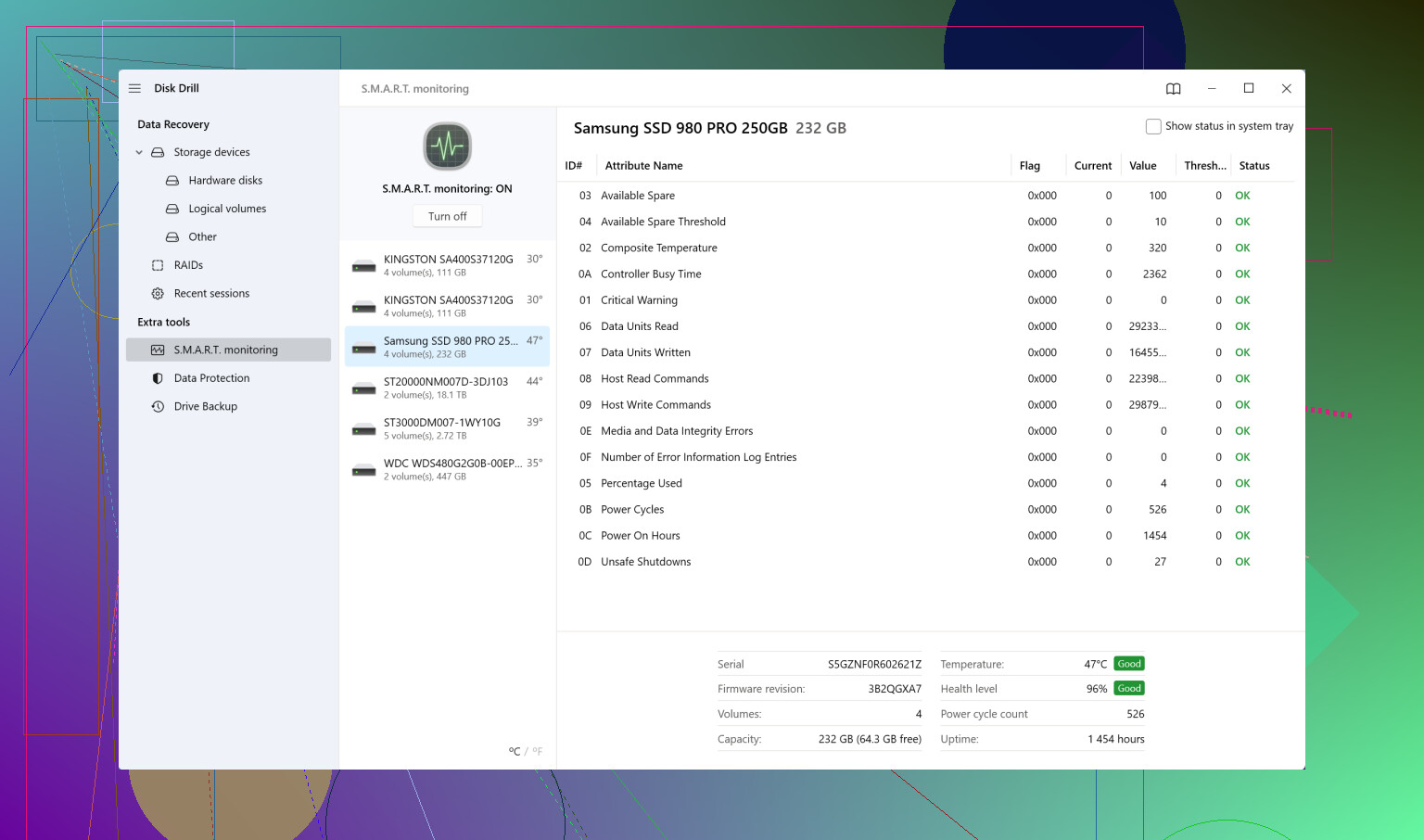
Before even thinking about formatting, I’d check the overall health of the drive. You can look at SMART data (it gives you an idea of whether the drive is still in good condition or already on its way out). If you end up using something like Disk Drill to recover data, it has a built-in SMART monitoring tool. If you go with something else, you’ll need to find an alternative utility for that.
If SMART shows warnings or bad sectors, then there’s not much point in trying to fix the drive so it mounts again. Even if you manage to get it working, it likely won’t be reliable for long. In that case, the best approach is recover whatever data you can and just replace drive
Checking SMART is more about deciding what to do next (try to repair it, or just grab your data and move on).
Got it, thanks for the explanation. I checked the SMART data, and it actually looks fine to me (https://i.vgy.me/PKanD0.png) no obvious warnings or anything critical. Does that mean I can just go ahead, format the drive, and then keep using it normally if it mounts after that? Or is there still something I should be careful about before doing that?

That actually looks good. Most likely it’s just some kind of logical/file system issue, nothing hardware-related. And that’s a good outcome, it means you probably don’t need to replace the drive. So recover the data first, format the drive, reconnect and try again. I’d say there’s a very high chance it’ll work ok after that. Just don’t skip the recovery step before formatting.
hey guys, since you’re all here maybe someone can help me too? I just dropped my external HDD and now it won’t mount at all. the weird part that it doesn’t even show up in Disk Utility. I tried different cables, different ports, nothing, just empty. I read what you wrote above, but pro recovery services are way too expensive for me right now. is there anything else I can try before going that route? the drive still makes normal spinning sounds, no clicking or anything scary, but mac just doesn’t see it at all 
In this case, I’m not sure there’s much more you can safely try. If the drive doesn’t show up anywhere, that usually points to a hardware-level issue. You could try opening the enclosure and checking the internal components , sometimes it’s just a damaged USB-to-SATA bridge but I’d be careful with that. It’s risky, and once the drive is opened or tampered with, some recovery labs may refuse to work on it or charge more. The safest option is probably to stop experimenting and just set the drive aside until you’re ready to go with professional recovery.
ok, got it
thanks for the honest answer 
Hey, I’m back. Was away for a bit, was in the middle of recovering my data. Turned out faster than I expected and everything worked out, and the drive mounts normally now. Really appreciate all the help here, thanks a lot!