I accidentally deleted important videos from my SD card while moving files, and now I’m trying to figure out the safest first steps for SD card video recovery. I haven’t used the card much since it happened because I’m worried about overwriting the deleted files. What should I do first, and which recovery methods or tools actually work for recovering deleted videos from an SD card?
I know this one. You delete a clip, or the card throws an error, and your stomach drops. I’ve had it happen with footage I needed, and the first move is boring but important. Stop touching the card.
Deleted video is often still sitting there. The file entry gets removed, but the video data usually stays on the card until something else writes over it. So your odds depend a lot on what happened after deletion.
What I’d do:
1. Stop using the SD card right away
This matters more than anything else.
Don’t shoot more video. Don’t take photos. Don’t copy anything onto it. Don’t format it because Windows nags you. Pull the card out and leave it alone until you’re ready to scan it.
2. Check whether your computer still sees the card
Before messing with recovery tools, make sure the card shows up at all.
- Try another card reader.
- Try a different USB port.
- If you’ve got another PC, test there too.
- On Windows, open Disk Management and see if the card appears.
If Windows says the card is RAW or asks to format it, don’t do it yet. Recovery software still reads cards in that state pretty often. If the card doesn’t appear anywhere, I’d start thinking hardware issue, not simple deletion.
3. Scan it with recovery software
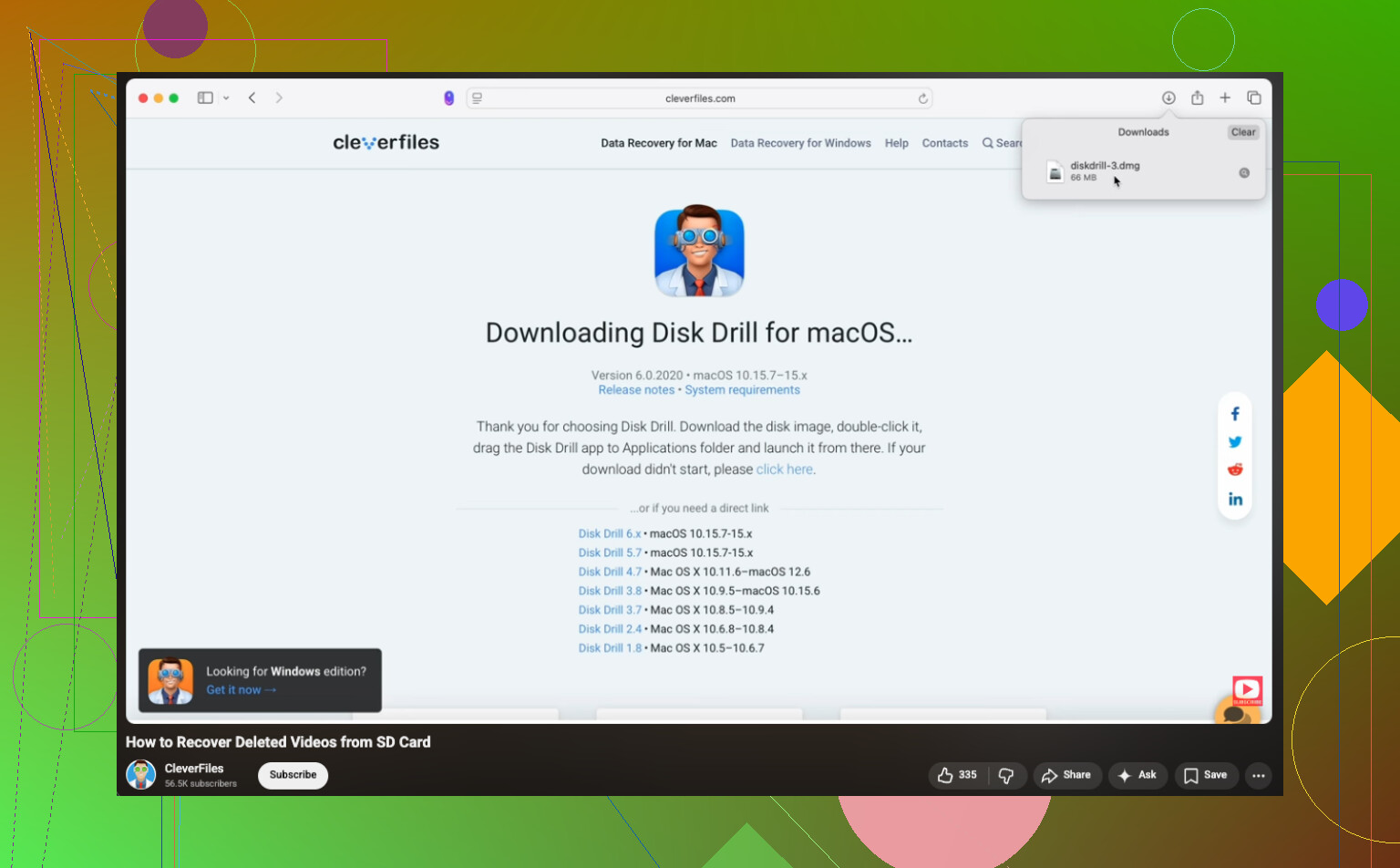
I’ve had decent luck with Disk Drill for video files.
It supports a long list of formats, and its camera-focused recovery mode helps with footage split into chunks, which happens a lot with action cams, drones, and some mirrorless cameras. Stuff from GoPro, DJI, Sony, and similar gear tends to fit into this mess.
On Windows, the free version recovers up to 100 MB. For big video files, that limit goes fast, but scanning and previewing still tells you whether the clip is there before you spend money.
Another one people bring up a lot is PhotoRec. It’s free and it works more often than its plain interface suggests. The downside, in my expereince, is file names and folder structure usually come back scrambled or missing.
4. Recover the video to a different drive
The usual flow looks like this:
- Put the SD card in a reader.
- Run a full scan or deep scan.
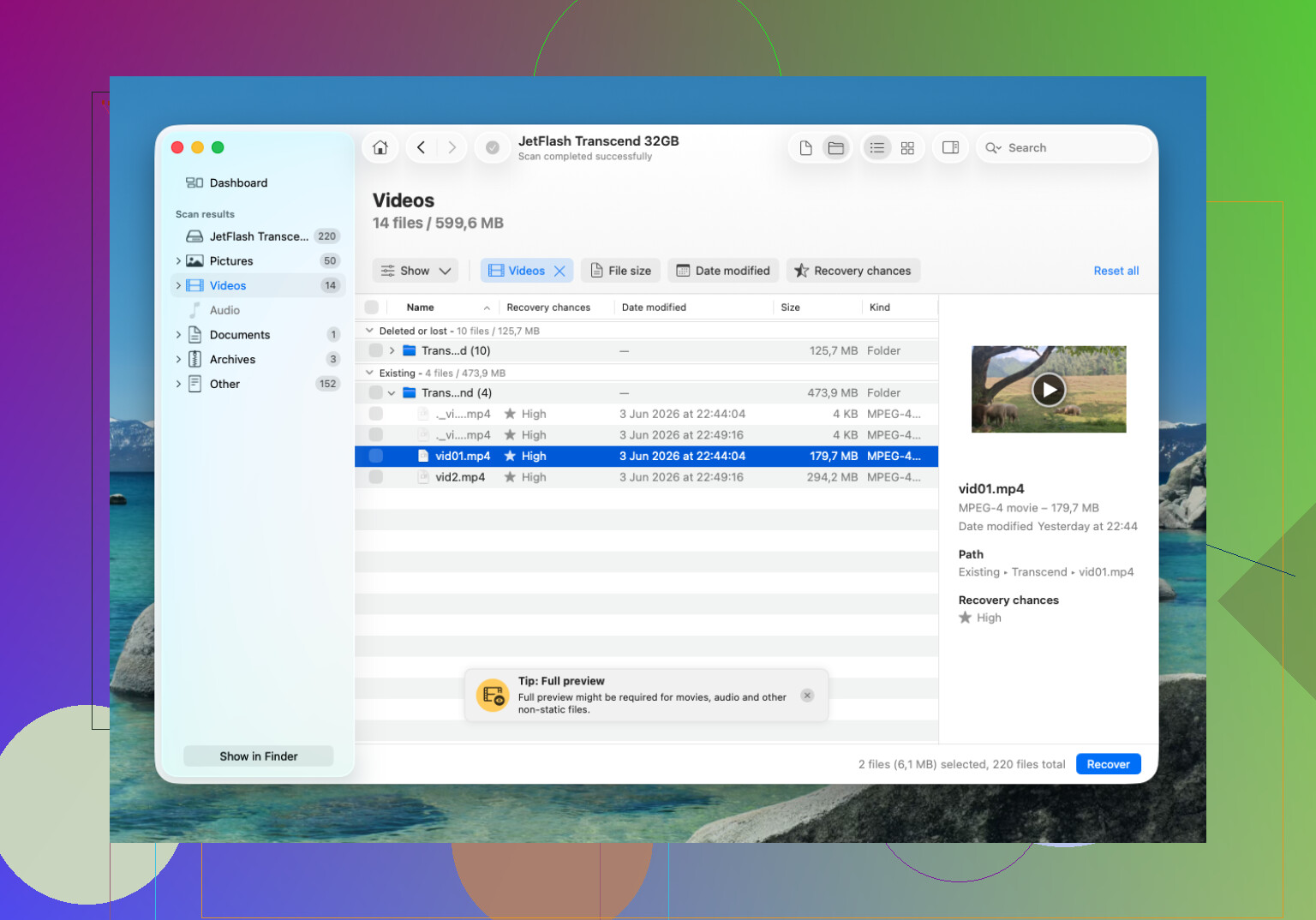
- Narrow the results to video files.
- Preview what looks right.
- Save recovered files to your computer or another external drive.
Do not restore files back onto the same SD card. That’s how people wipe the part they were trying to save. I did this once years ago. Bad day.
5. If the recovered file won’t play
This part trips people up. Recovery succeeds, but the file looks dead.
First thing I’d try is VLC Media Player. VLC sometimes opens damaged video other players refuse to touch.
If VLC fails, video repair tools are worth a shot. Some of them rebuild the file using a clean sample recorded on the same camera with the same settings. It sounds weird, but I’ve seen it help with broken MP4 files.
And yeah, ignore any format prompts until you’ve finished recovery. Formatting is for later.
If you want the short version, here it is. Stop using the card, confirm the computer detects it, scan it with a recovery tool, and save anything recovered somewhere else. Time matters. Every extra write lowers your chances.
First move, make a byte-for-byte image of the SD card before you run recovery on it. I differ a bit from @mikeappsreviewer there. Scanning the original card first is common, but if the card has weak sectors or a flaky controller, each extra read is a risk. An image file on your PC gives you one stable copy to work from.
Use something like USB Image Tool, Win32 Disk Imager, or dd if you know it. Save the image to your computer’s internal drive, not back to the card. Then point Disk Drill or PhotoRec at the image, not the card itself. That keeps your source untouched.
If the videos were deleted during a move, check the destination device too. A lot of people miss this. Windows sometimes copies part of the file before the delete happend, so you might have partial or full clips sitting in the target folder, temp folders, or recycle bin on the computer.
Also, if this was from a phone or camera app, look for hidden folders like DCIM, LOST.DIR, or app cache folders before recovery. I’ve seen MP4s still sitting there with weird names.
For a step-by-step video, this SD card video recovery guide for deleted footage is easier to follow than most.
Short version:
- Write-protect the card if it has a lock switch.
- Make an image of the full card.
- Check the destination drive for leftover copied files.
- Scan the image with Disk Drill.
- Save recovered videos to another drive.
If the card disconnects, shows 0 bytes, or gets hot, stop. That points more to hardware failure than simple deletion.
I’d add one thing before doing what @mikeappsreviewer and @boswandelaar suggested: check whether the “move” actually finished a copy anywhere. People jump straight into SD card recovery, but sometimes the videos are already sitting on the computer in a half-forgotten folder, import folder, temp cache, or even the recycle bin. I’ve seen that more than once.
After that, my order would be:
- Set the card aside and do not mount it in the camera again.
- If possible, use a reader that does not auto-fix errors. Windows loves to be “helpful” and it usualy isn’t.
- Look in Event Viewer or Disk Management just to see whether the card is throwing I/O errors. That tells you if this is deletion or possible card failure.
- If the card reads normally, use Disk Drill to scan for deleted videos. I slightly disagree with the “always image first” advice, because if the card seems perfectly stable, a quick read-only scan can be faster and enough for simple accidental deletion. If it acts weird, then yes, image first.
- Recover files to your PC, never back to the SD card.
Also, check file sizes in the results. For video recovery, a found MP4 that is 12 KB is basicaly junk, while one that matches expected size is worth trying.
If you want more SD card video recovery tips for deleted camera footage, that thread covers a few real-world cases too.
One thing I’d do before touching recovery software: note the camera/app that created the videos and the exact file system on the card if you know it. That matters because some cameras split recordings into sidecar files or database entries, and recovering only the MP4/MOV chunk can leave you with clips that exist but won’t index properly. So I slightly disagree with the “just scan and restore” flow if this came from a dashcam, drone, or action cam.
My order would be:
- Do not let Windows “repair” the card if prompted.
- Check the destination PC first for copied fragments, recent imports, video editor caches, and hidden folders. @espritlibre was right to call that out.
- Identify the source device type. GoPro, DJI, dashcams, Android phones, and Canon/Sony cams all store footage a bit differently.
- If the card is stable, image or scan, either is fine. I’m closer to @mikeappsreviewer here than to the strict “always image first” camp from @boswandelaar, but only if the card reads cleanly with no disconnects.
- Recover to another drive only.
About Disk Drill:
Pros
- Easy previewing
- Good for common video formats
- Cleaner interface than PhotoRec
- Helpful if you want to filter results fast
Cons
- Free recovery limit on Windows is tiny for video
- Deep scans can return lots of renamed files
- Not magic if the card has controller failure or overwritten sectors
If recovered videos do not play, try checking whether the file has the right codec/container before assuming it is dead. Sometimes the payload is there but the header is damaged. In that case, recovery succeeded halfway, and repair is the next step, not another recovery pass.