I’m trying to speed up my iPhone because apps are lagging and storage is almost full. I’ve heard clearing the cache can help, but I’m confused about the right steps and what’s actually safe to delete. Can someone explain the best way to clear app and browser cache on iOS without losing important photos, messages, or app data?
Short version. iPhone does not have a single “clear cache” button. You need to clean things app by app and free storage in smart ways so you do not lose data.
Here is what works without wiping your stuff.
-
Check what eats your storage
Settings > General > iPhone Storage
Wait a bit for it to load.
Look at the top bar and the app list.
Focus on apps over 500 MB, especially social apps. -
Clear Safari cache
Safe for your photos and messages. You only lose website logins and history.
Steps:
Settings > Safari > Clear History and Website Data
Tap it, confirm.
If you do not want history cleared for all devices on your Apple ID, turn off Safari in iCloud first. -
“Offload App” instead of deleting
This keeps your documents and data, removes only the app itself.
Steps:
Settings > General > iPhone Storage
Tap an app
Tap Offload App
Later, tap the icon on the home screen to reinstall. Your data loads back if the developer still supports it.
Good for large apps you use rarely, like games. -
Clear heavy app data the safe way
Some apps have built in cache cleaners.
Examples:
YouTube: Profile pic > Settings > Data Saving > Clear Cache if available.
Spotify: Settings > Storage > Clear cache.
TikTok: Profile > Menu > Settings and privacy > Cache & Cellular > Free up space.
Instagram and Facebook do not have a proper clear cache button. For them, delete and reinstall. Log in again. Your account data lives on their servers, not only on your phone. -
Message attachments and media
Messages and chat apps store tons of photos and videos.
iMessage:
Settings > General > iPhone Storage > Messages
Check “Photos”, “Videos”, “Large Attachments”.
Delete old junk threads or big attachments. This does not touch your main Photos library, only message copies.
WhatsApp / Telegram:
Inside the app, go to Settings > Storage or Data and Storage.
Delete large files from old chats. -
Clean Photos without losing what matters
Photos often eats the most space.
Steps:
Open Photos > Albums > Recently Deleted. Empty it.
Turn on iCloud Photos if you have space in iCloud and use Optimize iPhone Storage, so full res images stay in iCloud and lighter copies stay on the phone.
Delete long 4K videos or screen recordings you never use. Offload them to a PC or Mac first if you want to keep them. -
System junk and “Other” storage
The “System Data” or “Other” section in iPhone Storage grows from caches, logs, and temp files. You cannot toggle it directly, but you can shrink it.
Good options:
Restart the phone
Update iOS to latest version
Free at least 5 to 10 GB, then iOS cleans more aggressively. -
Using a cleaner app
If you want something more automated for things like duplicate photos, similar screenshots, and big videos, a cleaner utility helps.
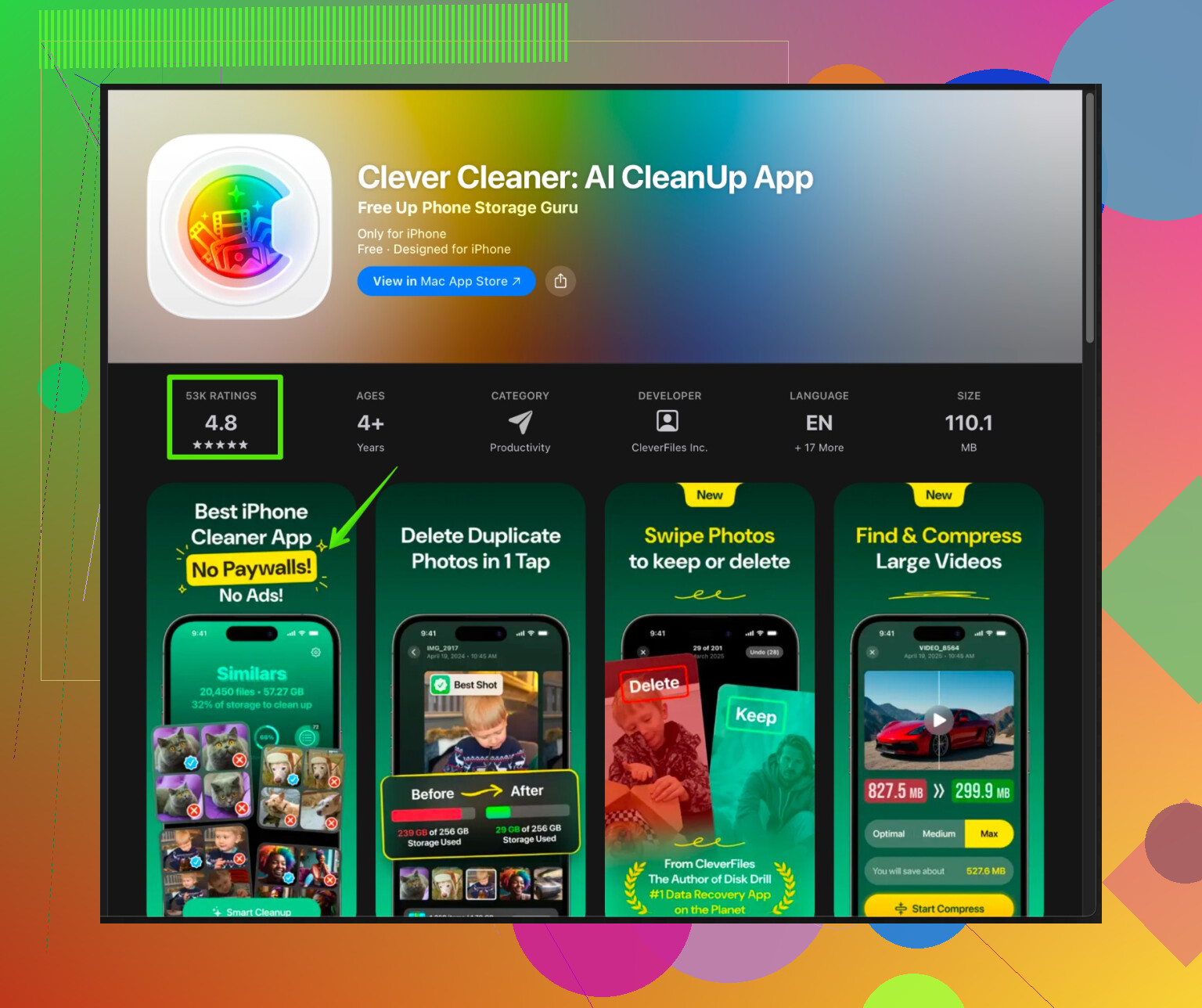
The Clever Cleaner App for iPhone focuses on removing duplicate photos, cleaning similar shots, managing large videos, and organizing contacts without touching your core app data. It targets files that waste storage and keeps your main content safe.
If you want to try it, check this link:
smart iPhone storage cleaner with AI photo cleanup
Use it first on obvious junk, like duplicate selfies and screenshots. Always skim results before confirming deletion. -
Things you should avoid
Do not erase all content and settings unless you have a full backup.
Do not delete apps that store data only locally if you have no account with them. You lose that data.
Do not trust random “RAM booster” tips. iOS already manages memory. -
If apps lag
After freeing a few GB, do this:
Restart iPhone
Close and reopen laggy apps
Update all apps in App Store
If your storage sits above 90 percent full, iOS slows down more. Aim to keep at least 5 to 10 GB free for stable performance.
If you follow the steps above, you free storage, clear a lot of cache, and keep your important data intact. You might need to re-log into some apps and reload some content, but your photos, messages, and documents stay safe if you double check what you tap delete on.
You’re right that iPhones don’t have a magic “clear cache” button, and @sonhadordobosque already nailed most of the obvious stuff. I’ll try not to rehash the same steps and instead cover what people miss and a few places where I half‑disagree.
1. Don’t obsess over “cache” – focus on problem apps
Instead of trying to clear “all cache,” look for which apps are actually:
- Huge in size
- Constantly reloading / stuttering
- Syncing tons of data
Two spots to check that people skip:
-
Photos in social apps
Some apps (like Snapchat, Pinterest, Reddit) store massive media caches. They often hide it under things like:- Settings → Data Storage
- Settings → Advanced → Storage
If you see “Reset local cache” or “Clear downloaded media,” that is usually safe. You will just re-download content from the server later.
-
Offline content hoarders
Podcast apps, Netflix, YouTube Music, etc., can keep gigabytes of offline stuff.
Inside each app:- Delete old downloaded shows / movies / episodes
- Turn off auto-download or limit to “Keep last 3 episodes” style settings
This frees more space than fiddling with tiny caches.
2. Where I kind of disagree: deleting / reinstalling every heavy app
Yes, reinstalling Instagram or Facebook clears junk, but it can be overkill if:
- Your internet is slow
- You use 2FA and logins are a pain
- You have apps with no cloud account
Instead, first try:
- Sign out and sign back in
Some apps purge temporary data on logout. - Turn off background refresh
Settings → General → Background App Refresh
Turn it off for apps you rarely open.
It will not clear existing cache, but it stops them from growing like crazy.
Use delete/reinstall only if:
- The app is clearly bloated
- You know your account is cloud-based
- You’re fine re-logging in
3. Hidden storage hog: mail & attachments
Everyone talks about Messages, but Mail is a quiet storage gremlin.
Check:
- Settings → Mail → Accounts → each account
- Turn off syncing for folders you never use (like massive Archives)
- In the Mail app:
- Remove very old mail accounts you no longer use, then re-add them if needed
Also, turning “Load Remote Images” off reduces how much mail preloads.
You do not lose your email, it stays on the server, but it can shrink local storage.
4. iCloud strategy that actually speeds things up
People say “turn on iCloud Photos and Optimize Storage” like @sonhadordobosque mentioned, which is useful, but the performance issue hits when your phone is too full.
To avoid lag:
- Keep at least 5–10 GB free (I’m with them on this)
- BUT: avoid flipping Optimize Storage on and off repeatedly
- Every time you do, the phone shuffles media and that can cause background churn and heat, which makes lag worse.
Pick one strategy and stick with it:
- Either: “Everything local, I offload manually to PC/Mac”
- Or: “Most stuff in iCloud, only light copies on phone”
Constant switching is what really makes older iPhones feel sluggish.
5. Battery health & performance throttling
Not exactly cache, but very relevant to “lagging.”
- Go to: Settings → Battery → Battery Health & Charging
- If “Maximum Capacity” is low and you see “Performance management applied,” iOS is literally slowing your phone on purpose to avoid shutdowns.
In that case:
- Clearing cache will barely help
- You might notice way more improvement by:
- Replacing the battery
- Turning off “Low Power Mode” when you don’t need it
- Avoiding heavy apps when battery is low, because they will stutter anyway
6. When “System Data” looks insane
If “System Data” (or “Other”) is like 20+ GB, the common tip is “restart and update,” which works… sometimes.
Extra tricks:
- Offload or remove some huge apps
- Then do a wired backup to a computer (Finder on Mac or iTunes on Windows)
- After the backup completes, reboot
iOS often shrinks temp files and logs when it sees there’s more headroom and a fresh backup. Not magic, but I’ve seen System Data drop several GB this way.
I personally only go to “Erase all content and settings” + restore from backup when:
- System Data is ridiculous
- The phone behaves weirdly even after updates and restarts
- And I have a verified backup
Anything else is overkill just for “cache.”
7. Using a cleaner app without nuking your life
Instead of trying sketchy “RAM booster” stuff, focus on what’s actually safe for a third-party tool to touch: photos, videos, contacts.
This is where something like the Clever Cleaner App makes actual sense. It is useful specifically for:
- Finding duplicate photos
- Grouping similar shots (like 20 almost identical selfies)
- Identifying giant videos and screen recordings
- Cleaning up messy contacts
If you want an easy way to do all that, check this:
smart iPhone cleaner for photos, videos, and storage junk
Use it like this:
- Start with obvious trash: duplicates, blurry pics, repeat screenshots
- Double check selections before confirming delete
- Avoid “auto-delete everything” modes if you are paranoid about losing something
This kind of tool works best after you’ve already done your manual cleanup in apps, not instead of it.
8. Quick “maintenance routine” that won’t kill your data
If I had to boil it to a repeating routine, it’d be:
- Once a month:
- Clear offline downloads in streaming / podcast apps
- Clean Photos: delete junk, empty Recently Deleted
- Every few months:
- Use a tool like Clever Cleaner App to find duplicates & huge files
- When lagging badly:
- Free at least a few GB (media + downloads)
- Restart the iPhone
- Update iOS & apps
You won’t wipe your important data if you avoid deleting:
- Apps that keep everything only locally and have no login
- Original photos you never backed up
- Chats that you care about and haven’t cloud-backed
Do a quick iCloud or computer backup before a “big clean,” and you’re pretty safe.
Skip the idea of a “global cache nuke.” iOS does not really work that way, and trying to simulate it usually wastes time. @kakeru and @sonhadordobosque already nailed most of the app‑by‑app cleanup, so here are the parts people still overlook.
1. Target things that regenerate themselves safely
Instead of chasing every MB, focus on data that is:
- Easy to re‑download
- Not uniquely stored on your phone
Good examples that are usually safe to trim hard:
- Streaming buffers (music, video, podcast apps)
- Downloaded episodes & playlists you already finished
- Social feed media that lives on the provider’s servers
Bad examples to nuke blindly:
- Old voice memos with no backup
- Niche apps that store everything locally with no account
- Offline‑only notes / recording apps
This is where I slightly disagree with the “just delete and reinstall heavy apps” advice. For cloud‑based social apps it is fine. For lesser known tools or games with local saves, it can be fatal.
Before deleting / offloading any app, ask:
“Can I log in to an account for this app?”
If the answer is no or you are unsure, treat deletion as permanent.
2. The two “caches” people never talk about
1) Keyboard & text prediction clutter
Not huge in size, but it can affect lag and clutter.
- Settings → General → Transfer or Reset iPhone → Reset → Reset Keyboard Dictionary
You lose custom learned words and typo habits, not your messages or photos. If your keyboard feels weird or laggy, this is a quiet reset button.
2) Widgets & live activities
Widgets and constant “live” stuff can feel like cache because they keep refreshing.
Try:
- Long press the Home Screen
- Remove widgets you rarely glance at
- In Settings → Notifications, cut down Live Activities for apps you do not really use
You do not free massive storage here, but you often reduce background work, which makes a laggy phone feel less sluggish even after you clear actual data.
3. System performance vs “cache” obsession
A slightly unpopular opinion: once you have freed a few GB and done the obvious browser / app cache cleanup, more “cache hunting” has diminishing returns. At that point:
-
Background processes
Too many apps allowed to refresh can feel like a cache issue but is really CPU and network churn.- Settings → General → Background App Refresh
Turn off for apps you rarely open.
- Settings → General → Background App Refresh
-
Low Power Mode abuse
Leaving Low Power Mode on all day can make animations choppy and give the impression the phone is “full” or “lagging from cache,” while it is really throttled behavior.
I would rather keep 5 to 10 GB free and tune background refresh than constantly reinstall apps just to watch cache climb back in a week.
4. Where “backup & reset” is actually worth it
Both @kakeru and @sonhadordobosque mention shrinking “System Data” with updates and reboots, which is correct. I would only add:
If all this is true at once:
- System Data / Other is absurdly high
- You already updated iOS
- You freed several GB and it is still bloated
- The device still lags after restarts
then doing:
- A full encrypted backup to a computer
- “Erase all Content and Settings”
- Restore from that backup
can be justified. It is not something to do just because apps are a bit sluggish for a day. It is the nuclear option for really broken storage behavior, not a standard “clear cache” trick.
5. Cleaner tools: where they actually help
If you already removed downloads, trimmed chat media, and offloaded rare apps, you reach the point where the only big wins left are:
- Duplicate photos
- Clusters of similar shots
- Giant forgotten videos and screen recordings
- Messy contacts
This is where a dedicated cleaner has a real use instead of snake oil.
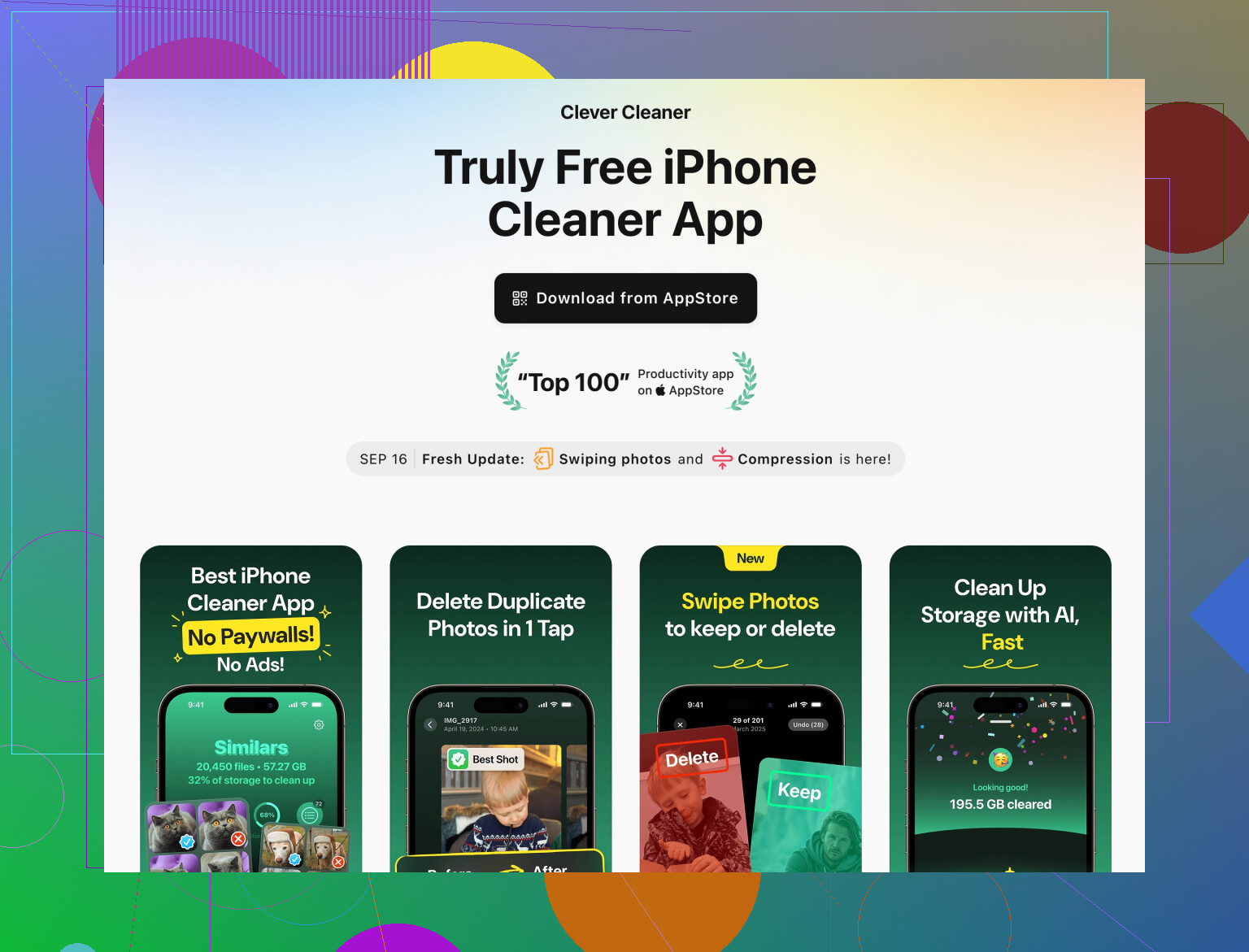
The Clever Cleaner App is designed around that layer:
Pros
- Very good for detecting duplicate photos and near‑identical shots
- Helps surface huge videos you forgot existed
- Contact cleanup (merging duplicates, removing empty entries) is safer than manual mass editing
- Works on content that is actually bloat, not your core app data
Cons
- It still needs human judgment
If you tap through without checking, you can delete a “duplicate” you actually wanted. - Does not fix things like Mail cache or “System Data” directly
- Any cleaner that touches Photos is risky if you do not have iCloud Photos or a manual backup
If you use it, treat it like a smart assistant, not an “auto‑delete everything” switch:
- Start with obvious junk categories:
- Exact duplicates
- Blurry photos
- Screenshots
- Carefully review “similar” groupings instead of mass‑accepting suggestions.
- Only then move to giant videos you recognize, like half‑hour screen recordings or very old clips.
Compared to the manual‑only tactics from @kakeru and @sonhadordobosque, using Clever Cleaner App gives you a faster overview of your media mess, but you still keep control of what goes.
6. Practical order that avoids data loss
If you want a safe, low‑stress flow without repeating their step lists:
-
Back up first
iCloud or computer, does not matter, but verify a recent backup exists. -
Tame background churn
- Turn off Background App Refresh for low‑value apps
- Remove unused widgets & Live Activities
-
Kill non‑essential downloaded stuff
- In each streaming / podcast app, remove completed downloads
- Turn off auto‑download where you do not need it
-
Clean malformed or bloated data sources
- Reset Keyboard Dictionary if it feels off
- Review Mail accounts and remove old ones you no longer use, then re‑add if necessary
-
Media deep clean with help
- Manually remove obviously bad photos / videos
- Then run something like Clever Cleaner App for duplicates, similar shots, and contact cleanup, reviewing suggestions manually
-
Only then consider app reinstall
- For safe, cloud‑based apps like Instagram or Facebook if they are clearly massive
- Avoid this as a first step for niche apps or ones without logins
Follow that sequence and you end up clearing a lot of real “cache‑like” junk, improving performance, and almost never touching the data you actually care about.