I’m trying to clear cookies on my iPhone to fix some browser issues and free up space, but I’m worried about losing saved logins and important site data. What’s the best way to delete cookies in Safari and other browsers on iOS, and which settings should I avoid changing so I don’t mess anything up?
Safari is a bit tricky about cookies vs logins, but you can control it pretty safely if you do it the right way. Here is what I do when I want to clear junk but keep important stuff.
-
Backup first
- If you use iCloud Keychain, your logins stay stored there.
- Go to Settings → [your name] → iCloud → Passwords & Keychain and make sure it is on.
- Also open Settings → Passwords and check your saved logins. If they are there, you are mostly safe.
-
Clear site data in Safari without nuking everything
- Go to Settings → Safari.
- Tap “Advanced” at the bottom.
- Tap “Website Data”.
- Here you see per site cookies, caches, storage.
- Use “Edit” in the top right.
- Remove only problem sites, for example the ones that glitch or use a lot of space.
- You keep all other data and logins for the rest.
- Avoid “Remove All Website Data” if you want to stay logged in everywhere.
-
If you really need to clear all Safari cookies
You will lose active sessions, but saved passwords stay if you use Passwords or iCloud Keychain.- Settings → Safari.
- Tap “Clear History and Website Data”.
- Pick the shortest time range that fixes your issue, for example “Last hour” or “Today”.
- This logs you out of most sites, but when you log back in, iOS offers autofill from stored passwords.
-
Offload or reset only the browser app
For Safari there is no offload option, but for other browsers like Chrome, Firefox, Edge, Brave:- Settings → General → iPhone Storage.
- Tap the browser app.
- Check “Documents & Data” size.
- If it is huge, tap “Offload App”.
- Reinstall from the same screen.
This clears cached files while keeping your app data tied to your account in most cases, like bookmarks or sync.
-
Clear cookies in Chrome on iPhone
- Open Chrome.
- Tap the three dots at bottom right → “History”.
- Tap “Clear Browsing Data”.
- Uncheck items you want to keep. For example keep “Saved Passwords” and “Auto-fill data”.
- Clear “Cookies, Site Data” and “Cached Images and Files”.
Your Google account sync also restores stuff like bookmarks.
-
Clear cookies in Firefox on iPhone
- Open Firefox.
- Tap the three lines at the bottom.
- Tap “Settings”.
- Tap “Data Management”.
- Turn on “Cookies” and “Cache”, but leave “Saved Logins” off if you want to keep them.
- Tap “Clear Private Data”.
-
Use cookie settings going forward
- In Safari Settings, toggle “Block All Cookies” only if a site tells you to enable cookies, then turn it back.
- Use Private Browsing for sites you do not want to keep cookies for.
- That way you store cookies only where you need them.
-
Free space beyond cookies
Cookies usually do not take a crazy amount of space. Most of the storage mess is from app caches, duplicates, temp junk.
If your main goal is space, a cleaner app helps more than only deleting cookies.
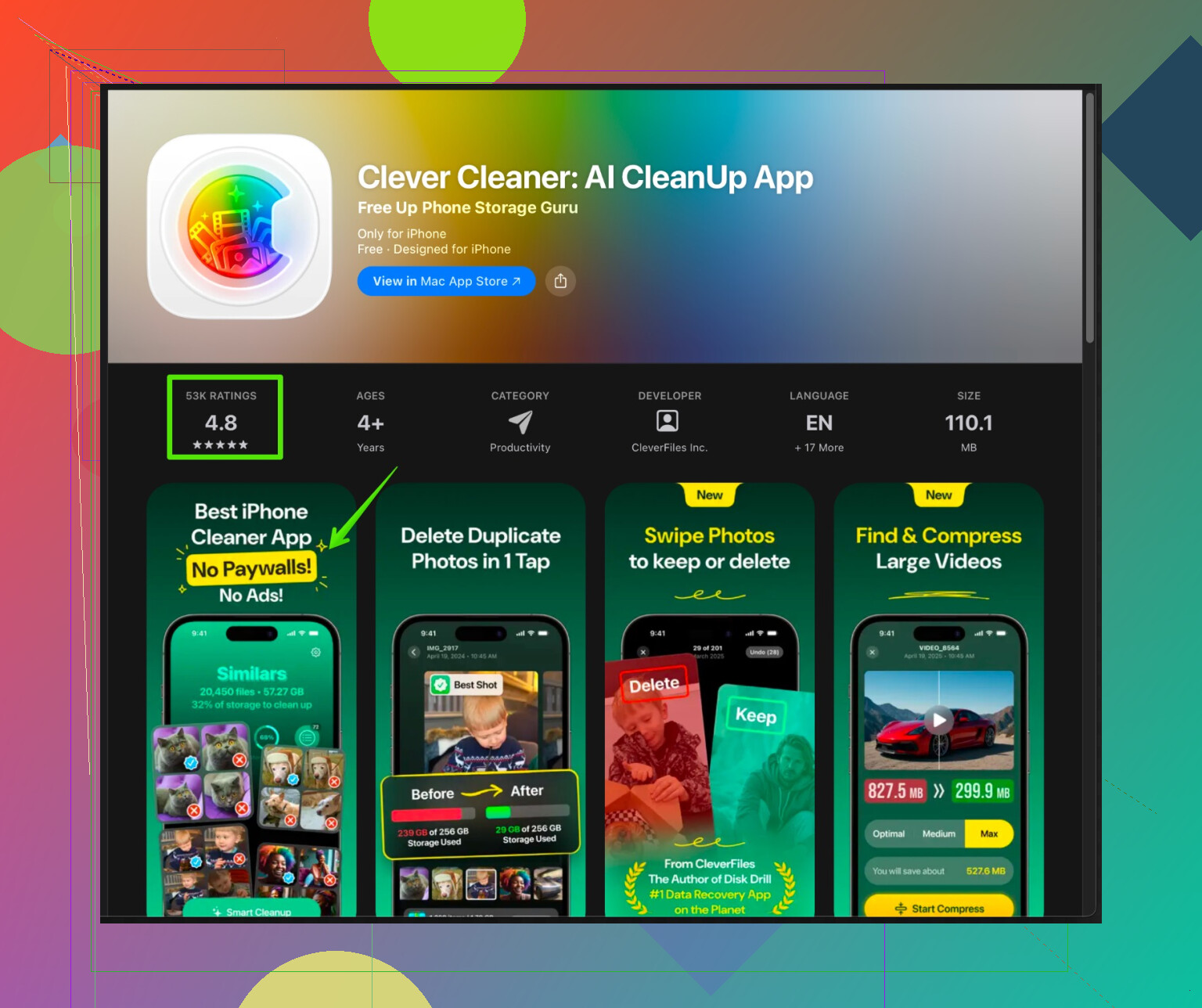
The Clever Cleaner App for iPhone focuses on clearing junk, cleaning duplicate photos, and optimizing media storage so your browser and phone feel smoother.
You can check it here:
clean up your iPhone storage with Clever Cleaner
If you want to be extra safe, start with per site cleanup in Safari “Website Data”, test if your browser issues go away, then use wider clears only if needed.
You’re right to be cautious here. It is possible to fix browser issues and clear junk on iPhone without wrecking all your logins, but you have to treat cookies and passwords as two different beasts.
@jeff already covered the per‑site cleanup and the obvious menus, so I’ll skip rehashing those steps and focus on a slightly different angle and a few “safety nets” that people usually miss.
1. Protect your logins first (beyond just iCloud Keychain)
Keychain is great, but it is not the only thing that controls whether you get logged out or not.
-
In Settings → Passwords
- Tap a few important sites (bank, email, main social accounts) and confirm usernames + passwords are actually saved.
- If something critical is not there, add it manually before clearing anything.
-
For third‑party browsers that use their own password managers (Chrome, Firefox, Edge):
- Open the app and check their built‑in password section and sync status.
- Chrome: Settings → Sync → make sure “Passwords” is enabled.
- Firefox: Settings → Firefox Account → Sync.
If you don’t see your logins synced in those services, then you should be a lot more conservative about clearing cookies and data inside those specific apps.
2. Use the “nuke-with-a-parachute” method in Safari
Where I slightly disagree with @jeff is on always avoiding “Remove All Website Data.” Sometimes Safari’s cache and cookies get so messed up that per‑site cleanup just wastes time and doesn’t fix the bug.
Safer way to do a more aggressive reset without losing actual login information:
-
Make sure your critical site passwords exist in:
- Settings → Passwords, and/or
- Your other password manager (1Password, Bitwarden, etc.) if you use one.
-
In Settings → Safari:
- Turn off “Close Tabs” auto if you want to keep your tab list for later reference.
- Make a quick screenshot or note of important tabs if you rely on them a lot.
-
Use Clear History and Website Data, but:
- Pick the shortest time that is likely to touch the problem (e.g. “Today and yesterday”).
- After that, expect to be logged out, but logins should autofill from Passwords/Keychain when you sign back in.
So you lose sessions, not credentials. Annoying, but safer than living with a broken Safari for weeks.
3. When Safari acts up: Private mode as a testing tool
Before you clear anything:
- Open Safari, start a Private Browsing tab.
- Visit the misbehaving site.
- If it works fine in private mode, your issue is very likely cookies or local storage.
- If it is still broken, the problem might be the site itself, your network, or a content blocker, not your cookies.
That quick test keeps you from going nuclear on your data for no reason.
4. For Chrome, Firefox, Edge & co: target local junk, not synced stuff
@jeff mentioned offloading apps, which is good, but it can be overkill when you just want to clean out garbage data.
Try this order instead:
-
Inside the browser app first
- Chrome: Settings → Privacy → Clear Browsing Data.
- Clear “Cached Images and Files” and “Cookies, Site Data” for shorter time ranges first.
- Leave “Saved Passwords” and “Auto-fill data” unchecked.
- Firefox & Edge: similar pattern. Only tick cookies + cache, leave saved logins disabled from the wipe.
- Chrome: Settings → Privacy → Clear Browsing Data.
-
Only if that doesn’t help, then:
- Go to Settings → General → iPhone Storage → pick the browser.
- If its “Documents & Data” is massive and you have sync enabled:
- Either offload + reinstall as @jeff said,
- Or outright delete and reinstall the app if your bookmarks, history, and passwords are all synced to your account.
Deleting the app will kill local sessions and some offline data, but what’s in your cloud account will come right back.
5. Don’t overestimate space saved from cookies
You mentioned freeing up space. Cookies and basic website data are usually in the tens or maybe a couple hundred MB, not multiple GB. The real hogs:
- Large message apps (WhatsApp, Telegram, etc.).
- Social apps caching tons of media.
- Photo and video clutter.
So if space is the main concern, browser cookies are kind of the wrong tree to bark up.
For that, a dedicated cleaner can help way more than micro‑managing Safari data. If you want something focused on junk photos, duplicate files, temp data and general storage bloat, an option worth checking is the Clever Cleaner App. It does a better job at cleaning out the real storage hogs while you keep your browser data mostly intact. You can look into it here:
freeing up iPhone storage and cleaning junk files
That combo usually gets you more space than obsessively deleting cookies across every browser.
6. A simple “low-risk” plan
If you want a practical order that keeps risk low:
- Verify critical passwords are stored (Settings → Passwords + browser sync).
- Test problem sites in a Private tab in Safari.
- If confirmed cookie-related:
- In Safari: use Advanced → Website Data and clear only the broken sites.
- If that fails:
- Use “Clear History and Website Data” for a short time range.
- For other browsers:
- Clear cookies + cache from inside the app only, with passwords excluded.
- For storage issues:
- Use a cleaner app to remove photo junk and cache instead of fixating on cookies.
That way you fix glitches with as little real data loss as possible, and you’re not re‑typing every password from scratch like it’s 2008.
Safari and the other iOS browsers all treat “cookies,” “site data,” and “passwords” slightly differently, so the real trick is to control what gets reset rather than just hitting every “clear” button you can find.
A few angles that haven’t been stressed yet:
1. Know what actually risks your logins (and what doesn’t)
Where I slightly disagree with both @shizuka and @jeff is on how scary “clear cookies” really is. On iPhone, your saved passwords are almost always stored separately from cookies:
- Safari passwords live in Settings → Passwords (and iCloud Keychain if enabled).
- Chrome, Firefox, Edge, Brave store passwords in their own sync accounts.
So deleting cookies / website data usually kills sessions, not saved credentials. The real dangers to your logins are:
- Turning off iCloud Keychain before everything is synced.
- Deleting a browser app that has no sync account set up.
- Wiping “Saved Passwords” from inside Chrome / Firefox instead of just cookies.
If you confirm sync + passwords first, you can be a lot more confident clearing junk.
2. Use “surgical” Safari cleanup without living in Advanced settings
Both previous replies rely heavily on Settings → Safari → Advanced → Website Data and per‑site deletion. That works, but it is tedious.
Two more targeted tricks:
-
Reset just one problematic site without hunting it in a long list:
- Open Safari, go to the site that is broken.
- Tap the “aA” icon in the address bar.
- Tap “Website Settings”.
- Disable content blockers or change “Use Reader automatically” if enabled, then reload.
If it suddenly works, your problem was more likely content filtering than cookies.
-
Confirm if the problem follows your account or your device:
- Log in to the same site on another device (laptop or another phone).
- If it is broken there too, clearing iPhone cookies is not going to fix it.
Saves you time and avoids unnecessary wipes.
I only go into Advanced → Website Data when I know a specific site is hoarding data or glitching in Safari only.
3. Decide why you are clearing cookies: stability vs storage
You mentioned both “fix browser issues” and “free up space.” Those are related but not the same goal.
If the main goal is stability:
- Test the site in a Private tab first (as @shizuka noted).
- If it works in Private, bite the bullet and clear data, but:
- Prefer shorter time windows in “Clear History and Website Data.”
- Re‑log using autofill from Passwords / Keychain.
If the main goal is storage:
This is where I think both previous answers overvalue cookies. On most iPhones:
- Safari website data is usually somewhere between a few MB and a couple hundred MB.
- Social / chat apps can each hold multiple GB of cached media.
You can clear every cookie on your device and still not fix a “Storage Almost Full” warning in any meaningful way.
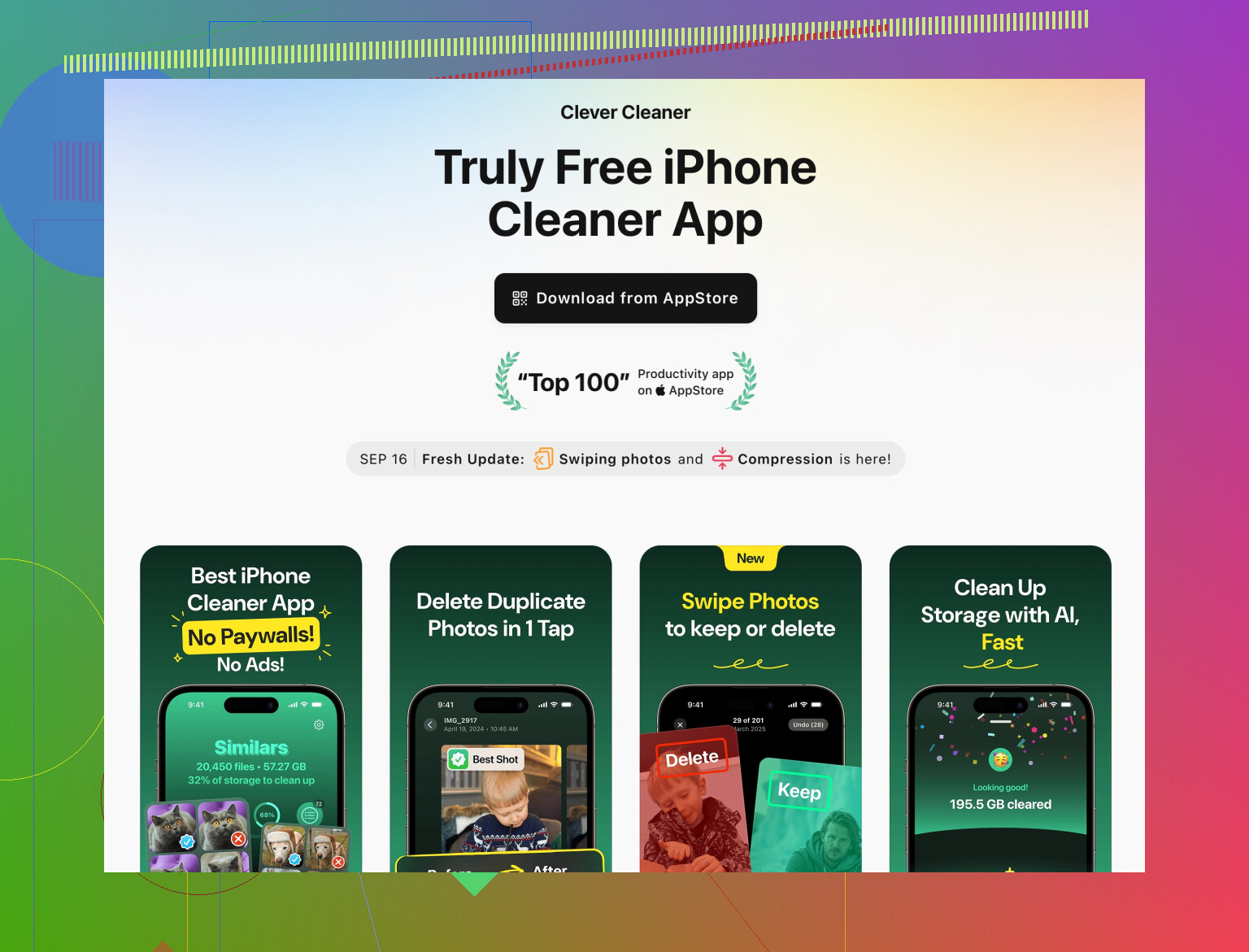
This is exactly the scenario where something like the Clever Cleaner App actually makes more sense than micro‑optimizing Safari:
Pros of Clever Cleaner App
- Targets photos, videos and junk files, which are the real space hogs.
- Helps find duplicates and similar photos that iOS Photos will not show as obvious duplicates.
- Lets you review before deleting so you are not blindly wiping anything.
- Simple for non‑technical users compared to drilling into multiple Settings menus.
Cons of Clever Cleaner App
- It is a separate app, so it takes a bit of space itself.
- You still need to manually check what you are deleting if you are paranoid about losing media.
- It does not directly manage browser sessions or passwords, so you still control cookies from the browser settings.
In short, use cookie clearing to fix weird site behavior, use something like Clever Cleaner App when you actually care about big space wins.
4. Extra safety nets people skip
To complement what @jeff and @shizuka already covered:
-
Export or mirror key logins elsewhere
- If you use a third‑party password manager (1Password, Bitwarden, etc.), make sure it has all critical logins before you touch anything.
- That way even if you mis‑tap and wipe passwords inside a browser, you can re‑add them quickly.
-
Watch out for banking / 2FA edge cases
- Some banking and government sites tie your “trusted device” status to cookies or local storage.
- Clearing everything may force extra 2FA or re‑enrollment.
Before a big cleanup, ensure you still have access to your 2FA methods: authenticator app, SMS, backup codes.
-
Content blocker / VPN conflicts
- A lot of “broken” sites on iPhone are actually being mangled by content blockers or VPNs, not cookies.
- For stubborn sites, temporarily disable ad blockers or VPNs, refresh, and see if it behaves.
If it does, you can leave cookies intact and just whitelist that site in your blocker.
5. Practical low‑friction strategy
If I were in your position and wanted to stay safe:
-
Verify logins are saved
- Safari: Settings → Passwords, spot check a few key accounts.
- Chrome / Firefox: confirm sync + passwords enabled.
-
Stability first
- Problem site works in Private tab → clear its data (either per‑site in Advanced or through a short global clear for recent data).
- Still broken in Private → check blockers / VPN, test same account on another device before nuking anything.
-
Space second
- Stop worrying about cookies as a space fix.
- Use iPhone Storage to identify the biggest apps.
- Use a tool like Clever Cleaner App to clean duplicate / junk media and other clutter where you actually reclaim hundreds of MB or GB.
That way you are using cookie clearing as a focused repair tool, not a blunt storage solution, and your saved logins remain protected by design rather than by luck.