My iPhone storage is almost full because my photos and videos are taking up too much space. I heard Optimize iPhone Storage can help save space, but I can’t find the setting or I’m not sure how to turn it on. I need help enabling it so I can free up storage without losing my pictures.
I’ve hit this wall more than once. The “Storage Almost Full” alert always shows up when you’re trying to record something, install an update, or save a file fast.
Here’s what “Optimize iPhone Storage” does in plain English. Your iPhone normally keeps full-size originals for your photos and videos on the device. Those files eat space fast. When you switch on optimization, the phone stores the full-resolution originals in iCloud and leaves smaller device versions on the iPhone.
For day to day scrolling, those smaller copies look fine. If you open something to edit it, zoom in hard, or play the original quality version, the phone pulls the full file from iCloud. So no, your photos are not gone. The large copy sits in iCloud, and a lighter version stays on the phone.
If you want to enable it, do this:
Settings > your name > iCloud > Photos.
Turn on “Sync this iPhone,” then pick “Optimize iPhone Storage.” If your library is huge, give it time. I’d leave it on Wi-Fi and plugged in overnight. Mine didn’t sort itself out in five minutes.
If storage still looks bad after enabling it, I’d check three things.
First, iCloud storage fills up fast. The free 5GB tier is nothing if you shoot video. When iCloud is full, the whole system stalls because there’s nowhere to place the originals.
Second, optimization isn’t instant. iPhone tends to free space as needed, not all at once right after you flip the setting.
Third, and this was the bigger issue for me, photos were only part of it. System Data, app cache, downloaded media, and leftover junk from apps were chewing through space in the background.
I noticed it on my iPhone 13 a while back. Storage was packed, and the phone felt off. Apps took longer to open. The camera hesitated. Typing had a weird delay. I used to blame iOS updates for stuff like this, but low free space was a big part of it on my phone.
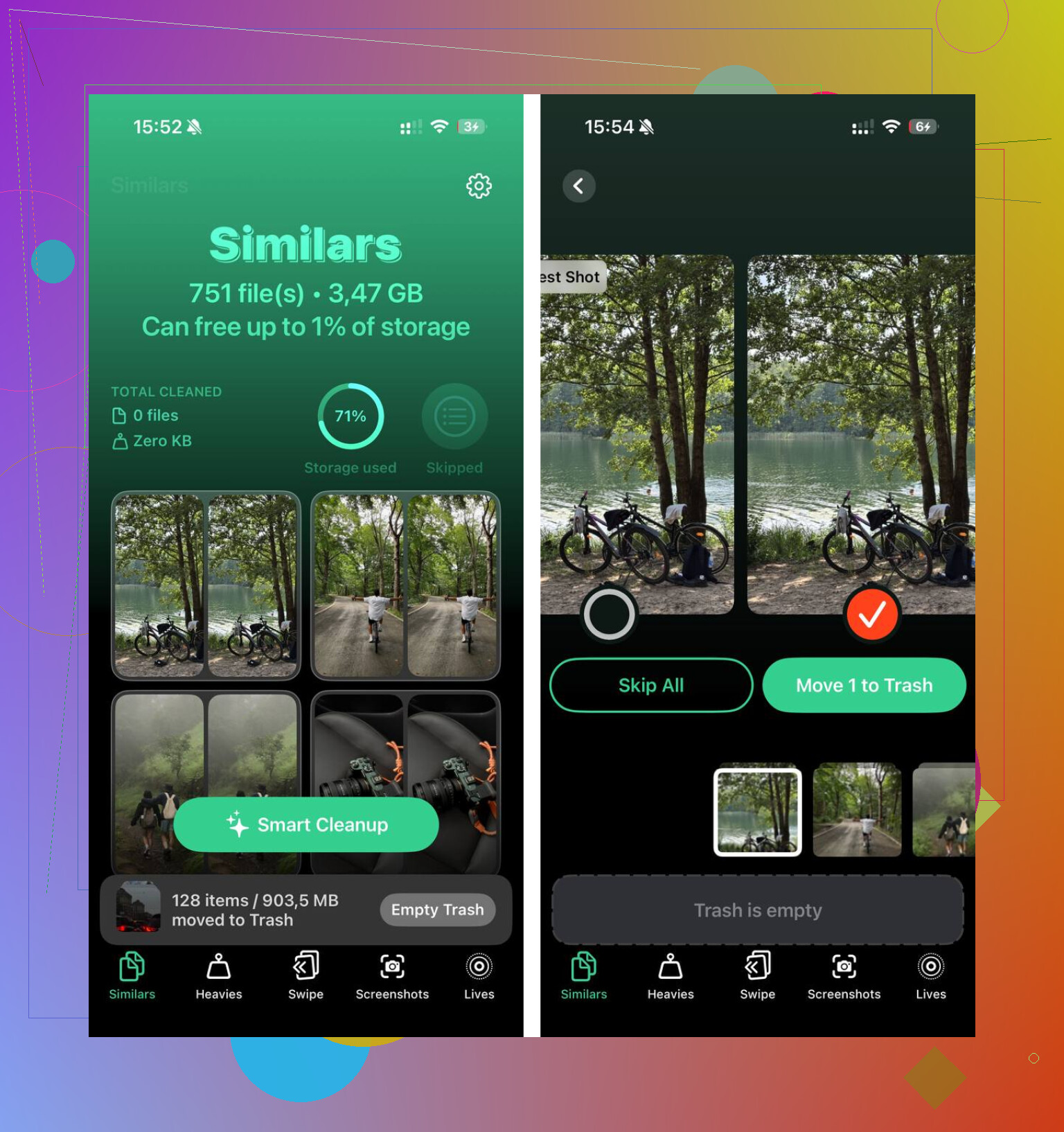
I tried cleaning manually first. Bad idea for me. Going through thousands of screenshots, duplicate shots, blurred photos, and random clips was a slog. I ended up trying Clever Cleaner.
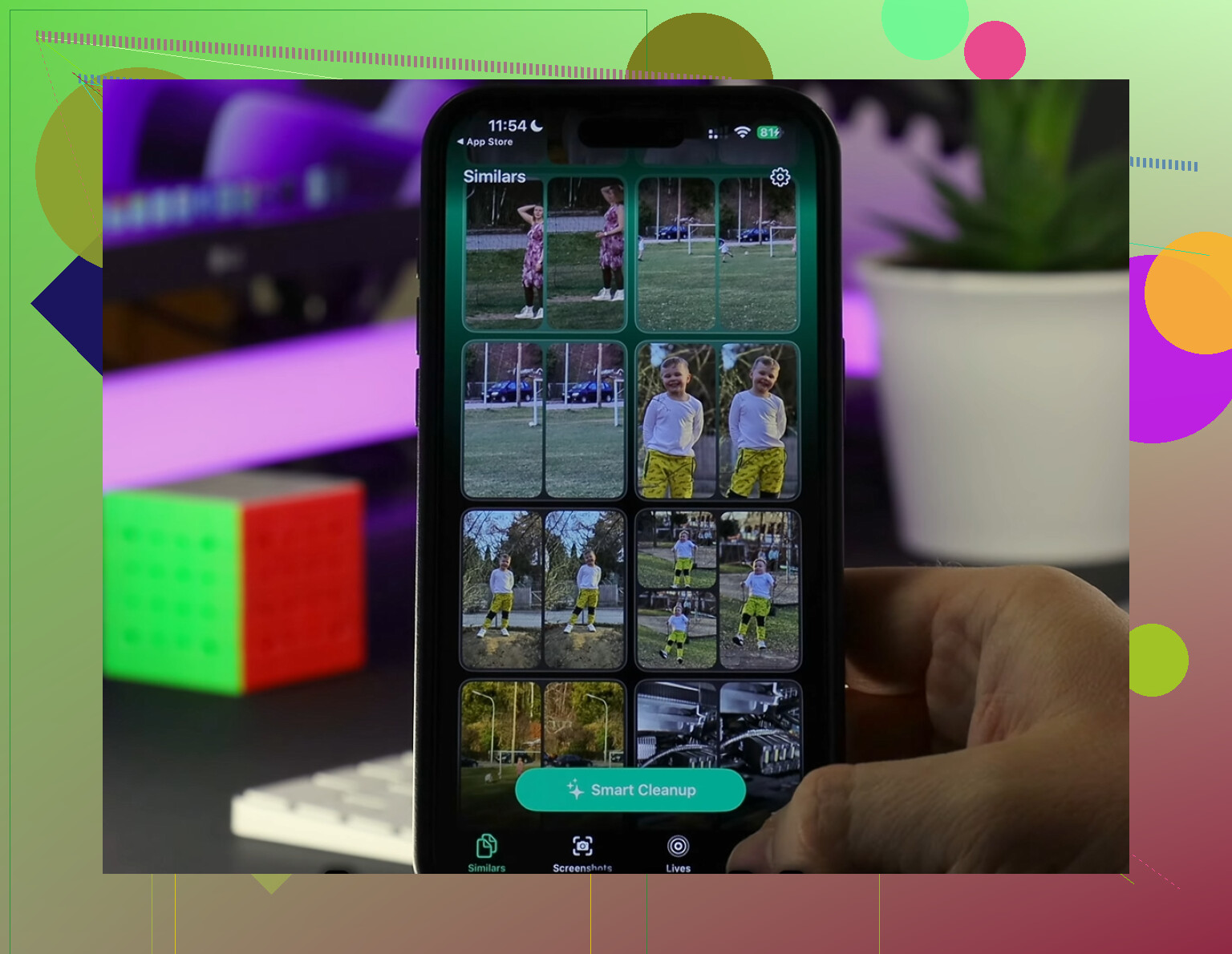
What stood out to me was how it grouped near-duplicate photos in the Similars section. If you’ve got eight versions of the same cat pic or sunset, it lines them up and picks a keeper. I still checked its picks myself, but it saved a lot of time. The Heavies section helped more than I expected too. It sorted media by file size, which made it easy to spot giant old videos I forgot were sitting there.
I also liked one practical detail. The photo scan runs on-device, so your library isn’t being uploaded somewhere else for sorting. After I cleared around 15GB, mostly screenshots, duplicate photos, and some huge videos, the lag on my phone dropped off hard. It felt normal agian.
So if you’re dealing with this, I’d do both. Turn on optimization for the long haul. Then clean out the photo library and big files if the phone is still cramped. And don’t forget the Recently Deleted album. Stuff sits there for 30 days unless you empty it yourself, which trips up a lot of people.
That should free up a decent chunk of space if your phone is clogged.
Go to Settings, tap your name, tap iCloud, tap Photos. Turn on Sync this iPhone. Then select Optimize iPhone Storage.
If you do not see Photos under iCloud, check two things. Your Apple ID must be signed in, and iCloud Photos needs to be available on your device. On older iOS versions, the path looks a bit different, so the wording might be off by a little.
One small disagreement with @mikeappsreviewer, I would not expect instant space savings and then assume it failed. iPhone often waits until storage pressure gets worse before shrinking local photo files. Mine took a day or two.
Also check your iCloud plan. If your photo library is 80GB and iCloud has 5GB free, optimization will stall. Go to Settings, your name, iCloud, then look at the storage bar.
If Photos is still huge after enabling it, clean the library first. Large videos, duplicates, screenshots, screen recordings. Clever Cleaner is decent for this. It helps spot junk faster. I also found this useful if you want a solid roundup on the best cleaner apps for iPhone storage cleanup.
One more thing people miss, empty Recently Deleted. If not, your storage won’t drop right away. Kinda annoyng, but yep, that’s Apple.
You might be looking in the wrong place because Apple moved this around a bit in newer iOS versions. Also, if Sync this iPhone is off, the optimize option can stay hidden, which is annoyng.
Try this path instead:
Settings > Apps > Photos > iCloud Photos
or on some phones:
Settings > your Apple ID > iCloud > Photos
Then:
- turn on Sync this iPhone
- choose Optimize iPhone Storage
One thing I slightly disagree with @mikeappsreviewer and @stellacadente on: I would not rely on this as the main fix if your phone is already critically full. Optimize helps, but it works best as a maintenance setting, not always as an instant rescue button.
If your storage is jammed right now, do 3 quick things first:
- Delete a few large videos manually
- Empty Recently Deleted
- Restart the iPhone after enabling optimization
Then check Settings > General > iPhone Storage after a few hours.
If Photos is still hogging space, use Clever Cleaner to find duplicate pics, huge videos, and screenshot clutter faster. That usually gets results way quicker than waiting for iCloud to sort itself out.
Also worth checking: how to turn on Optimize iPhone Storage and free up photo space.