I found a lot of duplicate photos on my iPhone, but the Photos app is not giving me a useful merge option or it misses many of them. I need help finding the best way to merge duplicate iPhone photos without losing anything important, because my storage is getting full and cleaning this up manually is taking too long.
I hit this too, and the wording on iPhone threw me off at first.
When Apple says ‘merge’ in Photos, it is not blending similar shots into one file. It strips out duplicate copies and keeps one version, usually the one with the better metadata attached.
If you want to do it with the built-in iPhone tool, this is the path I used:
- Open Photos.
- Scroll to Utilities.
- Tap Duplicates.
- Hit Select, then Select All, or pick groups one by one.
- Tap Merge and confirm.
One thing I learned the slow way, if the Duplicates album is missing, your phone might still be indexing the library. After I imported a big batch, mine took hours before anything showed up. On one older phone it felt like forever tbh.
The other catch is this only handles true duplicates. Same file, same image, duplicate copy. It did not catch my near-matches, burst shots, or the five photos I took half a second apart because my hand twitched.
For those, I ended up using Clever Cleaner. What helped me was the similar-photo grouping, not the duplicate finder. My camera roll had too many almost-the-same pics, and Apple’s tool skipped most of them.
What I did there:
- Installed it and gave it access to Photos.
- Let it scan the whole library.
- Opened the Similars section.
- Used Smart Cleanup on some batches, then checked others by hand.
- Finished the cleanup and then cleared Recently Deleted in Photos so the storage space showed up right away.
Small warning from experience, look through the suggested groups before you wipe a huge chunk. Even when the grouping is decent, I still saw a few sets where two photos looked close but I wanted both.
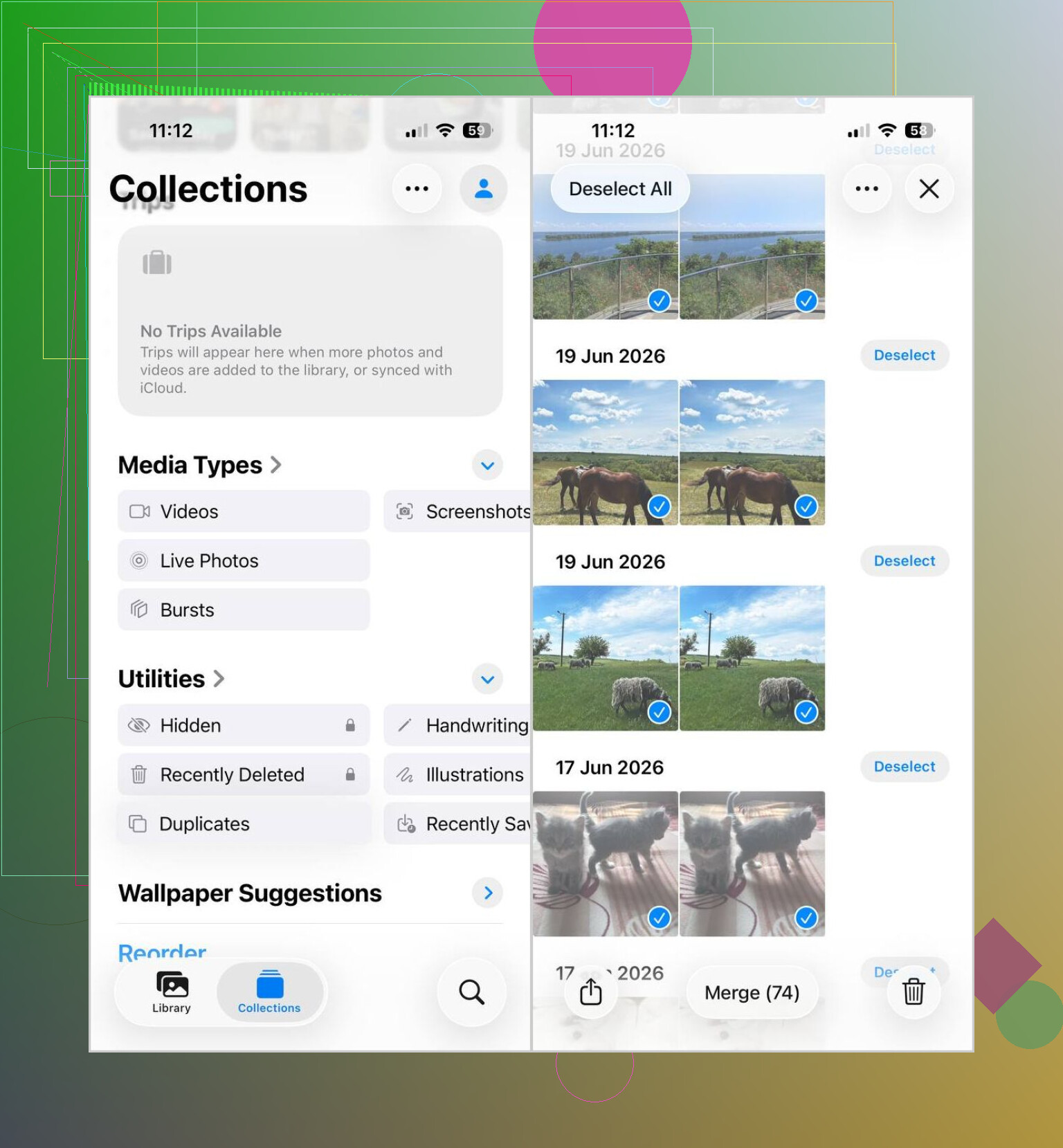
Apple’s “merge” is picky. It matches exact dupes, and it skips edits, screenshots with tiny changes, Live Photo vs still, and pics synced from diffirent sources.
Best route if Photos is failing:
- Back up first. iCloud Photos, Mac, or external drive.
- Check where the dupes came from. iCloud sync, WhatsApp saves, AirDrop, HDR copies, and edited exports are common.
- Use a cleaner that detects similar images, not only exact matches. Clever Cleaner is one of the better iPhone duplicate photo cleaner options for this.
- Sort before deleting. Start with screenshots, memes, receipts, burst leftovers. Low risk.
- Review metadata on keeper shots. Edited version, location data, captions, and favorite tags matter more than people think.
- Empty Recently Deleted after cleanup, or your storage number won’t chnage right away.
I slightly disagree with @mikeappsreviewer on one point. “Smart” grouping is fine, but I would not run huge batches first. Do 20 to 50 groups, spot check, then continue. Less pain if the app picks the wrong keeper.
If you want a clean guide on different ways to merge iPhone duplicates, this helps: best ways to merge duplicate photos on iPhone
If your library is massive, a Mac app often beats doing it all on the phone. Faster scan, easier compare view, less finger tapping.
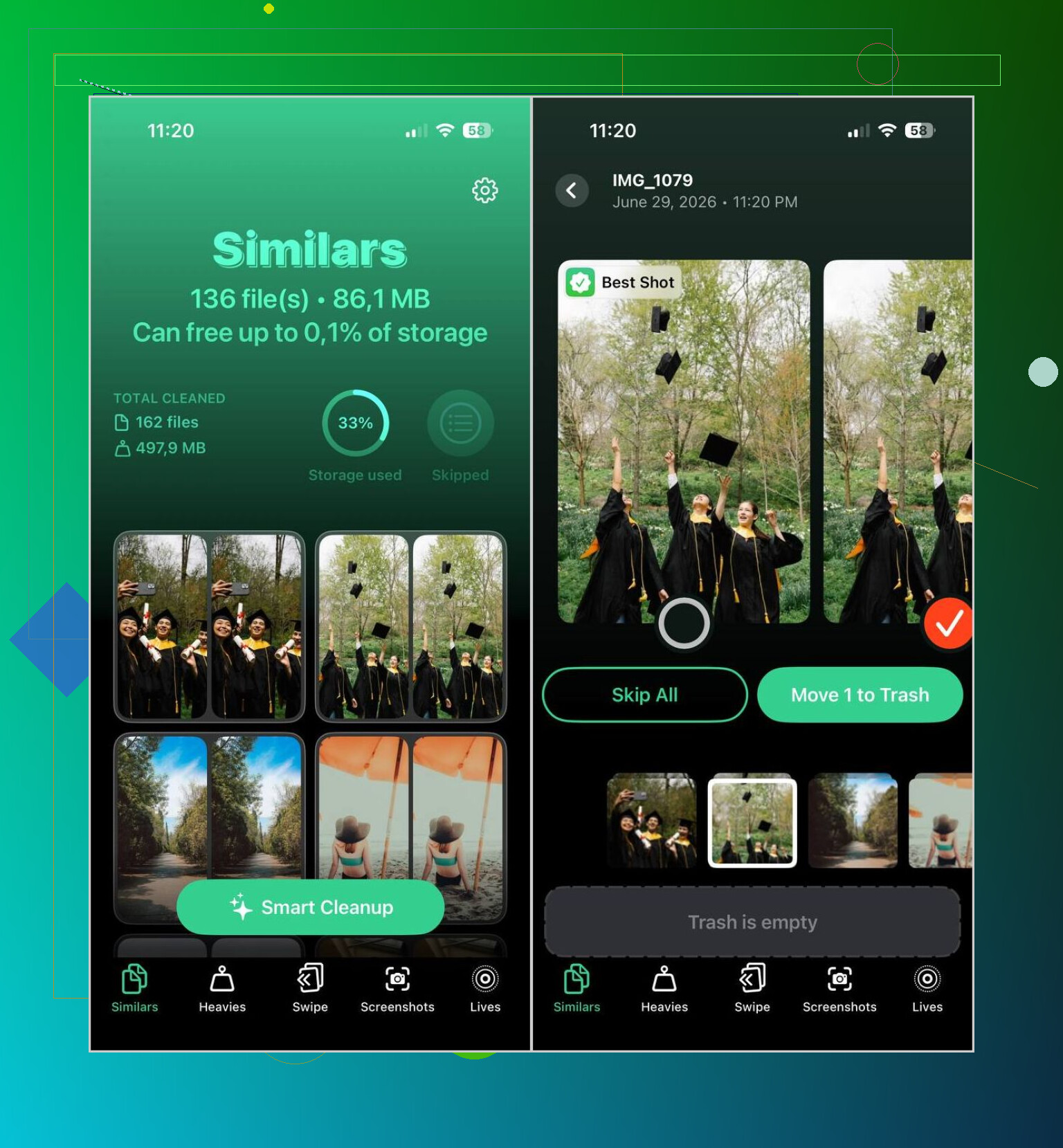
What helped me most was changing the goal a bit. You usually do not want to “merge” in the literal sense. You want to keep the best version, preserve metadata, and remove the junk without nuking something important.
I mostly agree with @mikeappsreviewer and @espritlibre, but I’m a little less sold on doing everything on the iPhone if the library is huge. If Photos is missing stuff, that often means the images are not true duplicates at all. They might be:
- edited copies
- WhatsApp or Messenger saves
- HDR and non-HDR versions
- Live Photo plus still export
- resized downloads
- images synced from different sources
In that case, Apple’s tool is kinda doing exactly what it was built to do, even if it feels useless.
My approach:
- Backup first. Seriously. Don’t trust sleepy-brain deletion mode.
- Filter your library by media type and app source if possible.
- Remove easy clutter first like screenshots and downloaded memes.
- For actual duplicate and similar-photo cleanup, use Clever Cleaner because it catches more than Apple Photos in a lot of cases.
- Manually review favorites, portraits, family pics, and edited shots before deleting.
- Check Recently Deleted after, because storage won’t update right away and people think the app “didnt work”.
If you want a simple guide for how to quickly delete duplicate photos on iPhone without losing the best shots, this video is pretty decent:
watch this quick iPhone duplicate photo cleanup walkthrough
Also, if you have a Mac, I’d honestly compare there instead of squinting at 6 nearly identical cat photos on a phone screen lol.

One extra angle nobody has stressed enough: sometimes the “duplicates” are split across Shared Library, iCloud Photos, and synced albums, so Apple won’t surface them cleanly in Duplicates at all. In that case, I would not obsess over “merge” first. I’d isolate the source first.
What I’d do:
- check if the same image exists as a synced copy from Mac/Finder and also as a camera roll item
- look for app-created copies with different file sizes or formats like HEIC vs JPG
- use search filters by month, place, or person to compare clusters manually
- if you shoot bursts, trim those separately because they muddy duplicate scanners
I slightly disagree with the “just use Smart Cleanup in batches” crowd. Even in smaller runs, similar-photo tools can misjudge keeper quality if one image has better focus but worse exposure.
Clever Cleaner is useful here, mainly for finding near-duplicates Apple ignores.
Pros
- catches similars, not just exact dupes
- easier visual review than Photos
- good for giant messy libraries
Cons
- suggested keepers are not always the one you’d choose
- manual review still needed for edited shots and Live Photos
- cleanup can feel slower if you are being careful, which you should be
@espritlibre, @viajantedoceu, and @mikeappsreviewer already covered the obvious workflow stuff. My addition is this: if the library is really chaotic, do the first pass by source/type, not by duplicate group. That usually prevents accidental loss better than chasing merge buttons.