I accidentally formatted a hard drive that had my Outlook PST file, and now I can’t access years of emails, contacts, and important work data. I’m looking for the best way to recover a PST file from a formatted hard drive without causing more damage or overwriting anything. Has anyone had success with Outlook PST recovery after formatting?
I ran into this with Outlook after I cleaned up Downloads too fast. Same ugly message, file missing, mailbox looks wiped. First thing I did was stop touching the PC. That part matters more than people think.
When Windows deletes a file, it often removes the pointer first. The data may still be sitting on disk until something else lands on top of it. So if your PST vanished, stop downloads, stop installs, stop random browsing. Every write cuts your odds.
Start with the easy checks
Look in Recycle Bin. Sounds dumb, still worth 10 seconds. If you pressed Delete, the PST is often there. If you used Shift+Delete, skip this one.
If your Documents folder syncs with OneDrive or Dropbox, check the web dashboard too. Both usually keep deleted items for a while. Version history helps if the file got replaced instead of removed. I have seen people swear the file was gone, then find it in cloud trash.
Check folder snapshots in Windows
Go to the folder where the PST used to live. Most of the time it is somewhere like C:\Users\YourName\Documents\Outlook Files.
Right click the folder, pick Restore previous versions. If System Protection or file history had been active, you might see older snapshots. Open one. If the old PST shows up, copy it out to another location first. Do not restore blindly over everything if you do not need to.
If it was permanently deleted
This is where recovery software enters the chat. I tried the built-in stuff first, got nowhere, then moved to a disk scan. The practical route here is Disk Drill. It tends to do well with lost PST files, especially when Outlook has already gone off and made a fake fresh one.
What I would do:
Install it on another drive if you have one. A USB stick is better than writing more data onto C:.
Scan the main drive where the PST lived, usually C:.
Search the results for .pst files, or filter by file type.
Ignore the tiny fresh PST Outlook made. Size tells the story here. The auto-created empty file is usually around 265 KB. The one you care about is often much larger, sometimes hundreds of MB, sometimes a few GB.
Recover the large PST to Desktop or an external drive. Do not drop it back into the original folder first.
Why Outlook now looks empty
Outlook tends to create a new blank data file when the old one goes missing. Mine did, and for a minute I thought all folders were nuked. They were not. Outlook had simply pointed itself at a clean empty file with some generic name.
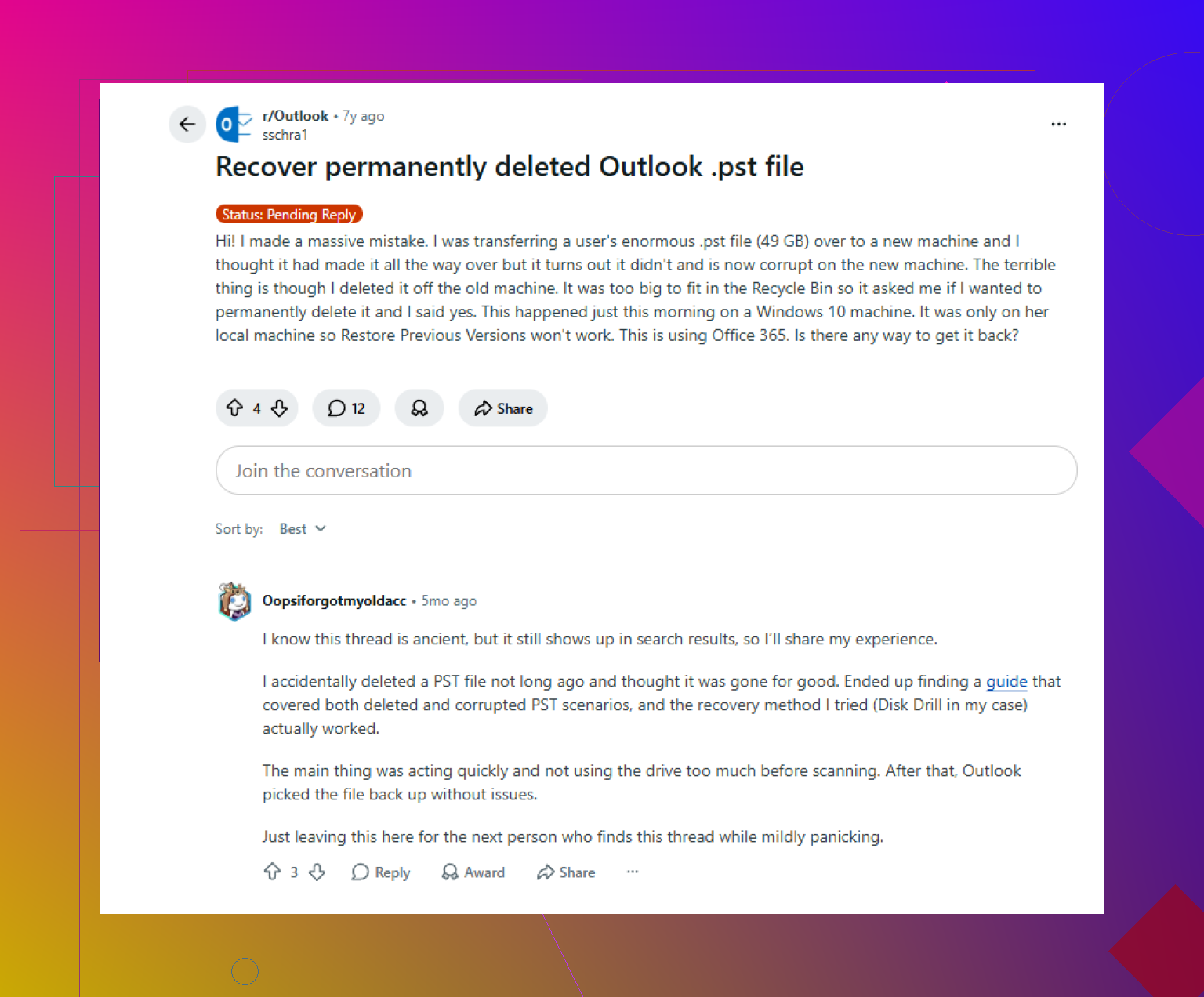
After you recover the old PST, open it from inside Outlook. Go to File > Open & Export > Open Outlook Data File. Pick the recovered PST from Desktop. If recovery worked, your old folders should show up in the left pane.
After you confirm your mail is there, go into Account Settings and switch the default data file back to the recovered one. Do not trust Send/Receive to sort this out on its own. It usually wont.
If your account uses IMAP
Small bit of good news. If this was Gmail, Comcast, or another IMAP setup, mail on the server often comes back after you re-add the account. Outlook makes a new OST and pulls messages down again.
The catch is local-only stuff. Custom archives, local folders, old exports, and rules tied to the PST may still be gone unless you recover the deleted PST. So yes, your inbox might return, but your hand-made folder tree may not. Big difference.
What I would do next time
After I got burned by this, I moved PST storage into a location I back up, and I started dumping a copy to an external drive every week or so. Outlook gives you almost no friction before you delete something important. Kinda insane, but here we are.
If your scan finds a large PST, odds are decent. If all you see is the tiny new file, things get rough fast.
If the drive was formatted, treat it like a recovery case, not a missing-file case. Slight disagree with @mikeappsreviewer here. For a formatted disk, Recycle Bin and Outlook’s new tiny PST are side issues. Your main enemy is overwrite.
Do this first.
- Stop using the formatted drive.
- If it was an internal Windows drive, shut the PC down.
- Connect the drive to another machine as a secondary disk, or use a USB enclosure.
- Make a byte-for-byte image of the drive first, if the PST matters a lot.
Why image first. Because recovery scans stress a failing disk, and a second pass often finds less. Tools like ddrescue or similar are worth it if the drive clicks or drops offline.
Then scan the image or the drive with Disk Drill. It’s one of the better options for formatted drive recovery, and it does a decent job finding Outlook PST files by signature when the file system records are gone. Search by .pst, then sort by size. A real archive PST is often hundreds of MB or more. If you find several, recover all of them to a different disk.
One more thing. Run scanpst.exe after recovery. PST files recovered from a format are often damaged even when they open.
If this was a quick format, your odds are way better. Full format on newer Windows versions is rough.
For more PST recovery cases and user experiences, this Outlook PST file recovery thread is worth a look:
Outlook PST file recovery tips from real users
If Disk Drill finds only fragments, try recovering raw results too. PST headers sometimes survive even when filenames dont.
If the drive was formatted, I’d actually put less focus on Outlook and more on how the disk was formatted. That’s the part that changes your chances a lot. @mikeappsreviewer covered the deleted-file angle, and @codecrafter was right to push the imaging idea, but I’d add this: if the PST was on an SSD with TRIM enabled, recovery can go from “pretty doable” to “basically nope” real fast. People skip that detail way too often.
Quick format on an HDD? Decent chance.
Full format or SSD after TRIM? Much uglier.
What I’d do:
- Do not boot from or write to that drive again
- If possible, clone/image it first
- Scan the clone, not the original
- Recover everything PST-related, not just one file
Why “everything”? Because Outlook data is sneaky. Besides the main .pst, you may also want:
.ostfiles.nk2or autocomplete remnants- exported
.csvcontacts - old backup PSTs in random folders
- archive PSTs with names like
archive.pst,backup.pst,outlook1.pst
I also wouldn’t rely only on filename search. On a formatted drive, filenames are often gone. Use a tool that can do signature-based recovery. Disk Drill is a solid pick for that, especially for formatted drive recovery and digging up large PST containers. After scanning, sort by size and date, and recover any PST that looks remotely legit to another disk.
One thing people forget: a recovered PST may open but be incomplete. So after recovery:
- make a copy of the recovered PST
- run Inbox Repair Tool
scanpst.exe - then open the repaired copy in Outlook
Also, if this was a POP account or old local archive, the PST is the whole ballgame. If it was Exchange, Microsoft 365, or IMAP, some mail may re-sync later, but your local folders/archives probly won’t.
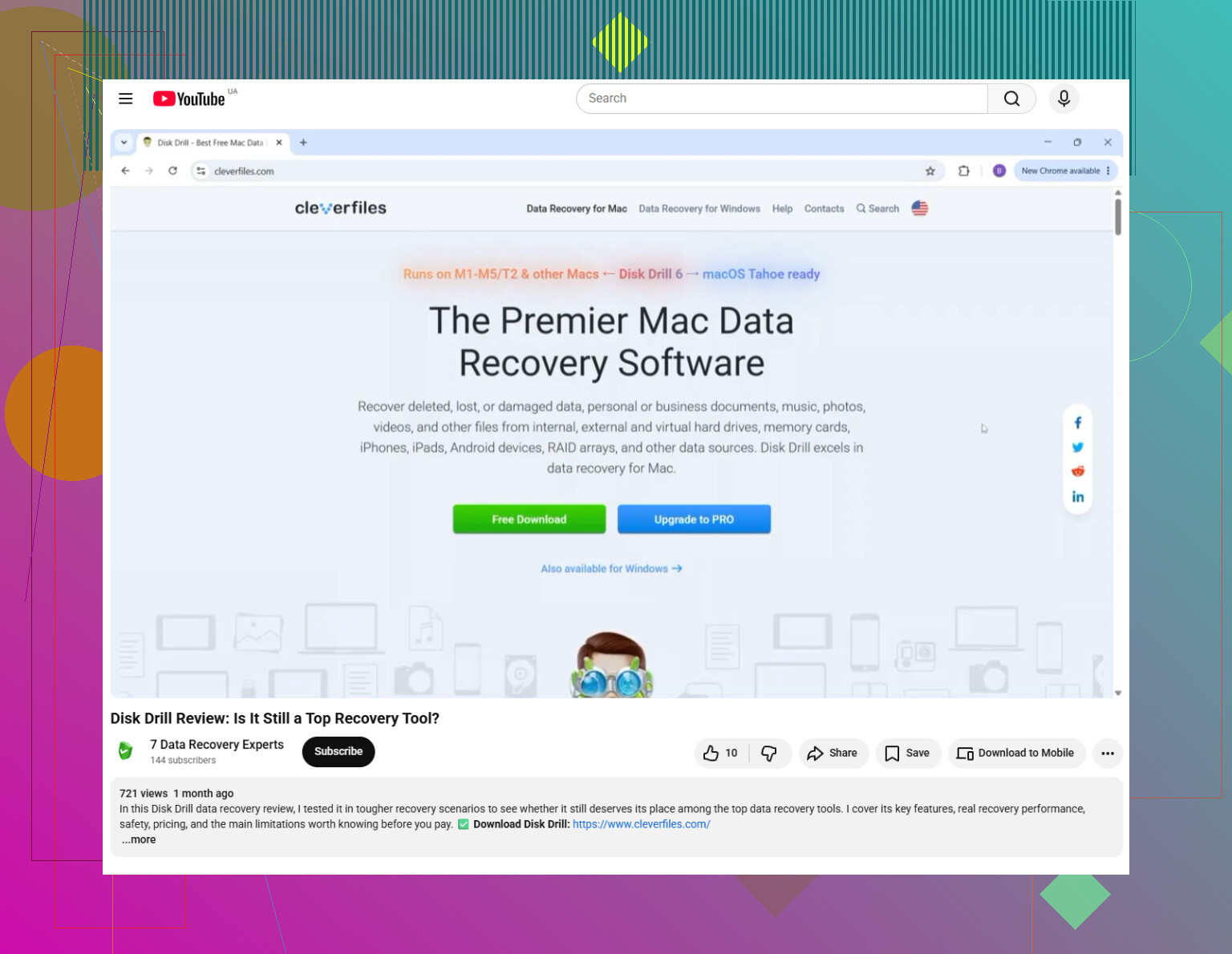
If you want a quick overview of Disk Drill recovery features for formatted drives and PST file scanning, this video is worth a look: see how Disk Drill scans and recovers lost Outlook PST files
Tiny disagree with both replies above on one point: I would not spend much time poking around Windows itself before establishing whether the format was quick/full and whether the drive is SSD or HDD. That info kinda decides the whole strategy.
One extra angle nobody’s stressed enough: check whether the PST was ever indexed, synced, or copied elsewhere before you go all-in on raw recovery.
Formatted drive recovery is the main path, sure. But unlike photos or docs, PST files often leave duplicates in weird places:
- old manual exports on another partition
- Windows File History target drive
- backup software caches
- old laptop migrations
- corporate backup agents
- search index temp copies in rare cases
So yes, follow the “stop using the drive” advice from @codecrafter and the HDD vs SSD warning from @hoshikuzu. I slightly disagree with @mikeappsreviewer only in that Outlook behavior matters less right now than proving whether the original bytes still exist.
My practical order would be:
- Identify drive type: HDD or SSD
- Confirm quick format or full format
- Check for secondary copies outside the formatted disk
- Image the drive if the data is valuable
- Run recovery on the image
- Recover all candidate PSTs to another disk
- Validate each one with scanpst.exe
Disk Drill is a sensible option here because it handles formatted volumes well and can surface PSTs even when directory info is trashed.
Pros of Disk Drill
- good UI for non-tech users
- signature scan helps after formatting
- preview and filtering are useful
- decent for pulling multiple PST candidates
Cons
- large scans can take a while
- recovered filenames/folders may be messy
- if SSD TRIM already cleared blocks, it can’t work miracles
- deep scan results may need manual sorting
If you recover several PSTs, keep all of them. Outlook archives often get split across years, and the “wrong” one may still contain the emails you need.