My iPhone suddenly said storage is almost full, and now I can’t download apps or take many photos. I’m not sure where to look to see how much space is left or what’s using it. I need help finding my iPhone storage settings and checking available storage fast.
I hit the “Storage Almost Full” warning so many times on my iPhone that I started dreading opening the camera. Mine always popped up at the worst time, usually when I needed a long video or a big app update. Apple does show the numbers, but they’re scattered around, and some of them look off until you know what you’re looking at.
Where to check total storage and used space
Start here: Settings > General > iPhone Storage.
This is the main screen worth checking. At the top, you’ll see a colored bar with your used space and total space, something like 184 GB of 256 GB used. If you want the quick answer, this page gives it.
If you want the listed device capacity, go to Settings > General > About, then look for Capacity.
Small gotcha. The capacity shown on the phone often looks lower than the number from the box. Seeing 124 GB on a 128 GB model is normal. iOS takes part of the storage for itself, so you never get the full printed amount as free space.
If the phone is dead and you need the storage size for resale or trade-in, I’d check a few places:
Older iPhones sometimes have details printed on the back.
Some models show info on the SIM tray area.
Your carrier account page might list the model and storage tier.
The original receipt or order email usually has it too.
What is filling the phone
Back in iPhone Storage, scroll down past the graph. You’ll get a list of apps sorted by size. This is where the truth shows up. I found old downloaded shows in a streaming app once, and another time Messages had ballooned because of years of photo attachments.
The storage breakdown usually falls into a few buckets:
Apps
The app itself and related data.Photos & Media
Your photo library, music, podcasts, downloaded media, and similar stuff.System Data
This used to be called “Other,” and yeah, it’s the messy category. It includes caches, logs, fonts, Siri files, and other system leftovers.
Why storage numbers don’t always match
This part confused me for a while.
If you connect the iPhone to a Mac in Finder, or to a Windows PC in iTunes, the storage bar there might not match the one on the phone. Usually the mismatch comes from temporary files and caches. The phone tracks those in real time. During a sync or connection, some temporary junk gets cleared, so the computer view can show more free space than the device screen did a minute earlier.
Also, iCloud storage and iPhone storage are two separate things. You might be paying for 2TB in iCloud and still have a phone with almost no room left. I’ve seen people mix those up a lot.
What low storage felt like on my phone
Once I got down to the last couple GB, my iPhone got weird. Apps hesitated. The camera took longer to open. Typing felt off. Even swiping around the interface felt slower. It wasn’t subtle either. The whole phone had this clogged feeling.
From what I saw, iOS needs some open space to move files around and handle background tasks. When storage gets squeezed too hard, performance drops with it.
What worked for me
I tried the built-in cleanup steps first. Offloading apps helped a little. Deleting old message threads helped a little. Still not enough.
The big problem on my phone was the camera roll. Too many duplicate-ish shots, too many screenshots, too many huge videos I never looked at again.
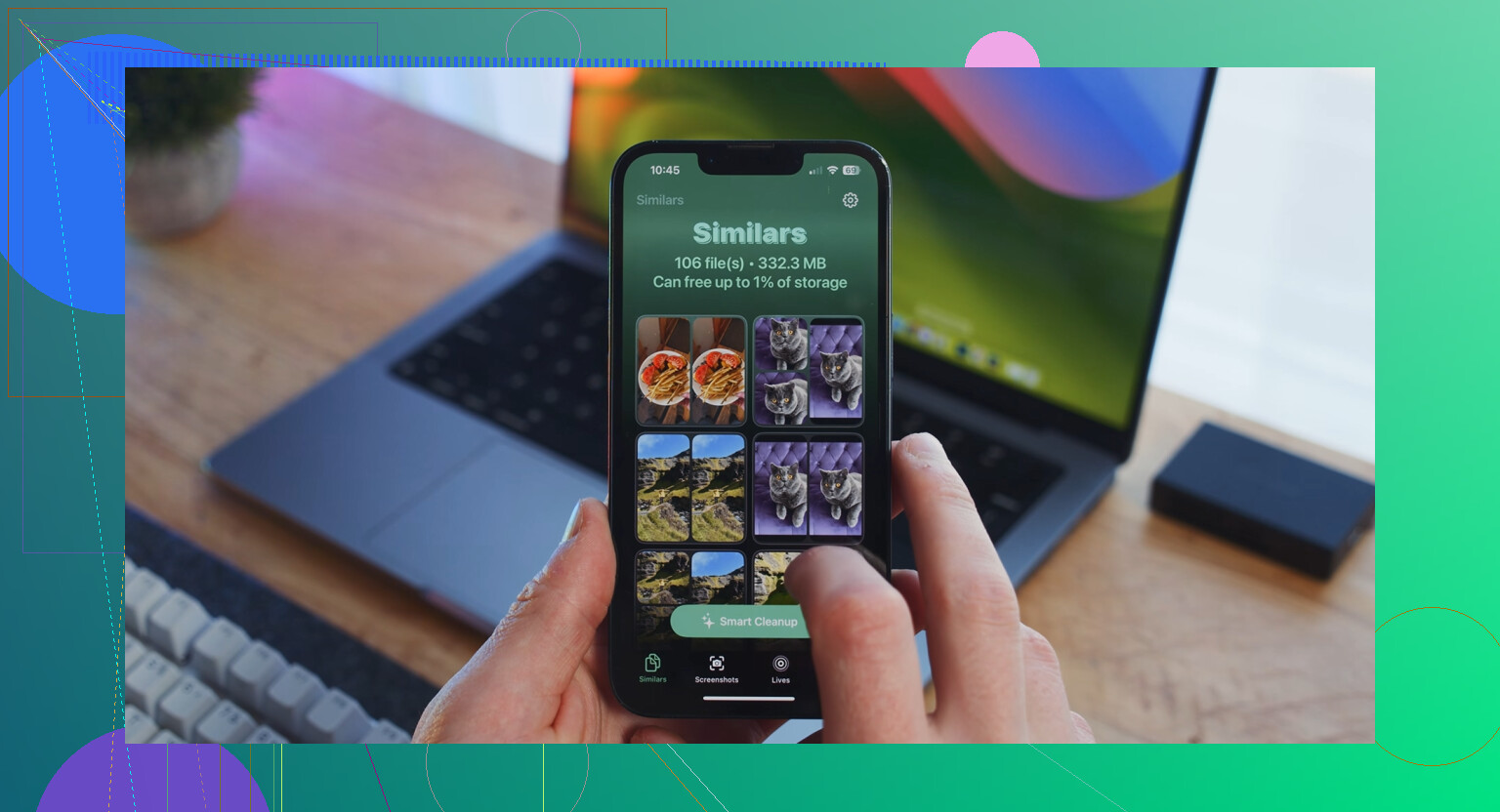
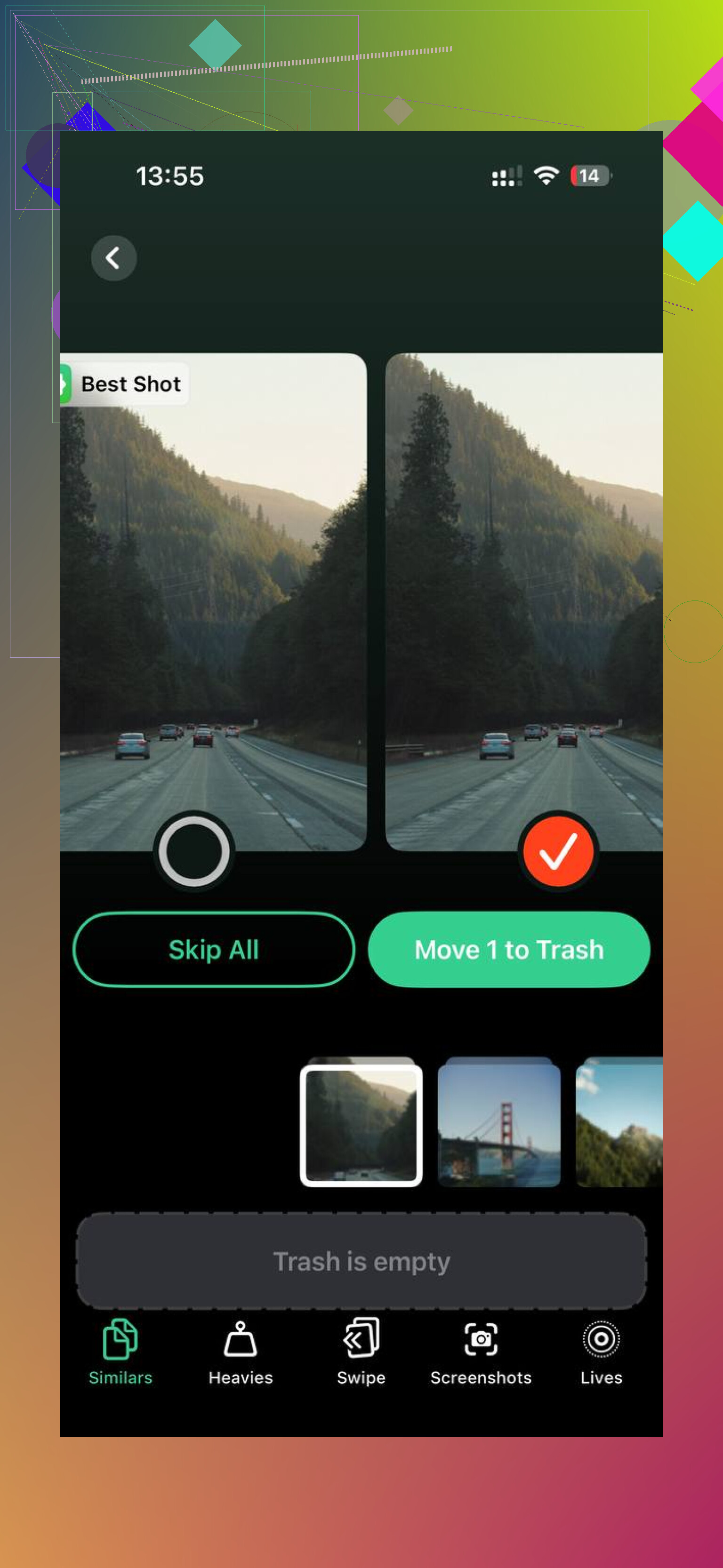
I ended up trying a cleaner app and landed on Clever Cleaner. I was skeptical going in, since a lot of these apps feel sketchy or lock the useful features behind a pay screen. This one felt different from what I used. No ads in my face, no trial trap, no paywall blocking the basic cleanup.
The part I liked most was how it sorted media in a way I could act on fast:
Heavies
Shows the biggest files first, so you remove the worst offenders before wasting time on tiny stuff.Similars
Grouped near-duplicate photos, burst shots, and repeated takes I didn’t need.
It also showed file sizes clearly, even for screenshots, which made cleanup easier because I could see what each deletion was worth. From what I saw, processing stayed on the device, which mattered to me since I didn’t want private photos sent off somewhere.
After one cleanup pass, I freed around 15 GB. My phone stopped dragging right after. Not magic, no, but it fixed the slowdown I was dealing with.
Short version
If your iPhone storage is a mess, check these first:
Settings > General > iPhone Storage for the full breakdown.
Settings > General > About for listed capacity.
Large apps with downloads.
Messages attachments.
Your photo and video library, which was the big one for me.
Once I cleared enough space, the phone felt normal agian. Annoying chore, yeah, but worth doing.
Go to Settings, then General, then iPhone Storage. That screen shows the big picture, used space, free space, and which apps eat the most room. If your phone says 118 GB used out of 128 GB, you’ve only got about 10 GB left. That’s the number you need.
One small thing I’d add to what @mikeappsreviewer said. I wouldn’t rely too much on the About page for cleanup. It shows capacity, sure, but iPhone Storage is where the useful info is. That’s the screen that matters when your phone starts acting dumb.
A few fast checks inside there:
- Tap Recommendations at the top, if shown.
- Look for apps with huge “Documents and Data”.
- Open Photos and check video size first, those files get big fast.
- Check Messages, old attachments pile up like crazy.
- Restart after deleting stuff. iOS sometims updates free space a bit late.
If photos are the problem, Clever Cleaner is worth a look. It helps sort duplicate shots, large videos, and other junk faster than doing it by hand. If you want a quick demo, watch this Clever Cleaner iPhone storage cleanup video.
Also, iCloud space is separate. People mix this up al the time. Buying more iCloud storage does not free your iPhone by itself unless you turn on stuff like Optimize iPhone Storage.
Go one screen deeper than what @mikeappsreviewer and @techchizkid mentioned if you want the practical answer: in iPhone Storage, wait 10 to 20 seconds. Seriously. That page recalculates, and if you leave too fast the numbers can look weird or incomplete. Apple buries that little annoyance.
Also, don’t obsess over the exact “free space” number down to the MB. iOS shuffles cache and temporary files constantly, so it can jump around a bit. What matters is whether you’ve got enough headroom to use the phone normally. If you’re under a few GB left, that’s when stuff starts getting janky.
One thing I disagree with a little: restarting can help, but it’s not some magic storage fix. If your Photos app is eating 60 GB, a reboot isn’t gonna save you.
A couple places people forget to check:
- Safari cached website data
- Downloaded files in the Files app
- Voice Memos
- Offline maps if you use Apple Maps or Google Maps
- Podcast downloads
- Recently Deleted in Photos, because deleted pics still sit there for 30 days
If photos/videos are the main issue, Clever Cleaner is probly the fastest way to sort duplicates, similar shots, and big files without digging through everything manually. If you want a solid read on how these apps compare, this guide on the best AI cleaner apps for iPhone storage cleanup is useful.
Short version:
Settings > Privacy & Security > Analytics & Improvements > Analytics Data is not where you need to be, even though people weirdly end up there.
The real screen is:
Settings > General > iPhone Storage
Then let it load fully and scroll the list. That’s where the truth is lol.