I’m trying to clear up storage and want to delete some message attachments, but I’m worried they might also disappear from my Photos app. Some of these pictures are important, and I’m not sure whether attachments are stored separately or linked to my photo library. I need help understanding what gets deleted before I remove anything.
Deleting message attachments looks easy until you start thinking, 'wait, what else is this going to wipe?' I went through this on my iPhone, checked what moved and what stayed, and the behavior was pretty plain once I tested it.
If you delete an attachment, do saved photos vanish too?
No. If somebody texts you a photo and you hit Save Image, iPhone puts a separate copy into the Photos app. From then on, the one in Messages and the one in Photos are not tied together. Remove the attachment from Messages, and the saved photo in your library stays put.
Does deleting attachments erase the conversation?
Nope. If you remove media from the chat details screen or from iPhone storage settings, you are removing the file, not the text thread. The conversation remains. The image or video goes away.
Why your storage number barely moves at first
I ran into this and thought the delete did nothing. Two things are going on.
First, deleted attachments and messages sit in Recently Deleted for 30 days unless you remove them for good. If you want the space back now, open Messages, tap Edit at the top left, choose Show Recently Deleted, then clear it out fully.
Second, iOS does not always refresh the storage count right away. I had to restart the phone once, and after booting back up the storage total finally changed.
What happens with iCloud
If Messages in iCloud is on, the deletion syncs across devices using your Apple ID. So the attachment disappears from iCloud and from your other Apple gear too. If Messages in iCloud is off, the change stays local to the phone where you deleted it.
Why bulk cleanup in Messages feels bad
I tried Apple’s built-in large attachment review tool in Settings, then General, then iPhone Storage. It works, sort of. The bad part is there is no real Select All option. You end up tapping item by item, which gets old fast if your message history is stuffed with years of videos, screenshots, memes, and random junk.
A quicker way if your phone is packed
When my storage got low, the phone started feeling sluggish. Clearing message attachments helped some, but it did not touch the rest of the clutter in Photos.
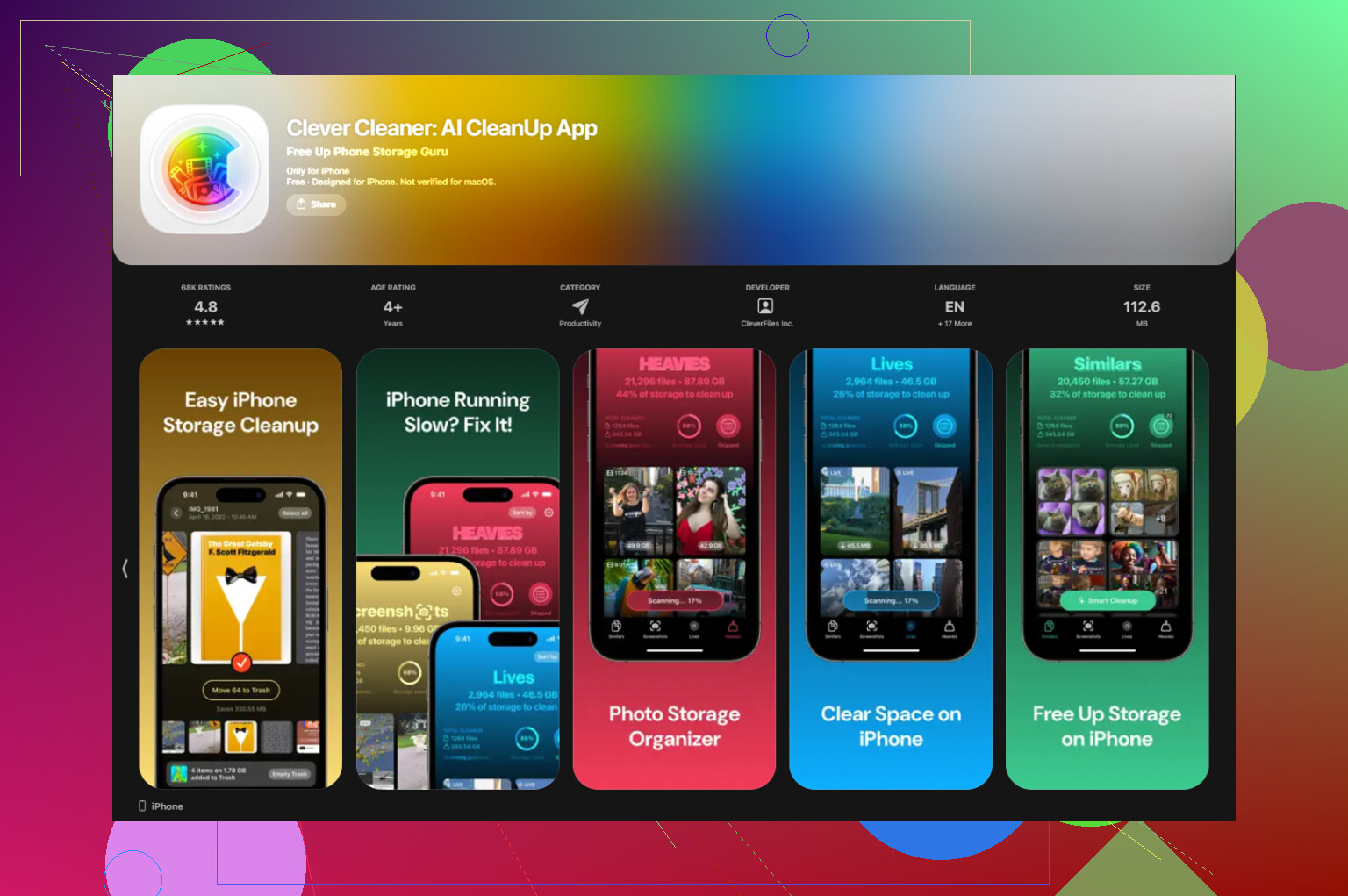
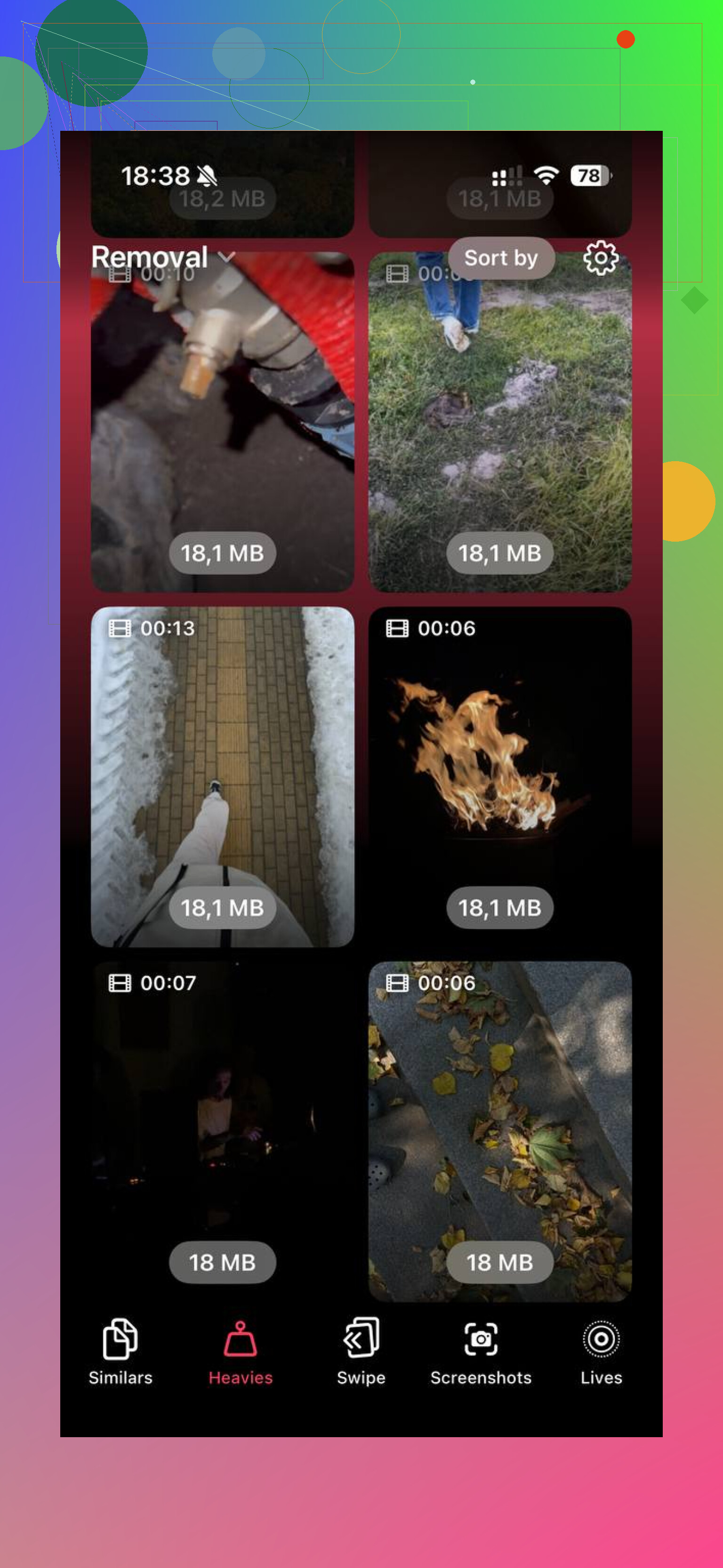
Clever Cleaner was the faster route for me. It is free, has no ads, and no subscription wall. The Heavies section lists your biggest files first and shows the file size right on each thumbnail, so the giant 4K clips and other space hogs are easy to spot. The Similars section groups near-duplicate photos, not only exact copies, which helped me cut out repeated shots and burst leftovers without doing it all by hand. The processing stays on the device, so nothing gets uploaded elsewhere.
After I cleared about 30GB of large videos and screenshots there, then emptied Recently Deleted, the free space showed up right away after a restart. The lag I was dealing with stopped too. For me, the attachment cleanup handled one piece of the problem, and the photo library cleanup handled the rest.
No, deleting an attachment from Messages does not delete the copy in Photos, if you already saved it there.
The key part is this. Messages attachments and Photos library items are usually separate once saved. So if a pic lives in your Photos app, removing it from the message thread won’t wipe it from Photos. I tested this on my iPhone after cleaning up a few GB of old videos and screenshots. The saved image stayed put.
One place I slightly disagree with @mikeappsreviewer is storage impact. For me, message attachment cleanup helped less than expected. Big gains came from cleaning the Photos library itself, not Messages. So if your phone is full, check both.
Fast way to be safe:
- Open the photo in Messages.
- Tap Share.
- Save Image, if you do not already see it in Photos.
- Open Photos and confirm it’s there.
- Then delete the attachment from Messages.
If you use iCloud Photos, the photo saved in Photos syncs as part of your photo library. If you delete from Photos, it disappears from all synced devices. Different system from Messages sync.
If your goal is iPhone storage cleanup, Clever Cleaner is worth a look for large videos, duplicate pics, and similar shots. Also, this Clever Cleaner guide for freeing up iPhone storage fast walks through it in a clean way.
Short version, save first, double check Photos, then delet the attachment. That’s the safest route.
No, deleting an attachment from Messages does not usually delete the version in your Photos app, as long as you already saved it to Photos. That part @mikeappsreviewer and @andarilhonoturno got right.
The one thing I’d add is this: people sometimes assume every photo they can see in a text is also in Photos. Not true. A pic can exist only inside the message thread unless you saved it or it was auto-imported somehow. So before deleting a bunch of attachments, spot check the important ones in Photos first. That’s the part that trips people up.
Also, I kinda disagree with the idea that Messages cleanup is the main storage fix. It helps, sure, but for most people the real storage hog is the Photos library itself, not a few old text attachments. If you’re doing a full cleanup, check both areas or you’ll wonder why you only got like 800 MB back lol.
If you want a faster way to clean your photo library too, Clever Cleaner is solid for finding large videos, duplicates, and similar shots. I found this free iPhone cleaner app review for removing duplicate photos and large videos pretty useful.
Short version:
- Delete from Messages = removes it from Messages
- Delete from Photos = removes it from Photos
- Saved copies in Photos are separate
Just verify the important stuff is actaully in Photos first. That’s the safe move.
Mostly no. Deleting an attachment from Messages does not delete the version in Photos if that photo was already saved into your library.
Where I’d slightly push back on @andarilhonoturno and @yozora is that people often treat Messages and Photos as fully separate in every case. They usually are, but the real risk is simple: some images were never saved to Photos at all, so deleting the message attachment can be the only copy you had on the phone. That is the part to watch.
A couple of edge cases nobody really stressed enough:
- If Messages in iCloud is on, deleting the attachment removes it from your other Apple devices’ message history too.
- If you save to Photos and use iCloud Photos, that saved copy follows Photos rules, not Messages rules.
- If you delete from Photos later, it can vanish everywhere synced through iCloud Photos.
Also, I agree with @mikeappsreviewer only halfway on storage cleanup. Messages attachments help, but for a lot of people the bigger win is trimming giant videos, duplicates, and near-duplicates in the Photos library itself. That is where Clever Cleaner can be useful.
Pros of Clever Cleaner:
- good at surfacing large files fast
- helps find duplicate and similar photos
- easier than manual scrolling
Cons:
- similar-photo suggestions still need human review
- not everyone wants a separate cleanup app
- it will not replace checking important images manually
Safest rule: if a photo matters, confirm it appears in Photos before removing it from Messages.