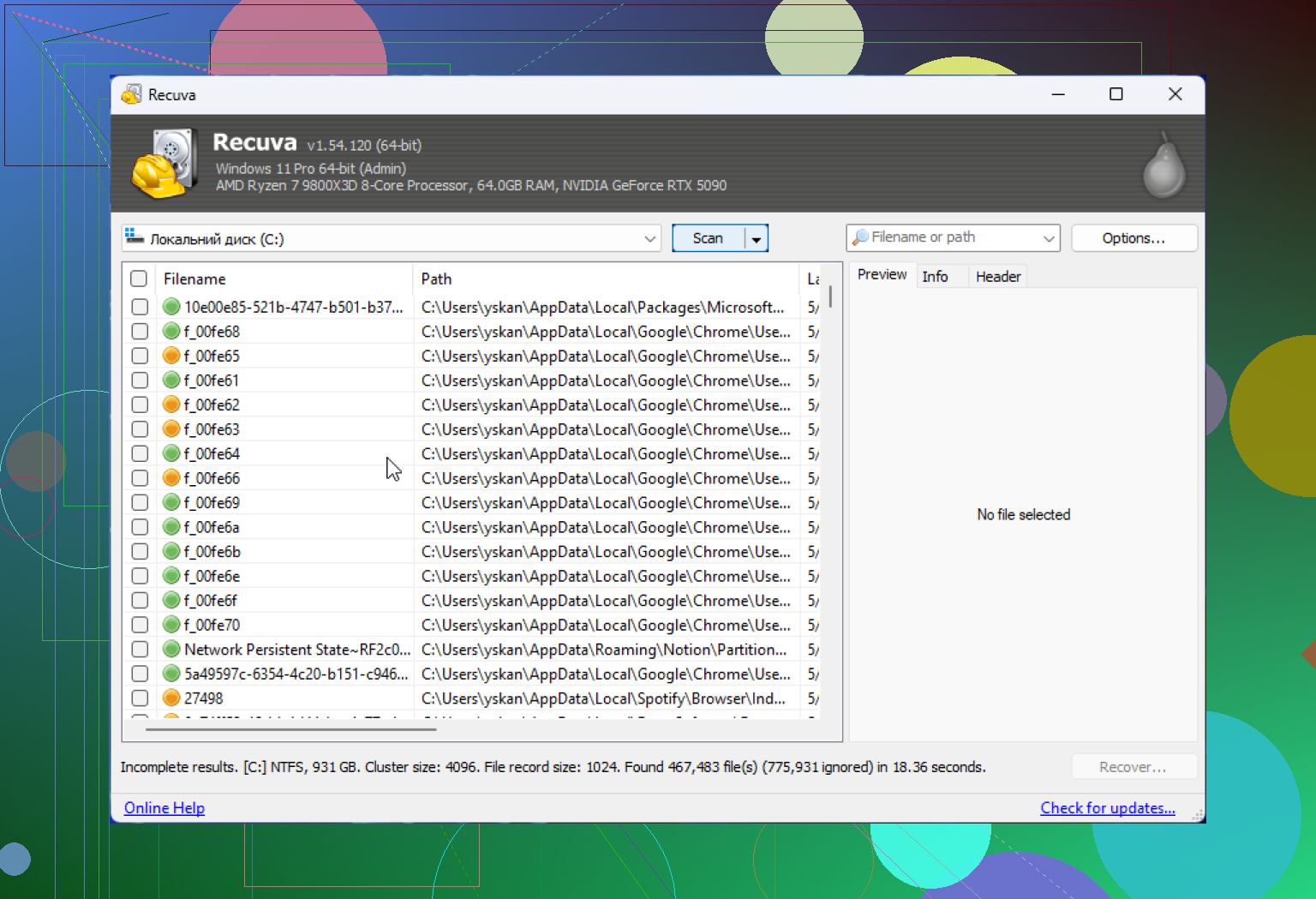
I accidentally deleted important files and I’m thinking about using Recuva to get them back, but I’m worried it could make things worse or mess up my hard drive or SSD. I need help understanding if Recuva is safe to use, what risks to avoid, and the best way to recover deleted files without causing more data loss.
People ask this all the time, and I never thought the answer fit into a clean yes or no. If you want the short version, yes, Recuva is safe to run. It is not malware. It is not some fake recovery app waiting to trash your PC. Still, “safe” means a few different things. There’s the installer itself, there’s your privacy, and there’s the risk of making your deleted files harder to recover by using it the wrong way.
I’ve used a pile of recovery tools over the past few years, including Recuva on old laptops, USB sticks, and one ugly external drive situation I still regret. So here’s the plain version of what I’d tell someone in 2026.
About the malware rumors
A lot of the fear around Recuva traces back to the CCleaner mess in 2017. Same company lineage, same stain on the name. Piriform got hit by a supply chain attack, and a hacked CCleaner build went out through an official channel. That part was real, and people remember it for good reason.
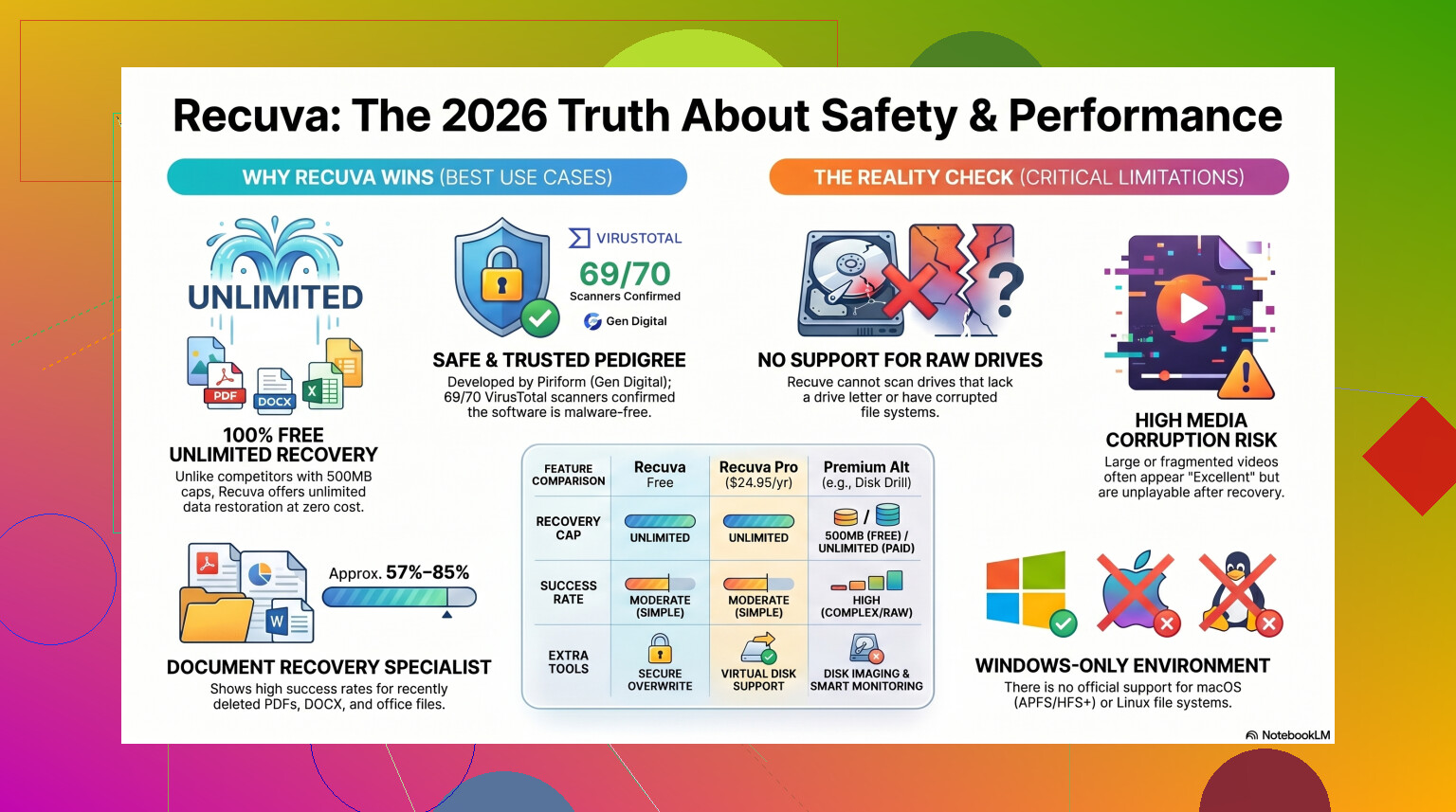
Still, we’re years past it now. Piriform ended up under Avast, and later under Gen Digital, which also owns Norton. Current Recuva builds get checked a lot more closely than they used to. I ran recent installers through VirusTotal before putting them on a test machine, and the results were mostly clean. Once in a while you’ll see a weird flag from some tiny antivirus engine nobody uses. I’ve seen those too. Most of the time it’s heuristic noise because recovery tools poke around low-level disk structures, and scanners don’t always like software doing that.
If you get Recuva from the official source, the virus risk is low.
Privacy, and the part people skip over
This is where I got more picky. Safe from malware does not mean private by default.
Under Gen Digital, the app and surrounding services collect some system and network info. Things like your IP address, device identifiers, Windows version, and location data tied to fraud checks or license handling. None of this shocked me, but I still turned it off where I could.
If you install it, open Options, then Privacy, and uncheck 'Help improve our other apps by sending usage data'. I do this before I scan anything. You should too.
One detail worth knowing, they keep IP address data for up to 36 months before anonymizing it. Some people won’t care. Some will hate it. I’d rather know up front than pretend a free utility comes with zero tracking.
The part where users wreck their own recovery job
This is the mistake I keep seeing. Recuva usually does not destroy your files. People do.
If the deleted files were on drive C, don’t install Recuva on drive C. Don’t save its portable package there either if you can avoid it. When a file gets deleted, Windows often removes the reference to it and marks the space as free. The old data may still sit there until something else writes over it. If your installer lands in the same area, you’ve done the damage yourself.
Best move, use the portable version from a USB stick. Run it from there. Then recover files to another disk, not back onto the one you’re scanning.
I know this sounds obvious after the fact. In the moment, people panic and click through. That’s how good files turn into dead files.
How well it works now
Here’s where my opinion got less generous.
Recuva still works fine for simple undelete jobs on Windows. If you emptied the Recycle Bin ten minutes ago, or pulled the wrong folder off a healthy flash drive, it’s still one of the easier free tools to try. It runs fast. The interface is old, but clear. The wizard helps if you don’t want to think much.
Once the problem gets messy, Recuva starts showing its age.
The core of it feels old because it is old. It never got the kind of full rebuild I hoped for. There were maintenance updates, sure, including ones to keep it alive on newer Windows versions, but it still behaves like a lightweight undelete app from another era.
Some examples from my own use and test drives:
- RAW drives. If Windows says the drive is RAW or asks you to format it, Recuva often won’t help much. Sometimes it won’t detect the partition in a useful way at all.
- Formatted USB drives. Recovery results are uneven. In tests people cite, success lands around 63% to 67%. That lined up with what I saw. Some files came back. A bunch didn’t. Some looked recovered until I opened them.
- Corrupted output. This one stings. Recuva might mark a JPG as recoverable, even “Excellent,” then the file opens to nothing or throws an error. I saw this on photos and short video clips.
- Folder structure. It often falls apart. You end up with a heap of renamed files in one folder, and sorting 10,000 mystery images is its own punishment.
So yes, it’s safe to try. No, I would not trust it with irreplaceable data if the drive is in bad shape or the deletion happened a while ago.
When I’d stop using it
If your files matter, I would not spend all day retrying scans with Recuva after the first weak result.
Every scan puts more read stress on the device. On a healthy SSD or HDD, that may not matter much. On a failing disk with clicks, disconnects, or read errors, wasting passes on a weak tool is a bad bet. I learned this the hard way on an old external drive. By the time I switched tools, the drive had gotten worse and some sectors were gone for good. Maybe they were already toast. Maybe not. I still wish I had stopped sooner.
If Recuva misses the files, returns damaged files, or refuses to work with the partition, move on.
What tends to work better
For harder recovery jobs, I had better results with Disk Drill. I don’t mean in a vague “felt nicer” way. I mean on damaged partitions, RAW volumes, and media files Recuva either skipped or mangled, it did more.
What stood out to me:
- RAW and broken partitions. It handles cases Recuva tends to choke on.
- Higher recovery rates. Real world testing often puts it around 95% to 97% on formatted drives, which is way above what I’ve seen from Recuva.
- Byte-to-Byte Disk Imaging. This matters more than people think. You clone the failing drive first, then scan the clone. If the original drive dies during analysis, your image is still there.
- Media file support. If you work with camera RAW files, large videos, or fragmented footage, Recuva gets rough fast. Disk Drill did better for me with Nikon and Canon file types, plus mixed video chunks from SD cards.
If you want a side-by-side look, this covers the comparison in a more practical way:
What I’d tell a friend
Use Recuva if all of these are true:
- You deleted files recently.
- Your Windows drive is still healthy and readable.
- You need a free first try.
- You’re willing to keep expectations low.
If you do use it, this is the routine I’d follow:
- Download it from the official site only.
- Pick the portable version if you have the option.
- Turn off usage sharing in the privacy settings.
- Recover files to a different drive.
- Stop after a bad result instead of hammering the disk.
So, yes, Recuva is safe in the normal malware sense. I’d still call it limited. Fine for easy mistakes. Risky to rely on for anything serious. If the files are important, treat the first recovery attempt like it matters, because it does. I’ve seen people lose data by waiting too long, scanning too many times, or writing right back onto the same disk. Don’t do waht they did.
Recuva is safe in the sense that it will not ‘mess up’ a healthy drive by itself. It reads the file system and looks for deleted entries. Reading is not the danger. Writing is.
The risk is your next move. If you install Recuva onto the same drive where the deleted files lived, or recover files back onto that same drive, you lower your recovery odds. SSDs are worse here because TRIM wipes deleted blocks fast. On many SSDs, once TRIM ran, Recuva and most other tools find little or nothing. HDDs give you better odds.
One spot where I differ a bit from @mikeappsreviewer. Repeated scans do not usually hurt a healthy HDD or SSD in any meaningful way. If the drive is failing, clicking, dropping offline, or throwing SMART errors, then stop. In that case, image the drive first or move to a stronger tool.
My short take:
- Safe app, if downloaded from the official source.
- Unsafe process, if you write to the same disk.
- Weak choice for SSD TRIM cases, formatted drives, corrupted partitions, and damaged media.
If the files matter, use a USB, run recovery from there, and save output to another disk. If Recuva shows junk names, zero-byte files, or broken previews, switch fast. Disk Drill tends to do better on tougher jobs and gives you a cleaner path for scanning problem drives. This guide to top-rated data recovery tools is useful too: compare the best data recovery software for deleted files
So yes, Recuva is safe. Your drive is at risk from overwrite, not from the app itself. If this is an SSD and the files are important, dont waste too much time.
Recuva itself is usually safe. It is a legit Windows file recovery tool, not something that normally ‘damages’ a drive just by scanning it. The bigger issue is whether your recovery attempt changes data on the drive before the deleted files are copied off.
I agree with parts of what @mikeappsreviewer and @viaggiatoresolare said, but I think people overstate the idea that a scan alone is the danger. On a healthy drive, scanning is mostly just reading. The real screw-up happens when Windows keeps using that disk in the background, or when you recover files back onto the same partition. That is what kills recoverability.
A few practical points:
- If this is an HDD, Recuva can be a decent first pass for recently deleted files.
- If this is an SSD, your odds may already be bad because of TRIM. That is true even if you do everything right.
- If the drive is making noises, freezing, disconnecting, or showing SMART issues, stop messing with it. Recovery software is not the first move then.
- If the files are truly important, the safest route is usually to minimize use of the drive immediately, not keep experimenting.
Also, Recuva is kind of old-school now. Fine for simple deletes, not great for uglier cases like damaged partitions, reformatted media, or partially corrupted file systems. That’s where Disk Drill usually makes more sense, especially if you want better file previews or a more modern scan engine. Not saying Recuva is ‘bad,’ just a bit dated.
For basic background, this overview of Recuva file recovery software explains what it is.
Short version: Recuva probably won’t mess up your drive by itself, but the wrong recovery process absolutley can. If the data matters, be careful what gets written next.