My old iPad has gotten extremely slow and now it takes forever to open apps, load websites, and even respond to basic taps. I’ve already tried restarting it and clearing some storage, but it’s still barely usable. I need help figuring out what could be causing this and what fixes might actually make my iPad faster again.
Older iPad feels slow now? What helped mine
I had an older iPad go from ‘fine’ to weirdly sluggish. Apps took too long to open. Safari dragged. Even hopping around Settings felt off. Mine wasn’t dead, it was clogged up. A few changes helped more than I expected.
First thing I did, restart it
Yeah, obvious. I still skipped it for too long.
If your iPad has been running for days or weeks, junk builds up in memory and background tasks keep hanging around. A full shutdown and boot clears some of that out. Before you start flipping random settings, do this once.
Three changes that gave me instant improvement
1. Turn off Background App Refresh
Path: Settings > General > Background App Refresh
I shut this off completely.
A lot of apps keep checking for new content while you aren’t using them. On older iPads, that idle activity adds up. Turning it off won’t stop notifications, but it does stop a bunch of background churn.
2. Turn on Reduce Motion
Path: Settings > Accessibility > Motion > Reduce Motion
This one made the iPad feel faster even when raw speed didn’t change much.
The default zoom animations take more graphics work. Reduce Motion swaps those effects for simpler transitions. On aging hardware, the UI tends to feel snappier right away. Mine did.
3. Clear Safari history and website data
Path: Settings > Safari > Clear History and Website Data
If web browsing is the worst part, I’d do this early.
Old cookies, cached site junk, and years of saved browser data slow Safari down on their own. I cleared mine and a couple problem sites stopped stuttering so much. You’ll get logged out of some pages, so keep that in mind.
Check iPadOS before you go further
Path: Settings > General > Software Update
Sometimes the lag starts after an update, and Apple patches it later. I’ve seen one minor release fix weird slowdowns from the previous build. If your iPad supports a newer version, install it and rule that out first.
The big one most people miss, storage
This was the main issue on mine.
When storage gets tight, iPadOS loses breathing room for temp files, caches, and routine system work. The slowdown creeps in over time. You don’t wake up one day and think it broke. It’s more like, over a few months, everything gets heavier.
If your storage is close to full, performance usually drops across the board.
Clearing space matters more than tweaking settings
You can do it by hand. Screenshots, duplicate photos, old screen recordings, giant videos you forgot existed. It works, but it takes forever once your library gets messy.
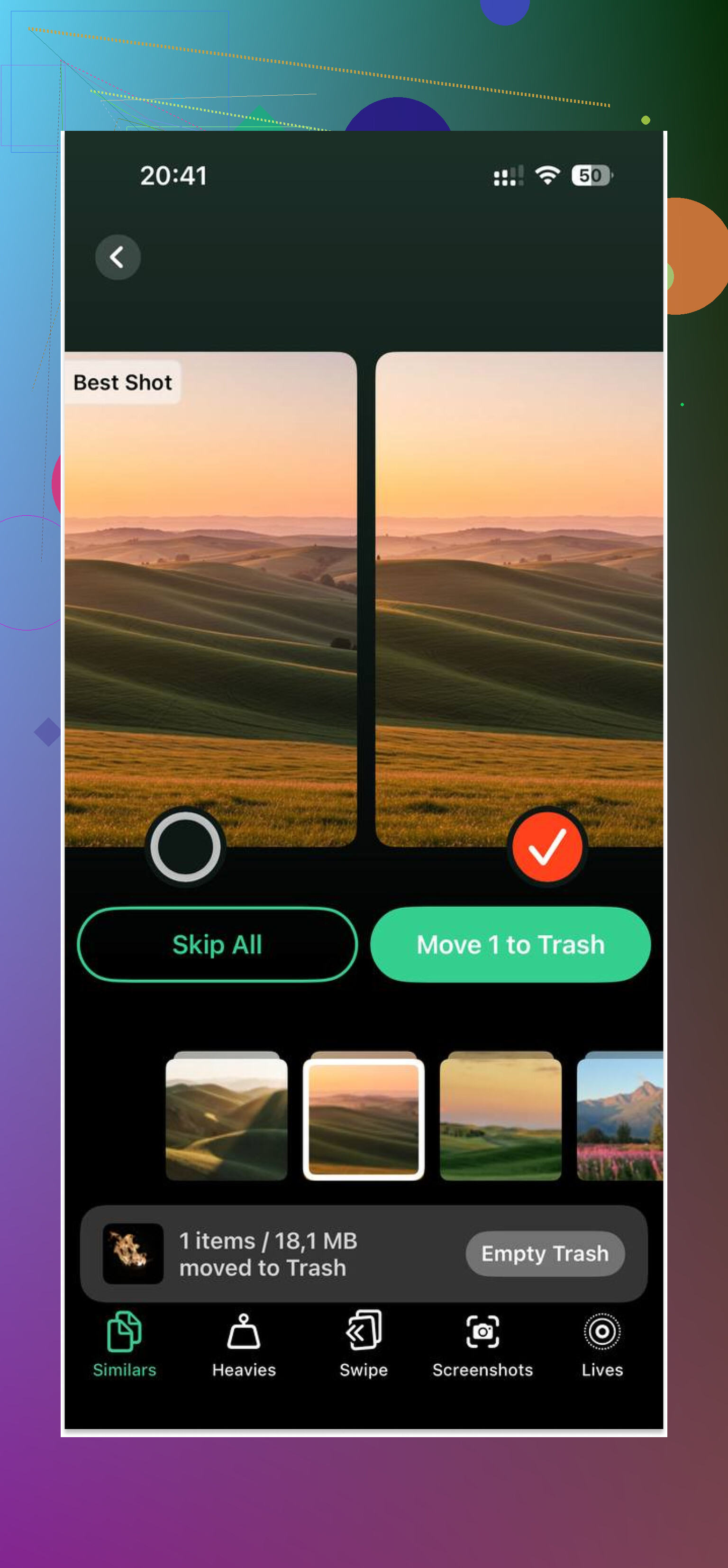
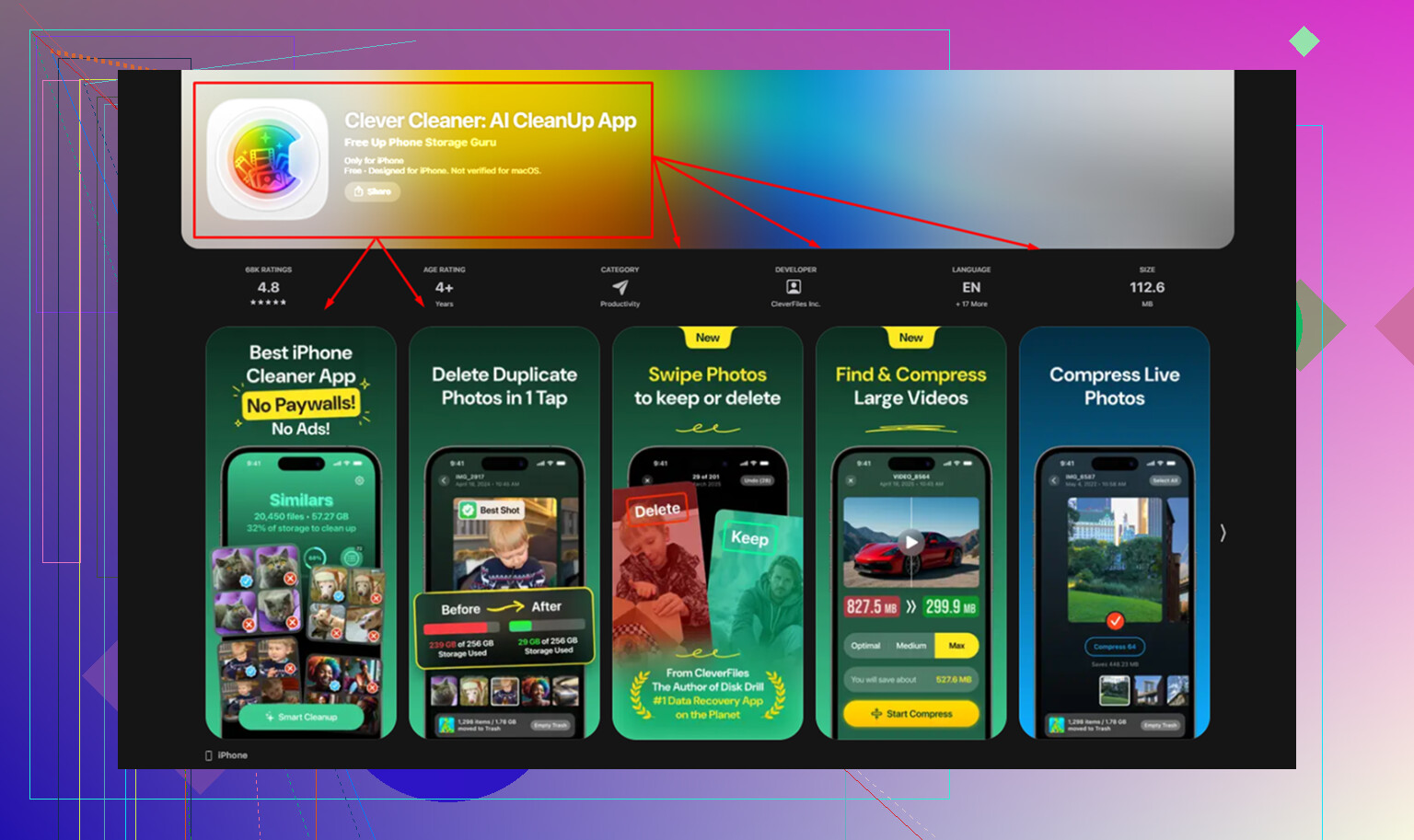
I used Clever Cleaner for this part. The useful bit for me was seeing large files sorted by size in the Heavies tab. I found a couple huge videos fast, one was over 2GB and I had zero memory of saving it. The Similars tab also grouped near-duplicate photos and picked a best shot, which cut down the photo pile without much effort.
It runs on-device, which I preferred. After freeing around 5GB, my iPad felt less bogged down. App launches were still not new-iPad fast, but the random lag eased up enough to keep using it.
Replace it or keep trying?
If you haven’t done the stuff above, I wouldn’t give up on it yet.
My order would be:
- Restart
- Disable Background App Refresh
- Enable Reduce Motion
- Clear Safari data
- Update iPadOS
- Free up storage
If it’s still crawling after all of that, the last thing I’d try is a factory reset.
Path: Settings > General > Transfer or Reset iPad > Erase All Content and Settings
Back it up to iCloud first. Setup after a reset is annoying, no point sugarcoating it. Still, if you want the closest thing to a clean slate without buying new hardware, this is it. On older iPads, a reset sometimes brings back a lot of the speed people thought was gone for good.
If it’s taking forever to respond to taps, I’d look past the usual storage tips first. @mikeappsreviewer covered a lot of the common fixes. I don’t fully agree on updating iPadOS right away on old hardware. Sometimes a newer build makes an aging iPad feel worse, not better.
Try these instead.
-
Check battery health, if your model shows it, or have Apple run diagnostics. Old batteries cause throttling. Performance drops hard when the battery is worn out.
-
Turn off widgets and extra Home Screen pages. Widgets eat RAM and background resources. On older iPads with 2GB RAM, that matters.
-
Remove bad apps, not all apps. Facebook, heavy games, VPNs, ad blockers, and bloated browser apps are common lag sources. If the iPad speeds up in Safe-ish use after deleting a few, you found the problem.
-
Reset all settings.
Settings > General > Transfer or Reset iPad > Reset > Reset All Settings
This does not erase your files. It clears broken settings, network junk, and old system prefs. I’ve seen this fix weird touch lag. -
Test Safari with content blockers off. Some blockers slow page rendering on old chips.
-
Open Analytics Data.
Settings > Privacy & Security > Analytics & Improvements > Analytics Data
If you see the same app crashing over and over, delete it.
If photos are eating space again, Clever Cleaner is decent for finding large videos and duplicate pics faster. I’d use it for cleanup, not as a magic speed fix. This Clever Cleaner review for faster photo cleanup on iPhone and iPad gives a solid overview.
If none of this helps, backup the iPad and do a full restore through a computer, not an on-device reset. That works better on old Apple stuff in my expereince.
If it’s lagging on basic taps too, I’d stop treating it like a storage-only problem. @mikeappsreviewer and @sternenwanderer already covered the usual cleanup path, but one thing I’d check is whether the iPad is struggling on Wi-Fi, system-wide, or both. That matters.
A few things I’d try that are a little diffrent:
-
Disable Location Services for junk apps
Settings > Privacy & Security > Location Services
Weather, shopping, food, random retail apps love polling location. On old iPads this can get dumb fast. -
Turn off Siri Suggestions/Search clutter
Settings > Siri & Search
Disable suggestions in Search and Home Screen for apps you don’t care about. It cuts some background indexing. -
Mail can be a hidden slowdown
If you use the built-in Mail app with several accounts, set Fetch to manual or hourly
Settings > Mail > Accounts > Fetch New Data -
Remove web app icons / sketchy profiles
Old iPads sometimes get weird after years of school/work profiles, VPN leftovers, beta profiles, etc.
Settings > General > VPN & Device Management -
Check if one tab in Safari is nuking performance
A single bloated site can make the whole browser feel broken. Try a diff browser for 5 mins just to test.
Also, if Photos is still massive, Clever Cleaner is actually useful for finding giant videos and duplicate pics quicker, not magic, just faster cleanup. This thread is worth a skim if you want a more real-world take on it: see what Reddit users say about Clever Cleaner for iPhone and iPad cleanup
Hot take: I don’t always agree with updating an ancient iPad right away. Sometimes it helps, sometimes it turns the thing into a decorative coaster lol.
If none of that changes anything, backup and do a full restore from a computer, not just on-device. That’s the point where you find out if it’s software cruft or just old hardware being old.
I’d actually check heat before doing more resets. If the iPad gets warm just sitting on the Home Screen or while charging, performance can tank because iPadOS throttles hard. That’s different from low storage or a messy browser.
A few things not covered much yet by @sternenwanderer, @himmelsjager, and @mikeappsreviewer:
- Use Low Power Mode for a day and compare responsiveness
- Turn off auto-downloads for apps, books, updates
- Disable transparency
Settings > Accessibility > Display & Text Size > Reduce Transparency
On some old models this helps more than Reduce Motion - Check charging behavior
Cheap cables/adapters can cause weird heat and sluggishness while plugged in - Test offline
Put it in Airplane Mode and try opening Settings, Notes, Photos. If it’s still laggy there, it’s not your Wi-Fi
One mild disagreement: I would not keep piling on cleanup apps if the lag is happening on basic taps. That usually points to aging hardware, battery, heat, or corrupted system stuff.
That said, Clever Cleaner is fine for one specific job: finding giant videos, duplicates, and photo clutter fast.
Pros: easy to scan, good for big media cleanup, less manual digging.
Cons: won’t fix touch lag by itself, limited value if your storage is already okay, another app still uses some space.
If offline performance is awful too, skip tinkering and do a computer restore in Finder/iTunes, then set it up as new temporarily before restoring your backup. That test tells you way more than another round of toggles.