My USB drive suddenly says it needs to be formatted before I can use it. It contains important files, so I’m looking for a safe way to fix the USB format error and recover my data without formatting the drive.
Do not format the USB yet. That Windows message usually means the file system has become corrupted or unreadable, often after the drive lost power or was unplugged while still working. Your photos, documents, and videos may still be on it even though Windows cannot access them normally.
I’ve dealt with this more than once, and the safest approach is to recover the files first, then format the drive afterward. Formatting now can overwrite file system information and make recovery more difficult.
I normally use Disk Drill for this. Before scanning, create a byte-to-byte backup of the USB if possible. A drive showing this error could have bad blocks or failing hardware, and repeatedly scanning the physical device puts more strain on it. Disk Drill can make a complete disk image, which you can load using “Attach Disk Image” and scan instead of working directly from the USB.
Select the USB or attached disk image, then click “Search for lost data.” Let the Universal Scan finish if you can. It uses file signatures to locate data, so it can still find files when the drive appears as RAW or the original file system is badly damaged. It supports roughly 400 file types, including photos, documents, and video formats.
You can also click “Review found items” before the scan is finished. The results are grouped into categories such as Pictures and Documents. Use the eye icon to preview anything important. If a file opens correctly in the preview, that’s a strong sign it can be recovered intact.
Choose the files you want and click “Recover,” but save them somewhere else. Your computer’s internal drive is fine. Do not recover anything back onto the damaged USB because that could overwrite other files you still need.
Once everything important is safely copied to your computer, you can format the USB and make it usable again. exFAT is a practical choice if you use the drive across different devices, while NTFS may make more sense if it stays with Windows.
So the order matters: make an image if possible, recover the data to another drive, verify the recovered files, and only then format the USB. It takes a little longer, but it avoids turning a readable corruption problem into permanent data loss.
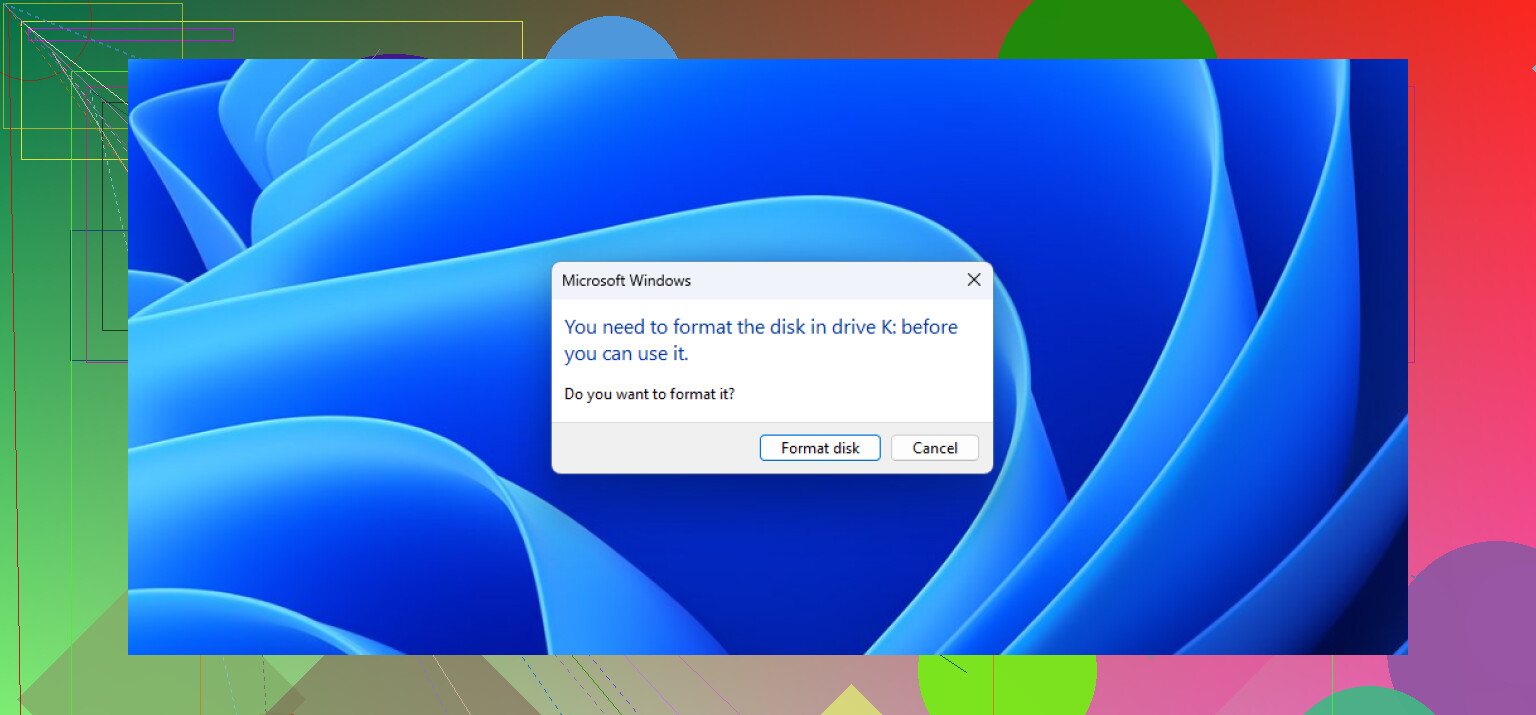
The risky part is that Windows “repair” commands can change the file system, so running CHKDSK immediately may make recovery harder rather than easier. I would not use chkdsk /f, initialize the disk, or accept any format prompt until the important files are copied elsewhere.
First, try a different USB port and another computer, preferably without a hub. Then check Disk Management. If the drive shows its normal capacity but the partition is RAW or unreadable, the recovery-first approach @mystic_cache711 described makes sense. Scan an image or clone if possible, and save recovered files to a different drive.
If Disk Management shows “No Media,” 0 bytes, or a wildly incorrect capacity, that points more toward controller or hardware failure. Recovery software, including Disk Drill, may not be able to read it at all. In that situation, repeated plugging, scanning, and repair attempts are a bad bet. For genuinely irreplaceable data, a recovery lab is safer. Format the USB only after you have opened and verified the recovered copies.
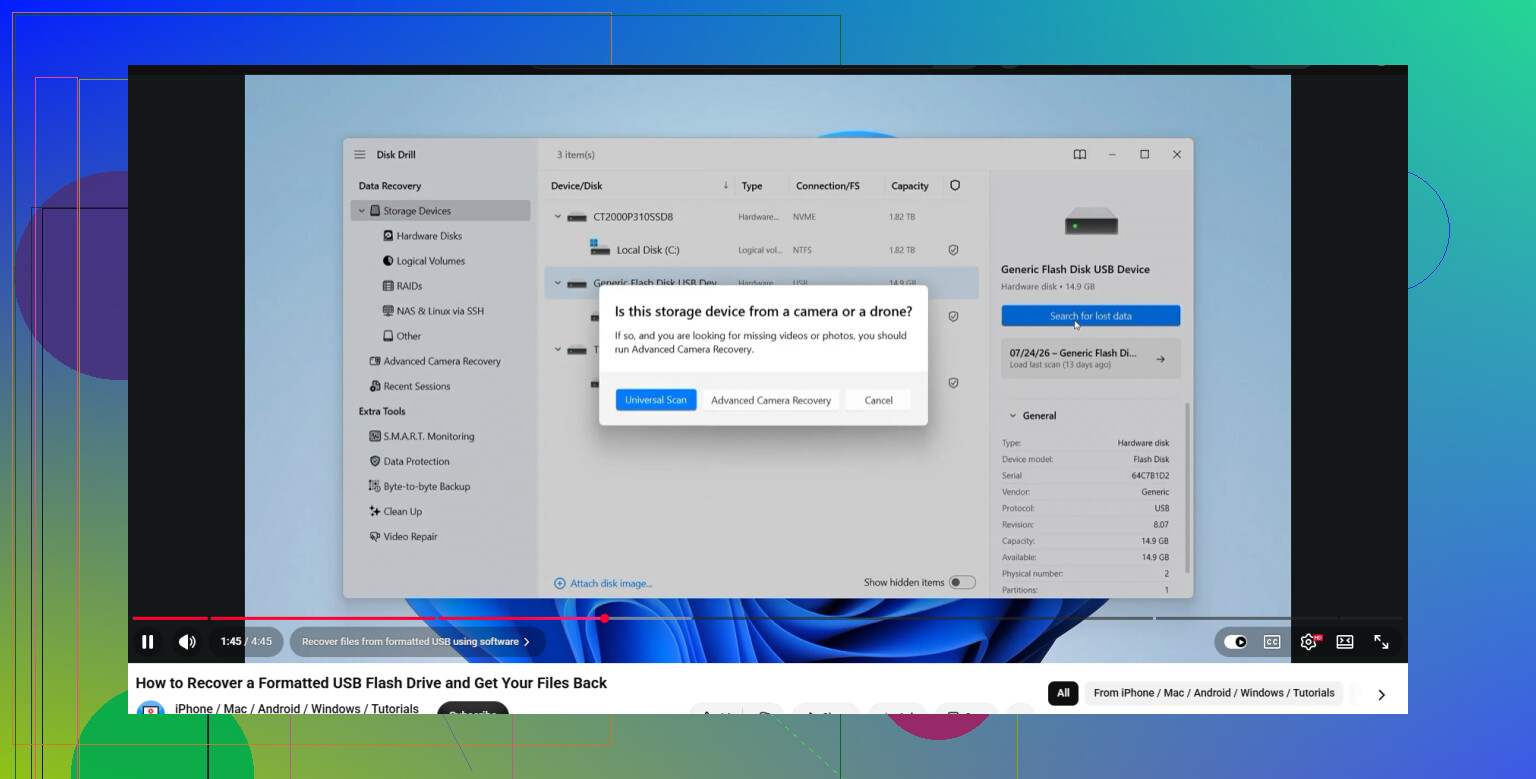
There may be no true “fix without data loss” if the file system is already damaged. The safest move is to treat the USB as read-only and recover the files first, as @rapidninja3061one said. Before paying for Disk Drill, you could image the drive and try a free recovery tool such as PhotoRec, though it may lose original filenames and folder structure. Whatever tool you choose, never install it on the USB or save recovered files back to it.
Windows may reject a damaged file system while Linux can sometimes still read it. If you’re comfortable using a Linux live USB, mount the drive read-only and copy the files elsewhere before trying Disk Drill or any repair command.
That format prompt does not automatically mean the USB is corrupted. It can mean Windows simply does not understand the file system. A drive formatted as APFS or HFS+ on a Mac, or ext4 on Linux, may look perfectly healthy on its original system while Windows offers to format it. If this USB was ever used with another operating system, game console, camera, DVR, or phone, try reading it on that type of device before treating it as a recovery job.
The useful comparison is what Disk Management reports versus how the drive behaves:
If it shows the correct capacity and a normal partition, the USB is probably readable at the hardware level. A RAW label suggests file-system damage, while an unfamiliar partition can point to a compatibility issue. Neither situation calls for formatting yet.
If it keeps disconnecting, causes Windows to freeze, becomes unusually hot, reports 0 bytes, or changes capacity between attempts, that is closer to physical failure. In that case, trying five different recovery programs is worse than making one image or clone. Every full scan reads the entire drive again.
If the files appear normally on another computer, copy them immediately rather than trying to “fix” the USB in place. That is faster and preserves filenames and folders. Recovery software is the fallback when ordinary copying is no longer possible. Signature-based recovery through tools such as Disk Drill or PhotoRec may retrieve the contents, but badly damaged file systems can leave you with generic filenames and no original folder layout.
I agree with the warnings about CHKDSK, but there is another distinction worth making: CHKDSK is a repair tool, not a data recovery tool. Its goal is to make the file system consistent. It can discard damaged directory records while doing that, which may leave the drive mountable but make some missing files harder to recover. That tradeoff may be acceptable for an unimportant USB. It is a poor first move when the only copy of important data is on it.
The Linux suggestion from @apitech7 is useful when Windows is the problem, but mount read-only if possible. Do not let the desktop automatically offer to repair the volume. A Mac is the better first test if the USB may have been Mac-formatted.
Whichever route you take, compare a few recovered files with what you expect before formatting. A filename appearing in the results does not prove the file is intact. Open several documents, view photos at full size, and play videos past the first few seconds. Only erase the USB after the important copies have been checked and preferably duplicated to a second location.
A full image needs free space equal to the USB’s entire advertised capacity, not merely the size of the files you remember saving. A 128 GB USB needs roughly 128 GB of free space for its image. The destination drive should use NTFS or exFAT too, since FAT32 cannot hold a single image file larger than 4 GB.
If the USB stays connected and reports the correct capacity, imaging it before recovery is still the least destructive route. For a drive that throws read errors or stalls, a rescue-oriented copier such as GNU ddrescue is preferable to a normal file copy. It records its progress, skips unreadable areas on the first pass, and can resume later instead of starting from zero. That matters with unstable flash media.
Work only from the completed image afterward. You can attach it in Disk Drill or scan it with PhotoRec, then recover files to a separate disk. Keep the original USB unplugged while reviewing results so there is no chance of selecting it as the recovery destination by mistake.
If the device disconnects during imaging, becomes very hot, or changes capacity, stop. @rapidninja3061one is right that “No Media” and 0-byte reports are a different class of problem. Software cannot recover sectors that the USB controller no longer exposes. In that case, repeated scans mostly reduce the remaining chance of a clean lab recovery.
Set your expectations low on getting the folder structure back. If it comes to signature scanning, you’re mostly getting files by type with generic names, not your neat folders, and @wolf4218 already flagged that. So before you go down the imaging and recovery road, do the boring check first: try it on another machine or the device that originally wrote it. A lot of these ‘must format’ panics turn out to be a loose port or a Mac/console file system Windows just doesn’t read. Disk Drill is fine for the fallback scan once ordinary copying fails, but I’d treat any USB that threw this error as disposable afterward. Recover the data, move on, and don’t put anything you care about back on it.
Cancel the format prompt, and if the USB is slow or disconnecting, don’t start cherry-picking files through Explorer. That creates scattered reads and may waste the drive’s remaining stable time. Make one image or clone first, then recover from that copy. If the USB reads normally on another device, skip recovery software and copy the most important files immediately.
Cancel that prompt, sure, but don’t assume the drive stays untouched just because you clicked no. The second Windows sees the volume, background stuff can poke at it. Search indexing, antivirus scanning it, even a ‘do you want to scan and fix’ toast that fires on its own. None of that helps a corrupted file system and all of it counts as writes. That’s the real reason the read-only route @apitech7 and @wolf4218 mentioned matters, not just Linux being clever about odd file systems.
If you’re stuck on Windows, at least don’t leave it sitting plugged in while you go read tutorials. Get in, image it or copy it, get out. Disk Drill is fine for the fallback scan once normal copying fails, but the imaging step @devpilot described is what actually protects you here, and ddrescue over a plain copy if it starts stalling. One more thing people skip: try the drive with no USB hub and a different cable before you decide it’s dead. A flaky cable throws the exact same panic.