I’m trying to set up virtual COM port software to connect older serial-based equipment to a modern Windows PC, but I’m running into driver conflicts and unstable ports. I need recommendations for stable, easy-to-configure virtual COM port tools, plus any tips on avoiding conflicts with existing hardware and USB-to-serial adapters so my setup stays reliable.
If you want stable virtual RS232 ports on Windows without driver chaos, a few options stand out. Short version: test one at a time, keep restore points, and avoid mixing too many port drivers on the same box.
If you want a quick walk-through of setting this up on Windows, this video is helpful:
step-by-step guide to stable virtual COM ports on Windows
My personal pattern on lab PCs:
- Install Virtual Serial Port Driver
- Make one or two fixed port pairs for each old program
- Lock baud and settings to match the legacy device
- Create a restore point after it all works, so I can roll back if a later driver install breaks something
Once you get one clean setup working, clone that Windows image for other machines instead of reinstalling drivers each time.
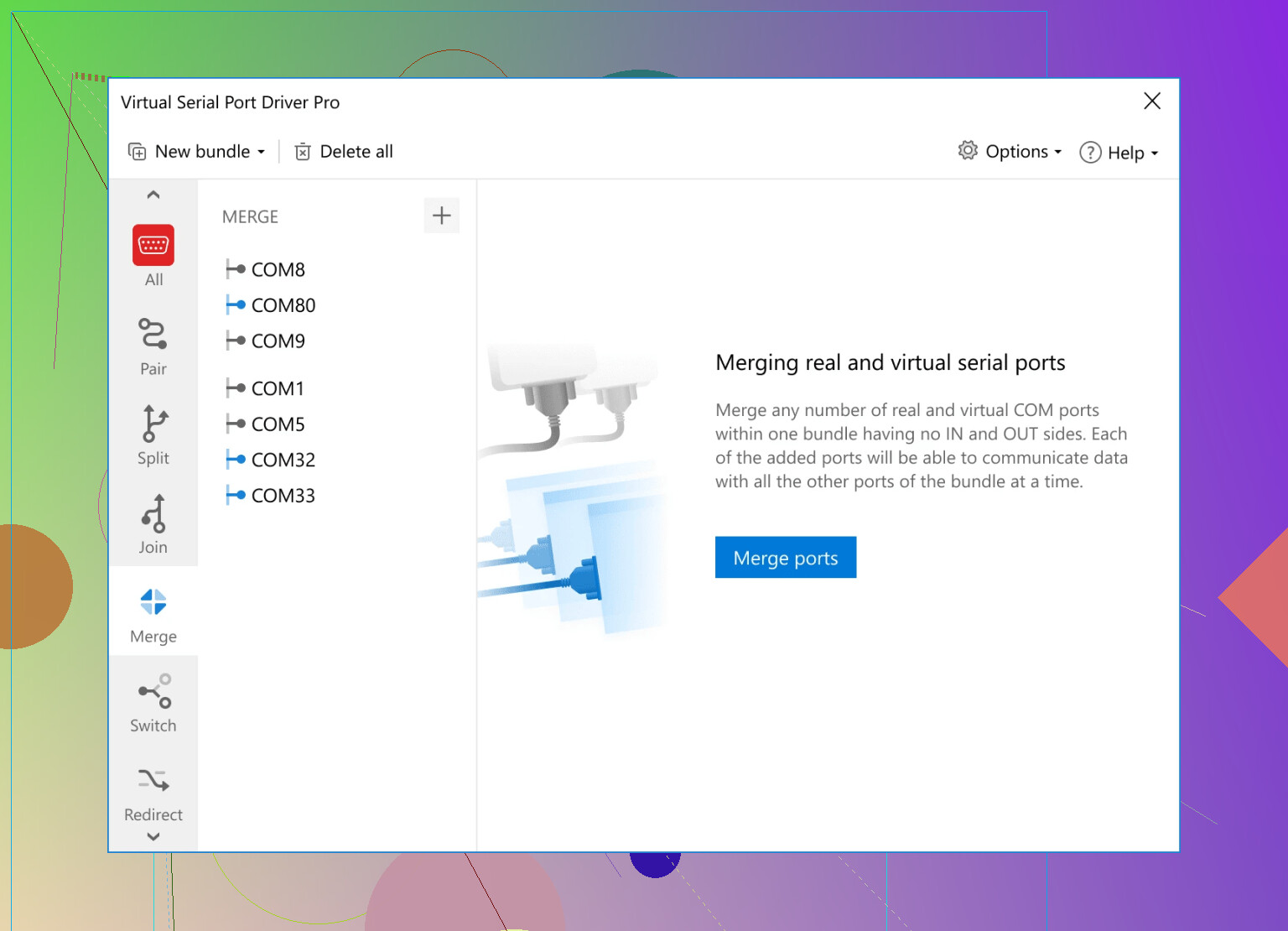
If you’re getting driver conflicts and flaky ports, you’re already in “Windows COM hell,” so you’re not alone.
I mostly agree with @mike34 on not mixing too many virtual port drivers, but I’d actually start with reviewing how you’re using them before picking which one.
A few angles that might help that weren’t covered:
-
If you need rock‑solid ports for legacy industrial / lab gear
Virtual Serial Port Driver is honestly the most practical option here. It behaves like “real” RS‑232 to cranky old apps:- You can pin specific COM numbers so your 20‑year‑old software always sees COM2 or COM3 instead of COM17.
- It doesn’t freak out as much when Windows updates or when you reconnect USB‑serial adapters.
- It lets you tweak handshaking and buffer sizes, which actually matters with some older PLCs or measurement hardware.
If you want something that’s easier to install and maintain long‑term, have a look at
setting up stable virtual COM ports on Windows
That solution tends to be more user‑friendly than most free tools and is aimed right at “virtual COM port software” use cases. -
If you’re seeing “driver conflicts” specifically
Instead of just uninstalling stuff in Device Manager like most guides say, also check:pnputil /enum-driversin an elevated PowerShell and see if you’ve got multiple virtual COM INF packages installed. Remove the ones you don’t actually use.- Disable power management on USB root hubs if you use USB‑to‑serial. Windows loves to power them down and some virtual drivers really don’t recover nicely.
-
When I don’t use com0com
Unlike @mike34, I only use com0com on clean lab VMs or when I know I won’t have vendor USB‑serial drivers installed. On a “daily driver” PC with random vendor toolchains, it tends to:- Grab weird COM numbers
- Conflict with proprietary OPC/SCADA or CNC software
- Break after feature updates unless you re‑sign or reinstall
It’s fine for quick test rigs, but for production setups with old equipment, I’d avoid it unless you like spending Saturdays chasing unsigned driver errors.
-
If you’re bridging to network gear (serial servers, etc.)
TCP/serial bridges are great, but:- Latency screws with timing‑sensitive protocols. Some DOS‑era or early Windows apps just won’t tolerate it.
- If your device expects hardware handshaking to behave exactly like a local COM port, some VSP‑over‑TCP solutions will just half‑emulate it.
In those cases, I’d actually prefer a local virtual COM pair and then run a small “bridge” app, rather than mapping directly to TCP with one of the lighter freeware tools.
-
Quick sanity checklist that avoids reinstall purgatory
- Pick one tool: preferably Virtual Serial Port Driver if you want stable, easy to configure ports.
- Assign low, fixed COM numbers early and never let Windows “auto” them once your old app is configured.
- Create one test pair, verify with a terminal program on both ends, then introduce your real software and hardware.
- After it’s working, create a system restore point and export your port configuration so you can get back to a known‑good state when Windows decides to be “helpful.”
If you share what exact hardware and legacy software you’re dealing with (PLC brand, lab instrument, CNC controller, etc.), people here can usually tell you whether virtual COM only is enough or if you really need a dedicated hardware serial interface plus virtual ports on top.