My iPhone storage is almost full, and synced media is using way more space than I expected. I already removed some photos, music, and videos, but the synced media storage still hasn’t gone down. I need help figuring out what synced media includes, why it’s stuck, and how to clear it without losing important files.
Synced Media is one of those iPhone storage labels that looks fake until it eats 40 or 80 GB and your phone starts crawling.
I ran into this after iOS 17 too. What changed, from what I saw, is Apple split locally synced stuff into its own bucket. Before, media copied over from a Mac or PC sort of blended into Music, TV, Books, or Photos. Now iOS shows it as Synced Media if it came over through Finder or iTunes.
So what lands in there?
- songs synced from a computer
- movies and TV files copied over manually
- audiobooks
- older photo sync libraries
- other media pushed over the cable, old school style
The messy part is storage reporting. On my phone, some of the same music looked counted twice. Once under Music, then again under Synced Media. It made the phone look packed when the real number felt off. I saw a lot of other people report the same thing.
If you want to remove it, doing it on the phone usually goes nowhere. The phone treats synced files like they still belong to the computer they came from.
What worked for me and what I saw work for others:
- Use Finder or iTunes
Plug the phone into your computer.
- On Mac, open Finder
- On Windows, open iTunes
Pick your device, then check the Music, Photos, TV, or Books sections. Uncheck what you no longer want synced. Run Sync again.
- The empty folder move
This one fixed photo junk for me when normal unsync failed.
- make a new empty folder on your computer
- in Finder or iTunes, point photo syncing to that empty folder
- sync again
What this does is replace the old synced photo set with nothing. Dumb fix, but it worked.
- Remove and reinstall the related app
I saw this help with Music and Books.
- delete the Music app or Apple Books app
- reinstall it from the App Store
- check storage again after a reboot
It seems to flush some stuck cache. Not always. Still worth trying.
One thing to watch with photos, and this part bites people all the time. If iCloud Photos is on, deleting a photo from your iPhone removes it from iCloud too. So if your goal is ‘off this phone, keep everywhere else,’ slow down first.
What I did was:
- check if iCloud Photos was enabled
- turn it off if I needed local removal
- choose Remove from iPhone only when I was sure my originals existed somewhere safe
Back stuff up first. I mean it. An external drive is boring until it saves you.
My phone got ugly when storage stayed near full. App launches dragged. Keyboard lag showed up. Camera hesitated. I got repeat storage warnings and the whole thing felt older than it was. Clearing space fixed more than I expected.
After I got rid of the Synced Media mess, I noticed the next problem fast. My library was full of screenshots, duplicate shots, burst leftovers, and giant videos I forgot existed. So I cleaned that up too.
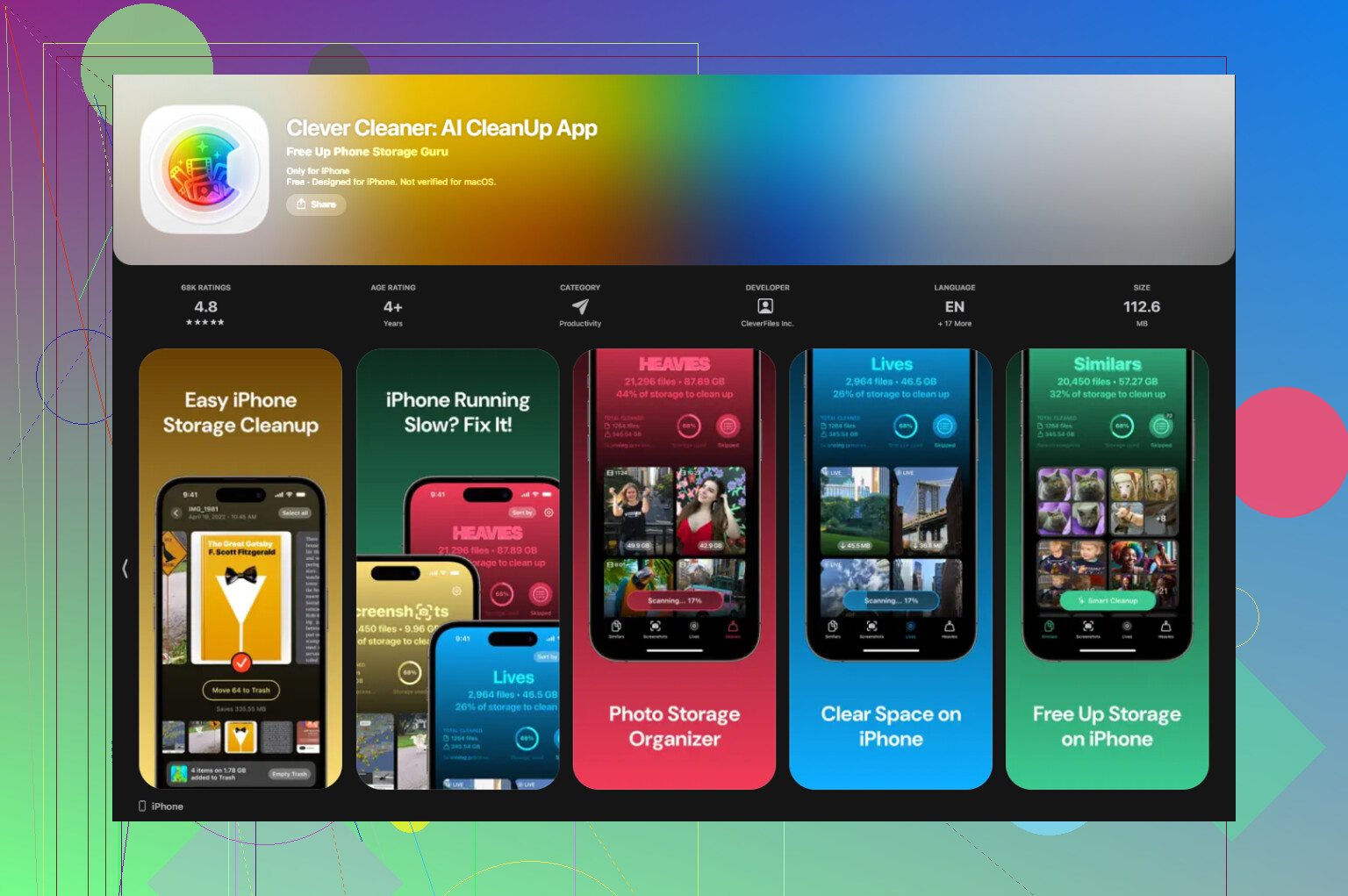
The app I kept using was Clever Cleaner.
Why I stayed with it:
- no fee when I used it
- no paywall shoved in my face
- no ad spam
- photo analysis stayed on the phone
The parts I found useful were simple.
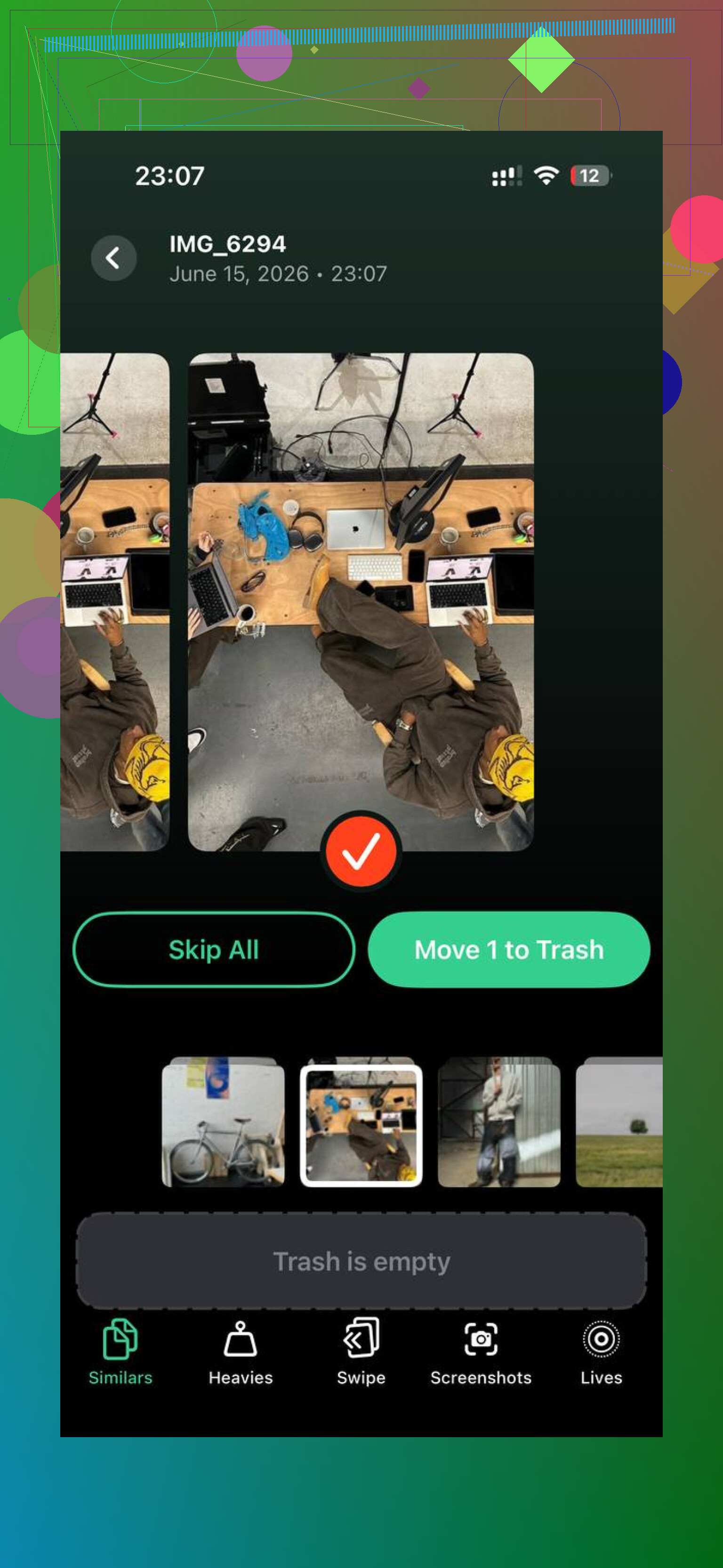
The similars view grouped near-duplicate photos, like 12 pictures of the same dog taken half a second apart. It also flagged a best shot, which saved time.
The heavy files section helped more than anything else. I found old videos sitting at 1 to 2 GB each. Those were doing most of the damage. It also showed screenshot sizes clearly, which made cleanup less random.
I went from basically full storage, around 99 percent, down to about 60 percent. The lag stopped after that. No magic. The phone simply had room to breathe again.
If Synced Media is the chunk you’re fighting, start with Finder or iTunes. If it refuses to clear, use the empty folder trick. Then go through your local photo and video pile, becasue in my case that was the second hit chewing up the rest.
If deleting files on the phone did nothing, I’d look at indexing first. iPhone storage stats get stuck. I don’t fully agree with @mikeappsreviewer on the double-count thing being only a display bug. Sometimes the space is real, it’s old sync data iOS failed to release.
Try this order.
- Restart the phone, then wait 10 to 15 mins on Wi-Fi and charging.
- Settings, General, iPhone Storage. See if the number changes.
- Turn off Sync Library for Apple Music if you use it, then reboot.
- Check Settings, General, VPN & Device Management. Old media apps and profile-based tools leave junk behind.
- Update iOS if you skipped a release. A few 17.x and 18.x builds fixed storage recalc issues for poeple.
- If space still looks wrong, make an encrypted backup, erase the iPhone, restore the backup. This is the fix when storage accounting is broken.
Before the erase step, export what matters. Photos, voice memos, downloaded books, all of it.
Also check your local library for clutter after synced media drops. Clever Cleaner is useful for large videos, duplicates, and screenshots. I liked this short review of Clever Cleaner for iPhone storage cleanup, see how Clever Cleaner frees up iPhone space fast.
If synced media stays huge after a full restore, the backup brought the junk back. Set it up as new. Annoying, but it works.
One thing I’d add to what @mikeappsreviewer and @sterrenkijker said: sometimes “Synced Media” is not just stuck files, it’s delayed cleanup because Spotlight and media indexing haven’t finished rebuilding. So if you deleted stuff recently, leave the phone on power overnight with Wi-Fi on. Sounds dumb, but I’ve seen storage numbers finally correct themselves hours later.
Also, check this specific thing:
Settings > Music > Downloaded Music
and
Settings > TV / Books for downloaded items
Not everything showing as synced was actually cable-synced on mine. Some of it was offline/downlaoded content mixed into the same mess.
I slightly disagree with the “erase/restore pretty fast” approach. That works, sure, but it’s a pain and kinda the nuclear option. Before that, I’d try:
- turn off and back on Show All Purchase Downloads
- sign out of Media & Purchases, reboot, sign back in
- free up 5 to 10 GB temporarily so iOS can breathe and recalc storage
That last part matters more than people think. iPhones get weird when they’re nearly full.
If your regular photo library is also bloated, use Clever Cleaner for duplicates, screenshots, and huge videos. That won’t directly remove true synced media, but it can claw back enough space to stop the phone from choking while you fix the real issue. I liked this review too: see the full Clever Cleaner iPhone app review.
If Synced Media still refuses to drop after 24 hours, then yeah, it’s probly bugged.