I’m running a virtual machine in Hyper-V and need to use a USB device that is connected to the host. The device works normally on the host, but it does not appear inside the guest, and I do not see a straightforward USB passthrough option in the virtual machine settings.
What is the supported way to make a host USB device available in a Hyper-V guest? Can this be done through Enhanced Session Mode or another built-in redirection method, and are there limitations based on the type of USB device? I also need to know whether the host must release the device before the guest can use it.
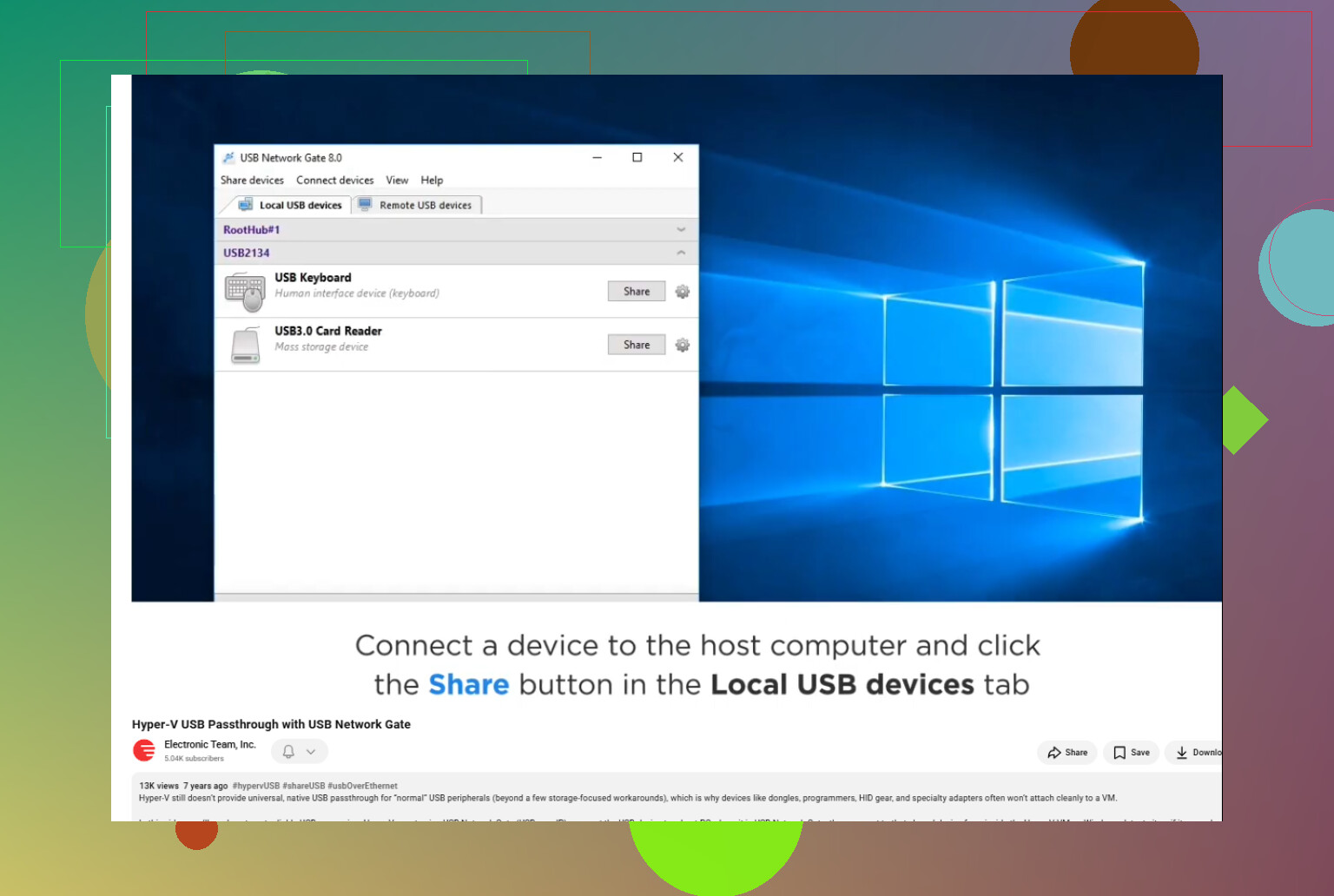
Hyper-V does not provide generic USB passthrough in the VM hardware settings. The built-in method is Enhanced Session Mode or RDP device redirection: connect through VMConnect, open Local Resources > More, and select the device. This Hyper-V USB video check shows the basic setup. Only supported device classes appear, so specialized dongles, scanners, and similar hardware may not redirect properly. The host normally does not need a manual disconnect, but a raw redirected device becomes unavailable locally while the guest uses it. For unsupported hardware, I would use USB Network Gate.
The guest OS matters here: Enhanced Session redirection is mainly for Windows guests, so a Linux VM may never list the device even when Hyper-V is configured correctly. Check whether it is storage, serial, or proprietary USB hardware before chasing drivers. For USB Network Gate, install the app on both the host and guest, then share the device from the host side.
Hyper-V does not offer generic USB passthrough. An arbitrary device will not simply appear in Device Manager, regardless of which driver you install in the guest. Enhanced Session Mode redirects selected device classes through RDP, not the host’s entire USB controller.
If it is a USB disk, Windows may let you take that disk offline on the host and attach it to the VM as a physical disk. The host and guest cannot safely use it at the same time, and this setup can complicate checkpoints.
For a dongle, scanner, programmer, or other proprietary hardware, I would use USB Network Gate. Be cautious with firmware updates or anything that cannot tolerate a brief connection drop. @primeguruxedge is right that the guest OS affects the available options, but the main limitation is Hyper-V’s lack of native general-purpose USB forwarding.
Do not run a firmware updater over an RDP-style USB redirection. A session disconnect, host sleep, or service restart can remove the device halfway through and leave the hardware unusable.
The important distinction is how the guest application expects to find the device. Enhanced Session Mode may expose a drive, smart card, printer, or COM port as a redirected resource, but that does not mean the original USB device will enumerate in Device Manager with its vendor and product IDs. If the application searches for that exact USB identity, installing more guest drivers will not solve it. @stealth_script’s point about arbitrary devices not appearing as native hardware is the quickest way to narrow this down.
For storage, skip USB redirection unless there is a specific reason to use it. Share or redirect the files, attach a virtual disk, or take the physical disk offline on the host and assign it exclusively to the VM. For a USB-to-serial adapter, try COM port redirection if the software only needs a serial port. Timing-sensitive equipment, license dongles, programmers, and devices with custom filter drivers usually need genuine USB-over-network software or a physical computer.
Keep in mind that USB-over-network adds another failure point. The host service must stay running, network policy must allow the connection, and the host cannot freely use the device while the guest has claimed it. Before buying anything, confirm that the product supports the device class and both operating systems. If this hardware controls machinery, performs recovery, or writes firmware, passing it through a VM is often the wrong place to save a spare machine.
A domain or local Group Policy can silently block redirection even when Enhanced Session Mode is enabled.
First, disconnect the VMConnect session completely. Reconnect in enhanced mode, open the local resources settings before signing in, and select the device or its matching category. Then check the guest’s Remote Desktop device-redirection policies, especially settings that deny Plug and Play devices, drives, smart cards, or COM ports. Restart the session after changing anything.
If the device never appears in the selection list, the policy probably is not the problem. That usually means its USB class is unsupported, so the practical choices are USB-over-network software, exposing a COM port, or attaching storage through another method. Installing the vendor driver inside the VM will only help after the guest can actually see the device.
Set your expectations by what the guest software actually needs, not by whether the little USB icon shows up. That’s the fork in the road everyone here is circling around. If your app just wants a serial port or a drive letter, you’re already close. If it wants to open a specific vendor and product ID and talk to it directly, no amount of guest driver installing changes the fact that Hyper-V never handed that device to the VM in the first place.
The point @xdarkstackx made about enumeration is the one I’d underline. Enhanced Session Mode gives you a redirected resource, a printer, a smart card, a COM port. It does not give you the raw device showing up with its real IDs. So the test is simple: open Device Manager in the guest and check whether the hardware appears as itself. If it doesn’t, you’re done chasing that path.
Where I’d push back a little is on treating the Group Policy angle as a first stop. @m3g4_root isn’t wrong that policy can block redirection, but for most home or single-machine setups that’s a rabbit hole. If the device class was never supported to begin with, you can flip every policy switch and still see nothing in the list. Check supported class first, then worry about policy.
For anything that has to present as a genuine USB device inside the guest, USB Network Gate is what I’d reach for, because it keeps the device identity intact over the wire so the guest sees the actual hardware rather than a stand-in resource. Just remember it turns a local USB problem into a network dependency, so if your guest and host aren’t reliably talking to each other, you’ve traded one headache for another.
Storage is the exception I’d handle differently from the rest. Skip all of this and attach it as a physical disk or a virtual one. Redirecting a USB drive over the network for a VM is more moving parts than the job needs.
A USB device plugged into the Hyper-V host is not necessarily local to the connection window you’re using. Enhanced Session Mode selects resources from the computer running VMConnect, which might be your workstation rather than the host. That distinction matters if you manage the VM remotely.
I’d qualify @m3g4_root’s conclusion about a missing device in the selection list. Before treating that as an unsupported device class, compare where the USB cable is plugged in with where VMConnect is running. If those are different computers, the host’s USB hardware is not automatically part of your workstation’s local-resource list.
For troubleshooting, I’d try launching VMConnect directly on the host and compare the available resources there. That would separate a connection-location issue from the compatibility question without buying anything or changing policies. If you’re already working directly on the host, skip that test. Post the device model, guest OS, and whether you connect locally or from another computer so the next suggestion can target your actual setup.
If the VM needs that USB device before anyone signs in, make that a requirement now. Getting it working in an open desktop session is not enough. The Enhanced Session suggestions here rely on RDP redirection, which exposes resources through a remote session rather than permanently attaching them to the VM.
Before paying for USB-over-network software, test unattended startup during the trial: reboot the host, let the guest start without opening VMConnect, and check whether the actual guest application can use the device. Then test unplugging and reconnecting it while the application is idle. Require automatic recovery if this is supposed to run unattended. A setup that needs someone to click “connect” after every restart does not meet that requirement.