I was checking my iPhone storage and noticed a big section labeled Applications, but I’m not sure what it actually includes. It seems larger than the apps I can account for, so I need help understanding if this covers app data, caches, or something else and how to reduce it safely.
I ran into the same mess on my iPhone, so here’s the plain version.
“Applications” is a bigger bucket than it sounds like. It includes the app itself, plus your saved data, app settings, cached junk, temp files, and some stuff stored locally through apps. On iPhone, this often also pulls in files sitting in “On My iPhone” in Files, plus Safari downloads and website data. So when you see Applications taking a huge chunk, it usually isn’t one bloated app file. It’s the pile it built over time.
Mine got bad after months of normal use. Social apps, browsers, streaming apps, games, all of them kept stacking cached media. Instagram held onto image data. Safari kept website leftovers. A few video apps were worse. The phone felt off before I even checked storage. Camera opened slow. Apps froze. Random crashes. I had only a few GB left.
From what I saw, iPhones get weird when free space gets too low. I try to keep around 6 GB open. Once I ignored it and performance dropped hard.
If you want to shrink Applications without wiping your stuff, use Offload App.
Go here:
Settings > General > iPhone Storage
Pick an app you rarely touch, then tap “Offload App.”
This removes the app package but keeps your documents and data. It does not work like full deletion. Your home screen icon stays there with the little cloud icon. Tap it later, it downloads again, and your old data is still there. I use this for apps I need a few times a year, airline apps, random store apps, old editing tools, stuff like that.
There’s also the automatic version for unused apps. I turned it on and forgot about it.
Safari is another easy cleanup spot. In storage settings, open Safari and remove website data. I got back a few hundred MB from this alone once, and another time it was closer to 1 GB. Depends how much you browse and download.
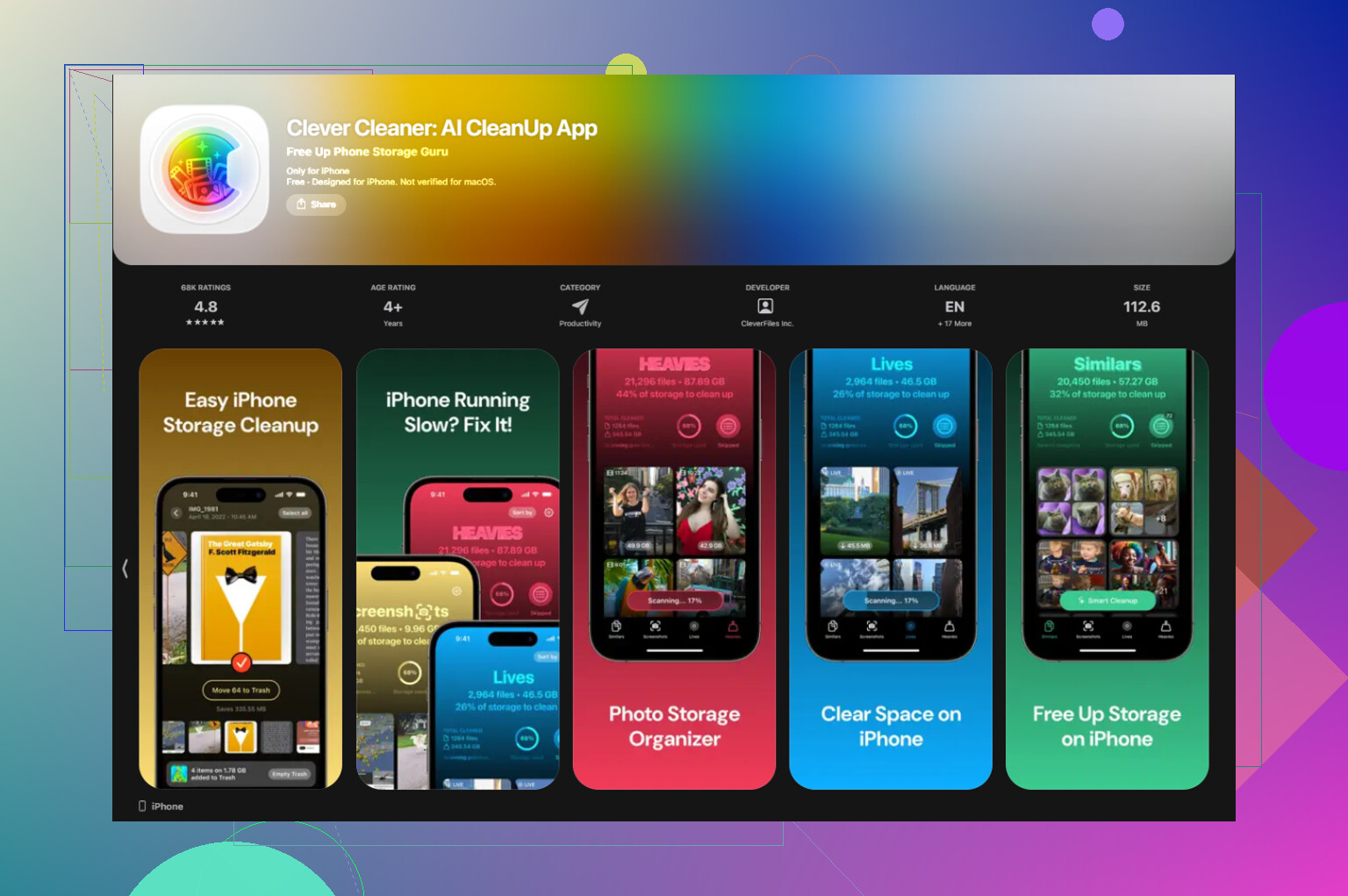
The built-in iPhone tools helped some, but they didn’t touch the photo clutter fast enough for me. My library was full of duplicate screenshots, screen recordings, and ten copies of the same blurry cat pic. I ended up using Clever Cleaner after trying a few cleanup apps.
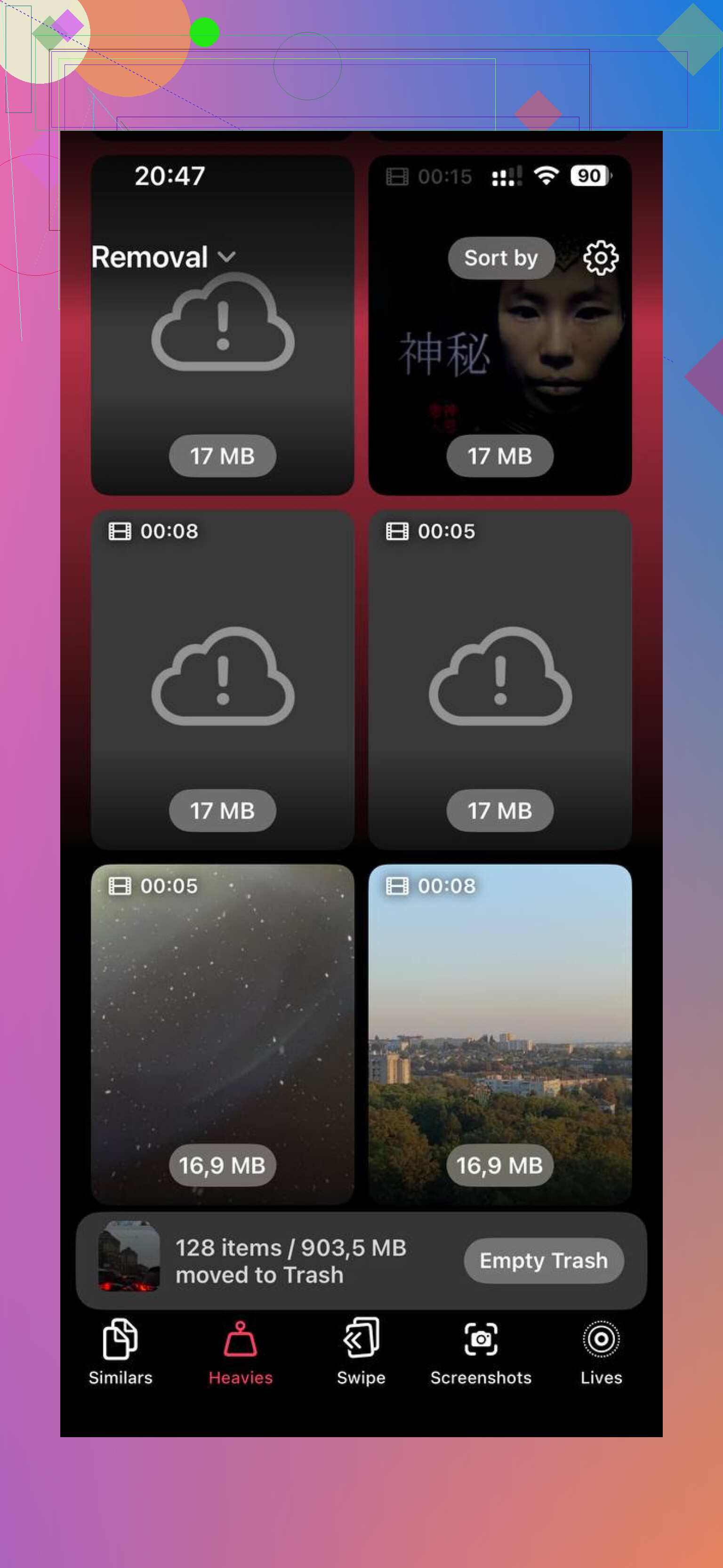
What I liked was simple. It sorted the biggest media first, so I didn’t have to scroll through years of junk. The Heavies section made it obvious what was eating space. The similar-photo sorting was useful too. I still checked its picks myself, but it saved me time.
I also paid attention to privacy stuff before keeping it installed. This one processes on-device, which mattered to me because I didn’t want my photo library sent off somewhere.
After I cleared several GB, the phone stopped feeling clogged up. Less lag. Fewer hiccups. Not magic, still the same phone, but way more usable.
If your storage bar is creeping up, I’d do this:
Check iPhone Storage once a month.
Offload apps you barely use.
Clear Safari website data now and then.
Look through Files and “On My iPhone.”
Delete or move large videos and screen recordings.
Clean duplicate or near-duplicate photos.
That was enough for me to keep the “Storage Almost Full” warning away most of the time.
“Applications” in iPhone Storage is the whole app bucket. It usually includes:
- The app install files.
- App Documents and Data.
- Caches, temp files, downloaded media.
- Files tied to apps, including some items saved in Files under On My iPhone.
So if Applications looks too big, the extra size is often app data, not the app itself. A 300 MB app can grow to 2 GB or more if it stores videos, chats, offline music, maps, or cache. TikTok, Instagram, YouTube, Spotify, Netflix, Chrome, and games are common offenders.
I agree with part of what @mikeappsreviewer said, but I’d push back a bit on Safari being a huge piece for most people. In many cases, messaging apps and social media eat more space, fast. Check those first.
Best way to confirm:
Settings > General > iPhone Storage
Scroll app by app
Look at App Size vs Documents & Data
If Documents & Data is massive, that’s why the Applications bar looks bloated.
One more thing, iOS sometimes reports storage a little wierd until it re-calculates after a restart or update. So the number is not always perfect.
If your photo mess is part of the problem, Clever Cleaner is worth a look. This read the full Clever Cleaner iPhone cleanup review here gives a clear breakdown.
“Applications” is basically the catch-all for app-related storage, not just the little install size you see in the App Store. So yeah, it usually means:
- app binaries
- documents/data created by apps
- cached media
- offline downloads inside apps
- logs/temp files
- some locally stored files apps manage
Where I kinda differ from @mikeappsreviewer and @nachtschatten is this: people often assume iOS is counting things super cleanly. It doesn’t always. Storage categories can lag, merge weirdly, or look inflated until the phone recalculates. So if the number looks absurd, a reboot or waiting a bit after deleting stuff can change it.
Also, “Applications” is not the same as system storage. Different bucket.
Big offenders are usually Messages attachments, streaming apps, podcast apps, map downloads, and social apps. Games too, obvously.
If you want to find the truth, compare each app’s “App Size” versus “Documents & Data.” That exposes the hoarders fast. If photos are part of the mess, Clever Cleaner is actually useful for trimming duplicates and bulky media without making the process annoyng.
If you want a solid video walkthrough on cleaning up iPhone storage, this is pretty useful: best iPhone storage cleanup tips in this full video review
“Applications” is basically the umbrella for anything app-related that is not counted under Photos, Media, or iOS itself. I’d add one nuance to what @nachtschatten, @chasseurdetoiles, and @mikeappsreviewer said: the number is useful, but not always precise enough to treat like a forensic report. iOS storage categories blur together more than people expect.
What it usually includes:
- installed app files
- app-created databases
- downloaded content inside apps
- caches
- local files exposed through apps
- leftover support files after updates
What it usually does not mean:
- your iPhone system files
- iCloud storage
- always the exact visible size of every app added neatly together
The part people miss is app containers. An app might look small in the App Store but keep giant local indexes, thumbnails, chat attachments, or offline assets. That bulk lands in Applications.
I slightly disagree with the idea that Safari is a top culprit for most users. Sometimes, sure. But Messages, WhatsApp, Telegram, podcast apps, and games with extra assets are often nastier.
A good reality check is this:
If deleting a few photos barely changes “Applications,” then the bloat is probably inside apps, not your camera roll.
Also worth knowing: deleting an app and reinstalling it can sometimes clear stale cache better than waiting for iOS to manage it.
If photos are part of the overall storage crunch, Clever Cleaner is decent for trimming duplicates.
Pros:
- quick scan
- easy bulk cleanup
- good for duplicate and heavy media hunting
Cons:
- mostly helpful for photo/video clutter, not deep app cache
- you still need to review results carefully
- won’t magically fix weird iOS storage reporting
So yes, “Applications” is more than just apps. It’s the whole local footprint apps leave behind.