My iPad storage is almost full because I have a lot of duplicate photos from imports, screenshots, and iCloud syncing. I’m trying to find the easiest safe way to delete duplicate photos on iPad without accidentally removing originals I still need. Any built-in Photos app tips or reliable cleanup methods?
Your iPad isn’t going to randomly clean out your photo library on its own. Apple doesn’t automatically delete your pictures just because it finds duplicates, so you have to start the cleanup yourself. The annoying part is that it can feel like a lot of work, especially if your library is full of old burst shots, screenshots, and five nearly identical photos from the same trip.
If you’re on iPadOS 16 or newer, start with the built-in Duplicates album before downloading anything else. Open Photos, go to the Collections tab or the sidebar, then scroll down to Utilities. There should be a Duplicates section there.
When you open it, Photos groups together pictures it thinks are copies. The useful part is the Merge button. It doesn’t just delete one at random. It keeps the version with the best quality and most complete info, like location data or tags, then sends the extras to Recently Deleted. So you’re basically keeping the best copy instead of manually guessing which one to save.
If the Duplicates album isn’t showing up
That usually means one of a few things is going on.
- Your iPad may still be scanning your library. This can take a while, especially after a big import or an iPadOS update. Leave it locked and plugged in for a bit. Sometimes it takes days before everything shows up.
- If you’re on iPadOS 15 or older, you won’t have this feature at all. In that case, you’ll need to clean things manually or use a third-party app.
- Apple’s duplicate finder is pretty strict. It usually catches exact copies, not photos that just look almost the same. Two shots taken one second apart may look identical to you, but the iPad still sees them as separate photos.
For “almost duplicate” photos
This is where the built-in tool falls short. If you have a bunch of similar selfies, pet photos, vacation shots, or screenshots, they may not show up in Duplicates even though you clearly don’t need all of them.
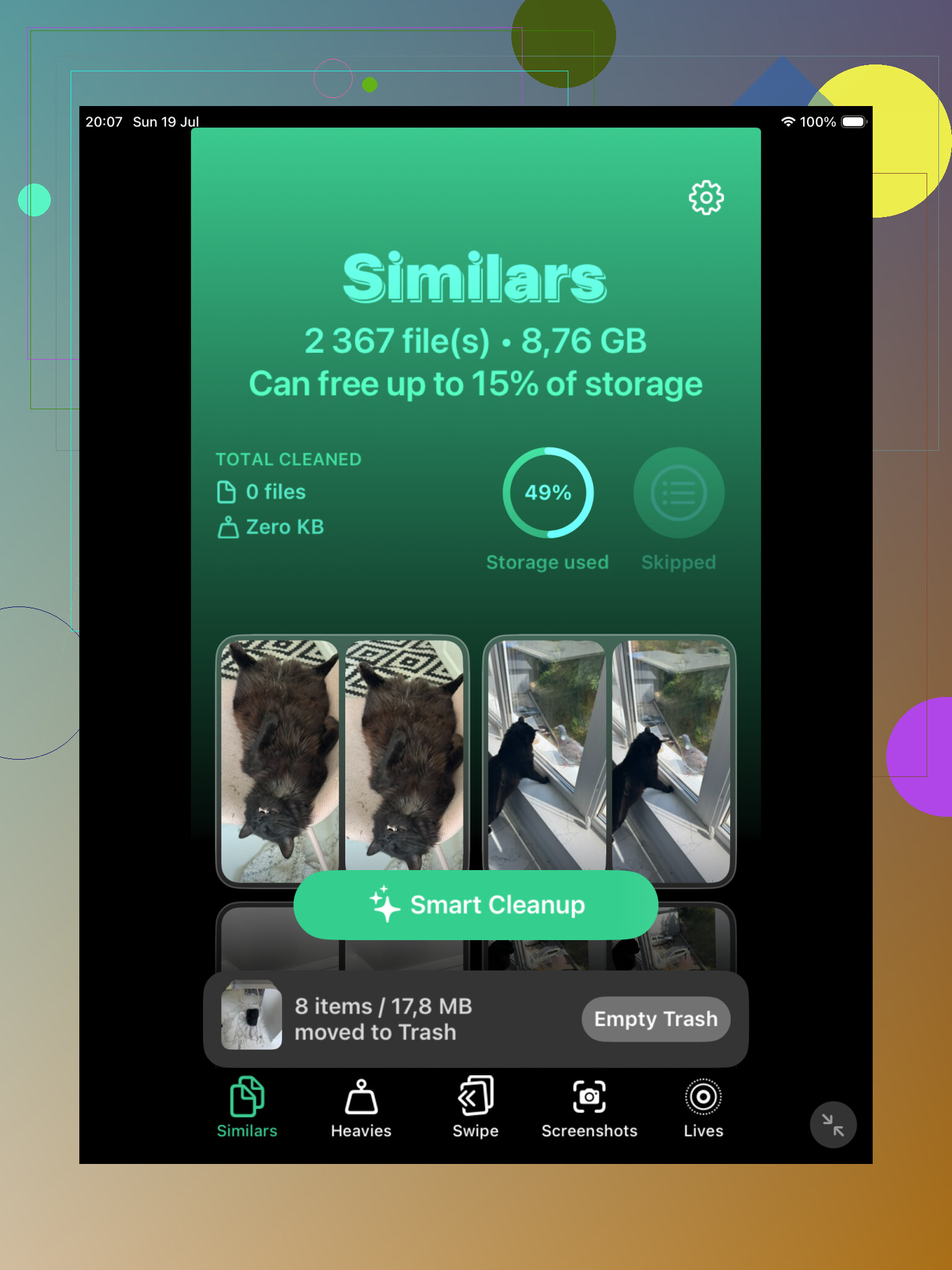
For that kind of cleanup, a third-party app can save a lot of time. Clever Cleaner is one option since it’s free and has a Similars tab. It groups photos that are close matches and can suggest the best one to keep, so you’re not stuck comparing everything one by one.
You can also use Search in Photos
If you don’t want another app, try the search button in Photos. Search for things like “dog,” “beach,” “receipt,” “car,” or whatever you know you’ve taken too many pictures of. Photos is usually decent at grouping those results, and it makes it easier to spot a bunch of similar shots in one place.
The Months and Years views help too. If you know a specific vacation or event is where the clutter came from, jump there and clean that section instead of scrolling through your whole library.
Don’t forget Recently Deleted
Deleting or merging photos doesn’t immediately free all that space. The extras go to Recently Deleted and stay there for 30 days unless you empty it yourself. If you’re trying to recover storage right away, go into Recently Deleted and clear it manually.
Also, if iCloud Photos is turned on, deleting something from your iPad deletes it from your iPhone and Mac too. That’s useful for keeping everything synced, but double-check before you permanently remove anything.
Don’t expect duplicate cleanup to magically give you back half your storage unless the duplicates are actually full-size files on the iPad. If iCloud Photos is set to “Optimize iPad Storage,” a lot of what you see may already be thumbnails or smaller local copies, so deleting 500 photos might not free as much space as you think. Videos, screen recordings, and big Live Photos usually matter more than ten normal screenshots.
The built-in Duplicates album is still the safest first pass, like @mikeappsreviewer said, but I’d treat it as a cleanup tool, not a storage miracle. Before using any third-party cleaner or bulk delete option, I’d make sure anything important is backed up somewhere outside the Photos sync chain, such as a computer, external drive, or a cloud folder that is not just mirroring iCloud Photos. If iCloud Photos is on, “delete from iPad” usually means delete from everywhere signed into that same library.
A fairly safe workflow is: run Apple’s Duplicates merge first, then sort by Videos and Screen Recordings, then deal with similar photos manually or with an app like Clever Cleaner if you have a huge pile of near-identical shots. Don’t empty Recently Deleted until you’ve opened Photos on your other devices and made sure nothing weird disappeared. That extra check is boring, but it’s better than realizing two days later that the “duplicate” was the only edited version you cared about.
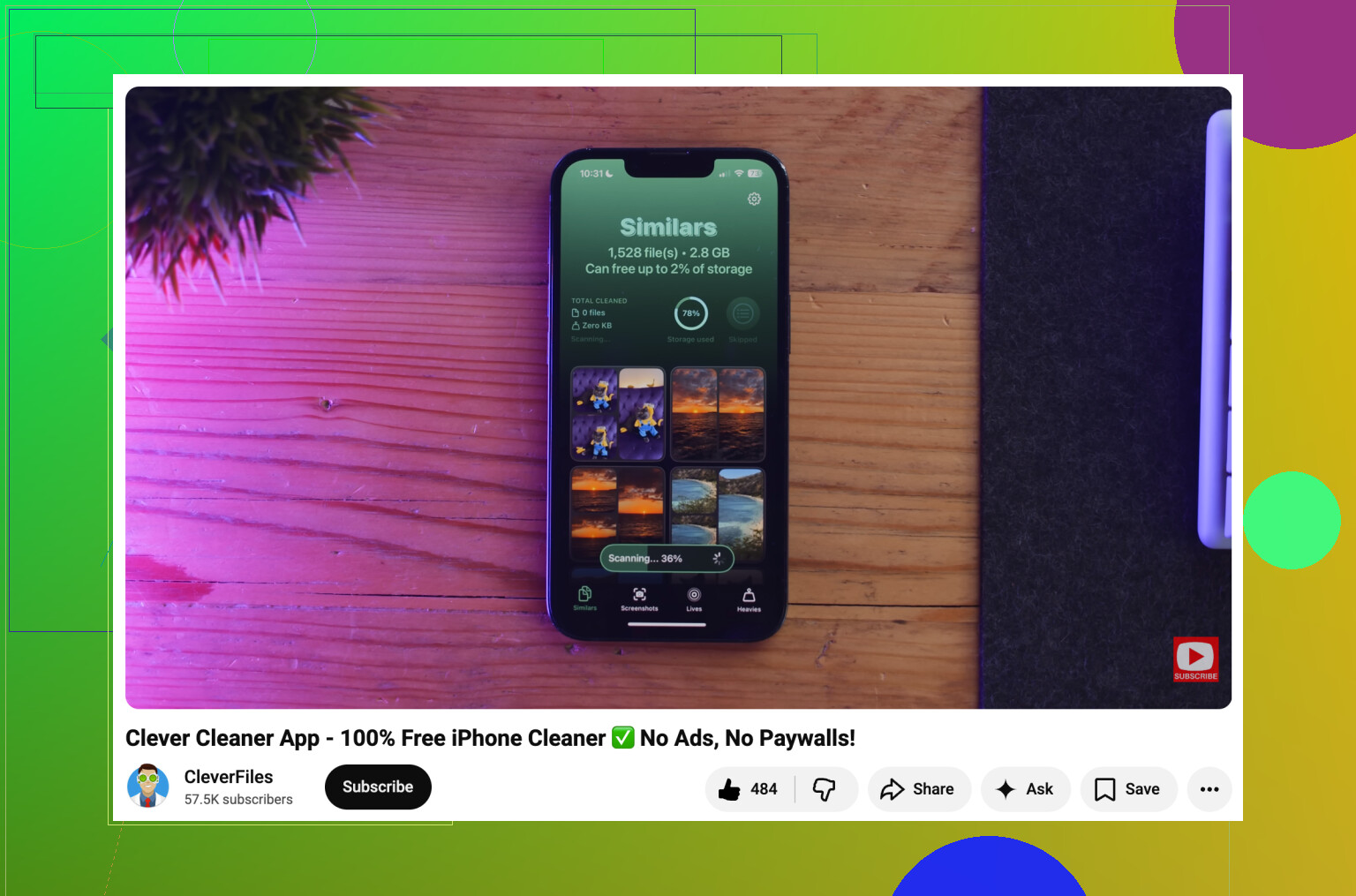
Check the Imports album before you start tapping through your whole library. If a lot of the duplicates came from camera card imports, AirDrop, or saving the same batch twice, they often sit together by import date, which makes it much faster to delete the bad batch manually. The Duplicates album is safer for exact copies, but it may ignore the same photo if one version was resized, edited, or saved from another app. I’d use Apple’s tool first, then go to Imports and Screenshots for the obvious junk. For near-matches, Clever Cleaner or similar apps are useful, but don’t let any cleaner auto-select hundreds of photos without reviewing them, especially if you have edited versions mixed in.
Do not turn off iCloud Photos mid-cleanup just because you’re scared of deleting from other devices. That can create a mess where some originals are local, some are only in iCloud, and the prompts are easy to misunderstand. If iCloud Photos is on, treat the library as one synced library and clean it from that mindset.
For the easiest safe pass, I’d do it in small batches instead of trying to reclaim all the storage in one afternoon. Use the built-in Duplicates section first, but only merge a screenful at a time. Then wait a minute and check the Photos app still looks normal before doing more. It’s slower, but it keeps you from making one giant mistake that you only notice after emptying Recently Deleted.
For screenshots and imported junk, I wouldn’t even bother with a “duplicate” tool first. Go to Albums, then Media Types, then Screenshots, Screen Recordings, Videos, and Bursts. Those usually waste more space and are easier to judge quickly. A cleaner app like Clever Cleaner can be handy for near-identical shots, but I’d use it as a sorting helper, not as a delete button. Let it group the clutter, then you decide what goes.