My iPhone photos are taking up more storage than expected, even after I deleted several images and emptied the Recently Deleted album. What’s the safest and easiest way to clear the photo cache without losing pictures I want to keep?
That number under Settings > General > iPhone Storage > Photos is easy to misread. It isn’t a giant cache you can clear. It’s the space used by your actual photo library, including photos, videos, Live Photos, screenshots, edits, thumbnails, indexes, and other library data.
iOS handles temporary Photos files on its own, and Apple doesn’t provide a separate “Clear Photo Cache” button. If Photos is using dozens or hundreds of gigabytes, the practical fix is to reduce the library itself.
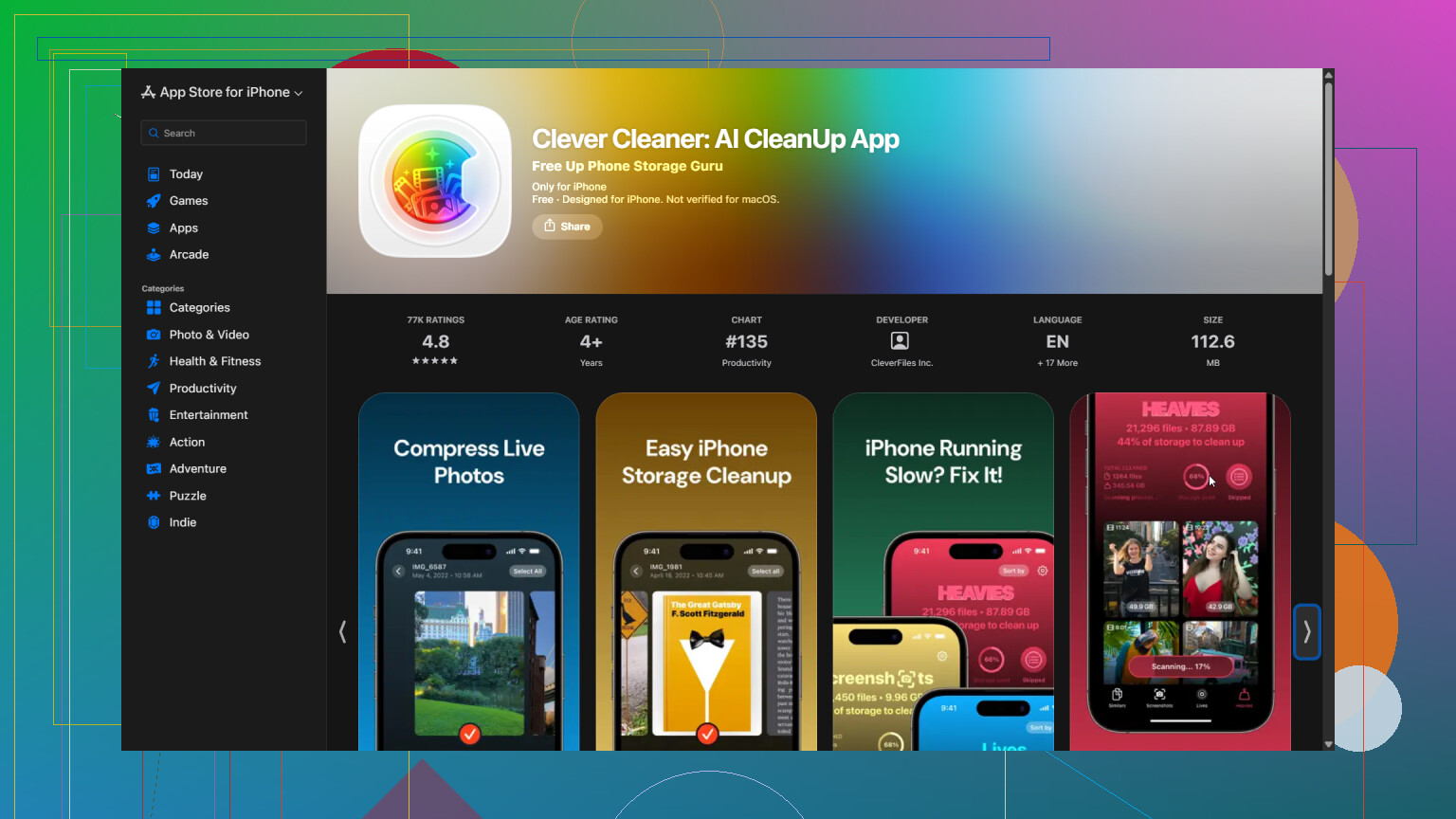
Going through thousands of files manually can take ages, so I usually use Clever Cleaner. It can identify duplicate or similar photos, duplicate videos, Live Photos, and screenshots. The Compress tool is useful when you want to shrink large photos instead of deleting them. You can also use Smart Cleanup for several categories at once, or Swipe if you’d rather review everything individually.
The process is pretty simple:
- Open Clever Cleaner and give it access to your photo library.
- Wait for it to scan the gallery.
- Review what it finds, then delete or compress anything you don’t need.
- Go back to the Photos app and empty Recently Deleted. Until you do that, the deleted files may continue taking up storage.
If you have iCloud Photos enabled, turn on Optimize iPhone Storage under Settings > Photos. That keeps the full-resolution originals in iCloud and stores smaller versions on the phone when space is limited. You keep your pictures while reducing local storage use.
There’s one important distinction here. If “photo cache” means images and videos downloaded inside WhatsApp, Telegram, Messenger, Instagram, Discord, or another app, that storage is separate from the Photos library. You’ll usually need to clear downloaded media through that app’s settings. If the app has no cache controls, deleting and reinstalling it may be the only option.
So check what’s actually using the space. Storage listed under Photos generally requires cleaning up or optimizing your gallery. Media stored by messaging and social apps needs to be managed inside those apps instead.
If you emptied Recently Deleted only a few minutes ago, wait before installing anything or deleting more. The Photos storage figure can lag while iOS reindexes the library and recalculates usage. Restart the phone, leave it charging on Wi-Fi for a while, then check iPhone Storage again.
I wouldn’t treat a cleaner app as the first step. Clever Cleaner may make reviewing duplicates and large files faster, but it still removes items from your actual library rather than flushing some hidden Photos cache. Make sure iCloud has finished syncing, or keep a separate backup, before approving a large cleanup.
If the number remains unusually high after iOS has had time to update, check Videos, Live Photos, RAW images, and edited clips. Those are often the real storage hogs. There isn’t a safe manual cache folder in Photos that you can empty while guaranteeing every original stays untouched.

You probably won’t get an immediate storage drop, even after doing everything correctly. Photos can take hours to recalculate, and “Optimize iPhone Storage” only removes full-resolution local copies when iOS decides space is needed.
I’d use the built-in tools before installing a cleaner. Check the Duplicates collection in Photos and merge confirmed duplicates, then review videos by size or duration. Screen recordings, 4K clips, slow-motion videos, and long Live Photos usually free far more space than deleting ordinary pictures.
The biggest safety issue is iCloud syncing. If iCloud Photos is enabled, deleting a picture on the phone deletes it from your other synced devices too. iCloud Photos should not be treated as a separate backup for this job. Before a large cleanup, copy anything important to a computer, external drive, or another cloud service, and make sure the files actually open there.
Clever Cleaner may be convenient for finding similar shots that Apple does not classify as exact duplicates, but it cannot harmlessly erase a secret cache. Anything you approve for deletion is still being removed from the library. I would avoid automatic bulk cleanup unless you have checked the selections.
After cleaning up, empty Recently Deleted, restart the phone, and leave it charging with Wi-Fi overnight. Don’t toggle iCloud Photos off and on, sign out of iCloud, or reset the phone just to force the number down. Those “fixes” add risk and usually do not solve the underlying storage issue.
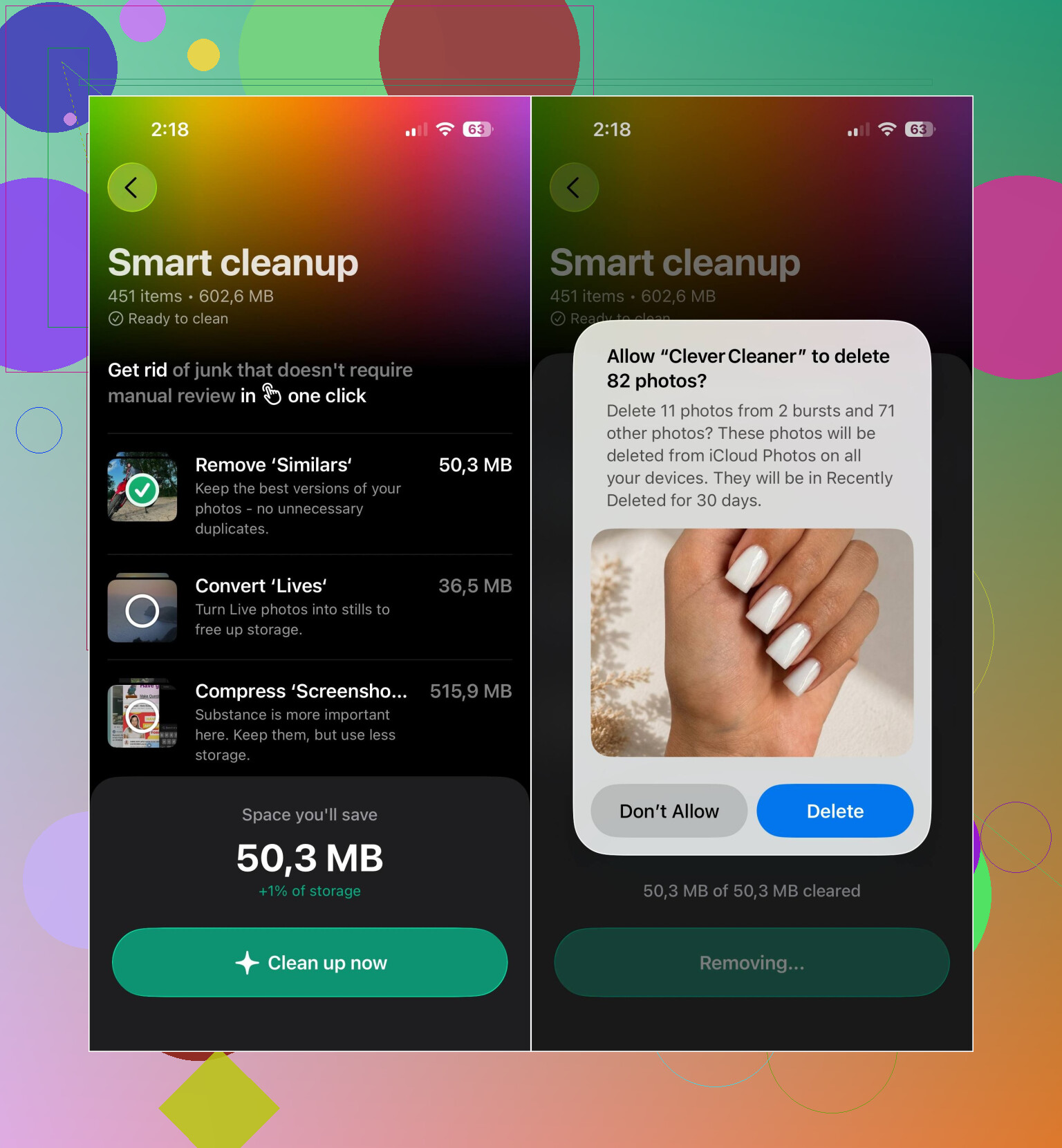
Compressing photos to save space quietly costs you the originals if you delete them after, and that trade rarely gets mentioned. If you use the Compress option in Clever Cleaner or anything like it, you’re shrinking the actual file, not clearing junk. Fine for random screenshots or memes. Bad idea for anything you might want at full quality later. So if you go that route, keep the originals somewhere before you overwrite them.
@mystic_cache711 is right that videos are usually where the real weight sits. A couple of 4K clips or slow-mo recordings can eat more than hundreds of photos combined, and people scroll past them because they don’t feel like clutter the way duplicate selfies do. Sort by size in the Photos app or in a cleaner and you’ll spot the offenders fast. That’s honestly the highest payoff for the least effort, and you don’t risk losing anything you care about since it’s obvious what a huge video is.
Where I’d push back on the whole thread a little: everyone’s treating the Photos number as the thing to fix. Half the time the storage shock is coming from somewhere else entirely and Photos just looks big by comparison. Check the full breakdown in iPhone Storage before you touch anything. A cleaner app is fine for the boring duplicate-hunting part, but it can’t shrink something that was never in your library to begin with.