I’m trying to find the Trash folder on my iPhone so I can recover something I deleted, but I don’t see one anywhere. I checked Photos, Files, and Mail, and each app seems different. Can someone explain where deleted items go on iPhone and how to restore them?
Yeah, this is one of those iPhone things that feels way less obvious than it should. If you’re used to computers, you’d expect one main trash can somewhere. iOS doesn’t really work that way. There isn’t a single recycle bin for the whole phone. Instead, a bunch of apps keep their own deleted items for a while, so you can “delete” something and still not actually get the space back yet.
The biggest one to check first is Photos. Open Photos, go to Albums or Collections, then scroll down to Utilities and open Recently Deleted. On newer iOS versions, it’ll ask for Face ID or your passcode. Once you’re in there, tap Select, hit the three dots, and choose Delete All if you really want the storage back. Otherwise those deleted videos and photos are still sitting on the phone for about a month.
Messages has a similar thing now too. In the Messages app, tap Edit in the top left, then Show Recently Deleted. This can get surprisingly huge if old threads had a lot of photos, videos, or other attachments. You’ll need to select the conversations there and delete them again to fully remove them.
Also check Files and Notes. In Files, go to Browse and look under Locations for Recently Deleted. In Notes, go back to the main Folders screen and look for Recently Deleted there. Same general idea: the stuff is deleted from your normal view, but it can still be stored for around 30 days.
I ran into this on my iPhone 13 Pro a few months ago. It was lagging, apps were crashing, and even the camera was slow to open. Low storage ended up being a big part of it. Once the phone is down to almost no free space, iOS doesn’t have much room left for temporary files and everything starts feeling sluggish.
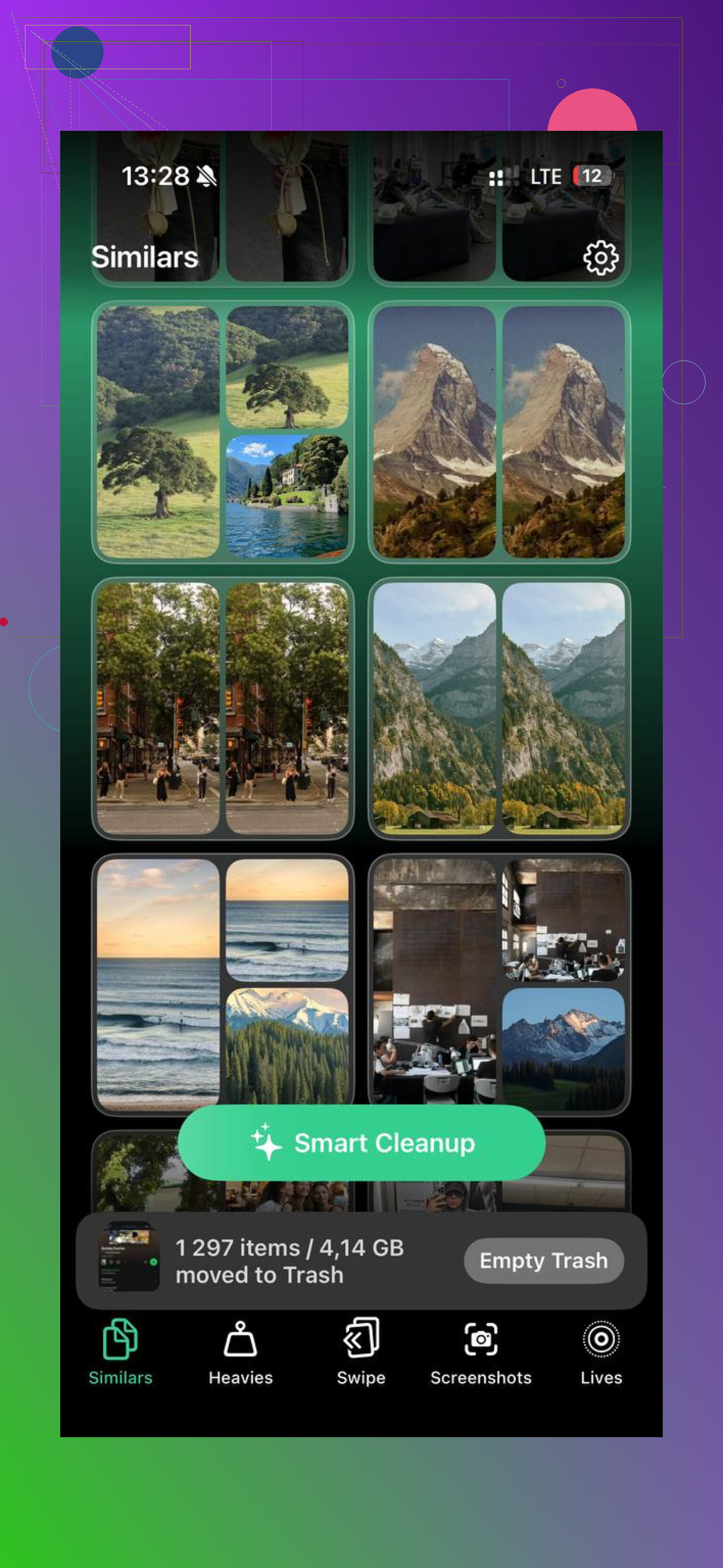
I tried clearing everything manually at first, but bouncing between Photos, Messages, Files, Notes, and settings got old fast. I ended up using Clever Cleaner, and it made the cleanup a lot easier.
The main reason I liked it is that it stayed free when I used it. No ads, no subscription nagging, and no paywall popping up halfway through. It also shows file sizes for screenshots and videos, which helps because you can immediately see what’s actually worth deleting.
The “Heavies” section is good for finding the giant videos and media files you forgot were there. The “Similars” section is useful too, especially if you take a bunch of near-identical photos and only need to keep one. It processes everything on the device, so your photos aren’t being uploaded somewhere else just to sort them.
After clearing around 15GB, my phone felt normal again. So if you only need to empty a couple Recently Deleted folders, do it manually. But if your storage is a mess across Photos, Messages, Files, and random downloads, using a cleanup app is probably the less annoying route.
One more thing: if System Data still looks huge after you’ve cleared the trash folders, try a forced restart. Sometimes iOS just needs a reboot before cached files and logs actually clear out properly.
If you deleted a photo, you’re looking inside Photos; if you deleted an email from a Gmail or Outlook account, you’re really dealing with that mail service’s trash rules, not some iPhone-wide trash can.
That’s the part that trips people up. “On my iPhone” sounds like there should be one place, but the iPhone is more like a bunch of separate drawers. Photos has its own deleted area. Files has its own. Notes has its own. Mail depends on the account. Messages has its own recovery area too. There is no master Trash folder sitting in Settings or on the Home Screen.
For recovery, I’d go by the type of item, not by the app you happened to be using when you deleted it:
Photos or videos: Photos app → Albums → Recently Deleted. You may need Face ID or your passcode to open it. If it was deleted from there too, it is usually past the normal recovery point.
Files or downloads: Files app → Browse → Recently Deleted. Make sure you check both “On My iPhone” and iCloud Drive if you use both. A lot of people only look in one location.
Notes: Notes app → back out to the Folders screen → Recently Deleted. This can be different for iCloud notes vs Gmail/Yahoo/other account notes.
Mail: Open Mail → Mailboxes → look for Trash, Bin, Deleted Messages, or something similar under the specific account. Gmail may call it Trash, Outlook may handle it differently, and some accounts remove trash after a set time.
Messages: Messages app → Edit or Filters at the top left → Recently Deleted. This only helps for deleted conversations, and there’s usually a time limit.
Contacts, calendars, bookmarks, and iCloud Drive items are a little different because iCloud may give you recovery options through iCloud on the web. That’s one place I’d check if the missing thing was synced with iCloud and not just stored locally on the phone.
Small warning: don’t empty anything else while you’re searching. People sometimes open Recently Deleted, see a bunch of junk, tap Delete All, then realize the thing they wanted was in that pile. “Recently Deleted” is often the last stop, not a waiting room before another trash folder.
I’d also be cautious with cleaner apps if your goal is recovery. Something like Clever Cleaner can make sense when you’re trying to free storage by finding large videos, duplicates, or screenshots, but it is not a magic undelete tool. If the missing item matters, recover first, clean later.
Backups are the last real option, but they’re annoying. Restoring an iPhone backup usually means rolling the phone back to the state of that backup, not just pulling out one deleted file neatly. For photos and files synced through iCloud, a backup may not even contain what you expect, because sync and backup are not the same thing.
So the short answer is: there is no single Trash folder on iPhone. Look in the deleted/recently deleted section of the app or service where the item originally lived. If it’s not there, check iCloud recovery or an older backup before assuming the phone has another hidden bin somewhere.
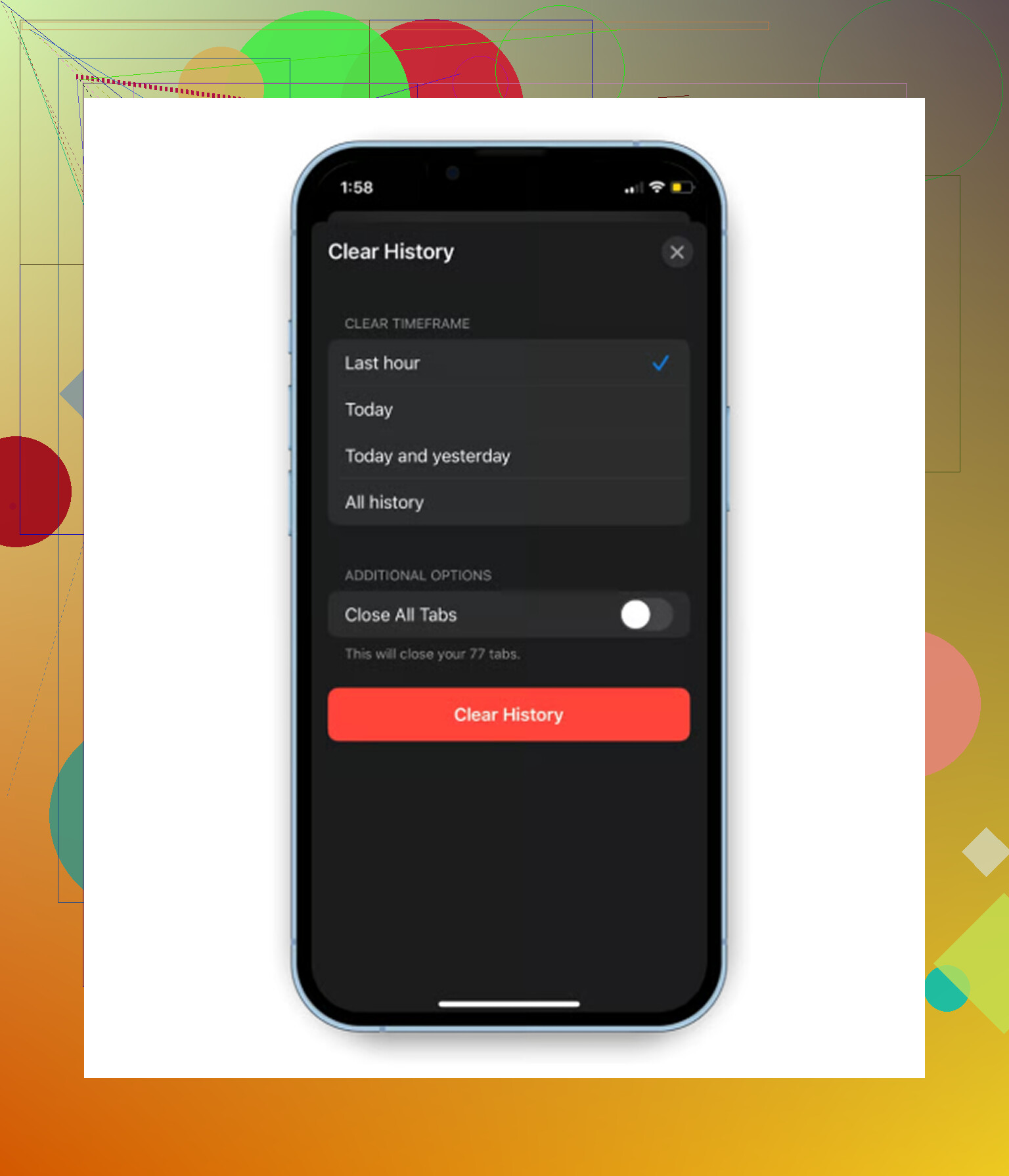
Stop looking in Settings for it. That’s the dead end here, because Apple doesn’t put deleted stuff in one phone-wide Trash folder.
The quickest way to narrow it down is to ask where the item lived before you deleted it. A photo goes through Photos. A PDF you saved goes through Files. A note goes through Notes. A text thread goes through Messages. Email is the messy one, because Mail is often just showing Gmail, Outlook, iCloud Mail, Yahoo, etc., and each account can have its own Trash, Archive, Deleted Messages, or server-side cleanup rules.
A small catch people forget: if the item was synced, deleting it on the iPhone may have deleted it everywhere. For example, an iCloud photo deleted on your phone can disappear from your iPad and iCloud too, though it may still sit in Recently Deleted for a limited time. Same idea with iCloud Drive and Notes. So check the app’s Recently Deleted area first, then check the same service on the web if it was synced. If it is not there either, there probably is not some extra hidden iPhone bin waiting underneath it.