My external hard drive was working fine yesterday, but today almost all my files are gone. I didn’t delete anything, and I really need help figuring out if this is data loss, drive corruption, or something I can recover before I lose important photos and documents for good.
Files vanishing off an external drive looks bad, yeah. I’ve run into it more than once, and a lot of the time the files were not gone. Windows had lost the map, or the file system was damaged, or the partition got weird after a bad unplug. The data was still sitting there.
First thing, stop using the drive.
Do not copy new stuff onto it. Do not format it. I would also hold off on repair tools for now. If a tool rewrites file system data before you pull your files off, recovery gets harder fast.
What I’d check before doing anything else:
- In File Explorer, turn on Hidden items. I’ve seen folders look ‘gone’ when they were only hidden.
- Look at the used space on the drive. If the drive still shows roughly the same amount of space used, even though the folders look empty, tht’s a good sign.
- If Windows still detects the drive, I’d skip ‘fixing’ it at first and go straight to a recovery scan.
What worked for me was Disk Drill. I used it once when an external drive suddenly looked almost blank, but the used space was still in the hundreds of GB. It pulled up the missing folders without much drama.
The way I’d handle it:
- Install Disk Drill on your internal drive, or another healthy drive. Do not install it onto the problem external drive.
- Plug in the external drive and open Disk Drill.
- Pick the affected drive and hit Search for lost data.
- Let the scan finish fully. Don’t cut it off early unless you have a reason.
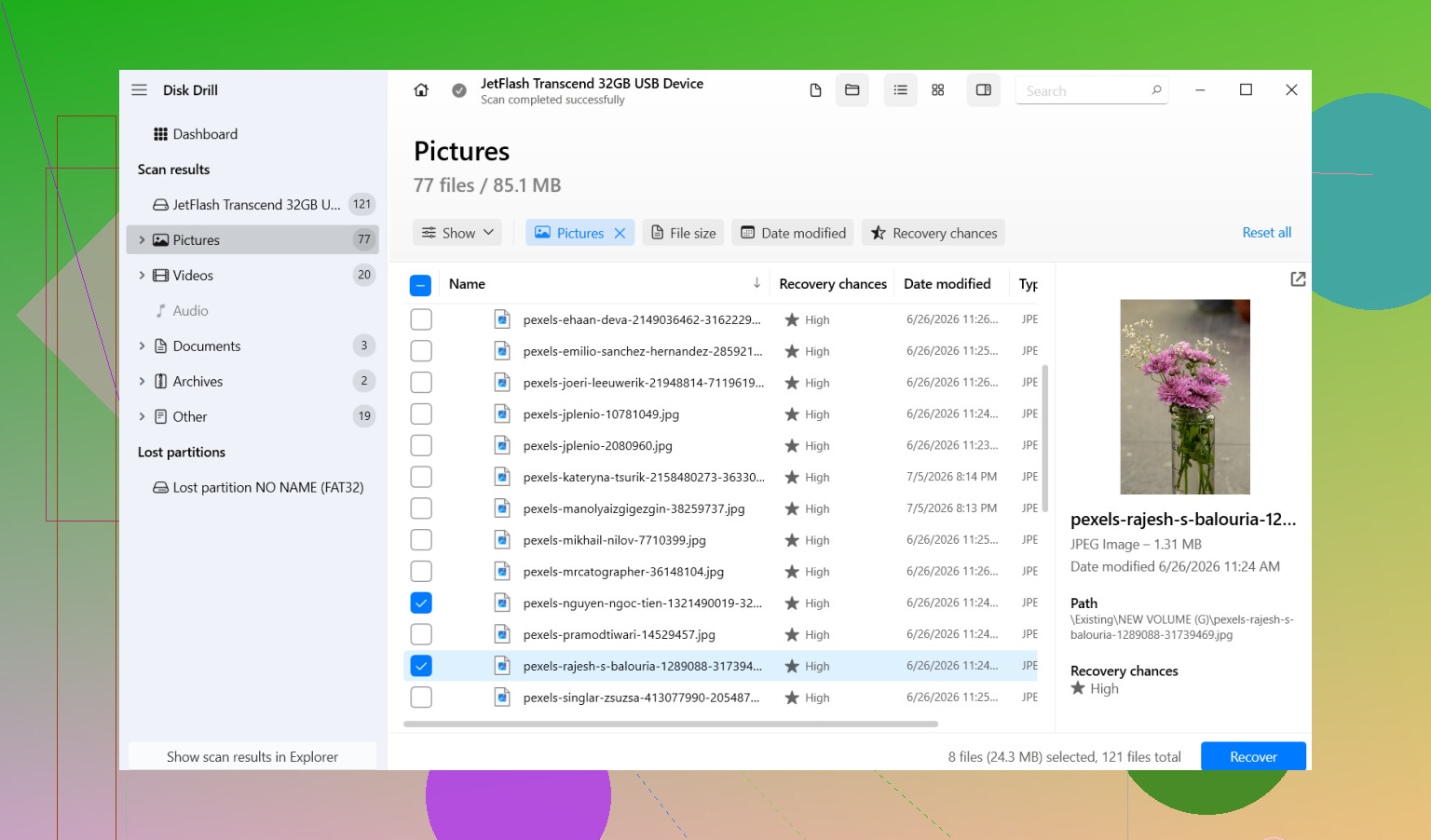
- Go through the results. Use filters if you only care about photos, video, docs, whatever.
- Preview a few files first. I always do this to see if the files open cleanly.
- Select what you want and hit Recover.
- Save the recovered files to a different drive. Never back onto the same external drive.
After your important stuff is copied somewhere safe, then deal with the original drive.
One thing I would not do right away is run CHKDSK because Google said so. CHKDSK is for repairing file system issues. That sounds helpful, but it also edits directory records and sometimes removes damaged entries. If your goal is file recovery, not drive cleanup, that step can make a mess of things. I recover first. Repair later.
Also, if Windows throws the “this drive needs to be formatted” message, don’t click Format out of habit. I’ve seen ths happen from file system damage alone. It does not prove the files are gone.
The main exception is physical failure. If the drive is clicking, grinding, dropping connection every few seconds, or struggling to spin up, stop. Don’t keep scanning it over and over. At that point I’d leave it alone and send it to a recovery lab, because extra reads can push a dying drive further downhill.
This kind of file loss shows up a lot after unsafe ejection, power cuts, or plain file system corruption. If the drive still mounts and it’s not making bad noises, your odds are decent. The big mistake is trying random repair steps before you save the data.
Recover the files first. Then figure out whether the drive needs repair or the trash.
This sounds more like file system damage than instant mass deletion. Overnight “missing files” on an external drive often comes from bad ejects, USB power hiccups, flaky cables, or partition table errors. If the drive still shows the old used space, your files are often still there, even if Windows acts dumb.
I agree with @mikeappsreviewer on one big point, stop writing to the drive. I’d also swap the USB cable and port before doing anything heavy. I’ve seen cheap cables make a drive mount half-broken, with folders missing or names showing wrong. Test it on another PC too. That rules out a host-side issue fast.
One small place I differ. I would check SMART health early, before a long scan, with a read-only tool like CrystalDiskInfo. If health looks bad, or you see reallocated sectors climbing, don’t keep hammering the disk. Clone it first if you can. If the drive is SSD-based, act fast. TRIM and controller faults make recoverey worse over time.
If the file system is RAW, or Windows asks to format, treat it like corruption until proven otherwise. Don’t trust the empty folder view. Data recovery software is the right move there. Disk Drill is a solid pick for external hard drive file recovery because it tends to find both deleted entries and lost partitions in one pass. Save anything recovered to a different disk, obviosly.
Also, open Disk Management. Check if the partition size looks normal, if the drive letter changed, or if the volume shows unallocated. Those details tell you if this is corruption, a bad mount, or a partition problem.
For people searching best ways to recover files from an external hard drive, start with read-only checks, confirm drive health, then scan with recovery software like Disk Drill before trying repairs.
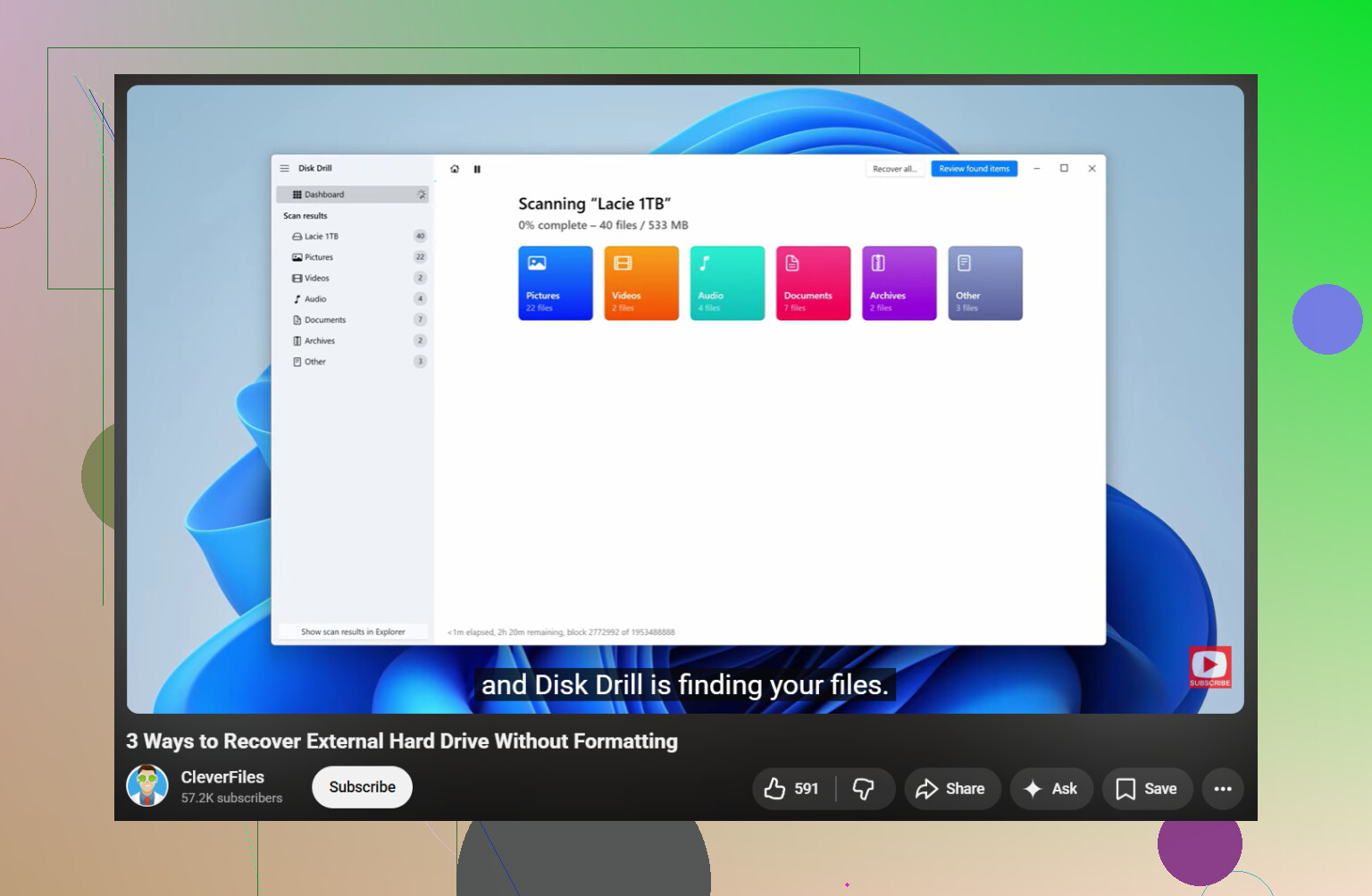
If you want a visual walkthrough, this external hard drive data recovery video guide covers the process pretty well.
This usually screams one of four things, not instant magical deletion:
- The drive mounted with the wrong file system info
- The partition table got nudged
- The enclosure, cable, or USB controller is lying to Windows
- The drive is starting to fail
I mostly agree with @mikeappsreviewer and @viajeroceleste, but I’d add one thing before going deep into recovery: check whether this is an enclosure problem, not a disk problem. External drives fail in dumb ways. Sometimes the USB bridge board goes flaky and the actual disk inside is fine. If you can, test with another cable, another machine, and if it’s a desktop-style external, another power supply. Sounds basic, but basic stuff saves people all the time.
Also, check Event Viewer in Windows. Look under System for disk, ntfs, or volmgr errors around the time the files “disappeared.” If you see repeated I/O or controller errors, that points more toward hardware weirdness than simple folder loss.
One place I kinda disagree with the “scan immediately” mindset: if the drive is reconnecting randomly, disappearing mid-copy, or freezing File Explorer, I would image or clone it first if possible. Recovery scans are read-heavy. On a weak drive, that can make a bad sitiuation worse.
If it stays connected normally, then yeah, recovery software is the move. Disk Drill is a legit option for external hard drive recovery because it can show missing partitions, deleted file records, and raw file results in one workflow. Just recover to a different drive, not the same one. Obvious, but people still do it.
After that, if your files are safe, then mess with CHKDSK, reformatting, or replacing the drive. Before that? Nope.
Also, this is a decent hard drive file recovery forum guide with real recovery steps if you want another breakdown.
If the drive is clicking, buzzing, or taking forever to identify, stop poking it. That’s lab territory, not DIY. Sometimes the best recovery step is doing less, not more.
One angle not mentioned enough: check whether the files were moved into a different folder tree by corruption, not actually deleted. I’ve seen external drives suddenly show only a few folders because the root directory got mangled, while the missing stuff was still sitting under found.000, orphaned folders, or odd renamed directories.
I slightly disagree with the “scan first no matter what” approach from @viajeroceleste, @andarilhonoturno, and @mikeappsreviewer. If the drive is stable and reports normal capacity, I’d first inspect it in a read-only Linux live USB session. Sometimes Windows misreads a damaged NTFS volume, while Linux will still show the directory structure enough to copy files off normally. That can save a long recovery scan and preserve filenames/folders better.
A few extra checks:
- Compare used space vs visible files
- Check if folders suddenly became 0 bytes
- See whether the drive shows the correct volume label
- Look for weird duplicate partitions or an unmounted partition
If normal browsing fails, then yes, use Disk Drill or similar recovery software.
Disk Drill pros:
- Good at finding lost partitions and missing file entries
- Clean preview and filtering
- Works well for “drive looks empty but space is used” cases
Disk Drill cons:
- Deep scans can take a long time
- Raw recovery may lose original folder structure
- Best results depend on drive health, so it’s not magic
Bottom line: if the drive is quiet and stable, try alternate OS access first. If it’s unstable, clone. If neither works, recover to another disk before attempting repairs.